Install Application From Template
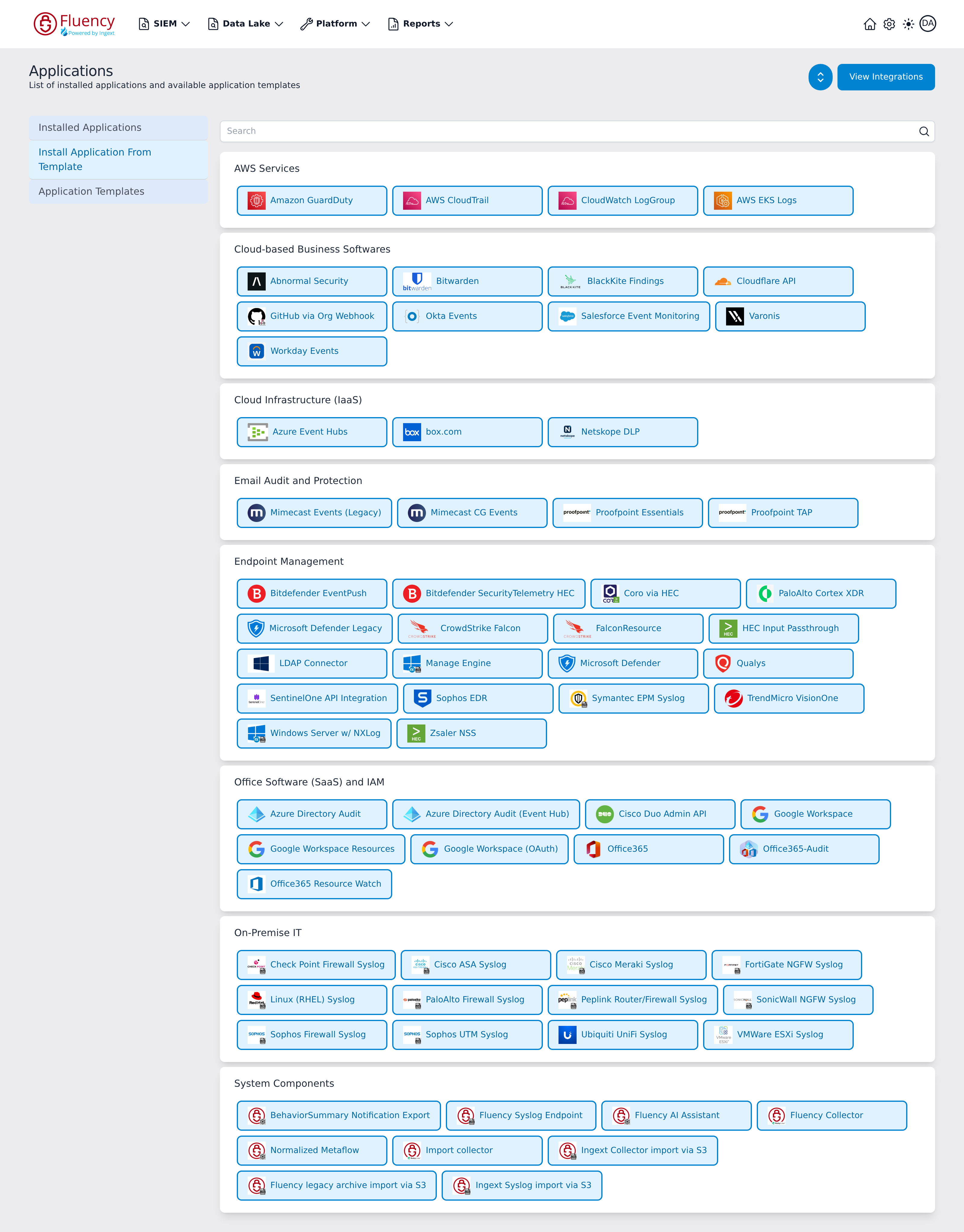
Install Application From Template is the second view of the Applications page, and the way a new source is connected. It presents every application template as a tile, grouped into categories; clicking a tile opens that template's setup form, and submitting the form installs the application.
The Catalog
A Search box spans the top of the content region. Below it, the catalog is a stack of cards, one per category, each holding the tiles for the templates filed under it. Every tile shows the template's icon and display name; the tiles wrap across the card, usually four to a row.
The categories, in the order they appear:
| Category | Templates | What they cover |
|---|---|---|
| AWS Services | 4 | Log sources native to AWS, delivered through S3 and SQS. |
| Cloud-based Business Softwares | 9 | SaaS business applications, polled over their own APIs or pushed to a webhook. |
| Cloud Infrastructure (IaaS) | 3 | Cloud platform log streams and cloud security services. |
| Email Audit and Protection | 4 | Email security gateways. |
| Endpoint Management | 18 | EDR/XDR products and other endpoint telemetry. |
| Office Software (SaaS) and IAM | 9 | Productivity suites and identity providers. |
| On-Premise IT | 12 | Firewalls, routers, hypervisors and servers that send syslog. |
| System Components | 9 | The platform's own components and import jobs. |
The same 68 templates are listed as a table, with their internal template IDs, in the Application Templates view.
The Setup Panel
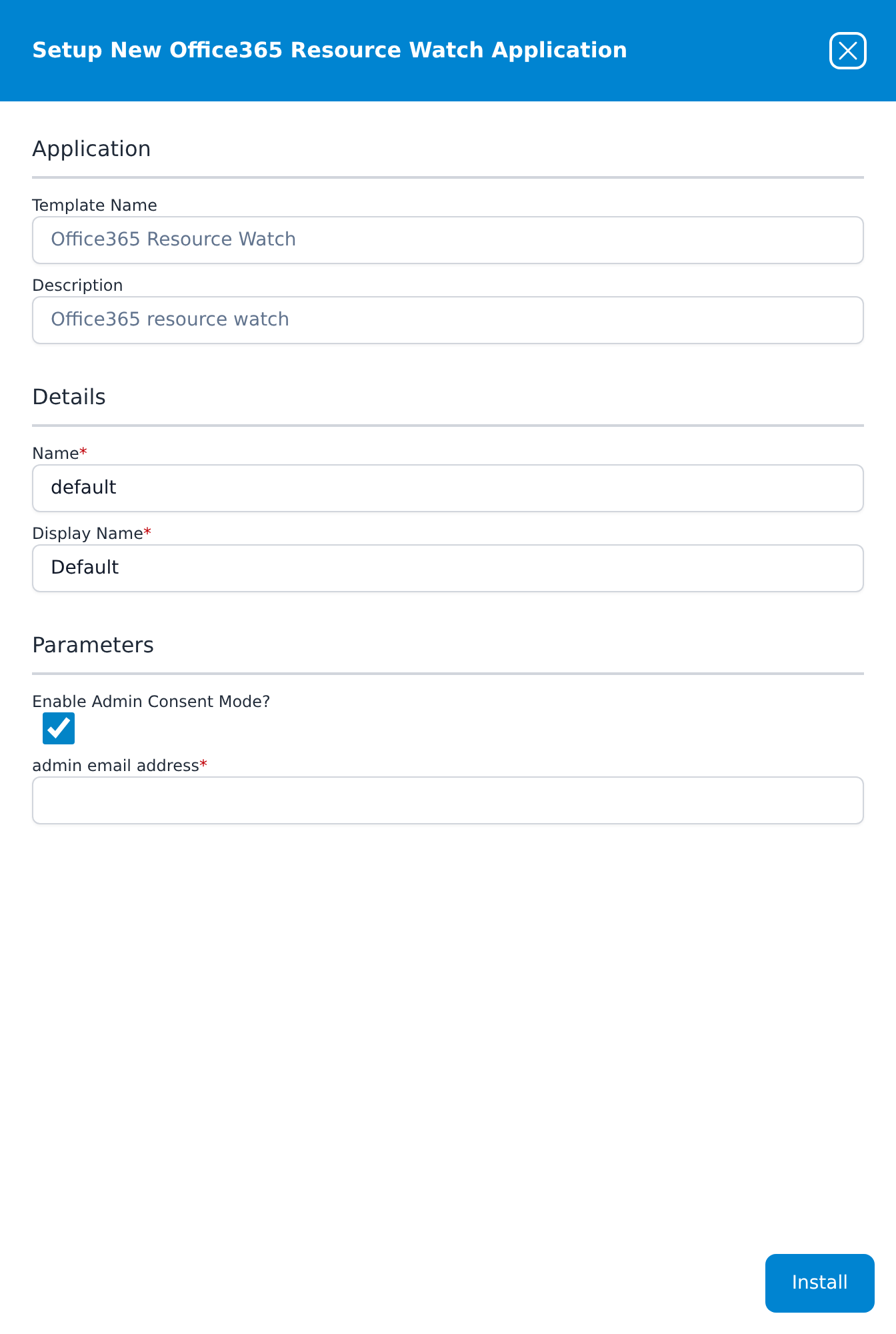
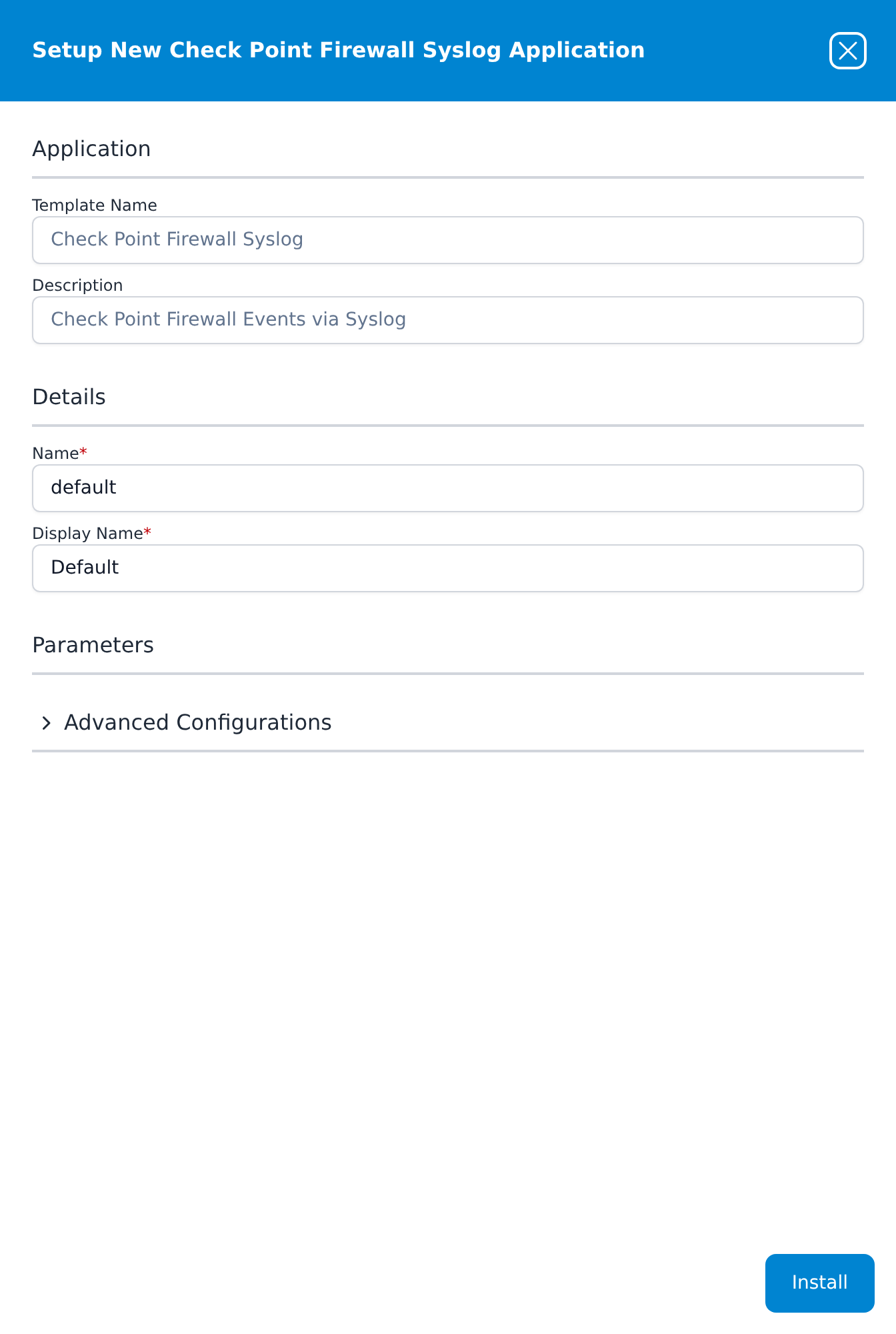
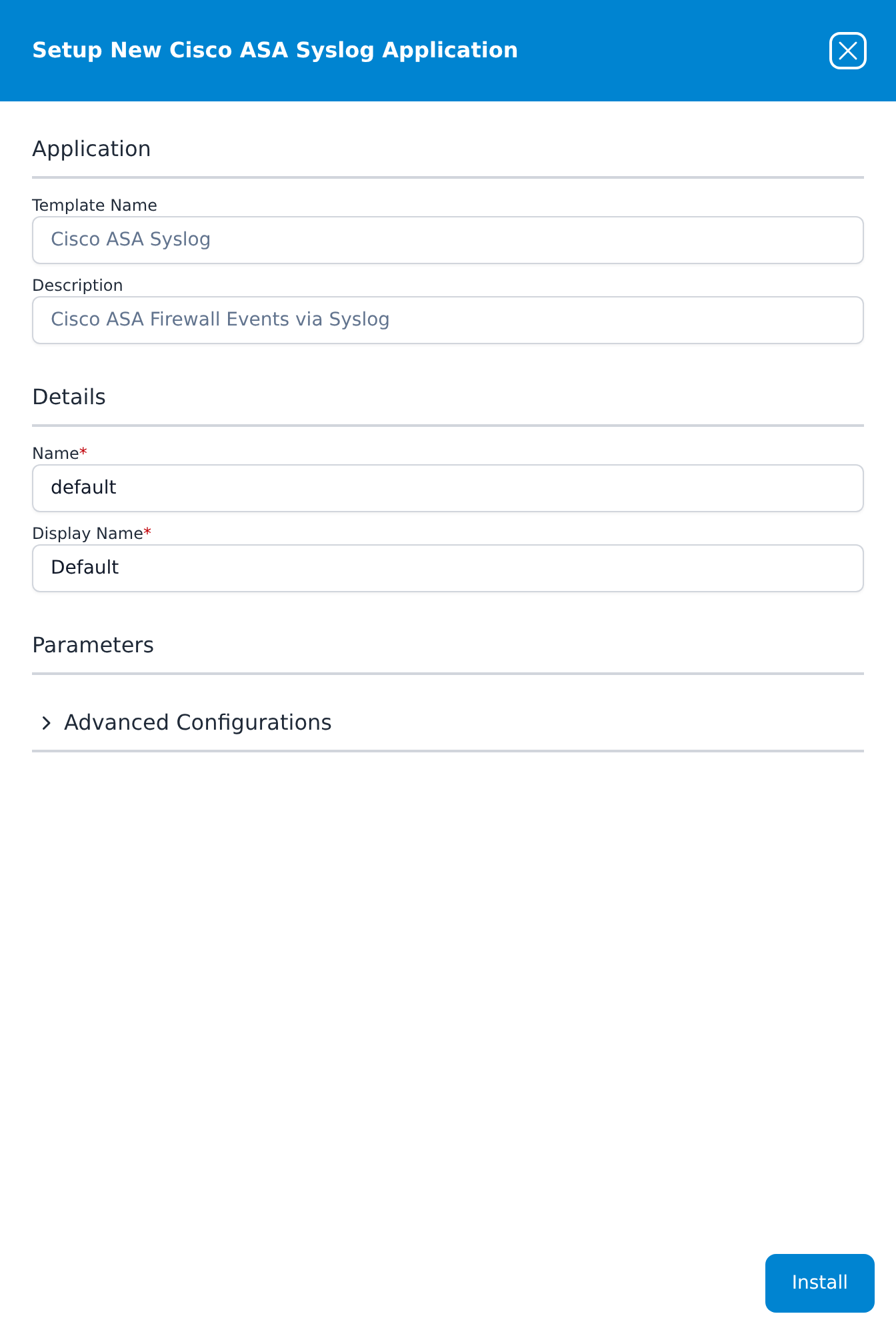
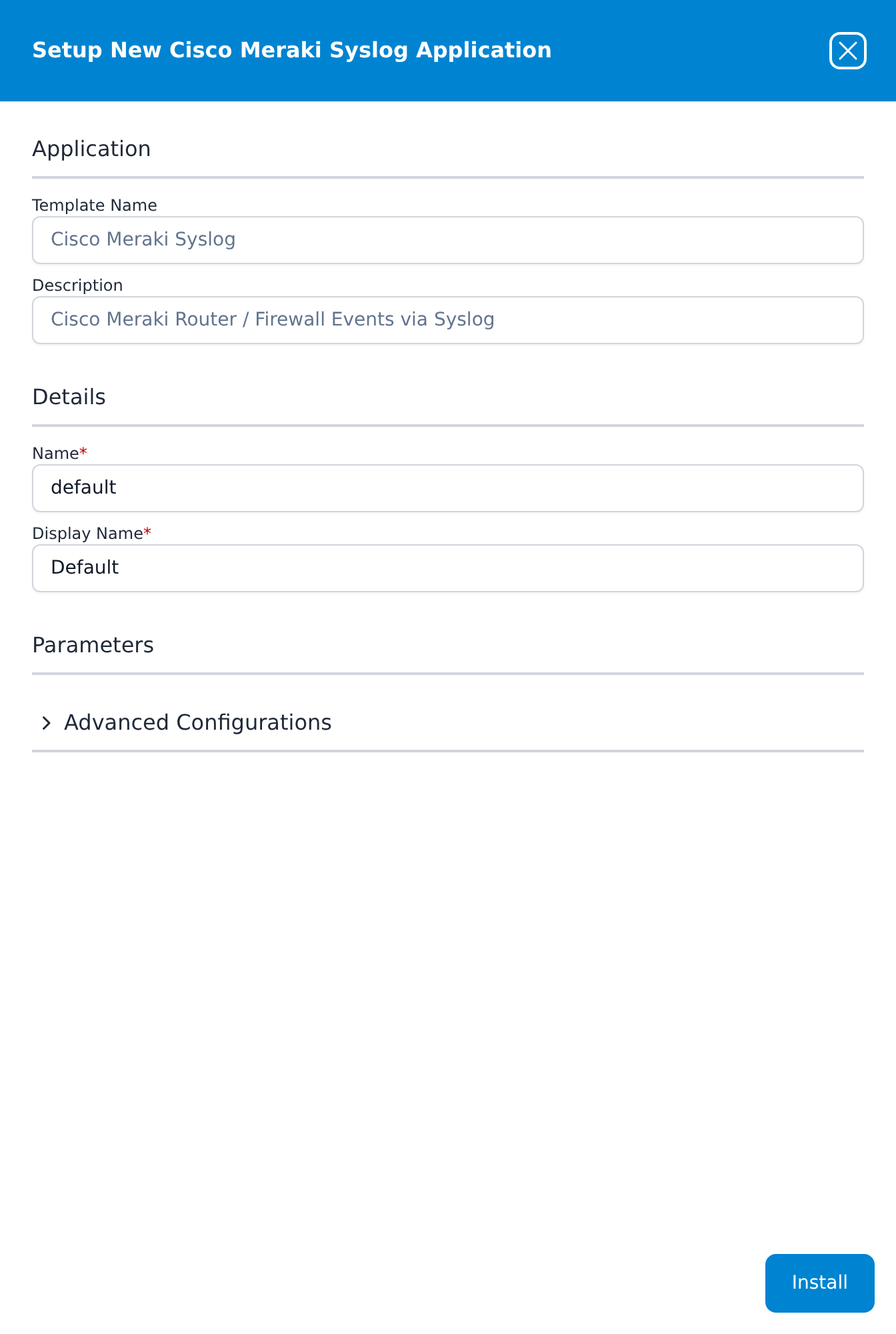
Clicking any tile opens a panel over the right of the page titled Setup New <template> Application. Every template's panel has the same sections and the same footer.
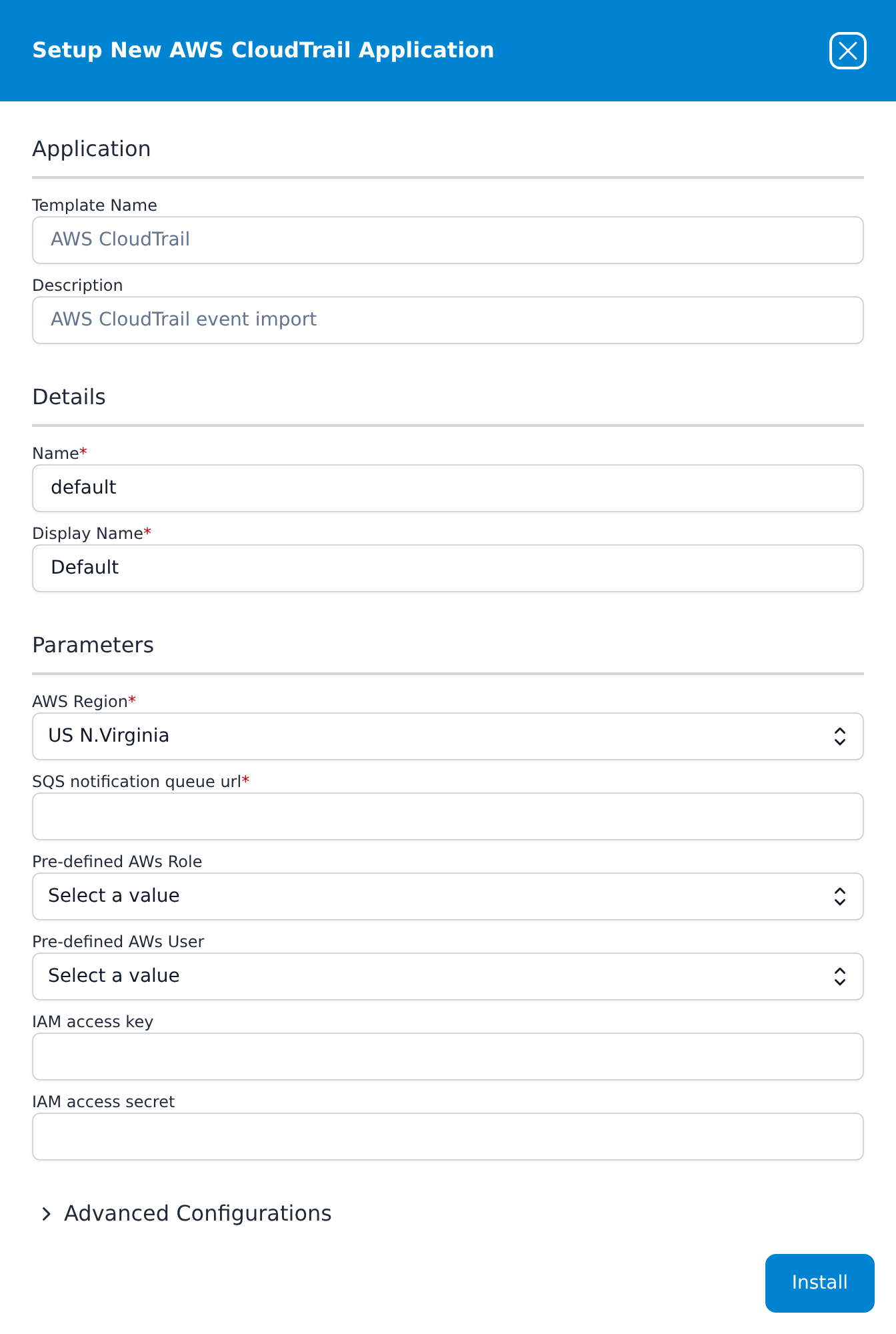
| Section | Fields |
|---|---|
| Application | Template Name and Description, both read-only — they identify the template you clicked. |
| Details | Name and Display Name, both required, pre-filled with default and Default. Name is the internal instance name; Display Name is what the installed application card shows after the application type. Change both when installing a second instance of the same template. |
| Parameters | The template's own fields. Absent entirely for templates that take no parameters; present but empty on templates whose only parameters are the two in Advanced Configurations. |
| Advanced Configurations | A collapsed section, described below. Present only on templates that let you choose where the events land. |
An Install button sits in the lower-right corner; the X in the title bar closes the panel without installing. Required fields are marked with a red asterisk after the label. Fields the template declares sensitive — most secrets, keys, tokens and passwords — are masked as you type.
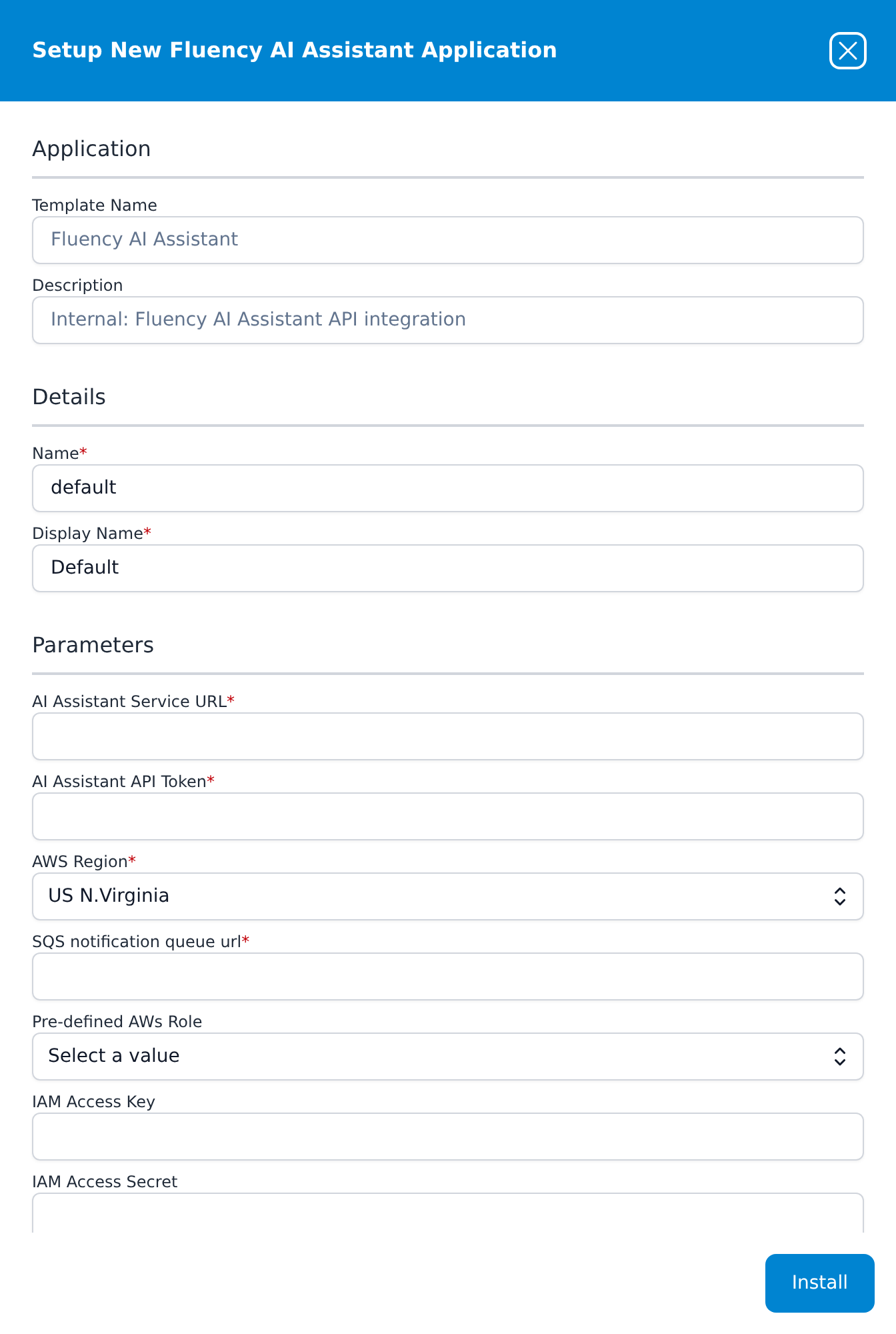
The panel is a fixed height and its body scrolls, so on the longest forms the last parameters sit below the fold when the panel first opens — as IAM Access Secret does on the Fluency AI Assistant panel.
Once installed, the application appears in the Installed Applications view, and the values entered here are shown back — secrets masked — in its details panel.
Advanced Configurations
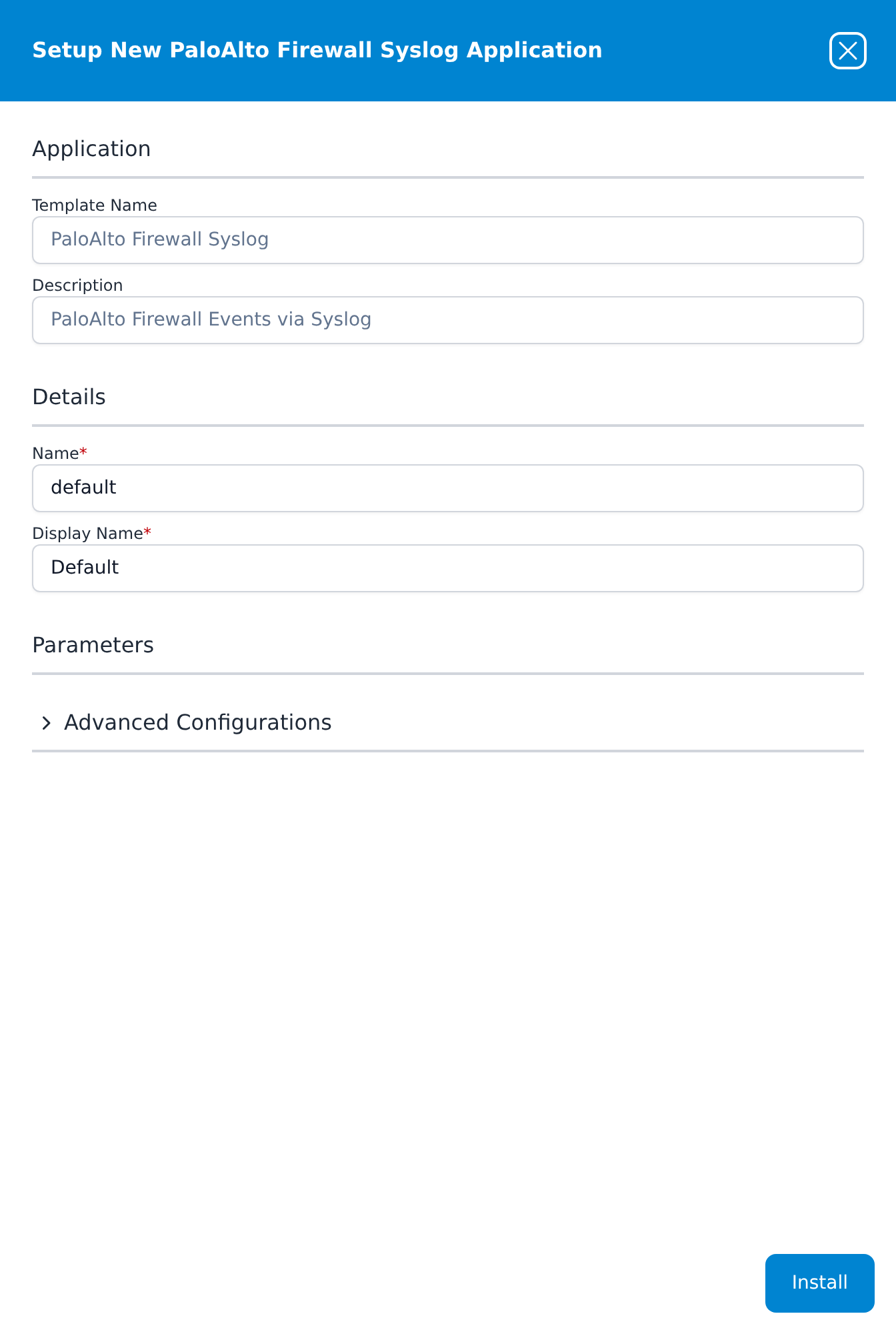
Advanced Configurations is a collapsible row at the bottom of the form, below Parameters and above the Install button. It opens collapsed, with a > chevron beside the label, and it holds the two fields that name the application's destination:
- datalake — the lake to write to, pre-filled with
managed, the platform-managed lake. - datalake index name — the index inside that lake, pre-filled with a name derived from the source, such as
OktaorCiscoASA.
Both carry the red required asterisk and both open pre-filled. One template, Fluency legacy archive import via S3, carries a second datalake index name here as well.
A template has this section exactly when it declares those two parameters, and that is what makes the destination a choice rather than a fixed property of the template. Thirty of the 68 have no such row: some because their output is not a data-lake index at all — a resource set on SIEM → Resources, or a set of pipeline objects — and the rest because the template names the index itself. Microsoft Defender Legacy and Microsoft Defender are the clearest illustration: same three credentials, same description, and the only visible difference is that the second one has this section.
Because the fields are collapsed, the defaults matter: leaving them alone is the common case, and each template's entry below gives the index name it will use. Two applications writing to the same index name in the same lake collide, and the second one aborts — see An aborted application. Three pairs of templates ship with a colliding default: Proofpoint Essentials and Proofpoint TAP both default to Proofpoint, Google Workspace and Google Workspace (OAuth) both to GSuite, and Office365 and Office365-Audit both to Office365. Office365-Audit's second index field also pre-fills AzureAudit, the default of Azure Directory Audit.
Parameters you will meet repeatedly
A few parameters recur across many templates:
- AWS Region, Pre-defined AWs Role, Pre-defined AWs User, IAM access key, IAM access secret — the AWS credential set. The role drop-down lists the roles registered under Settings → AWS Roles. Pre-defined AWs User is an advanced option the AWS guides leave empty. Pick a role or supply an access key and secret, not both.
- Enable Admin Consent Mode? — a checkbox, ticked by default, on the three Microsoft templates that can be authorised by an administrator granting consent instead of by a client secret (Azure Directory Audit, Office365 and Office365 Resource Watch). Unticking it swaps the single admin email address field for Azure Tenant ID, Azure ClientID and Azure ClientSecret.
- Client ID / Client Secret — the OAuth application credentials, under whatever name the vendor uses for them.
Parameters below are required unless marked optional. Where a field opens with a value already in it, that value is shown in italics. A template with no Advanced Configurations line in its entry has no such section on its panel. Labels are reproduced exactly as the interface renders them, including its occasional typos and inconsistent capitalisation.
AWS Services
Amazon GuardDuty
Amazon GuardDuty event import
- AWS Regions — multi-select drop-down, Select Values
- Pre-defined AWs Role (optional) — drop-down
- IAM access key (optional)
- IAM access secret (optional)
Advanced Configurations: datalake — managed · datalake index name — GuardDuty
The one AWS template without an SQS queue field, and the one whose region field takes several regions at once. Like the others, it authenticates with a role or an access key and secret.
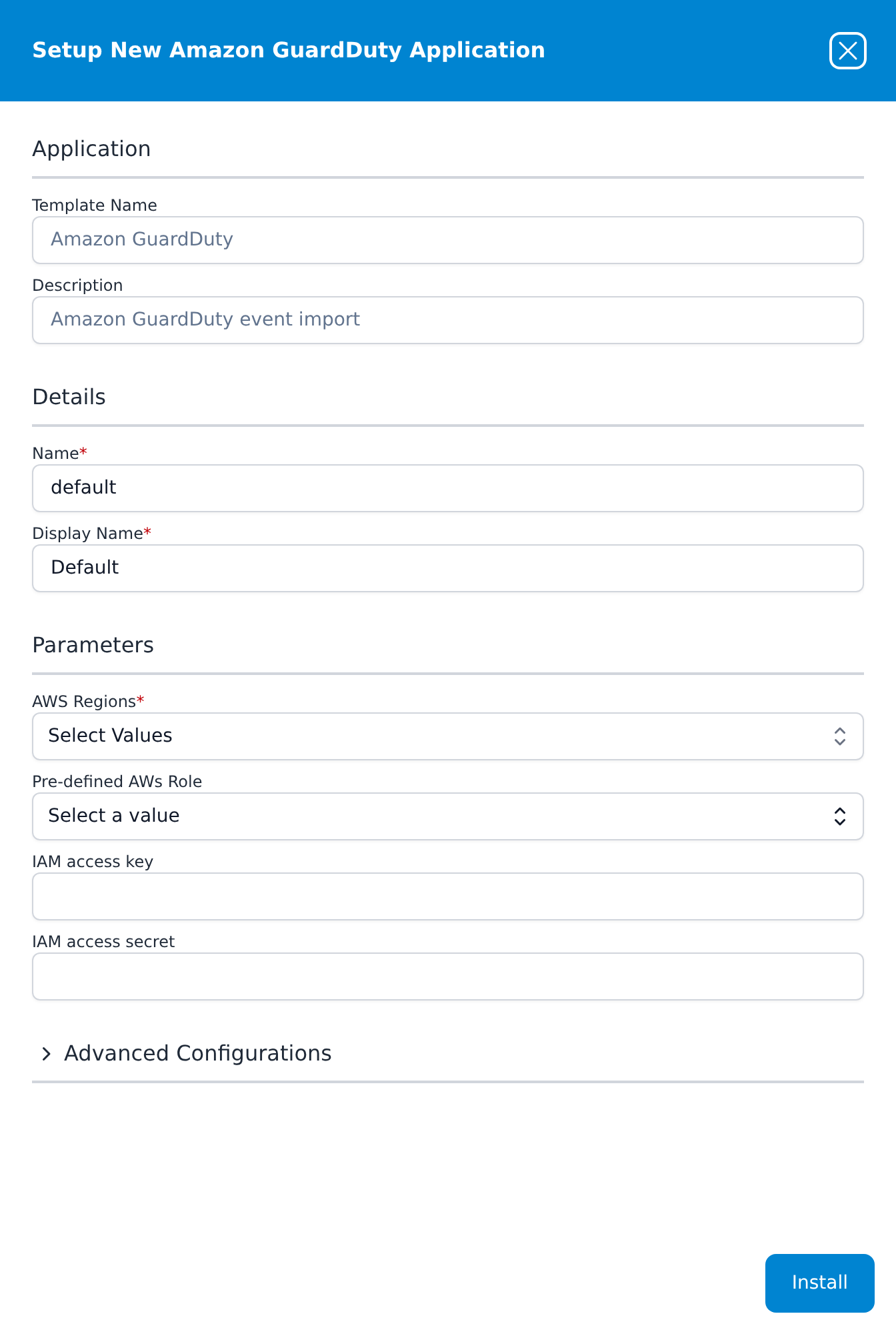
AWS CloudTrail
AWS CloudTrail event import
- AWS Region — drop-down, US N.Virginia
- SQS notification queue url
- Pre-defined AWs Role (optional) — drop-down
- Pre-defined AWs User (optional) — drop-down
- IAM access key (optional)
- IAM access secret (optional)
Advanced Configurations: datalake — managed · datalake index name — CloudTrail
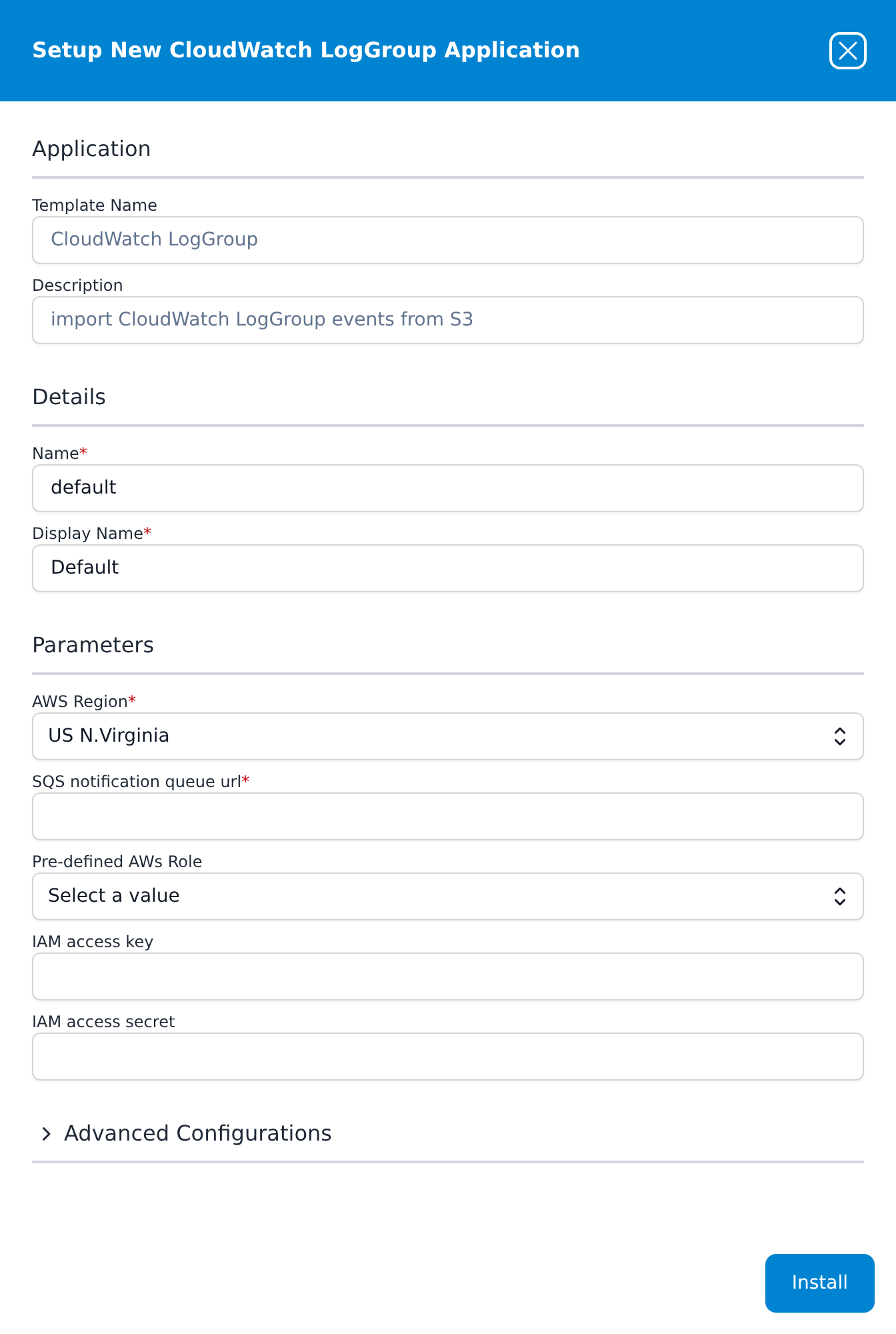
CloudWatch LogGroup
import CloudWatch LogGroup events from S3
- AWS Region — drop-down, US N.Virginia
- SQS notification queue url
- Pre-defined AWs Role (optional) — drop-down
- IAM access key (optional)
- IAM access secret (optional)
Advanced Configurations: datalake — managed · datalake index name — default
Unlike AWS CloudTrail, this template has no Pre-defined AWs User field, and its index name default is the generic default rather than a name derived from the source — set it, or every CloudWatch application on the platform competes for the same index.
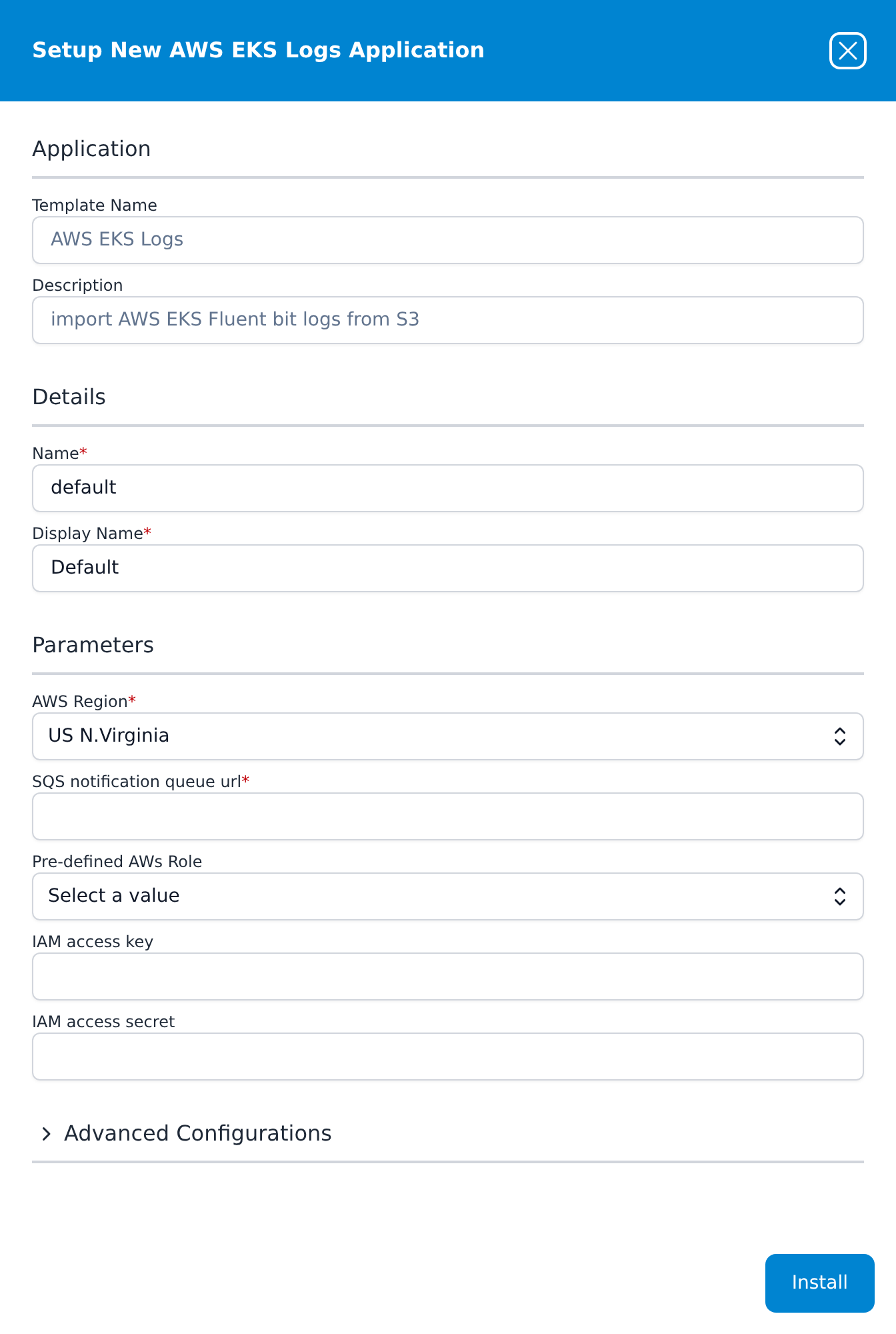
AWS EKS Logs
import AWS EKS Fluent bit logs from S3
- AWS Region — drop-down, US N.Virginia
- SQS notification queue url
- Pre-defined AWs Role (optional) — drop-down
- IAM access key (optional)
- IAM access secret (optional)
Advanced Configurations: datalake — managed · datalake index name — default
The same form as CloudWatch LogGroup, pointed at a bucket that Fluent Bit writes to instead. Its index name default is also default.
→ EKS Logs
Cloud-based Business Softwares
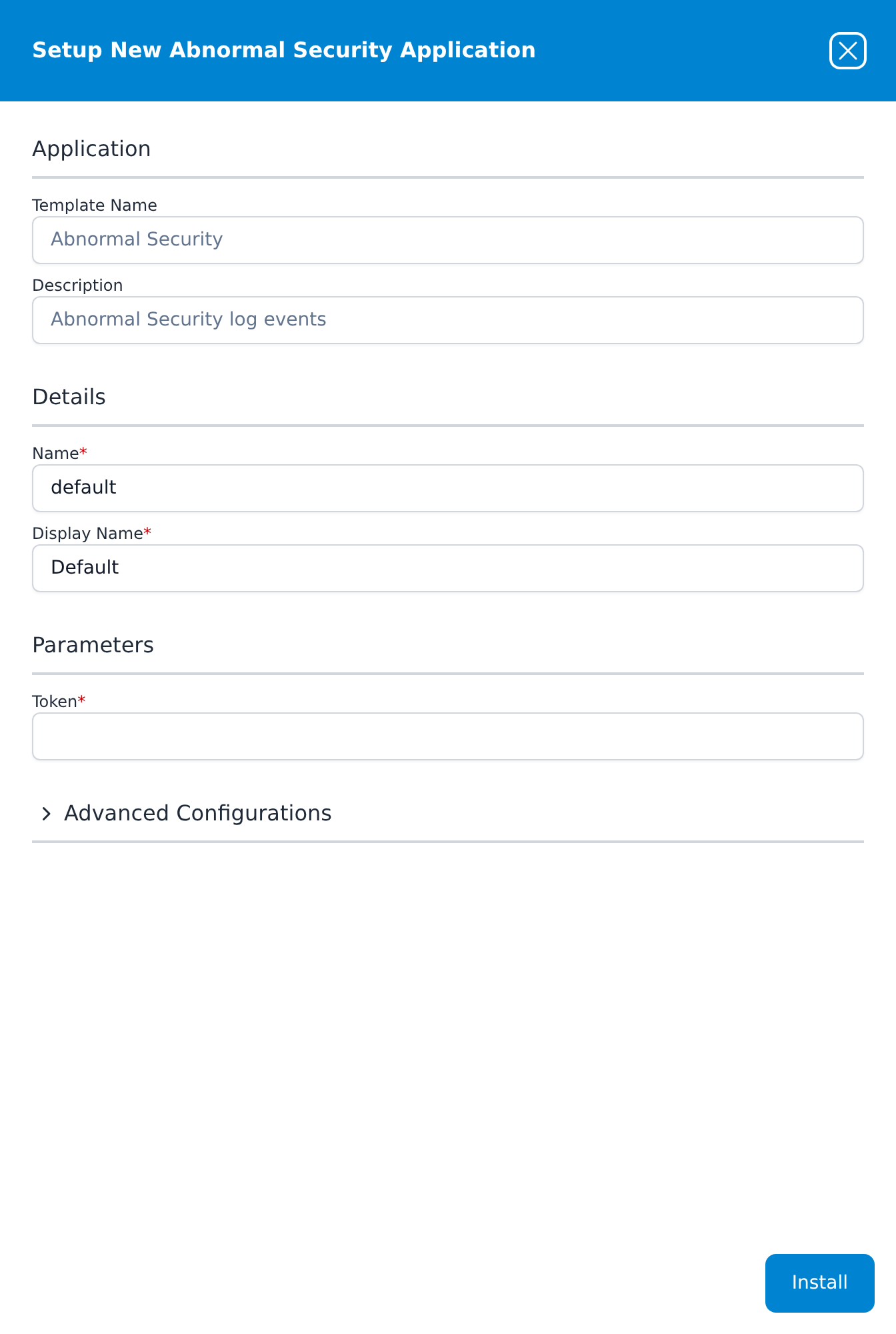
Abnormal Security
Abnormal Security log events
- Token
Advanced Configurations: datalake — managed · datalake index name — AbnormalSecurity
→ Abnormal Security
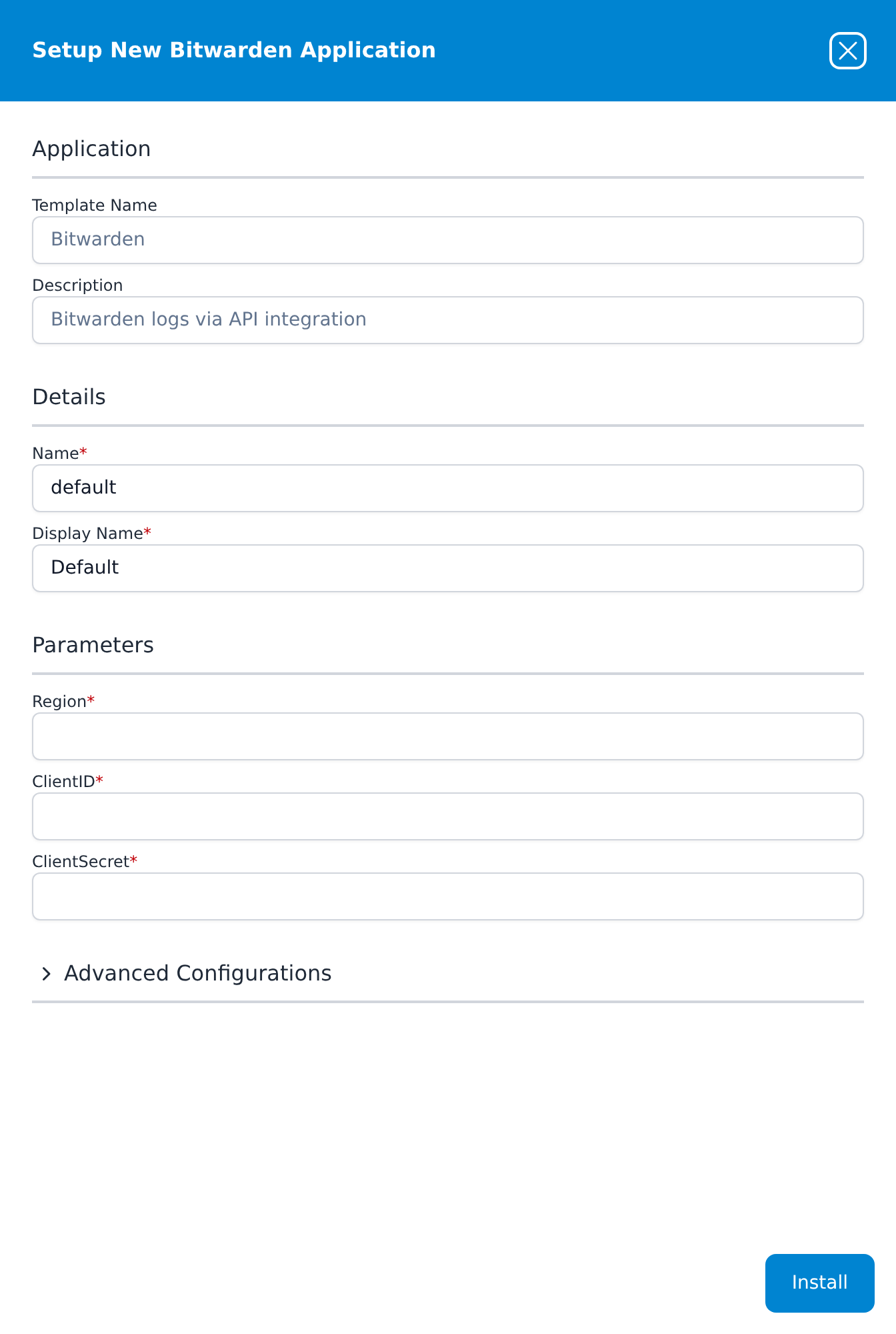
Bitwarden
Bitwarden logs via API integration
- Region — free text, and it opens empty: type the region code your organisation's Bitwarden instance is hosted in
- ClientID
- ClientSecret
Advanced Configurations: datalake — managed · datalake index name — Bitwarden
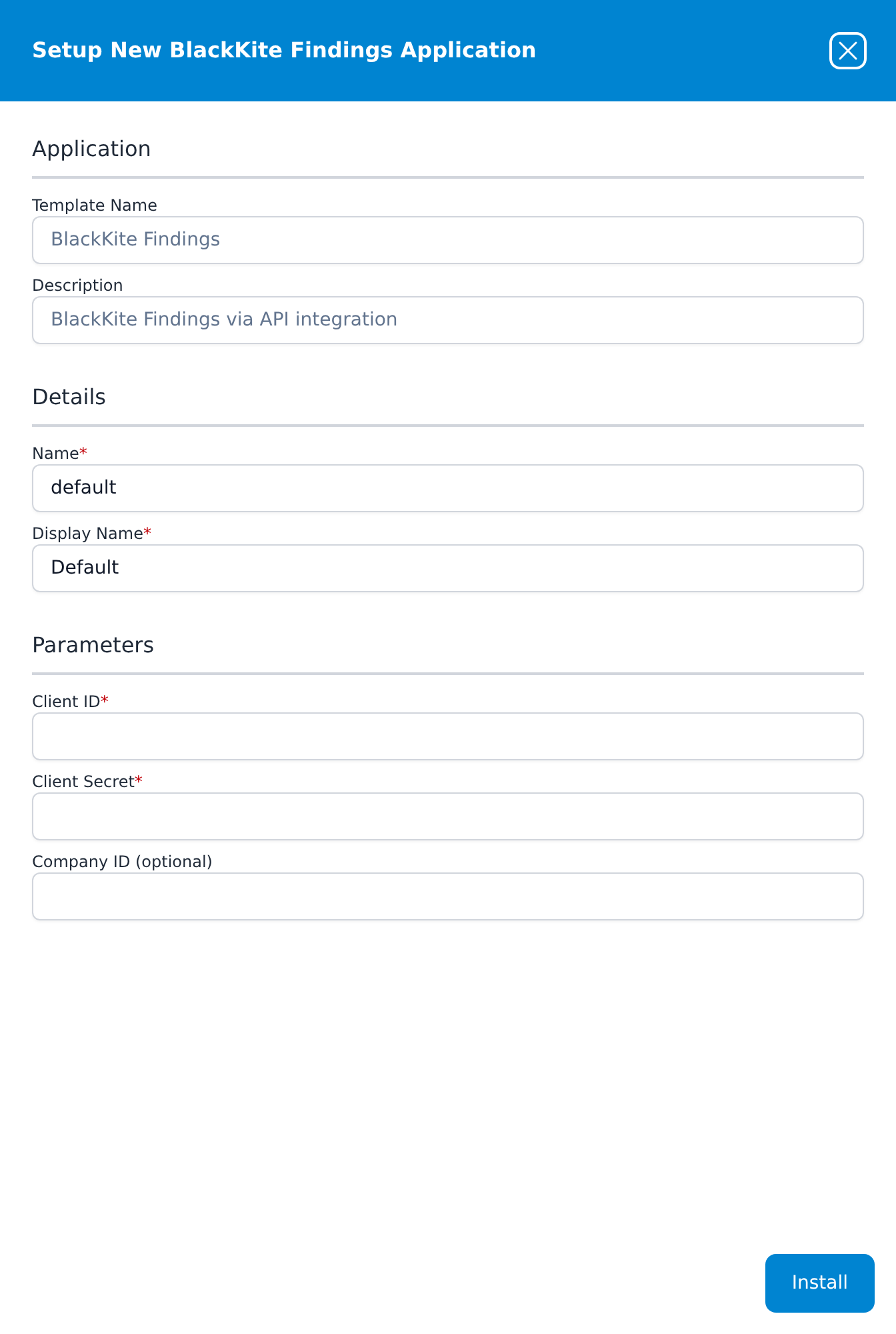
BlackKite Findings
BlackKite Findings via API integration
- Client ID
- Client Secret
- Company ID (optional) (optional)
Company ID takes Black Kite's integer company identifier, the number in the portal's /company/<id>/dashboard URL; left empty, collection covers the whole monitored portfolio.
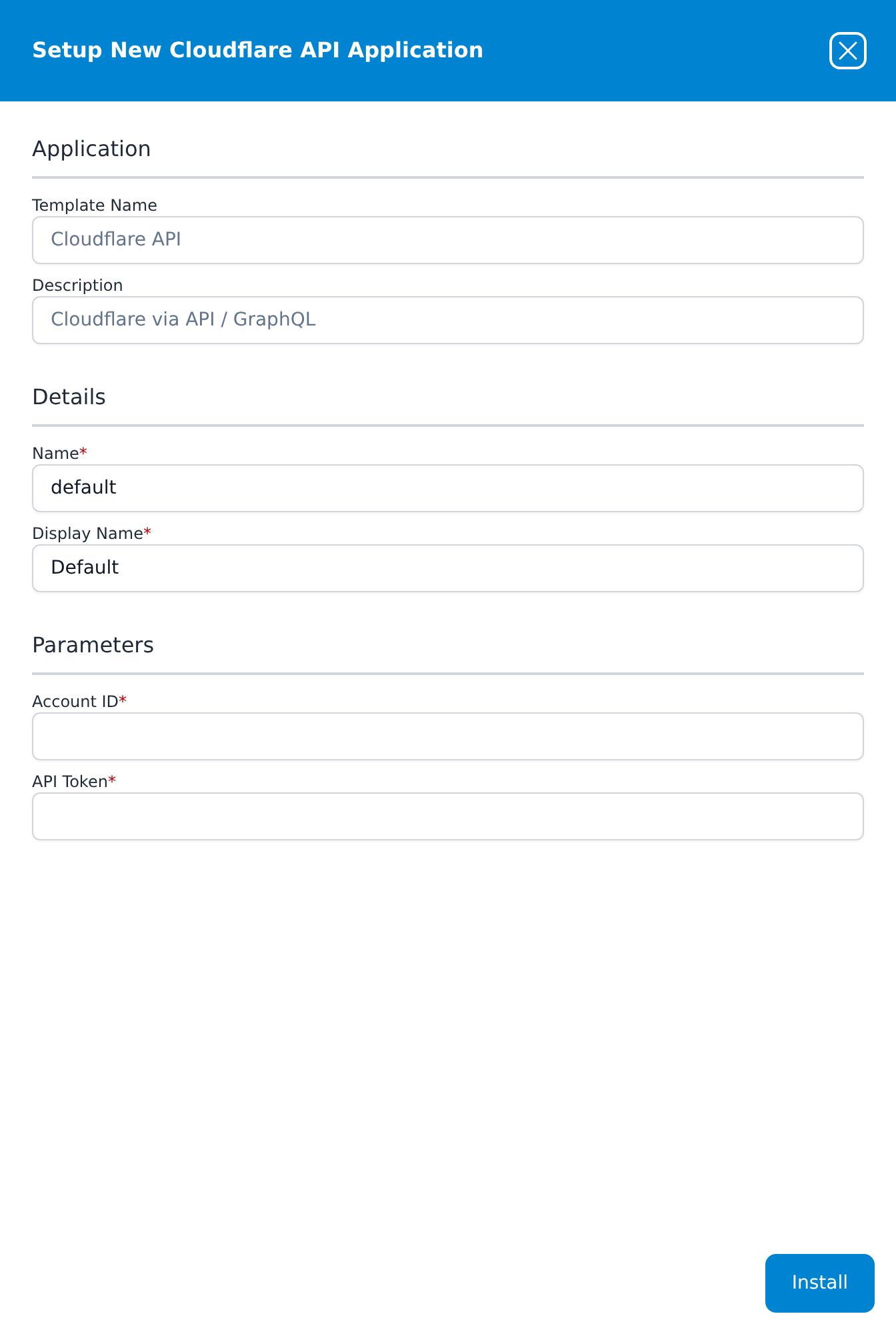
Cloudflare API
Cloudflare via API / GraphQL
- Account ID
- API Token
Both fields are required and both open empty. Account ID is the 32-character hexadecimal identifier shown on the account's overview page in the Cloudflare dashboard, not the zone ID.
This is the pull side of Cloudflare. The Cloudflare Log Push integration type is the push side and takes no configuration at all, because there the vendor is pointed at the platform rather than the other way round. Choose this template when you want the platform to fetch, and Log Push when you want Cloudflare to send.
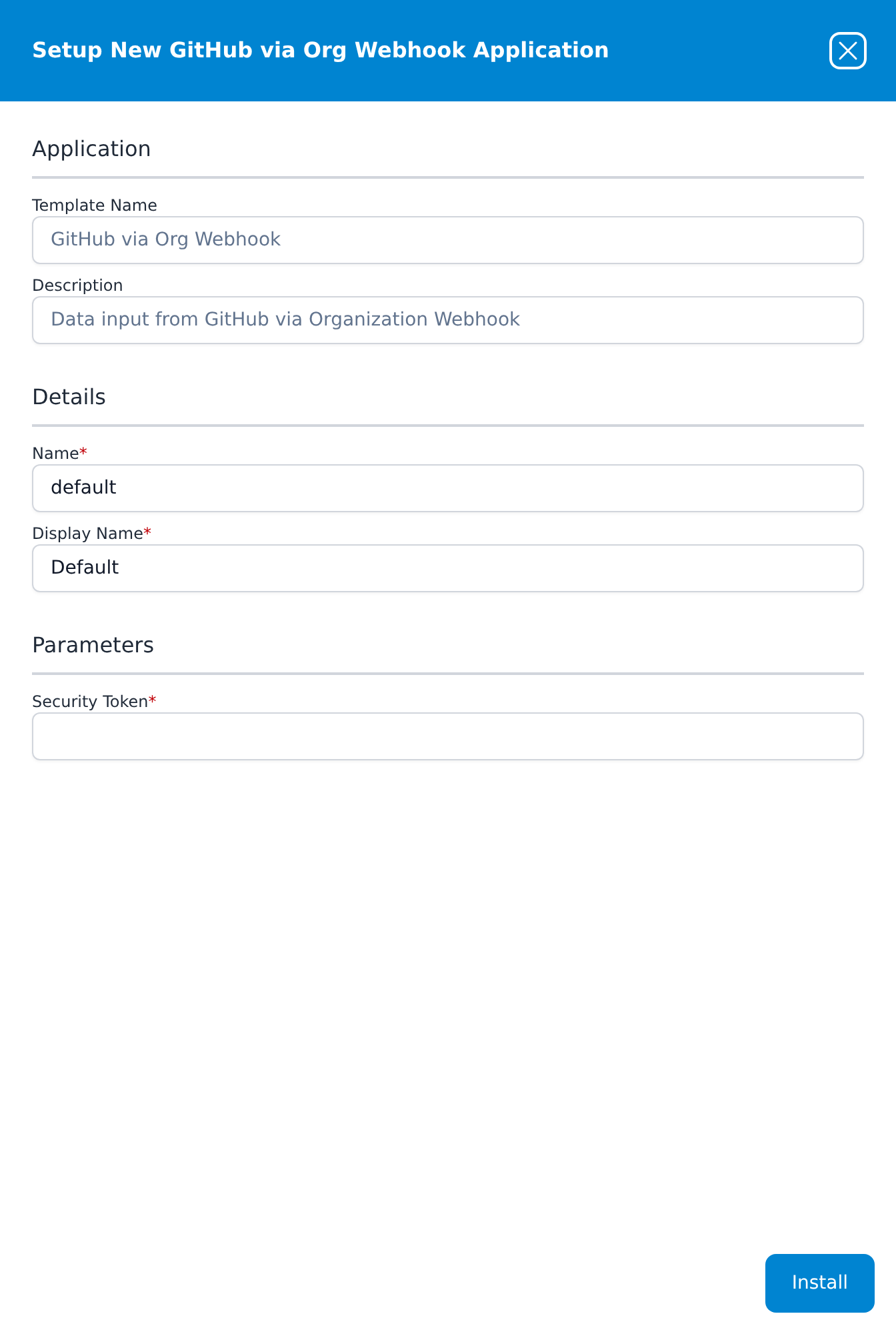
GitHub via Org Webhook
Data input from GitHub via Organization Webhook
- Security Token
The only parameter is a secret you choose rather than one you fetch, and it has to match the value configured on the GitHub side, so decide it before you install. Installing produces a Webhook URL in the application's Outputs, and nothing arrives until that URL and this token are entered in the organisation's webhook settings on GitHub — the install is half the job, and the other half is done afterwards.
Because the source is pushed rather than polled, the pipeline's first node is a Webhook rather than a Plugin Data Source, and the template has no Advanced Configurations section.
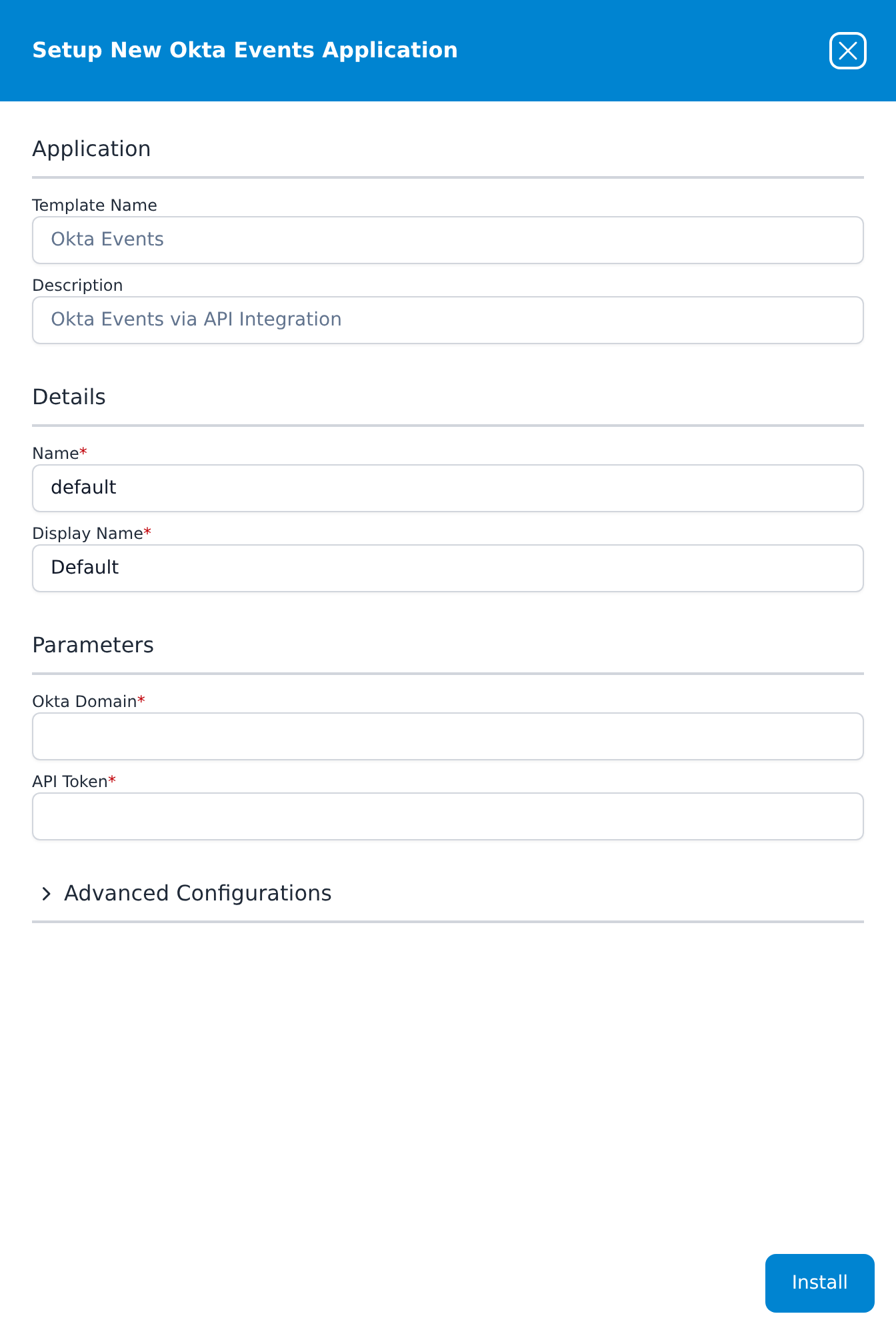
Okta Events
Okta Events via API Integration
- Okta Domain
- API Token
Advanced Configurations: datalake — managed · datalake index name — Okta
→ Okta
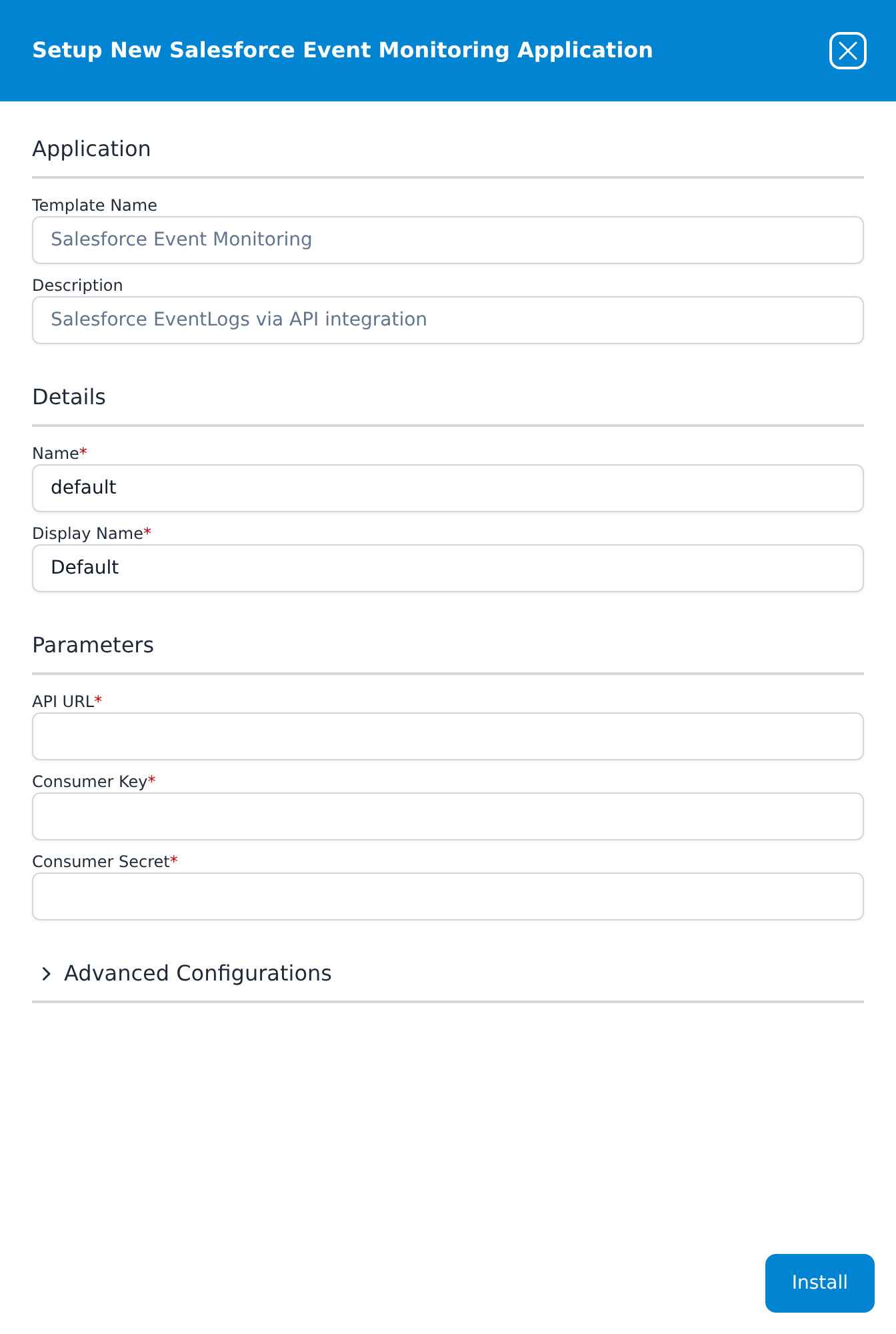
Salesforce Event Monitoring
Salesforce EventLogs via API integration
- API URL
- Consumer Key
- Consumer Secret
Advanced Configurations: datalake — managed · datalake index name — Salesforce
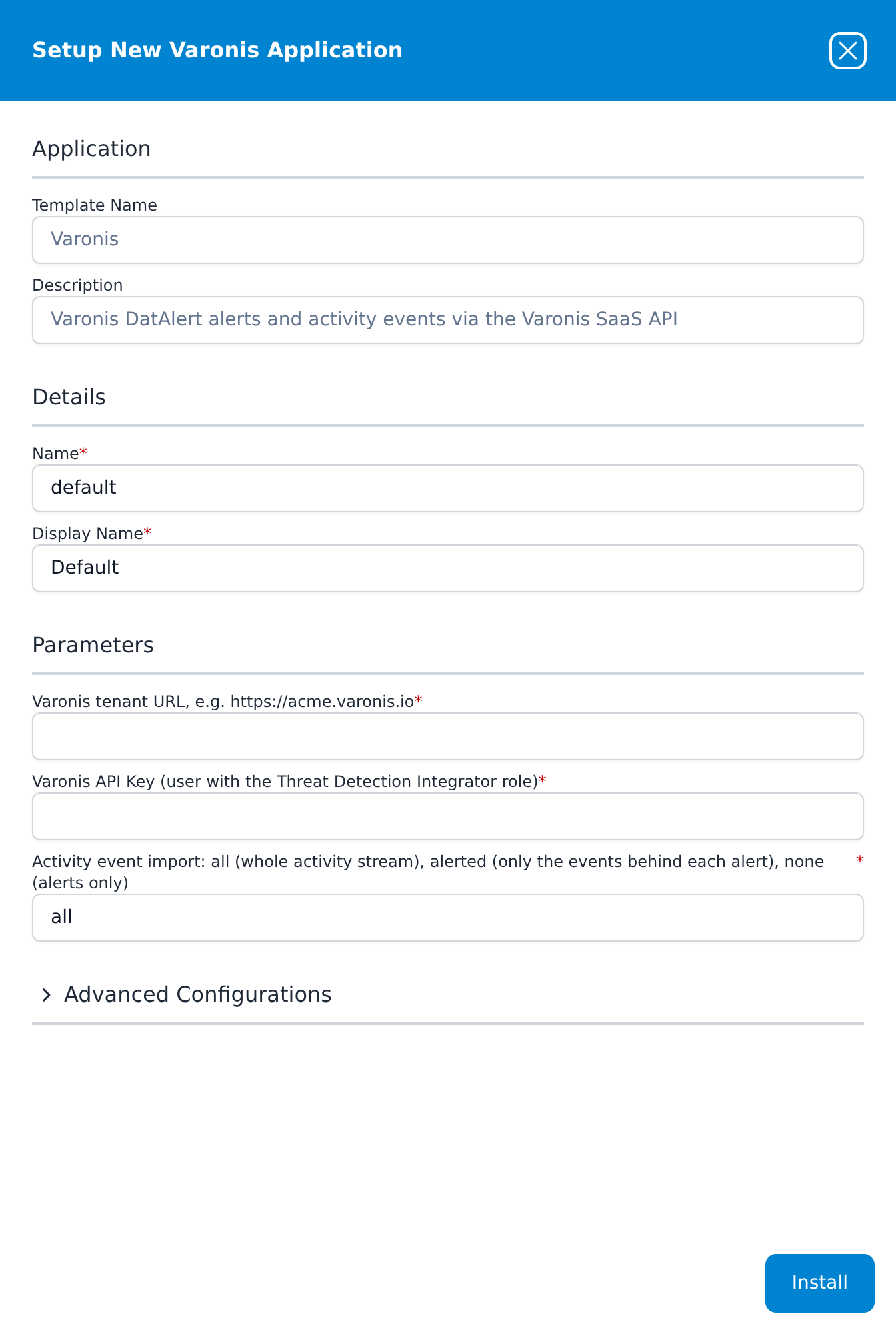
Varonis
Varonis DatAlert alerts and activity events via the Varonis SaaS API
- Varonis tenant URL, e.g. https://acme.varonis.io
- Varonis API Key (user with the Threat Detection Integrator role)
- Activity event import: all (whole activity stream), alerted (only the events behind each alert), none (alerts only) — free text, all
Advanced Configurations: datalake — managed · datalake index name — Varonis
Two of the three labels carry their own instructions, which is unusual for this catalog: the tenant URL field gives the host shape, and the API key field names the Varonis role the key's user must hold. The third is a text field rather than a drop-down even though it accepts only the three values its label lists — all, alerted or none — so it has to be typed correctly.
This template covers the Varonis SaaS API. It is not the path used by on-premise Varonis DatAdvantage, which sends syslog and has no template.
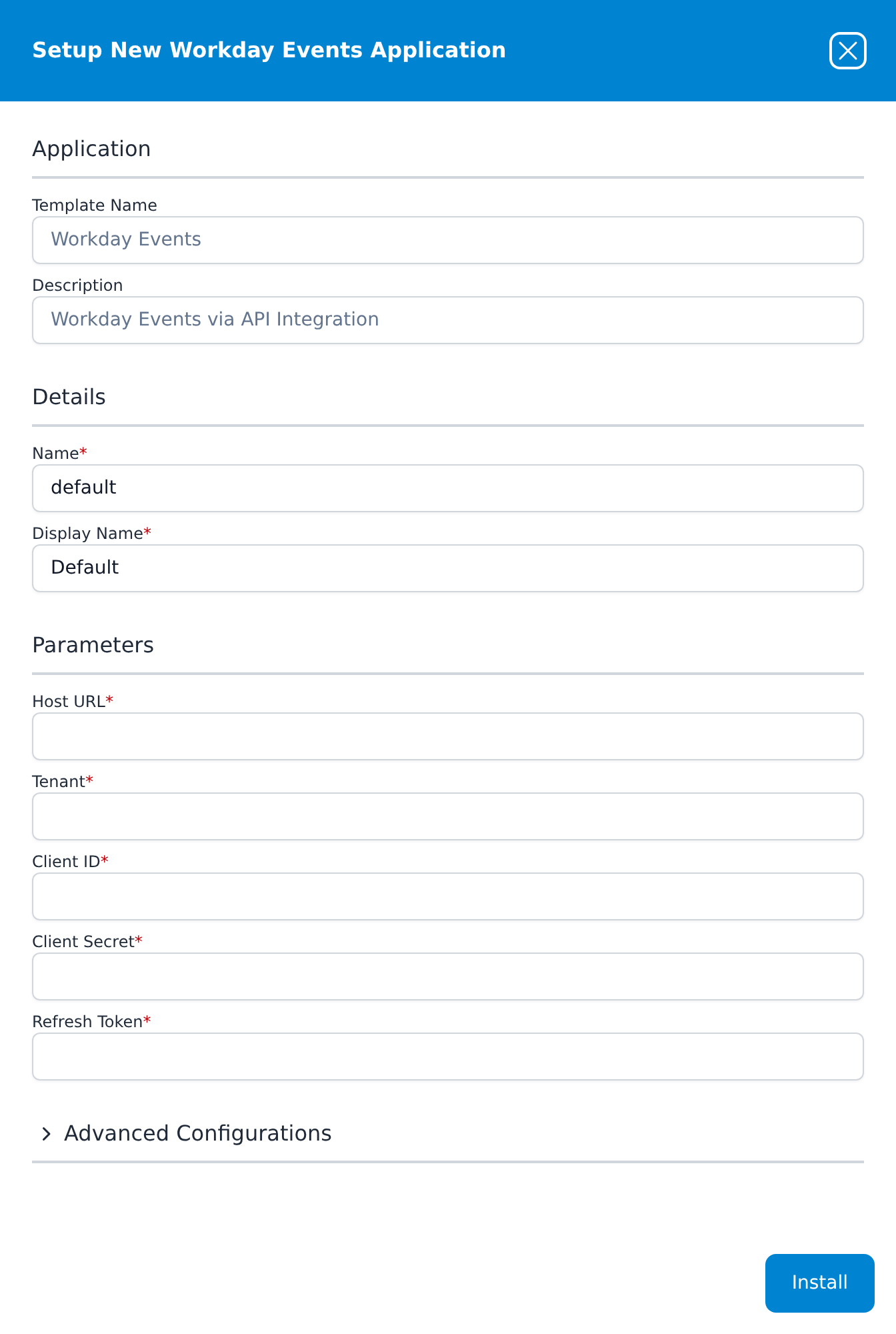
Workday Events
Workday Events via API Integration
- Host URL
- Tenant
- Client ID
- Client Secret
- Refresh Token
Advanced Configurations: datalake — managed · datalake index name — Workday
Host URL takes the pod host from the tenant's Token Endpoint (wd2-impl-services1.workday.com and the like), not the host administrators sign in to. Unlike the other templates here with a clientSecret parameter, this one does not declare it sensitive — only Refresh Token carries that flag — so the form shows Client Secret in the clear while it masks Refresh Token; check the details panel after installing to see whether the secret is masked there.
→ Workday
Cloud Infrastructure (IaaS)
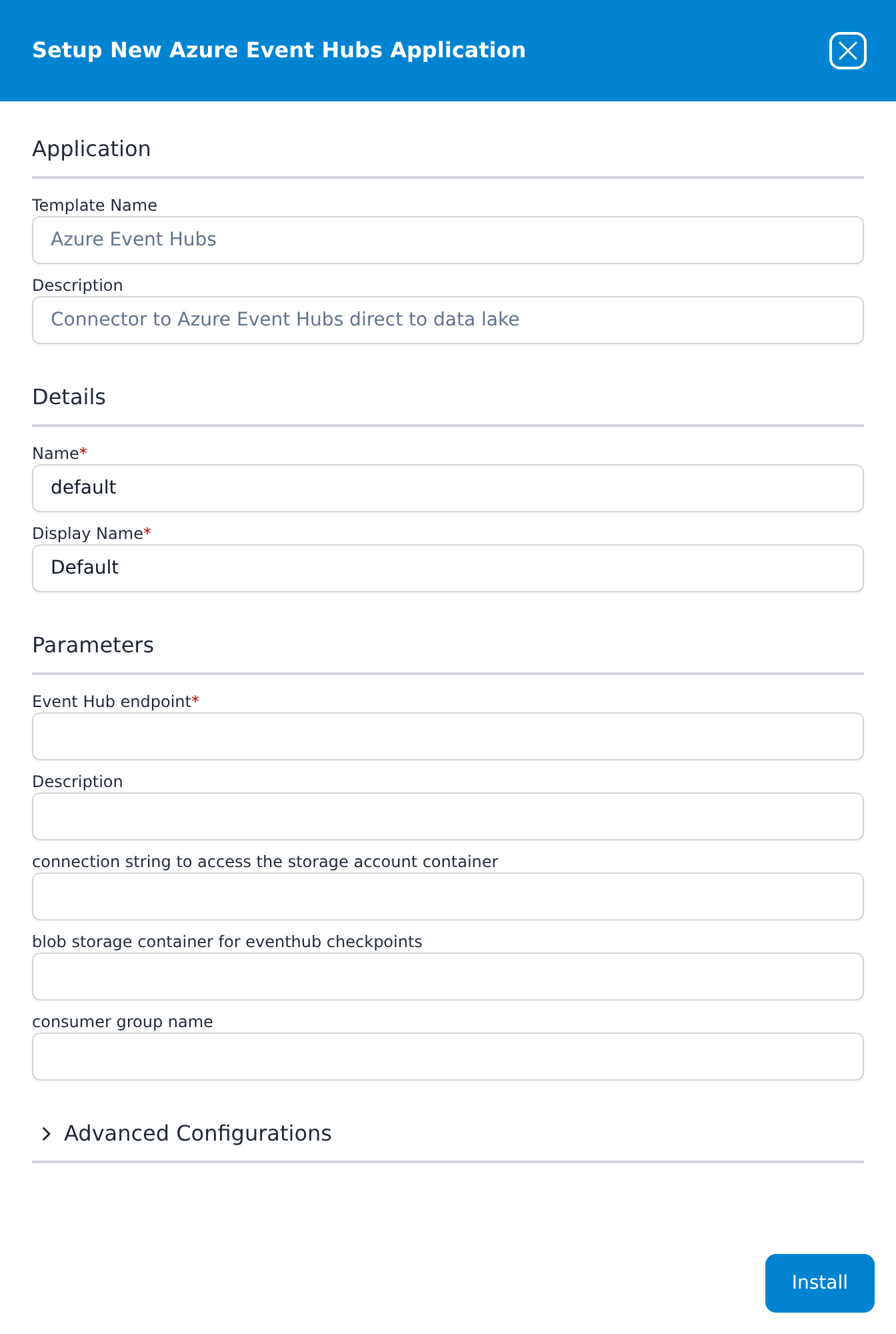
Azure Event Hubs
Connector to Azure Event Hubs direct to data lake
- Event Hub endpoint
- Description (optional) — an editable parameter, distinct from the read-only Description in the Application section above it
- connection string to access the storage account container (optional)
- blob storage container for eventhub checkpoints (optional)
- consumer group name (optional)
Advanced Configurations: datalake — managed · datalake index name — AzureEventHubs
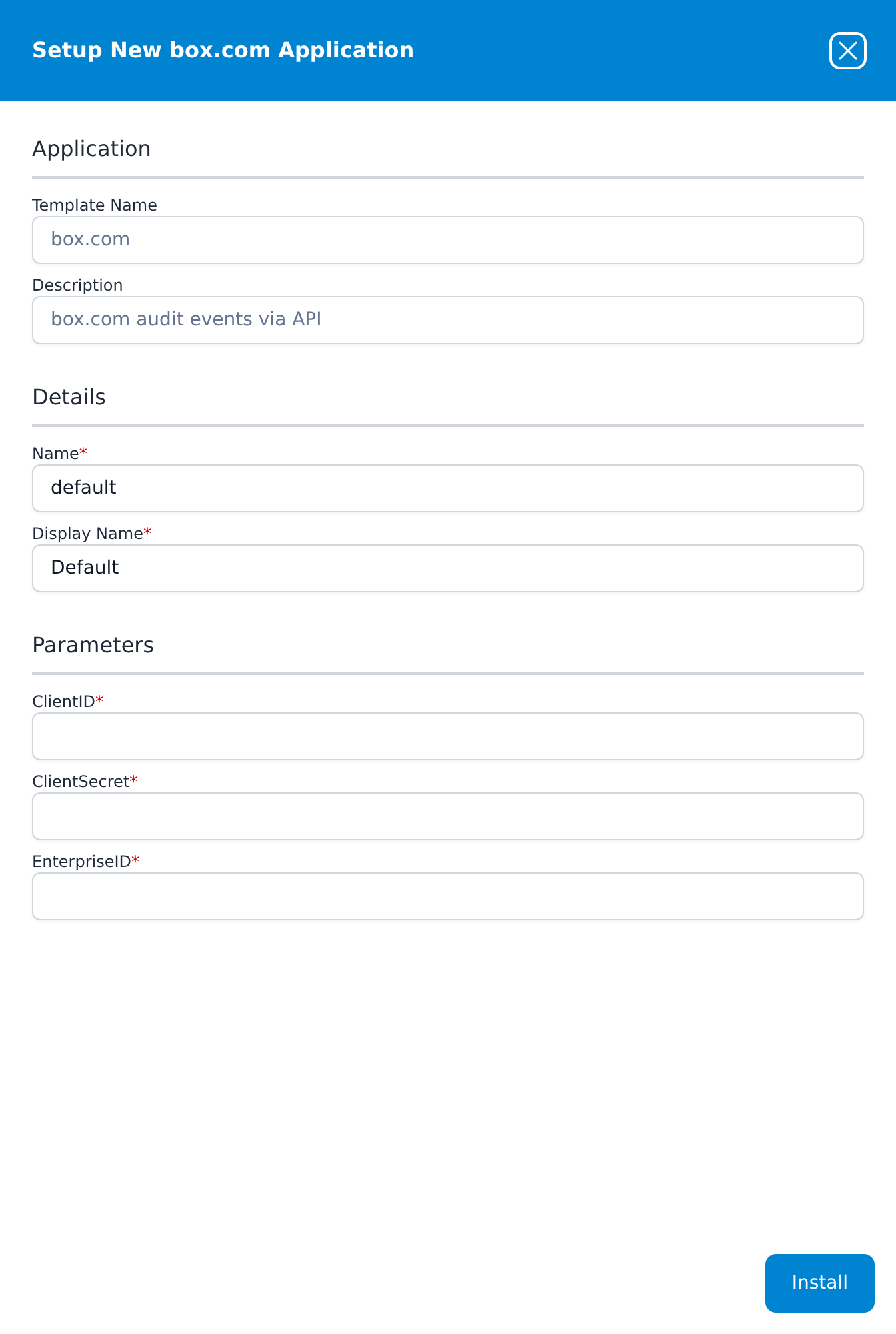
box.com
box.com audit events via API
- ClientID
- ClientSecret
- EnterpriseID
These three parameters declare no label text of their own, so the interface falls back to the parameter names — which is why they read as ClientID rather than Client ID as on most other templates.
→ box.com
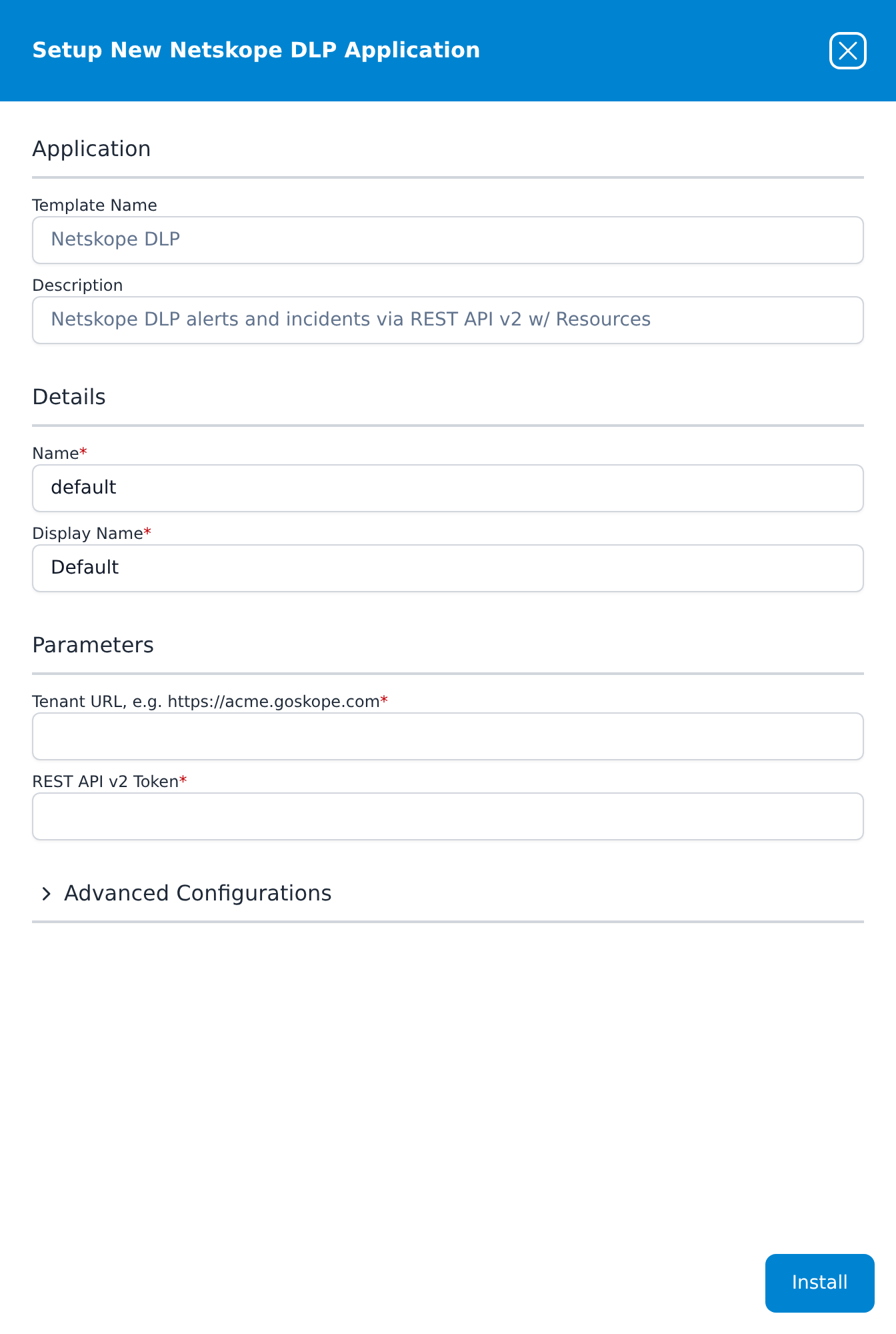
Netskope DLP
Netskope DLP alerts and incidents via REST API v2 w/ Resources
- Tenant URL, e.g. https://acme.goskope.com
- REST API v2 Token
Advanced Configurations: datalake — managed · datalake index name — Netskope
As on Varonis, the tenant URL label carries an example of the host shape. w/ Resources means what it does on CrowdStrike Falcon: the one install sets up two integrations from the same tenant URL and token — a Netskope integration for the alerts and incidents, which land in the index, and a Netskope Resource integration beside it (both types are described on New Integration).
→ Netskope
Email Audit and Protection
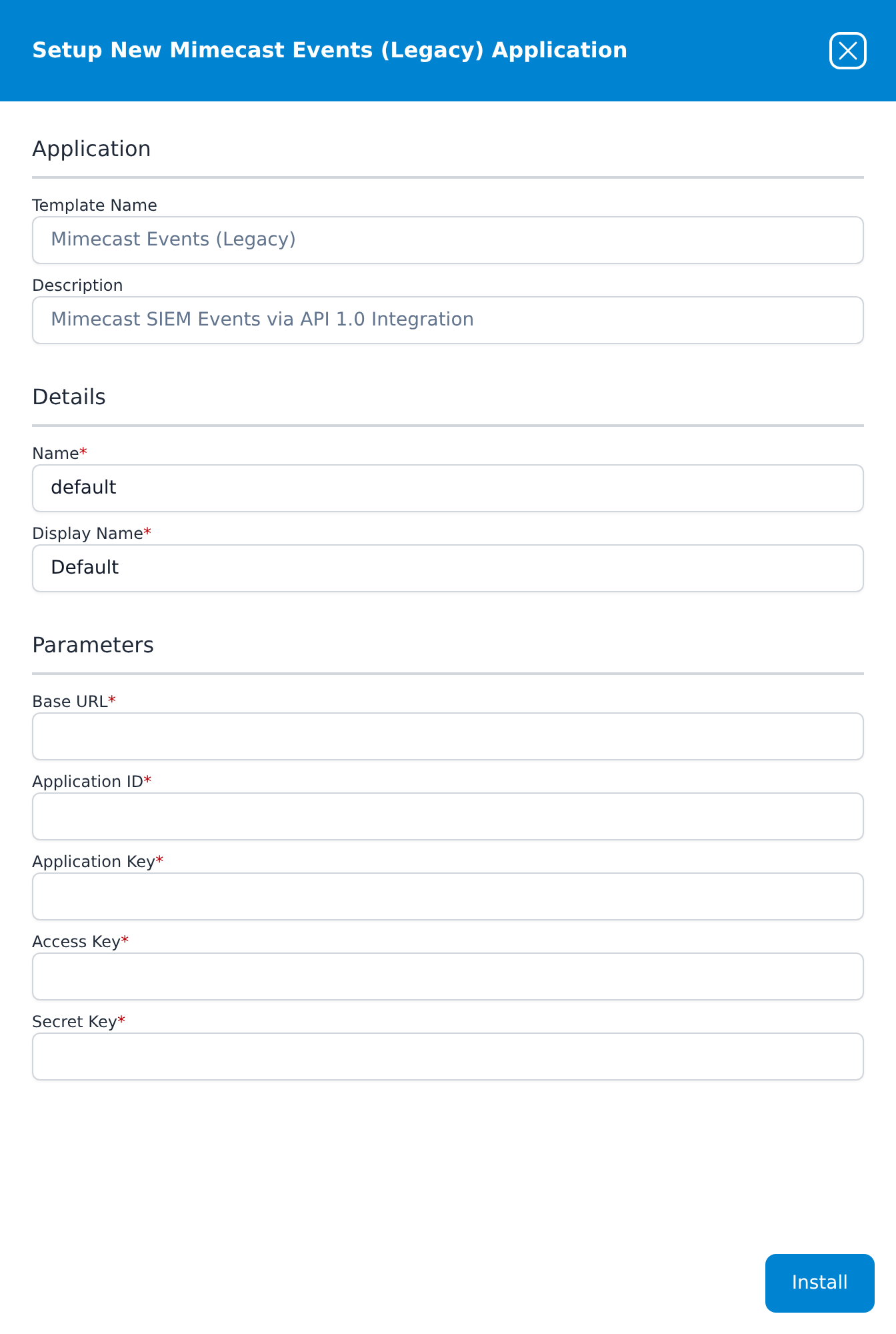
Mimecast Events (Legacy)
Mimecast SIEM Events via API 1.0 Integration
- Base URL
- Application ID
- Application Key
- Access Key
- Secret Key
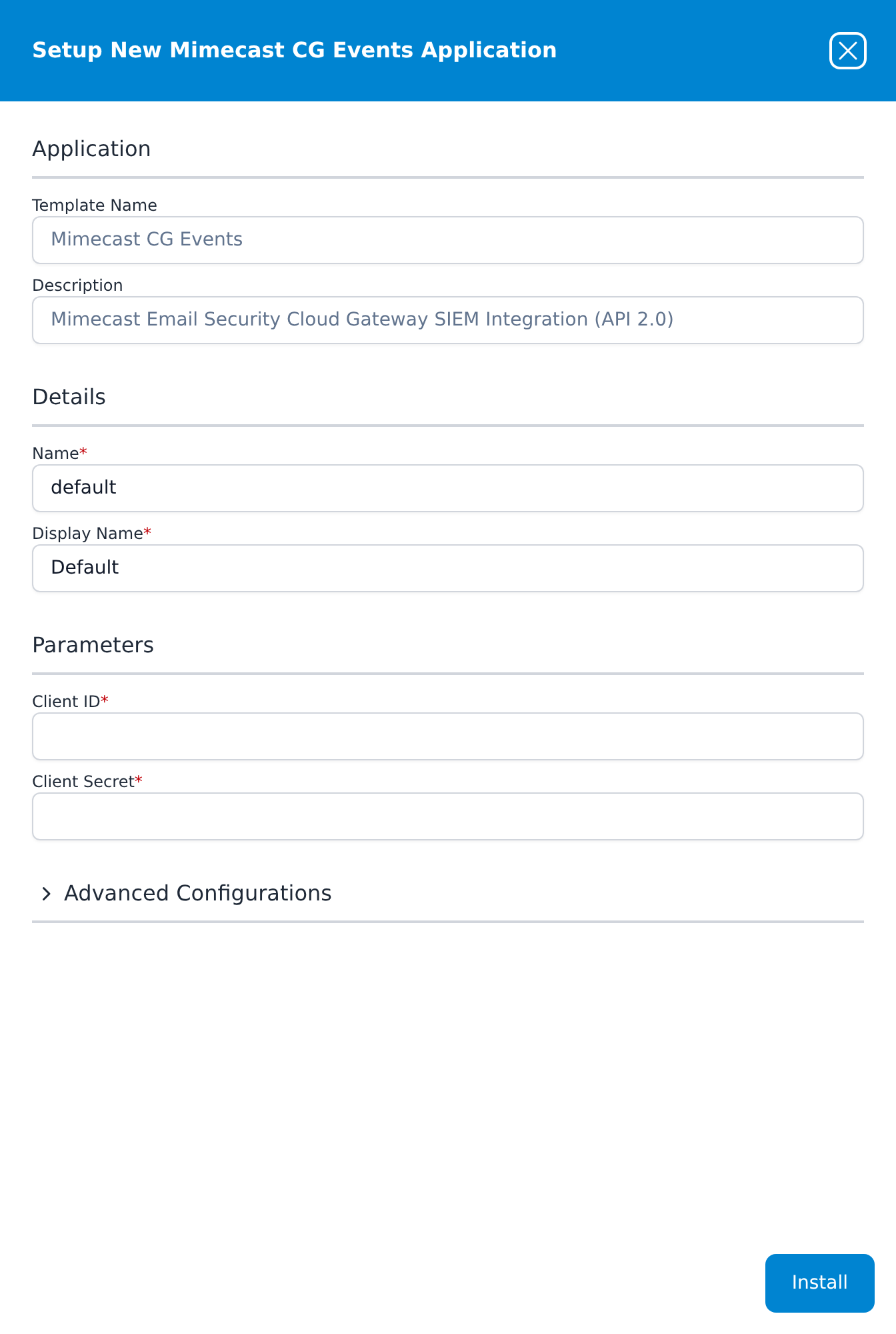
Mimecast CG Events
Mimecast Email Security Cloud Gateway SIEM Integration (API 2.0)
- Client ID
- Client Secret
Advanced Configurations: datalake — managed · datalake index name — Mimecast
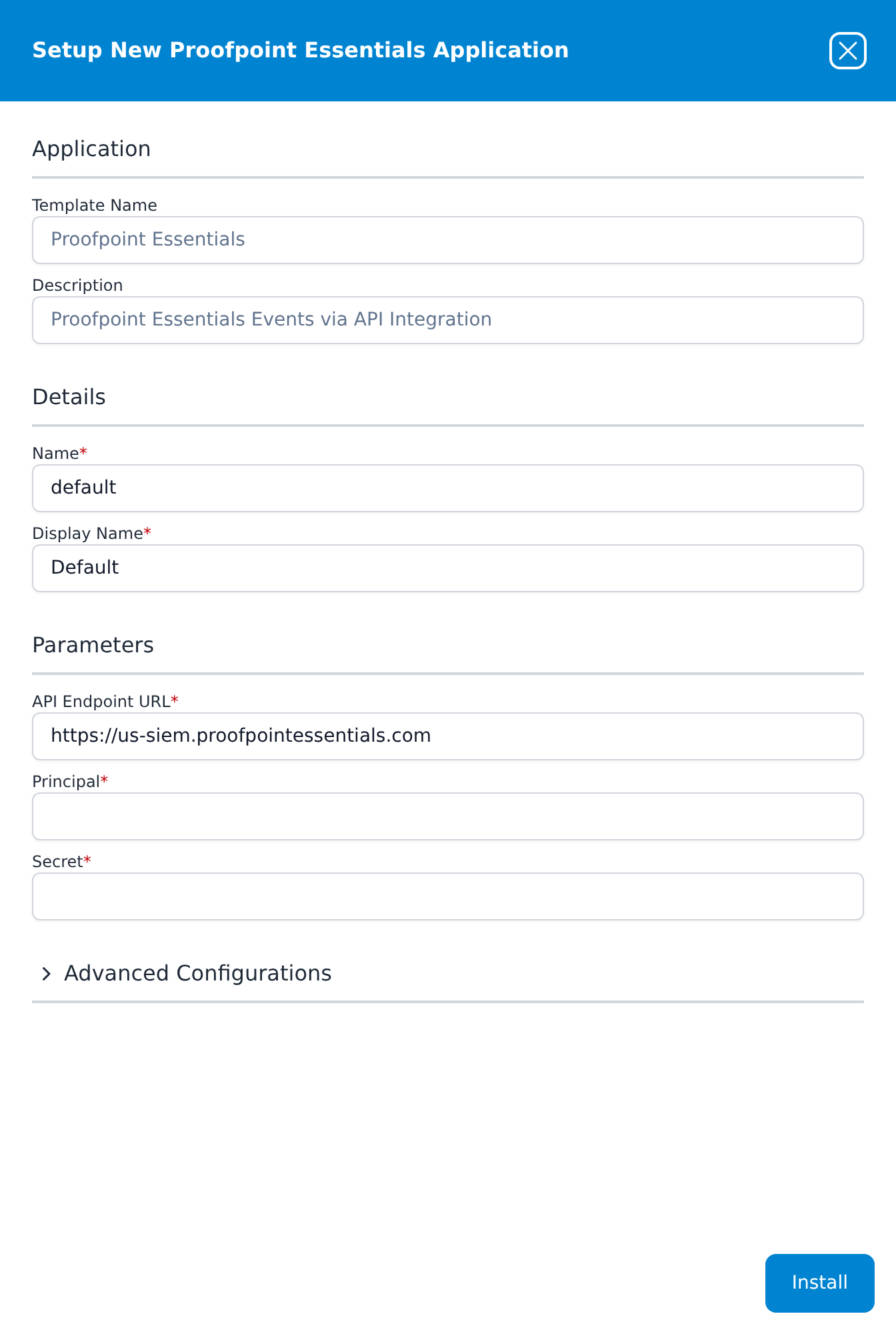
Proofpoint Essentials
Proofpoint Essentials Events via API Integration
- API Endpoint URL — https://us-siem.proofpointessentials.com
- Principal
- Secret
Advanced Configurations: datalake — managed · datalake index name — Proofpoint
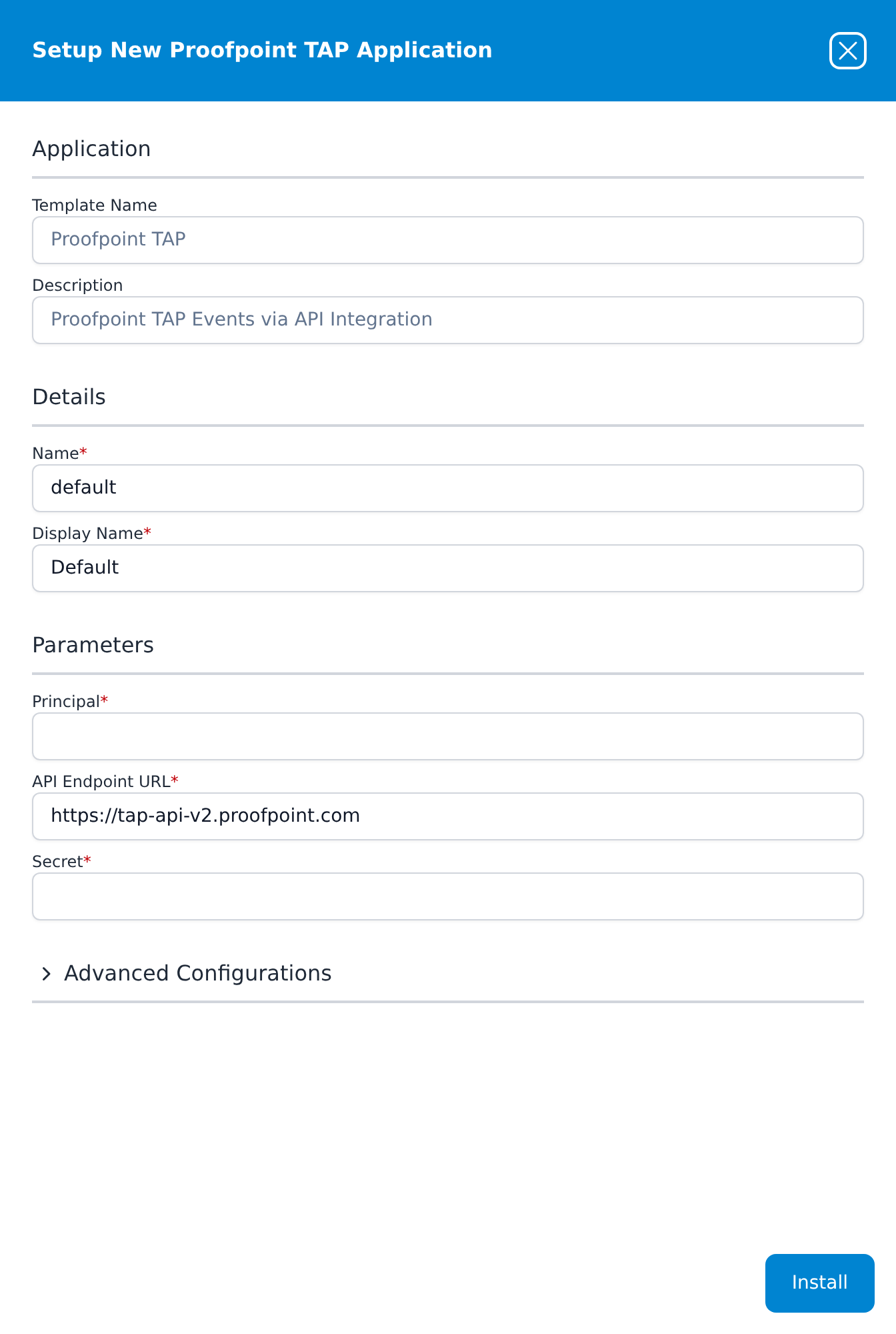
Proofpoint TAP
Proofpoint TAP Events via API Integration
- Principal
- API Endpoint URL — https://tap-api-v2.proofpoint.com
- Secret
Advanced Configurations: datalake — managed · datalake index name — Proofpoint
The endpoint field sits between Principal and Secret here, rather than first as on Proofpoint Essentials. Both templates default their index name to Proofpoint, so a platform running both has to change one of them.
Endpoint Management
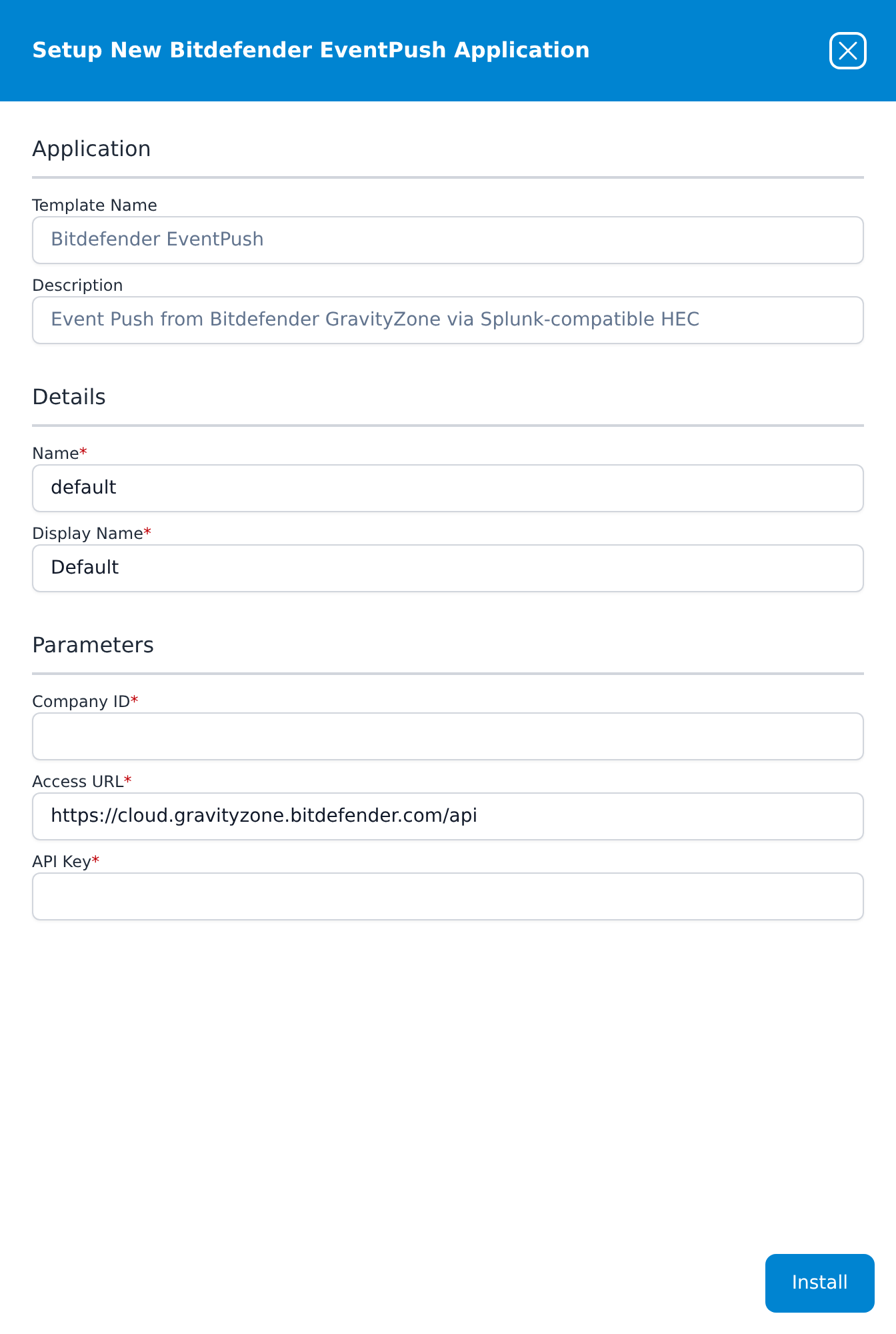
Bitdefender EventPush
Event Push from Bitdefender GravityZone via Splunk-compatible HEC
- Company ID
- Access URL — https://cloud.gravityzone.bitdefender.com/api
- API Key
The installation produces an HEC Server URL and an HEC Security Token under Outputs in the details panel — that is the endpoint GravityZone pushes to.
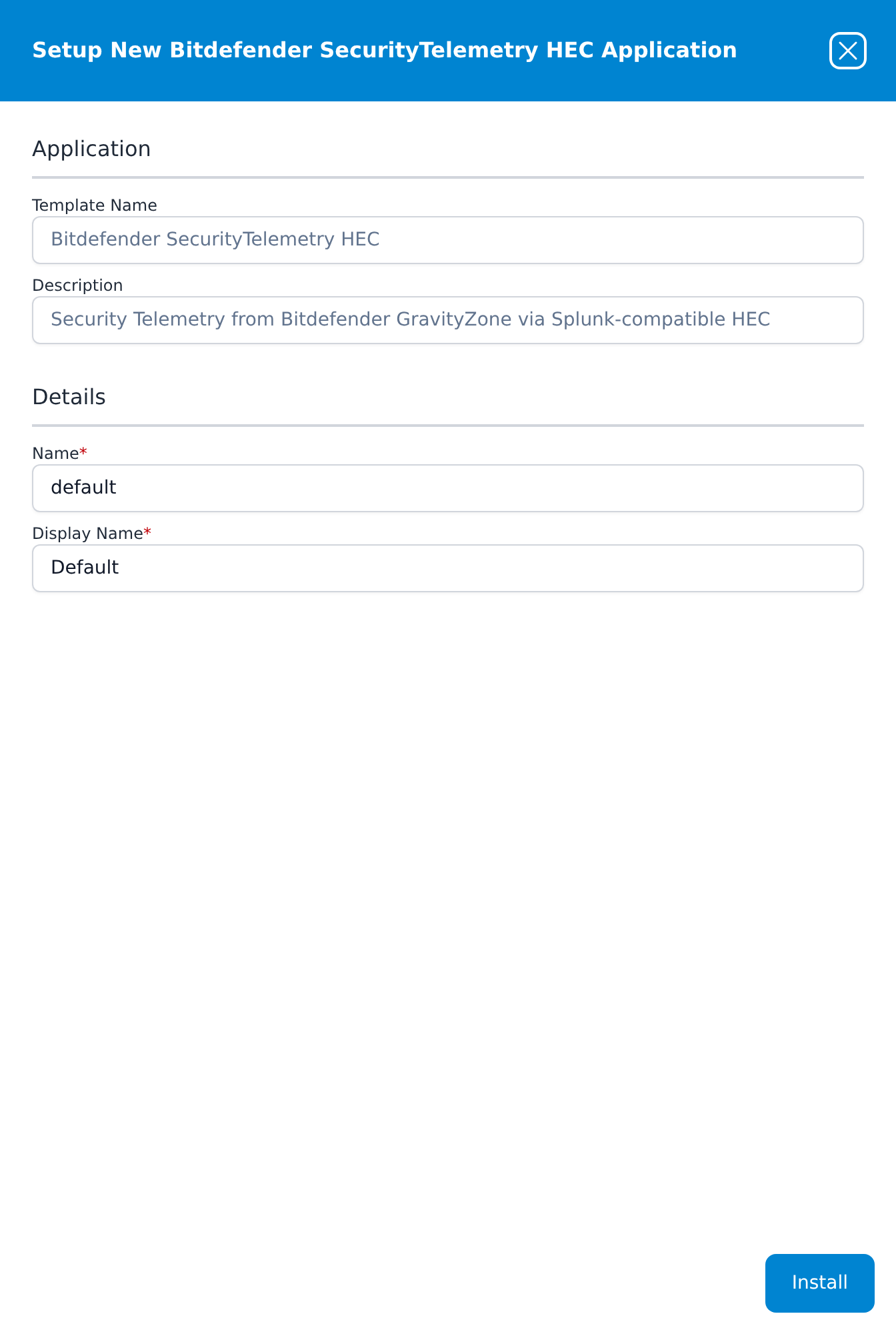
Bitdefender SecurityTelemetry HEC
Security Telemetry from Bitdefender GravityZone via Splunk-compatible HEC
No parameters: the panel goes straight from Details to the Install button. Like Bitdefender EventPush, it produces an HEC URL and token as outputs, and the source pushes to that HEC endpoint.
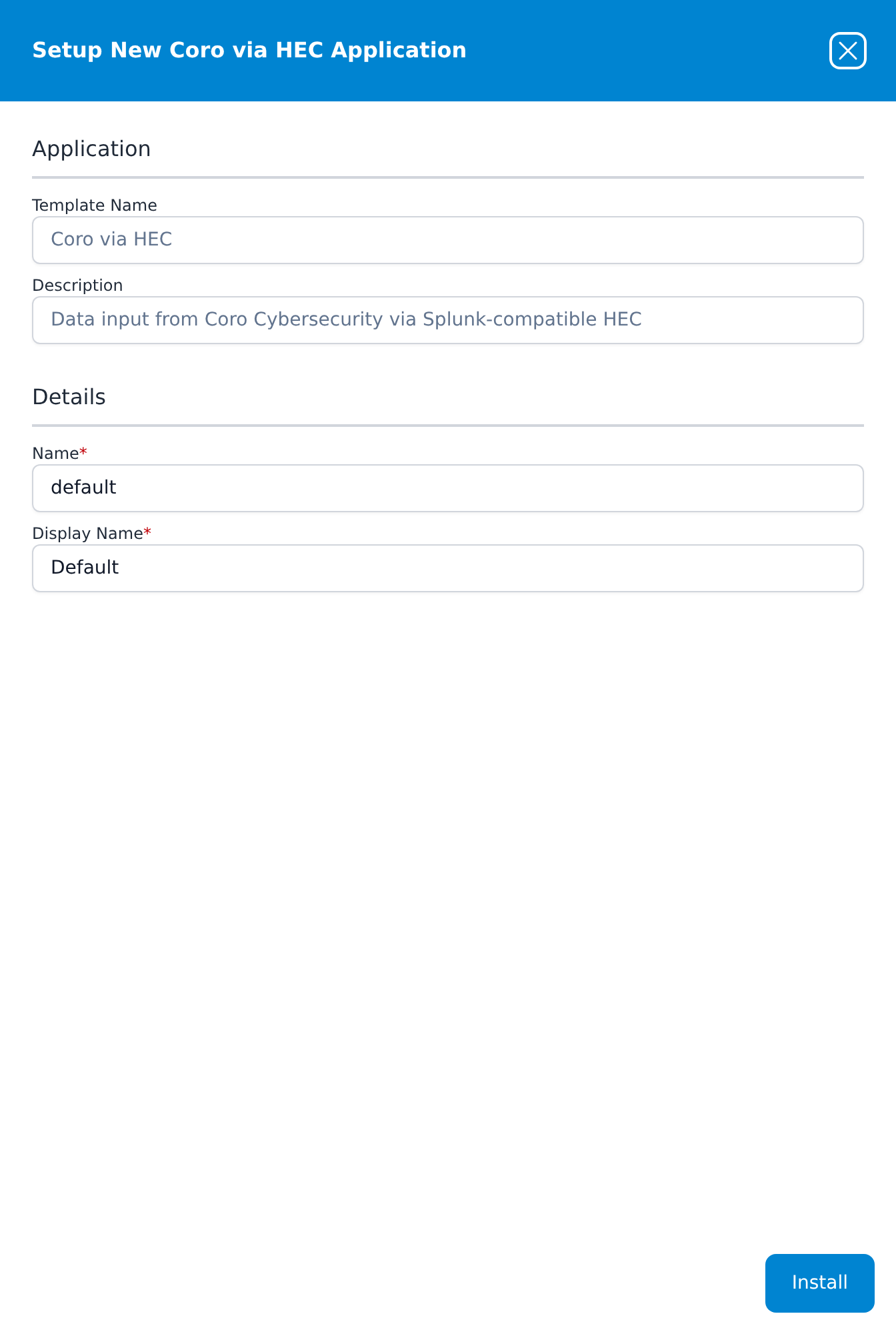
Coro via HEC
Data input from Coro Cybersecurity via Splunk-compatible HEC
No parameters; the installation produces an HEC URL and token as outputs.
→ Coro Cybersecurity
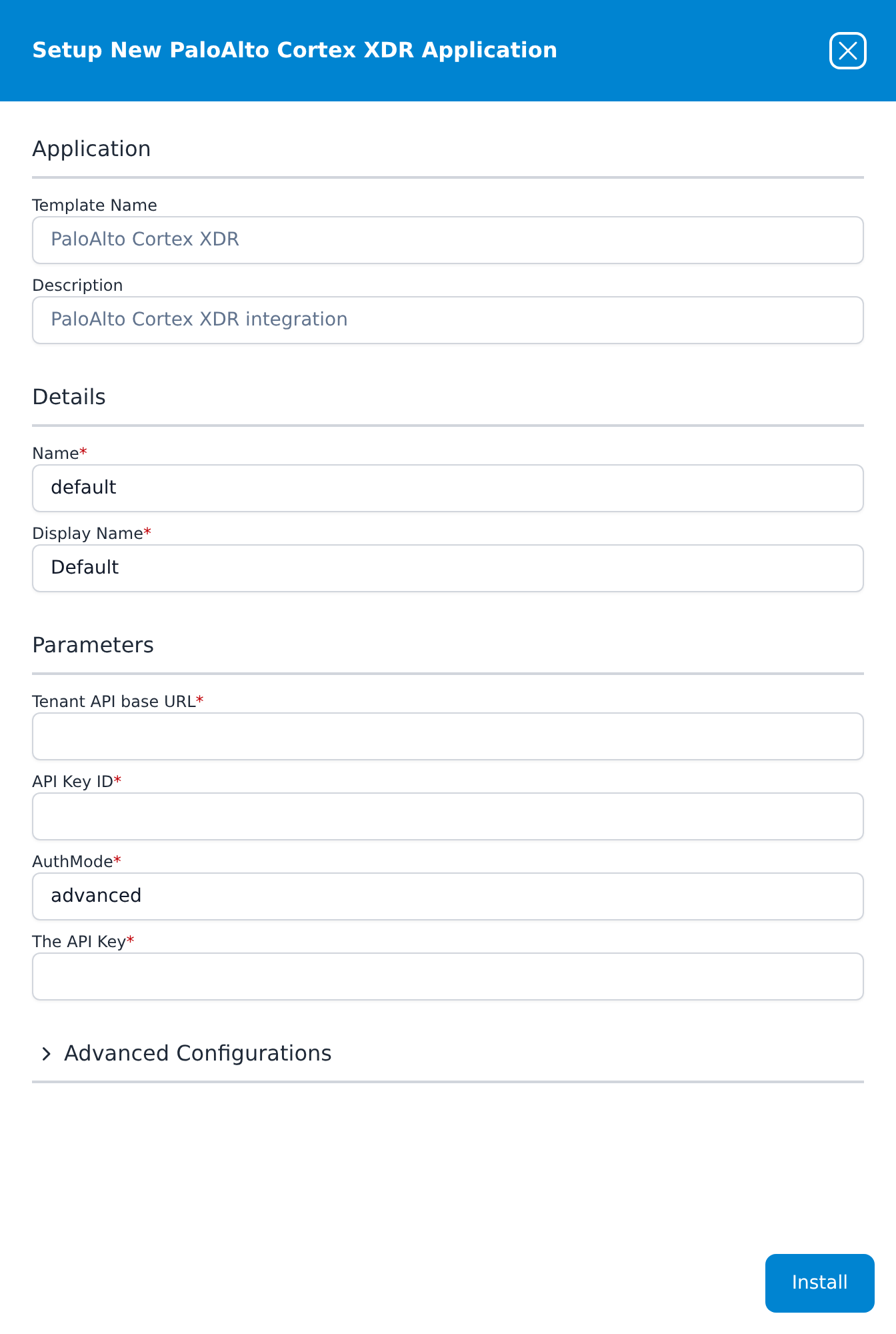
PaloAlto Cortex XDR
PaloAlto Cortex XDR integration
- Tenant API base URL
- API Key ID
- AuthMode — a plain text field, not a drop-down, pre-filled with advanced
- The API Key
Advanced Configurations: datalake — managed · datalake index name — Cortex
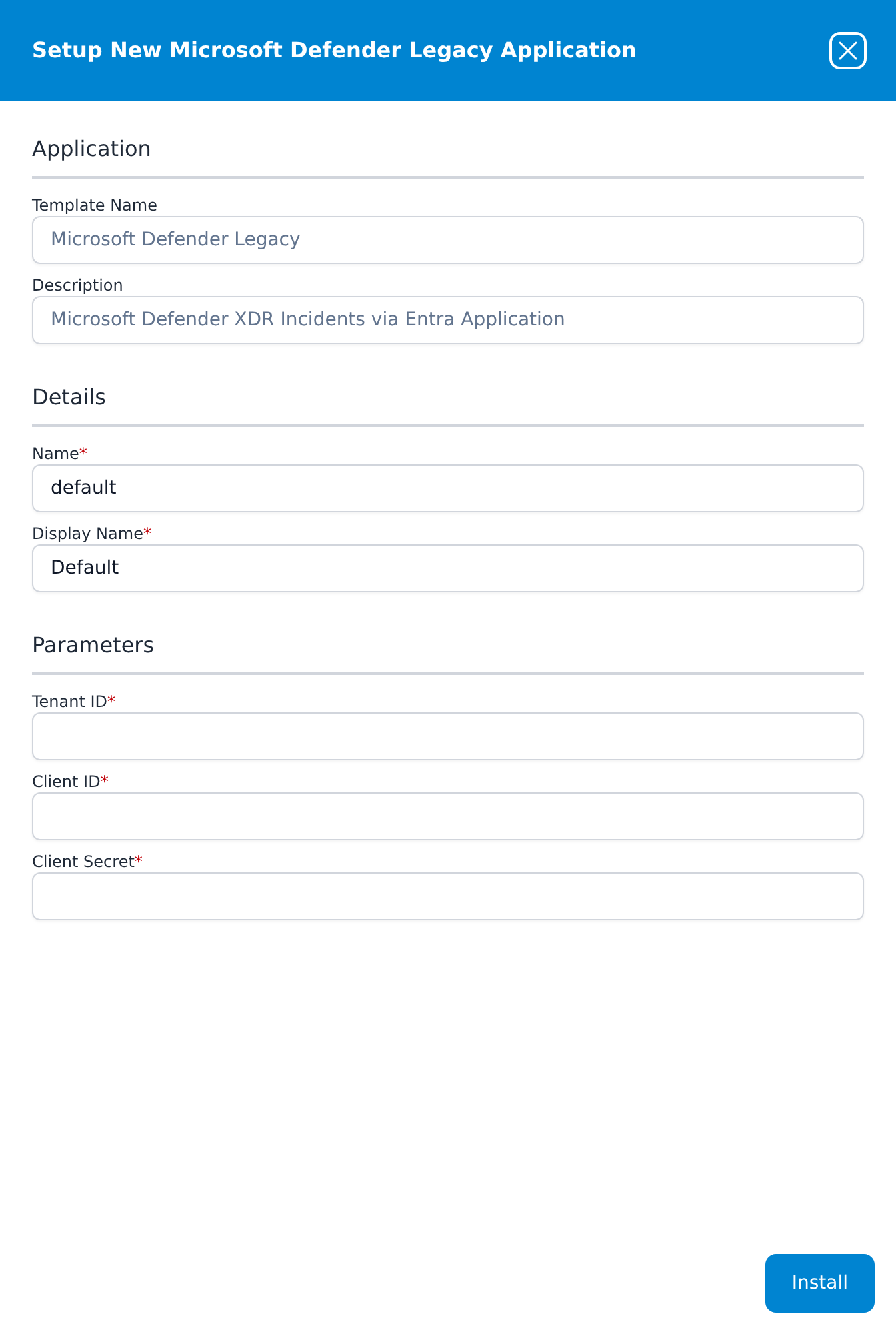
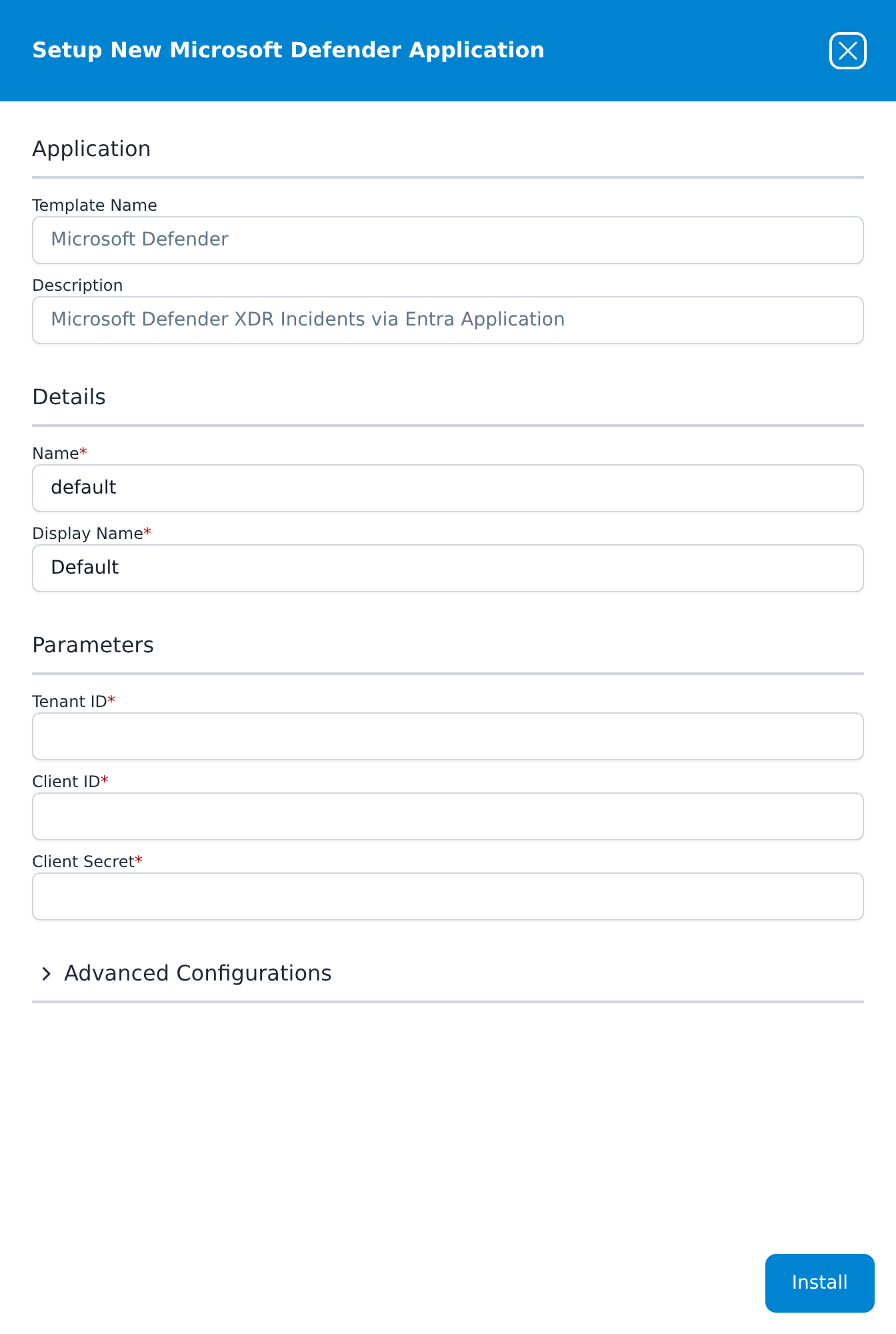
Microsoft Defender Legacy
Microsoft Defender XDR Incidents via Entra Application
- Tenant ID
- Client ID
- Client Secret
The template that shipped as Microsoft Defender in earlier releases, kept under a new display name (template ID DefenderATPLegacy) beside the current Microsoft Defender. Its parameters and description are unchanged; what it lacks is the Advanced Configurations section, so the destination index is fixed by the template rather than chosen at install time. Install the current template instead unless you are matching an existing deployment.
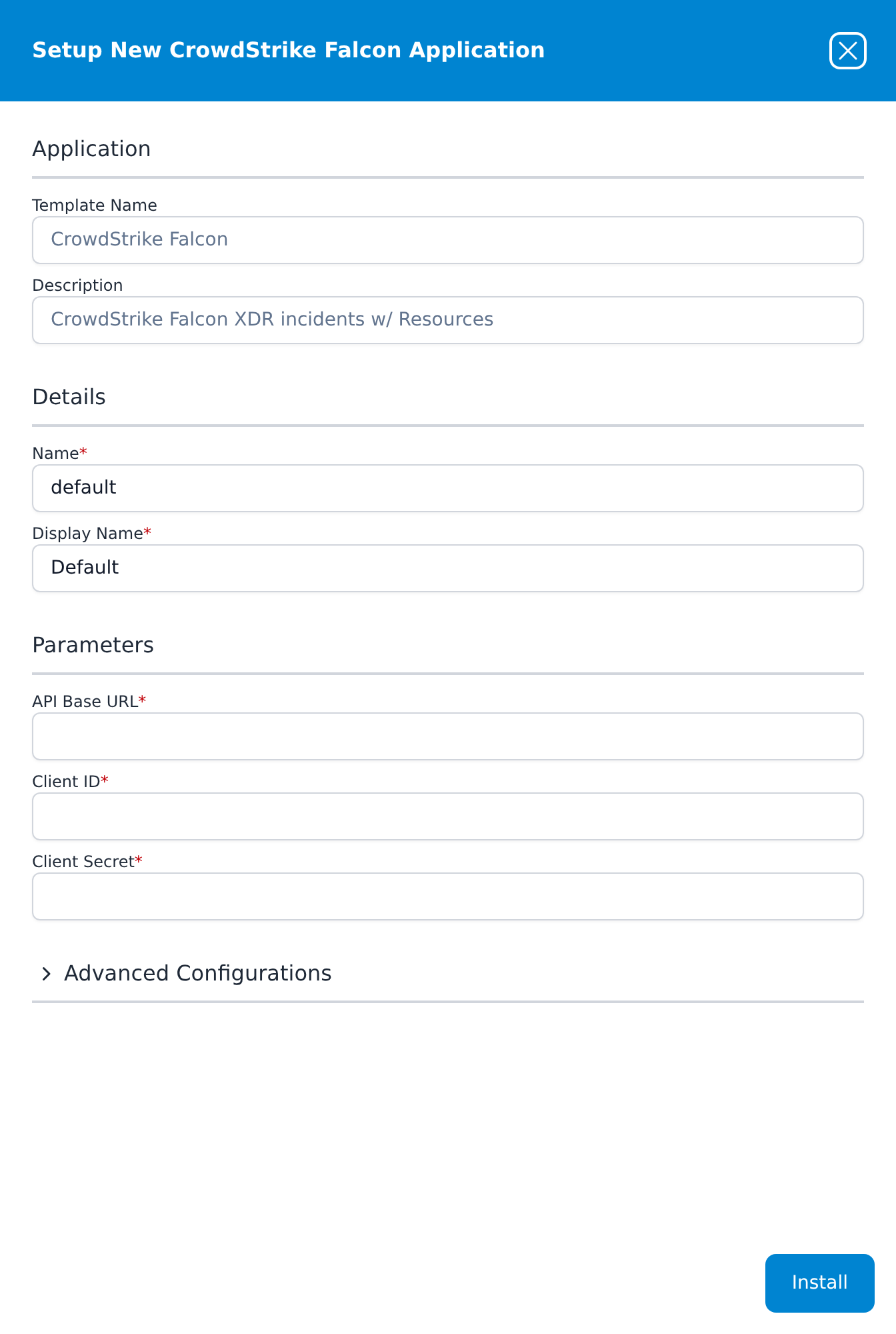
CrowdStrike Falcon
CrowdStrike Falcon XDR incidents w/ Resources
- API Base URL — required, empty, and free text: no default and no region drop-down. The value is CrowdStrike's per-cloud API host (
https://api.crowdstrike.com,https://api.us-2.crowdstrike.com,https://api.eu-1.crowdstrike.comand the two Gov hosts), shown on the panel that issues the credential. - Client ID
- Client Secret
Advanced Configurations: datalake — managed · datalake index name — Falcon
The catalog also carries FalconResource, which syncs the Falcon host roster into SIEM → Resources using this same credential. Earlier releases required both — this template collected the incidents, that one collected the roster. They no longer split the work: this template's description reads w/ Resources and one install covers both halves, and FalconResource's own description now reads Falcon Resource Sync (legacy add-on). Install CrowdStrike Falcon alone on a new deployment; leave an existing FalconResource application in place where the pair is already running.
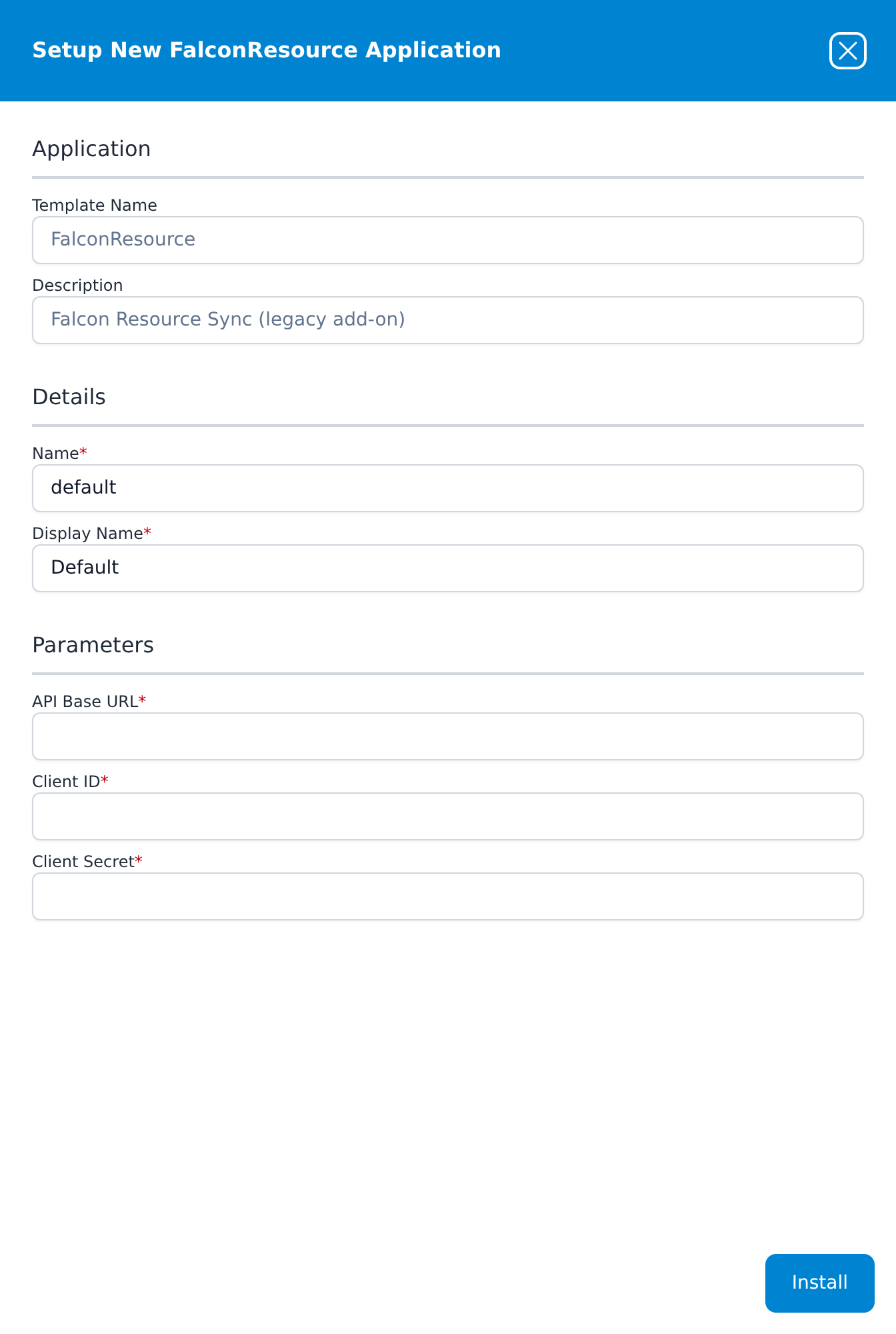
FalconResource
Falcon Resource Sync (legacy add-on)
- API Base URL
- Client ID
- Client Secret
The three parameters are the ones CrowdStrike Falcon asks for, and this template is installed with the same credential. It syncs the Falcon host roster into SIEM → Resources and nothing else, which is why it has no Advanced Configurations section: its output is a resource set rather than a data-lake index.
(legacy add-on) in the description is the instruction. CrowdStrike Falcon now reads w/ Resources and syncs the roster itself, so a new deployment installs that alone and leaves this tile alone; it is here for deployments that already run the pair, and for anyone reading a configuration that names it.
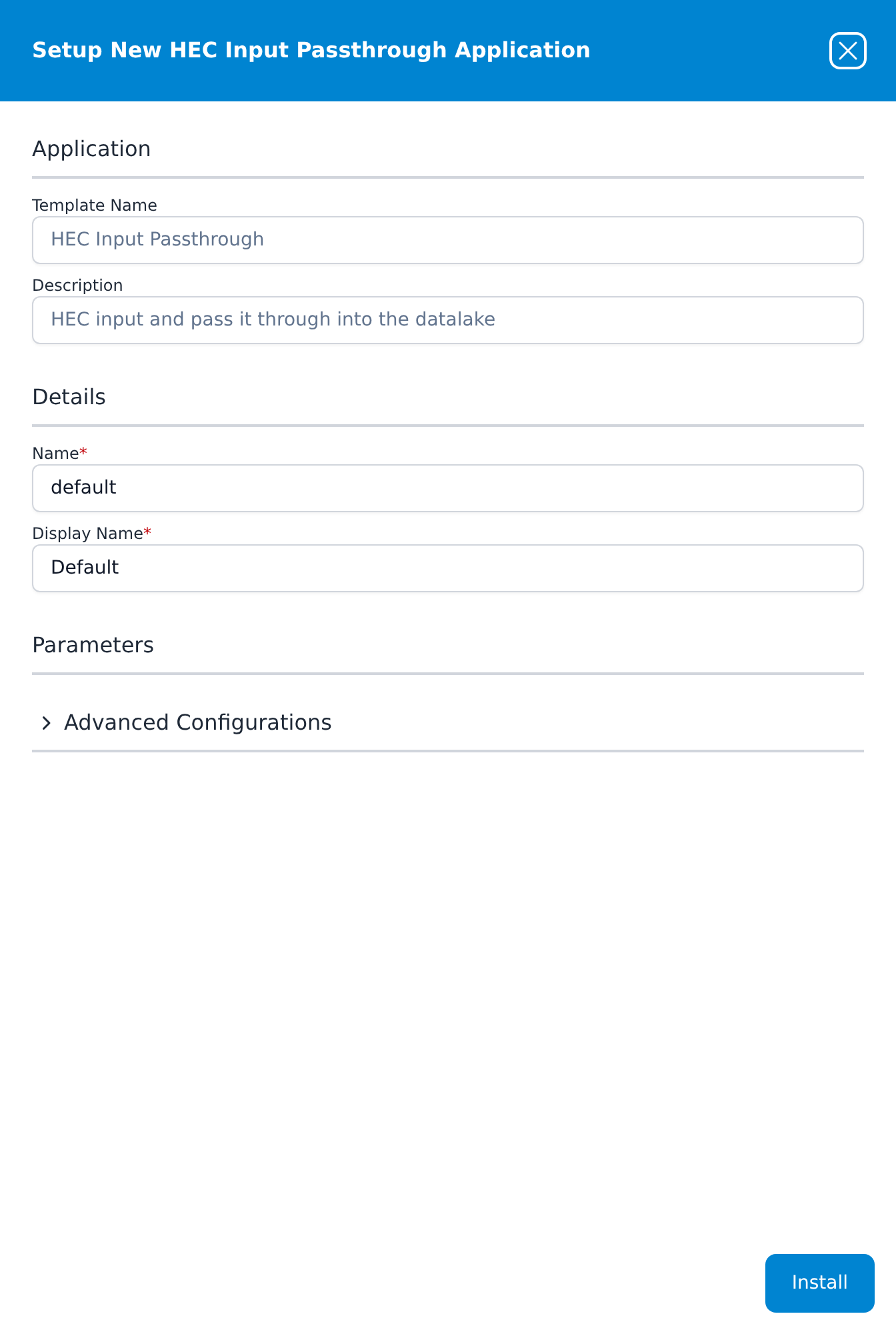
HEC Input Passthrough
HEC input and pass it through into the datalake
The Parameters section is present but empty: this template's only two parameters are the pair in Advanced Configurations.
Advanced Configurations: datalake — managed · datalake index name — default
Use this template for any source that can post to a Splunk-compatible HEC endpoint but has no template of its own; events land in the named index unparsed. Because the index name defaults to default, set it before installing a second one.
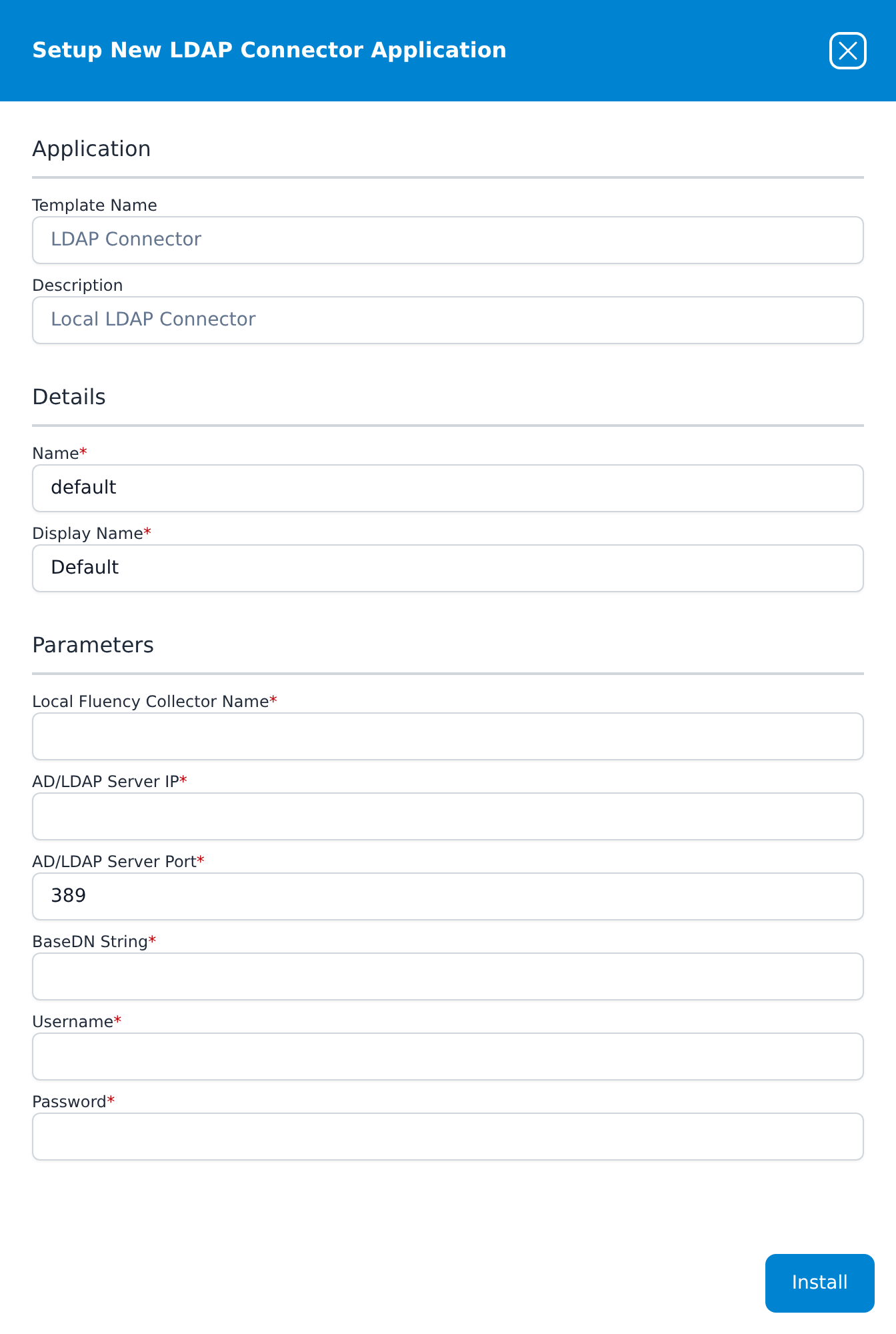
LDAP Connector
Local LDAP Connector
- Local Fluency Collector Name — the collector that will reach the directory server
- AD/LDAP Server IP
- AD/LDAP Server Port — 389
- BaseDN String
- Username
- Password
Every field is required. Password is declared sensitive, so the setup form masks it as you type and the details panel masks it afterwards.
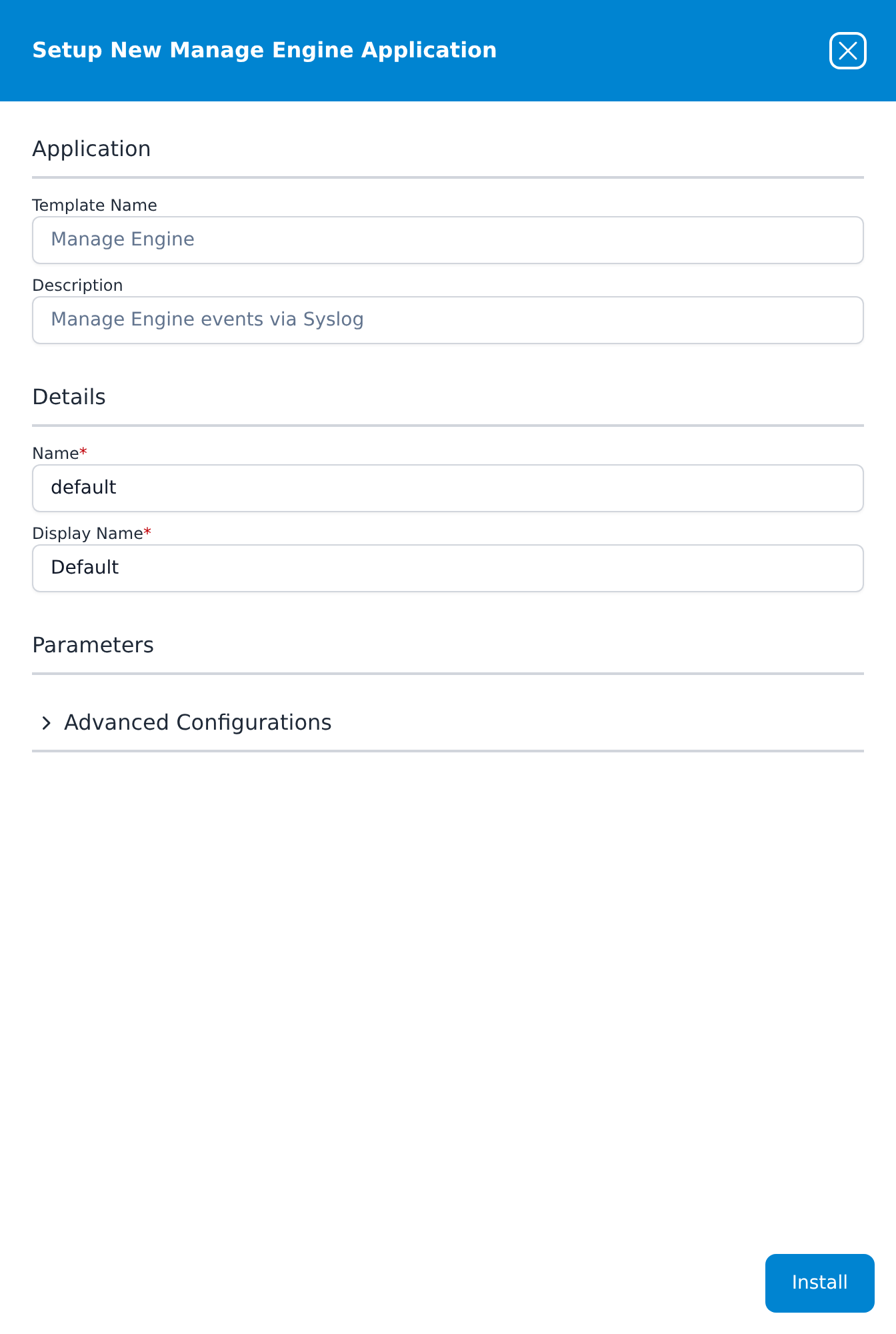
Manage Engine
Manage Engine events via Syslog
The Parameters section is present but empty.
Advanced Configurations: datalake — managed · datalake index name — ManageEngine
Microsoft Defender
Microsoft Defender XDR Incidents via Entra Application
- Tenant ID
- Client ID
- Client Secret
Advanced Configurations: datalake — managed · datalake index name — MSDefender
The same three Entra application credentials as Microsoft Defender Legacy, and the same description; the difference is this section, which lets the install choose its data lake and index.
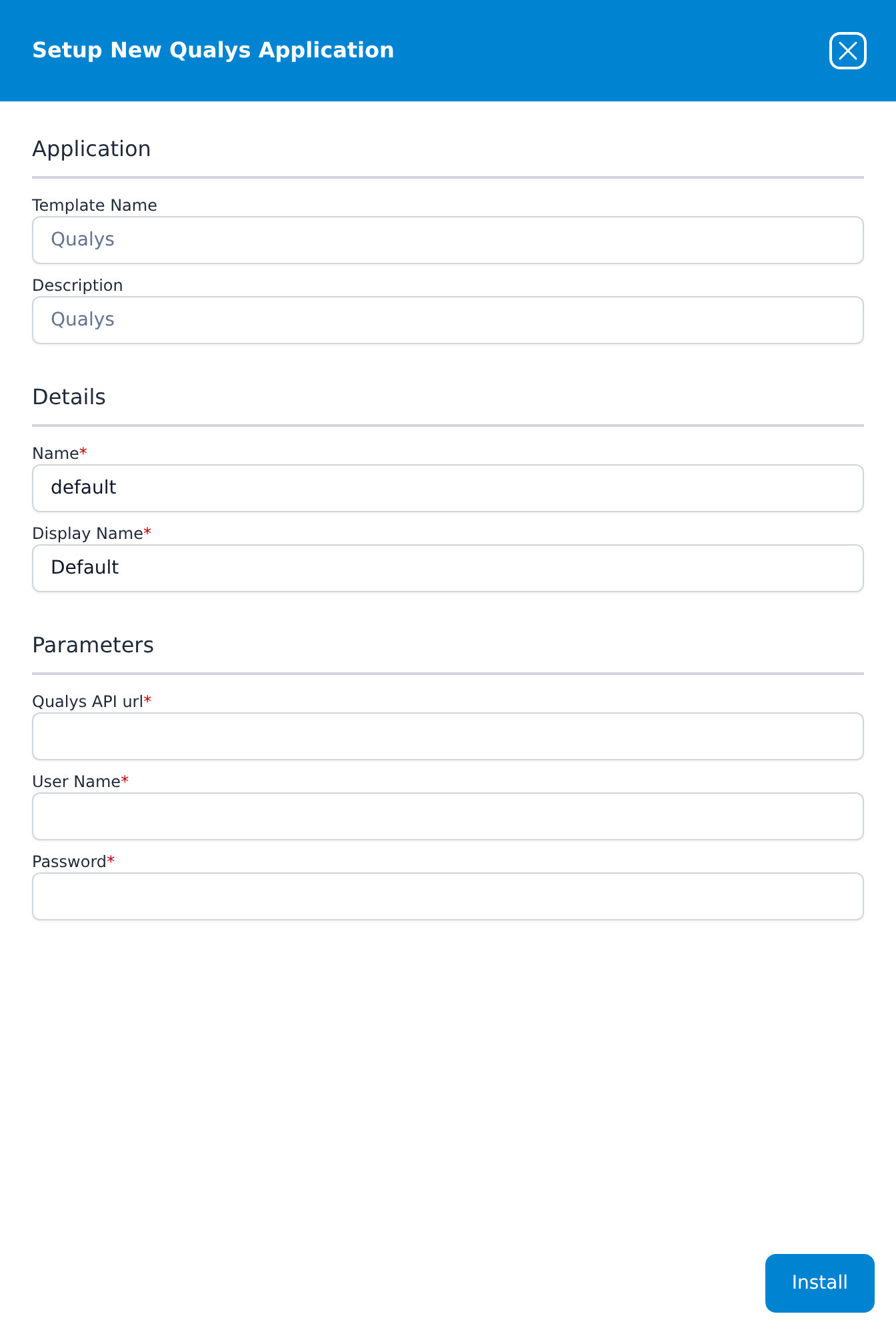
Qualys
Qualys
- Qualys API url
- User Name
- Password
The shortest description in the catalog — the template's description is just the product name. Password is declared sensitive and is masked in the details panel after installing.
→ Qualys
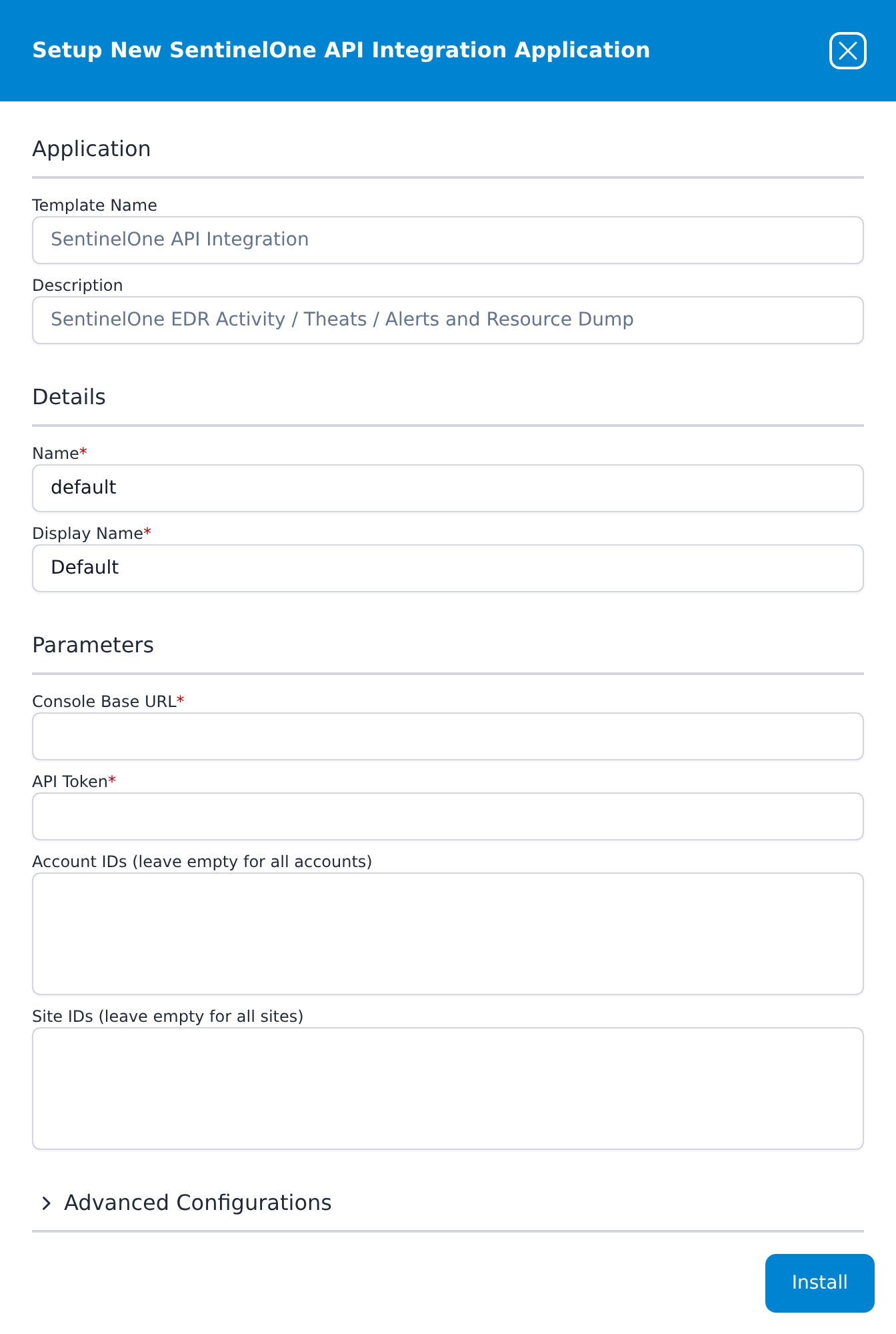
SentinelOne API Integration
SentinelOne EDR Activity / Theats / Alerts and Resource Dump
- Console Base URL
- API Token
- Account IDs (leave empty for all accounts) (optional) — multi-line box
- Site IDs (leave empty for all sites) (optional) — multi-line box
Advanced Configurations: datalake — managed · datalake index name — SentinelOne
The two ID boxes narrow collection to part of a SentinelOne console; as their labels say, left empty the template collects from every account and every site the token can see.
The description names four feeds where earlier catalogs named two: alerts and the resource dump are collected by this template as well as activity and threats. The resource dump is what populates the SentinelOne host roster on SIEM → Resources, and the install creates two plugin data sources rather than one — visible in the pipeline diagram and the details panel.
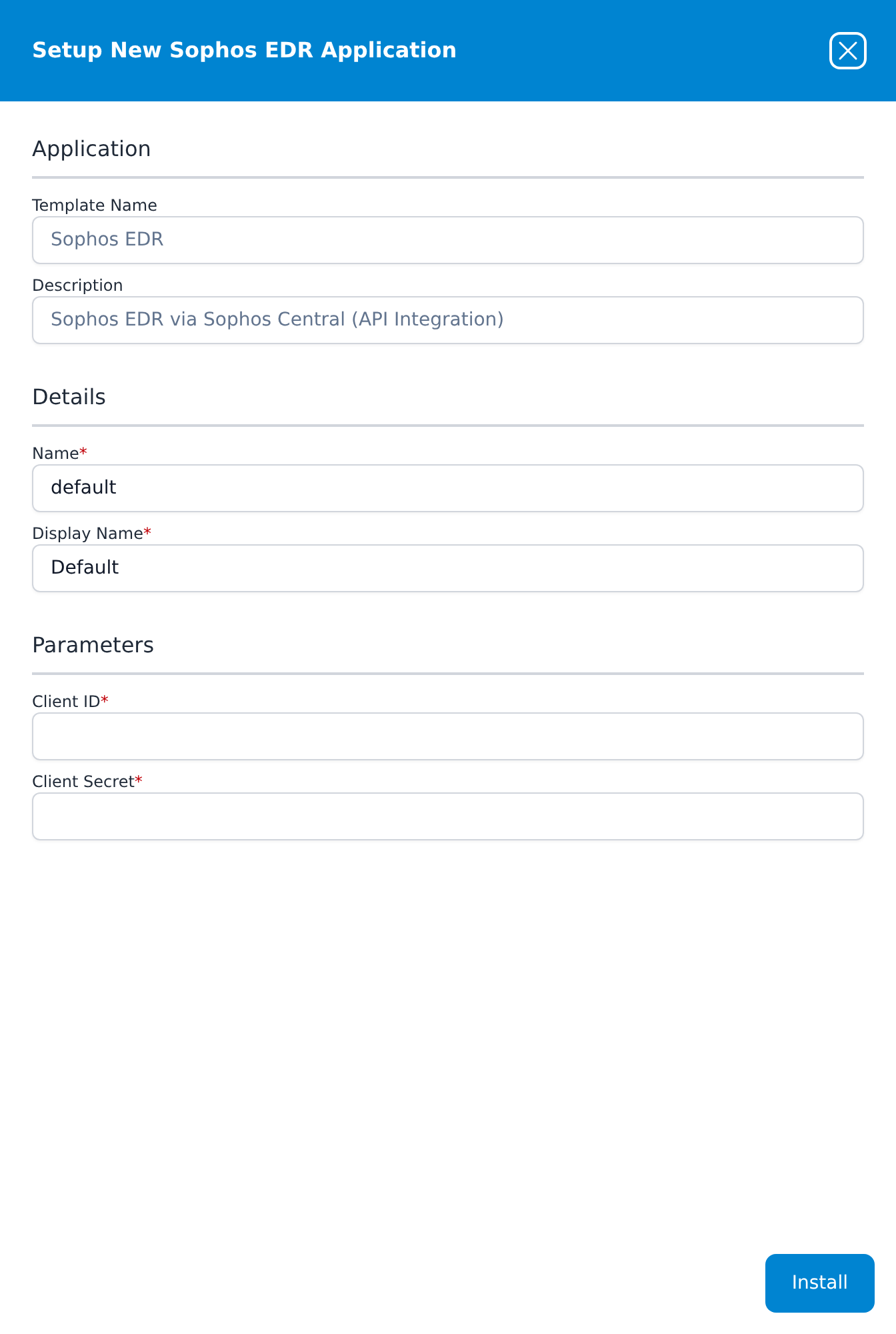
Sophos EDR
Sophos EDR via Sophos Central (API Integration)
- Client ID
- Client Secret
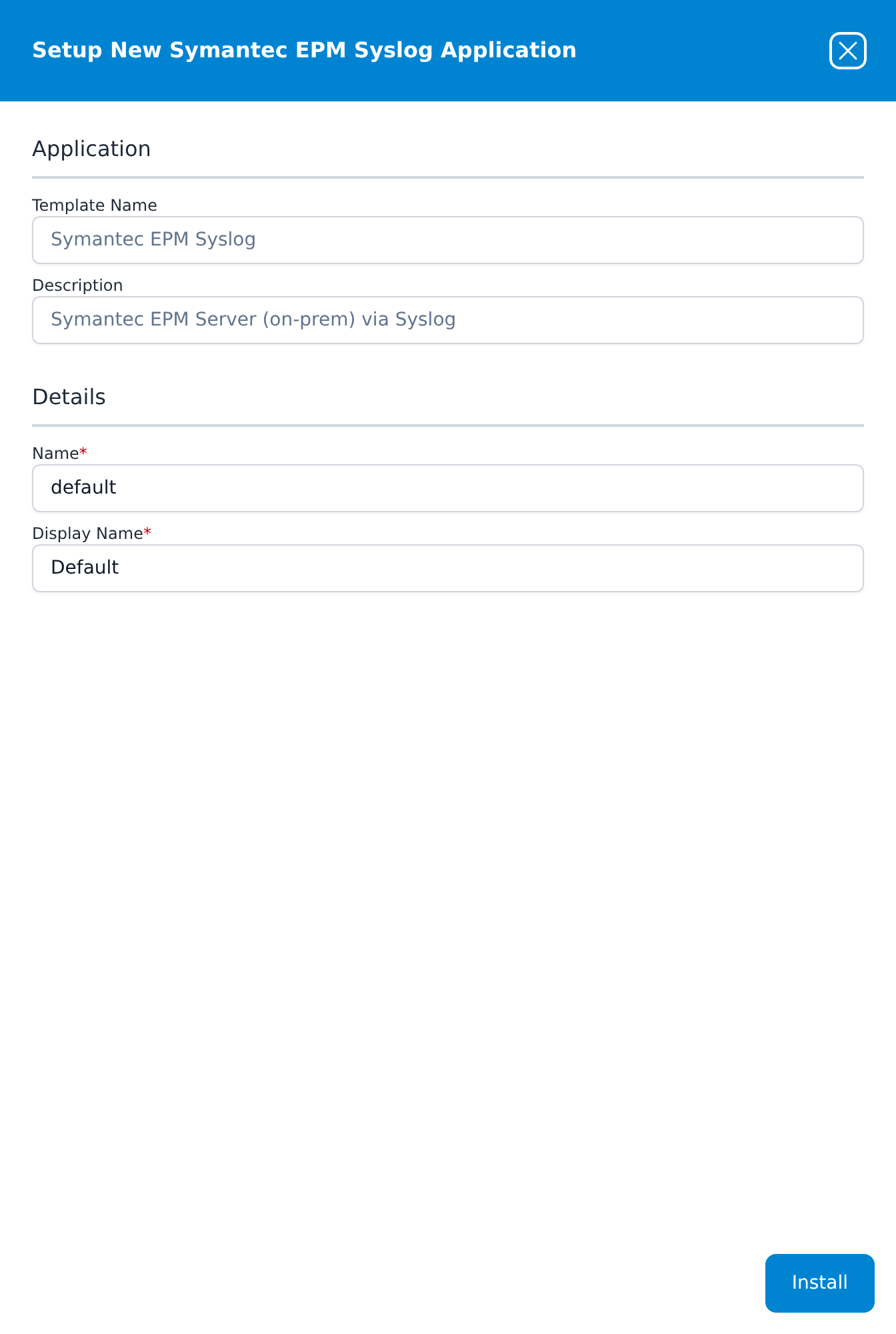
Symantec EPM Syslog
Symantec EPM Server (on-prem) via Syslog
No parameters. The Symantec Endpoint Protection Manager server is pointed at a syslog port on the platform or on a collector, and the template supplies the parser — the same shape as the On-Premise IT templates, filed here because the telemetry is endpoint telemetry.
→ Symantec Endpoint Protection Manager
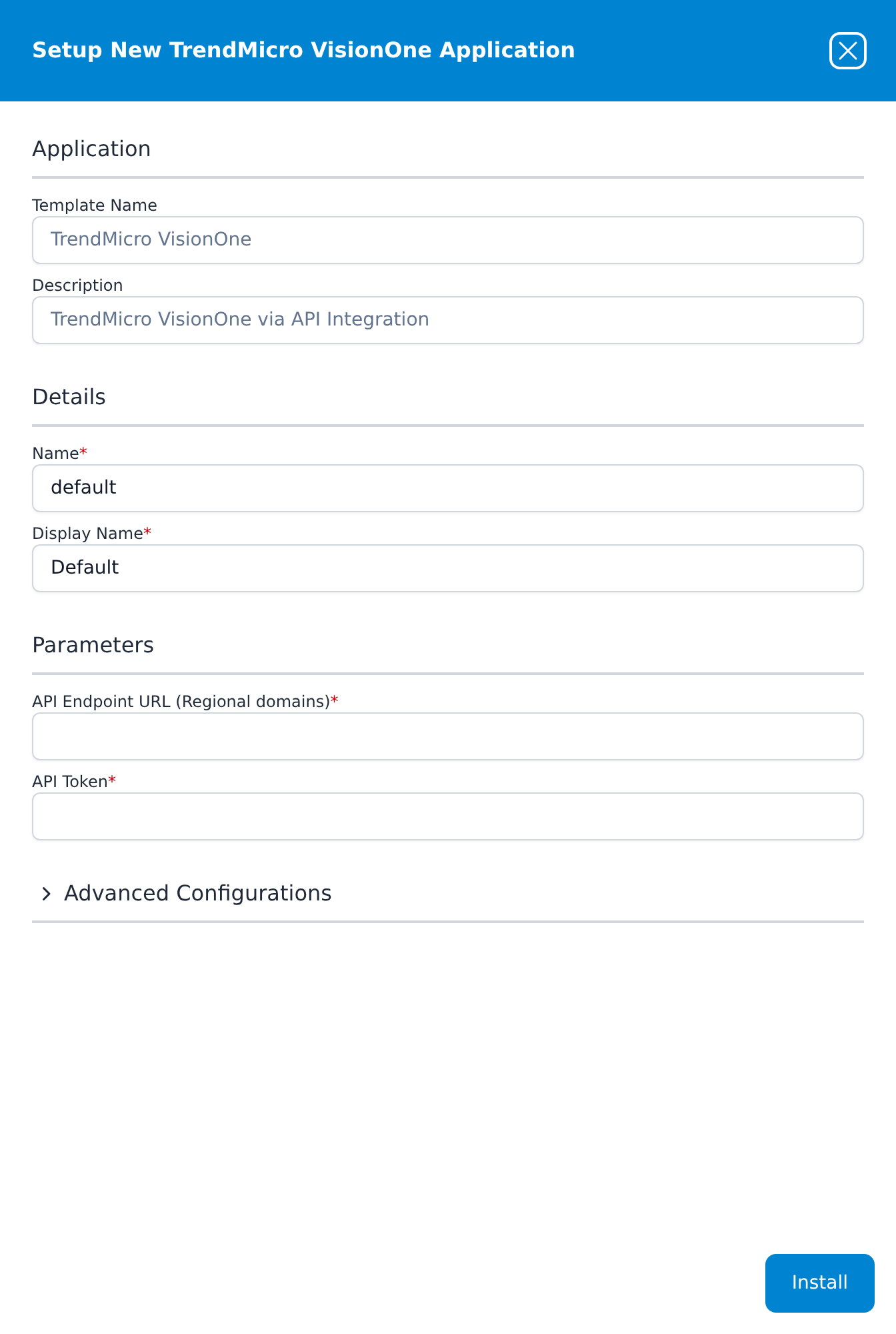
TrendMicro VisionOne
TrendMicro VisionOne via API Integration
- API Endpoint URL (Regional domains)
- API Token
Advanced Configurations: datalake — managed · datalake index name — TrendMicroVisionOne
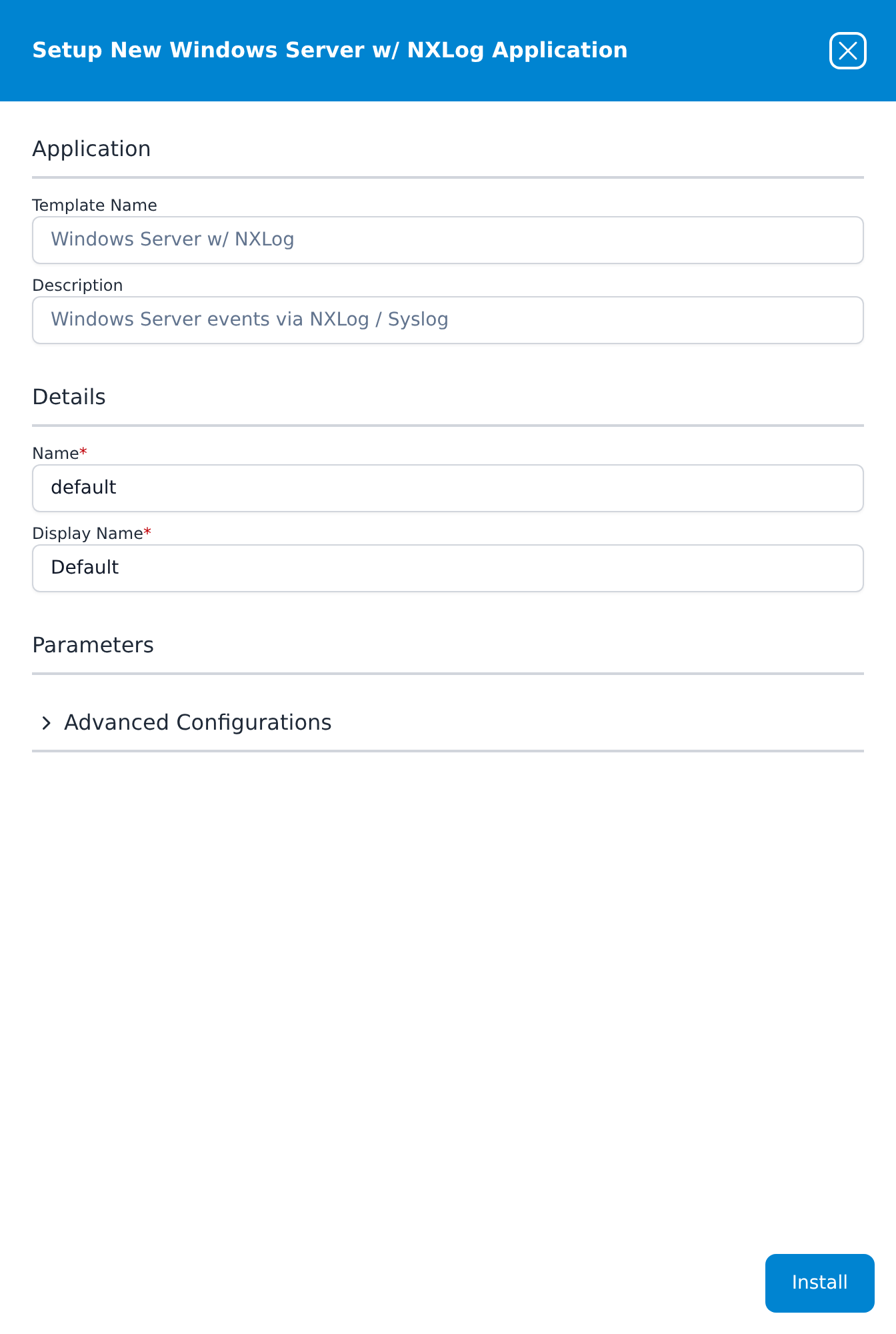
Windows Server w/ NXLog
Windows Server events via NXLog / Syslog
The Parameters section is present but empty.
Advanced Configurations: datalake — managed · datalake index name — WindowsAudit
The installed application carries an extra Configure NXLog button in its details panel, which is where the agent-side configuration comes from.
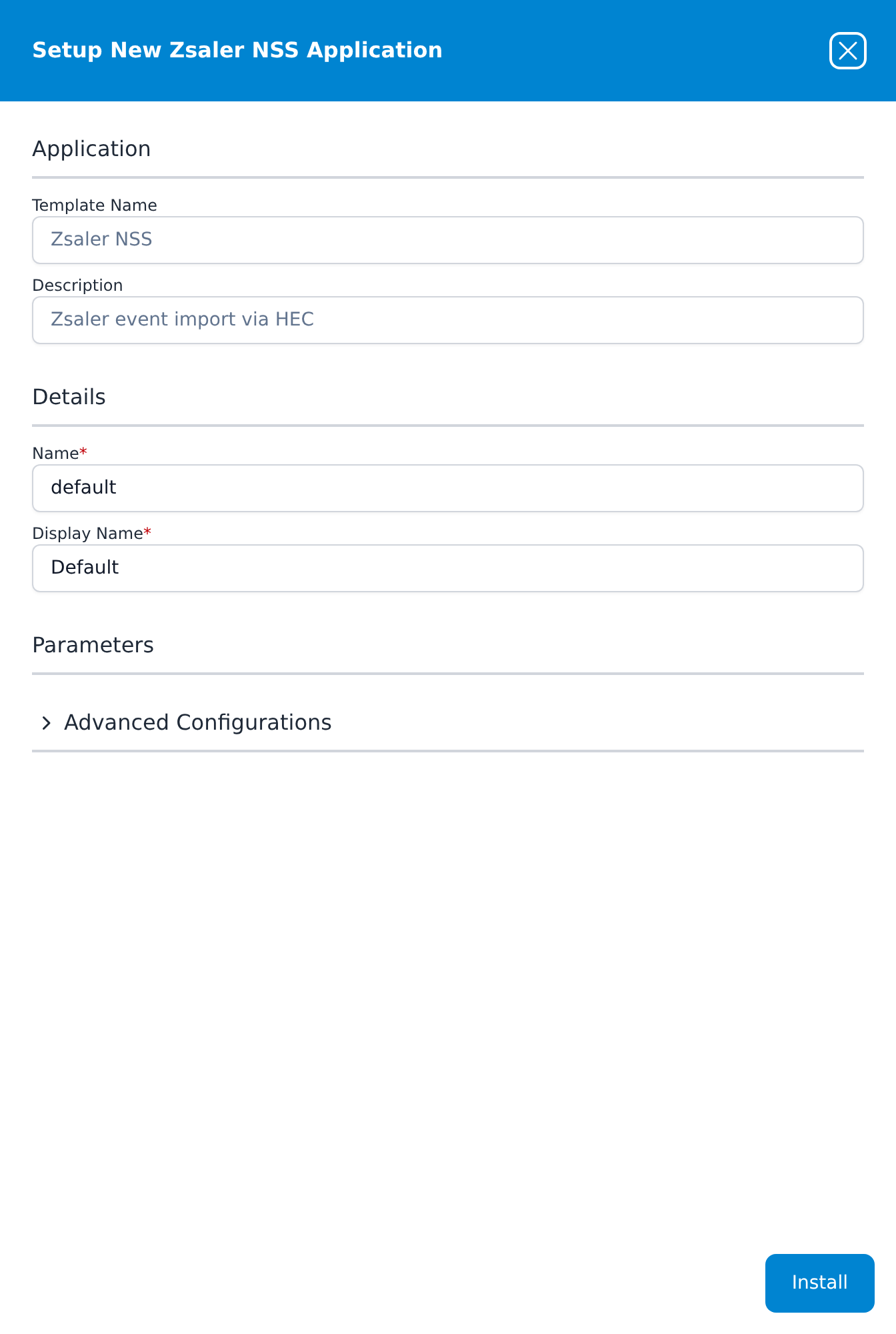
Zsaler NSS
Zsaler event import via HEC
The Parameters section is present but empty.
Advanced Configurations: datalake — managed · datalake index name — Zscaler
The template name and description are spelled Zsaler in the interface; the index name defaults to the correct Zscaler. The installation produces an HEC URL and token as outputs, which is what the Zscaler NSS feed posts to.
→ Zscaler
Office Software (SaaS) and IAM
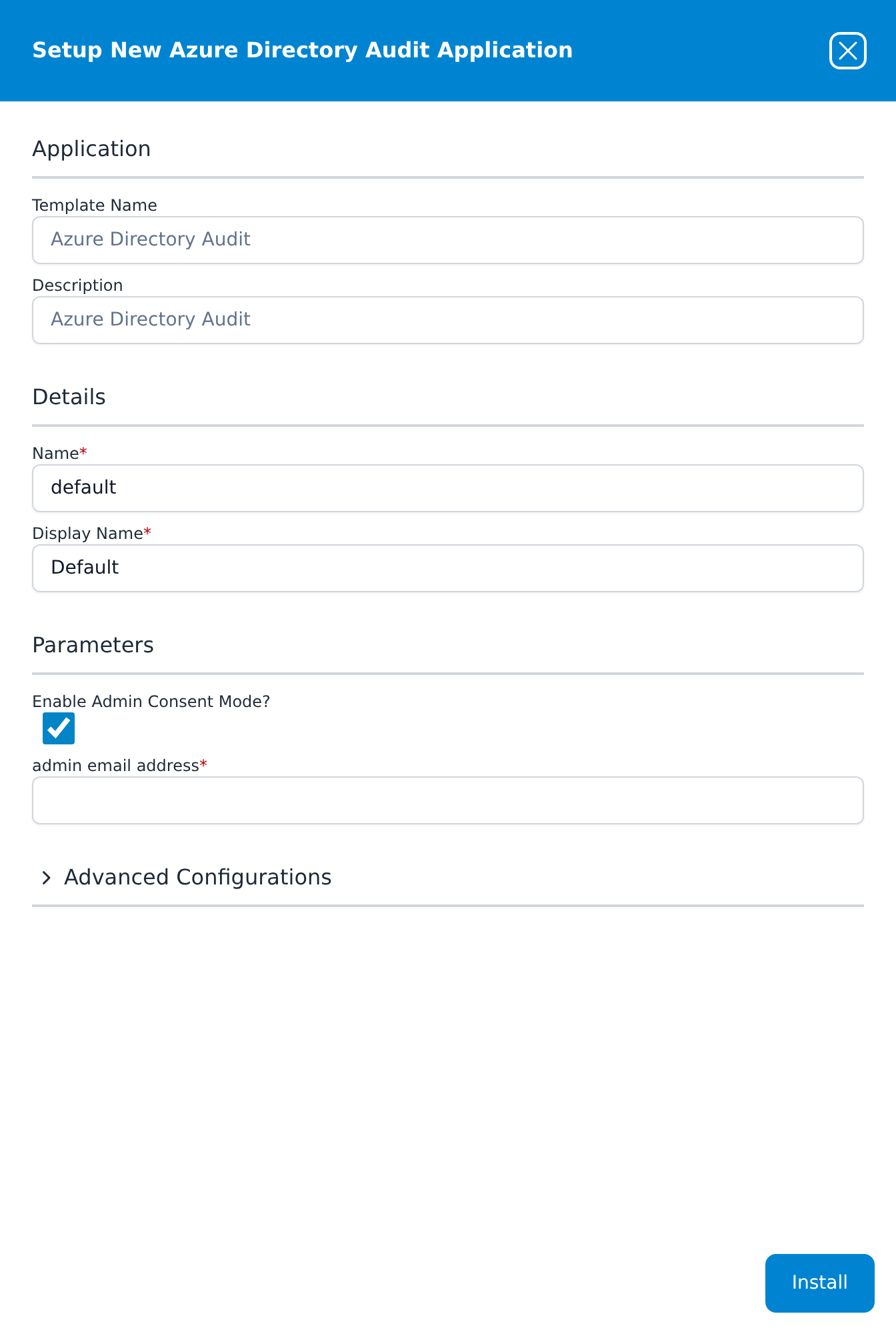
Azure Directory Audit
Azure Directory Audit
- Enable Admin Consent Mode? (optional) — checkbox, ticked
- admin email address — shown only while the checkbox is ticked
Advanced Configurations: datalake — managed · datalake index name — AzureAudit
Unticking Enable Admin Consent Mode replaces admin email address with three fields: Azure Tenant ID, Azure ClientID and Azure ClientSecret. The panel below is shown in the ticked state.
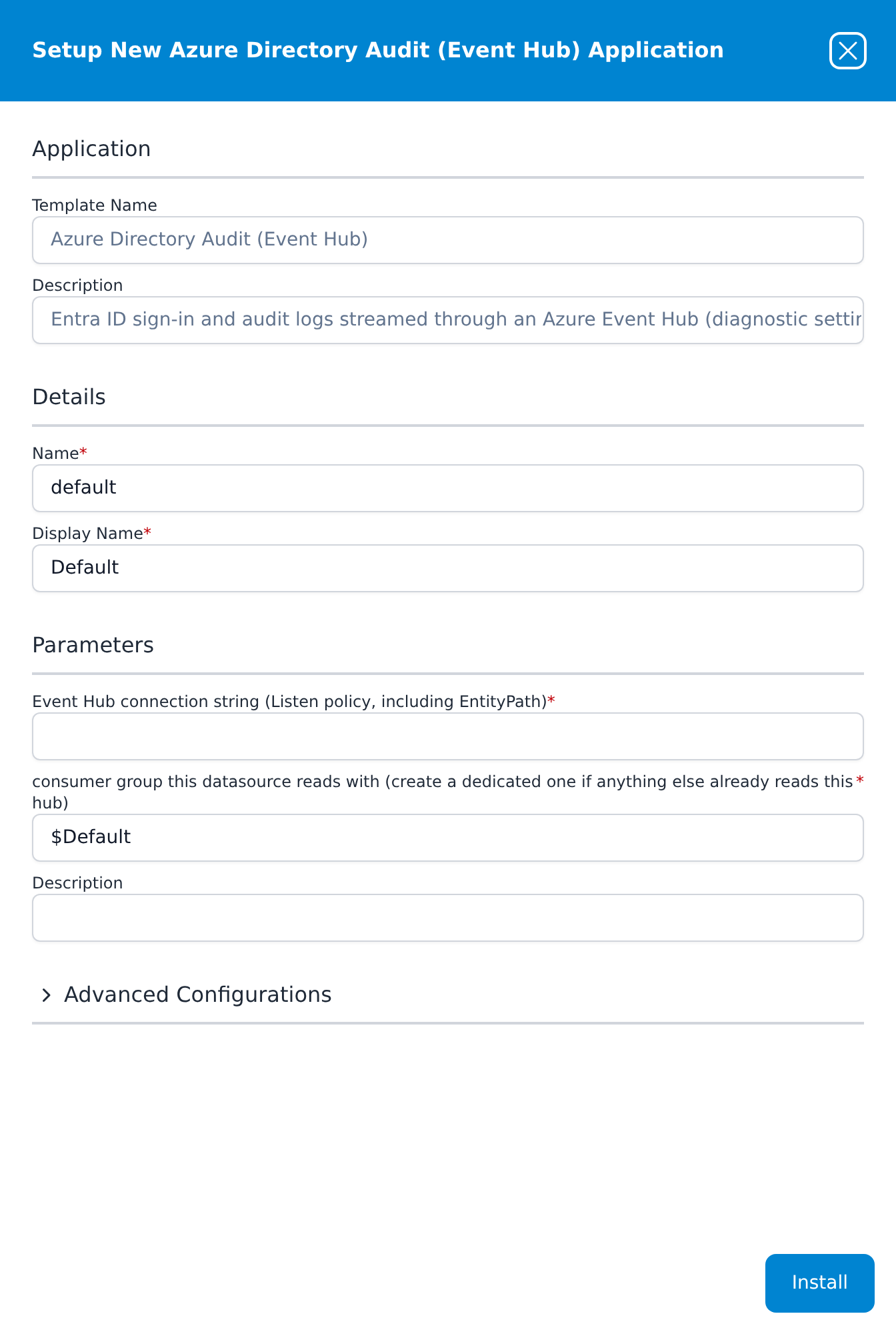
Azure Directory Audit (Event Hub)
Entra ID sign-in and audit logs streamed through an Azure Event Hub (diagnostic settings)
- Event Hub connection string (Listen policy, including EntityPath)
- consumer group this datasource reads with (create a dedicated one if anything else already reads this hub) — $Default
- Description (optional) — an editable parameter, distinct from the read-only Description in the Application section above it
Advanced Configurations: datalake — managed · datalake index name — MSEntra
The event hub route to the directory records Azure Directory Audit collects through Microsoft Graph: Entra ID's diagnostic settings stream sign-in and audit logs to an event hub, and this template reads the hub with a connection string. Its description is longer than the read-only field and is cut off there. Its index name default is MSEntra, not the AzureAudit of the Graph template.
→ Entra ID Audit via Event Hubs
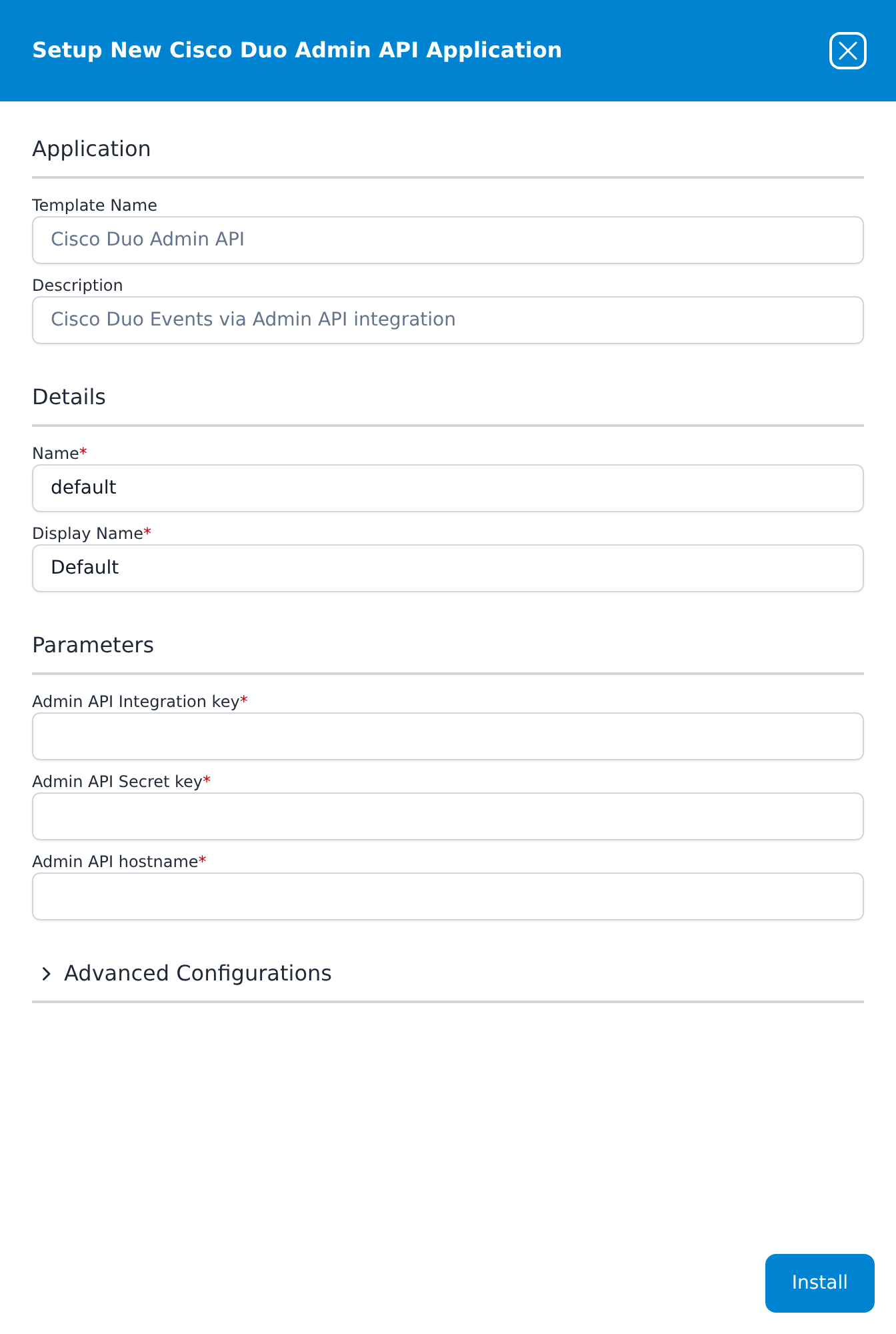
Cisco Duo Admin API
Cisco Duo Events via Admin API integration
- Admin API Integration key
- Admin API Secret key
- Admin API hostname
Advanced Configurations: datalake — managed · datalake index name — Duo
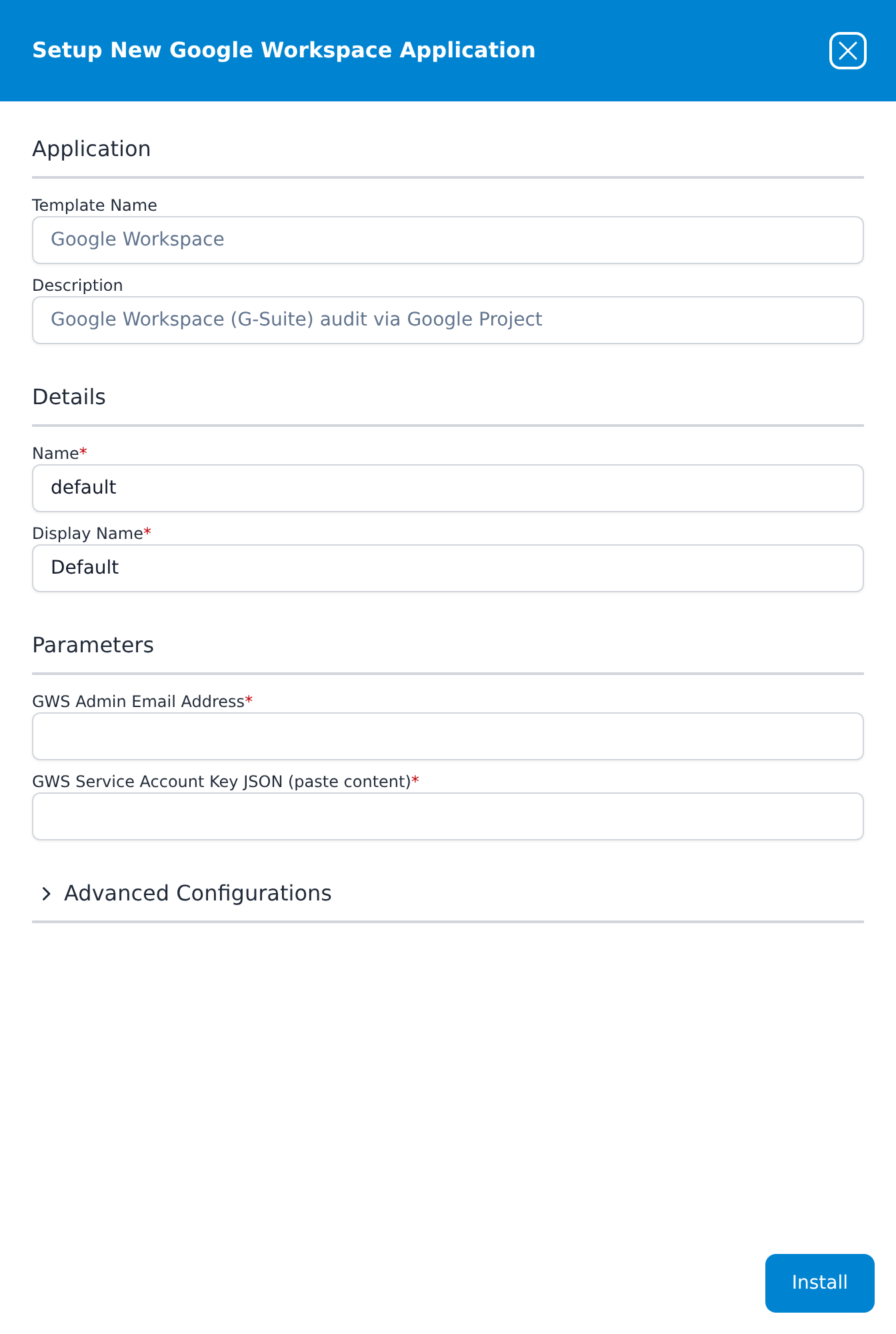
Google Workspace
Google Workspace (G-Suite) audit via Google Project
- GWS Admin Email Address
- GWS Service Account Key JSON (paste content) — paste the whole service-account key file into the field
Advanced Configurations: datalake — managed · datalake index name — GSuite
→ Google Workspace (Service Account)
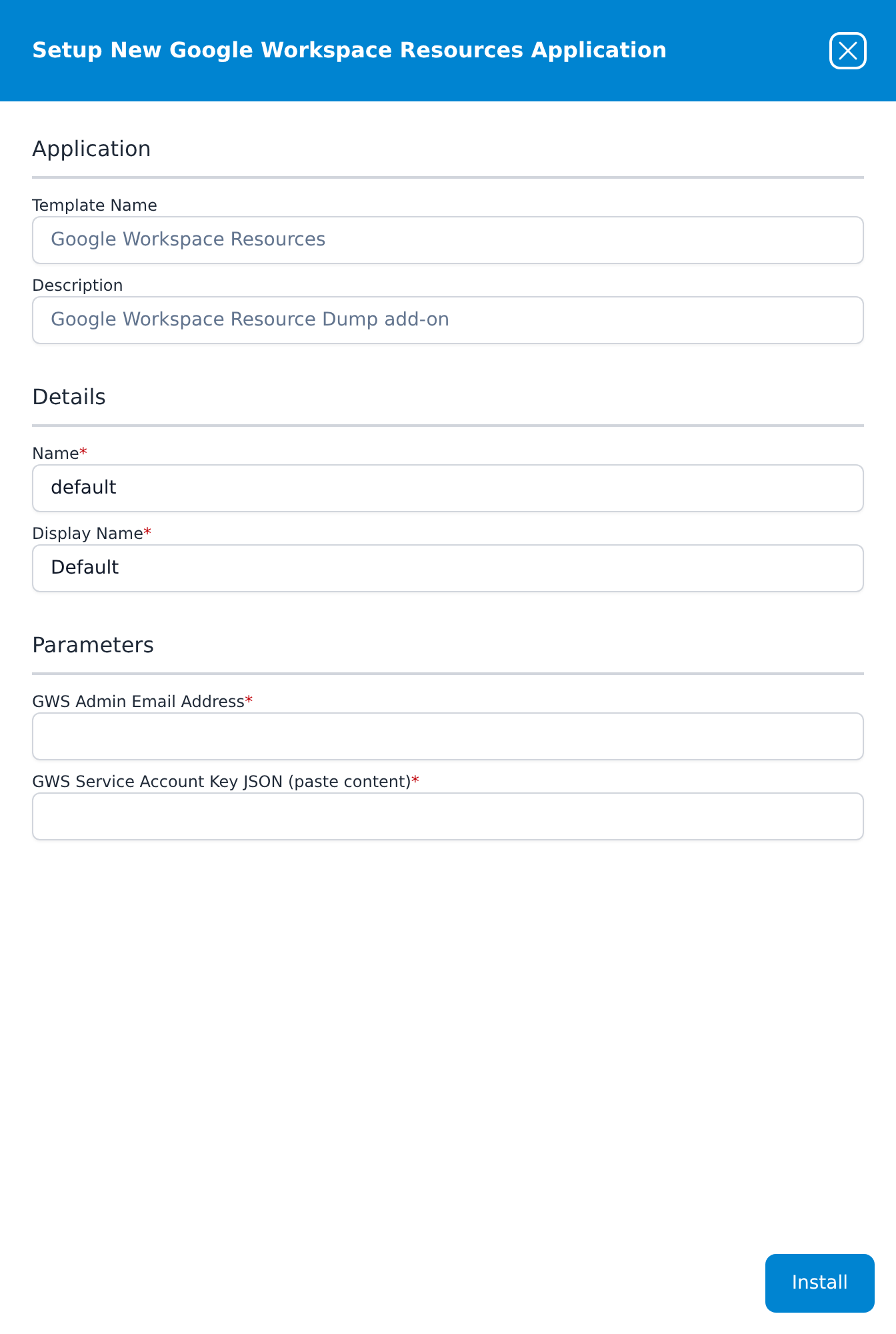
Google Workspace Resources
Google Workspace Resource Dump add-on
- GWS Admin Email Address
- GWS Service Account Key JSON (paste content) — paste the whole service-account key file into the field
The same two fields as Google Workspace, filled in with the same service account — the one the Google Workspace (Service Account) guide sets up. add-on is the point: this template collects no audit events, only the Google Workspace resource dump, so it is installed beside Google Workspace rather than instead of it. Like Office365 Resource Watch, it has no Advanced Configurations section — its output is a resource set rather than a data-lake index.
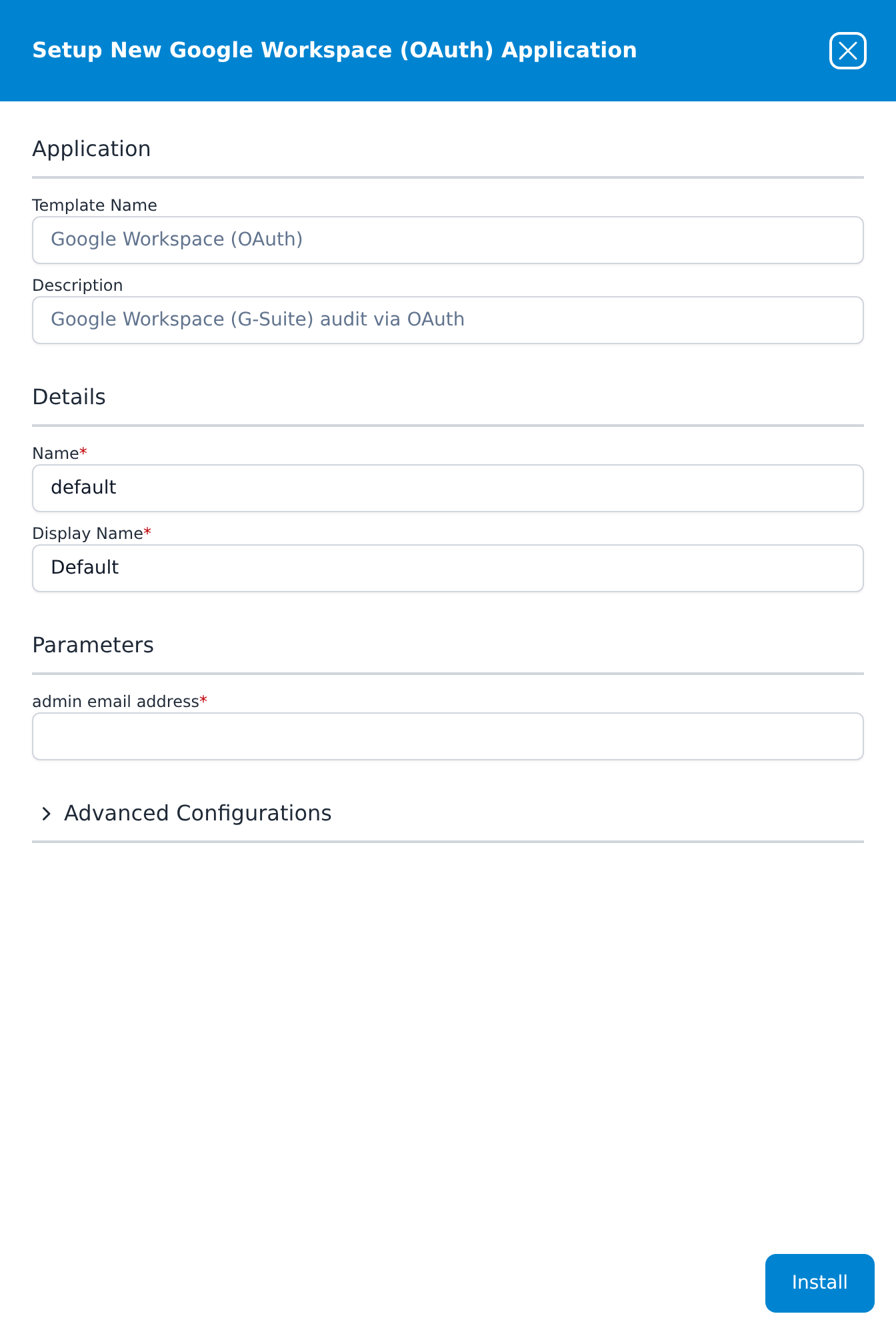
Google Workspace (OAuth)
Google Workspace (G-Suite) audit via OAuth
- admin email address
Advanced Configurations: datalake — managed · datalake index name — GSuite
The OAuth variant asks only for the administrator's address; authorisation happens in Google rather than by pasting a key. It shares the GSuite index-name default with Google Workspace, so a platform migrating from one to the other has to change one of them.
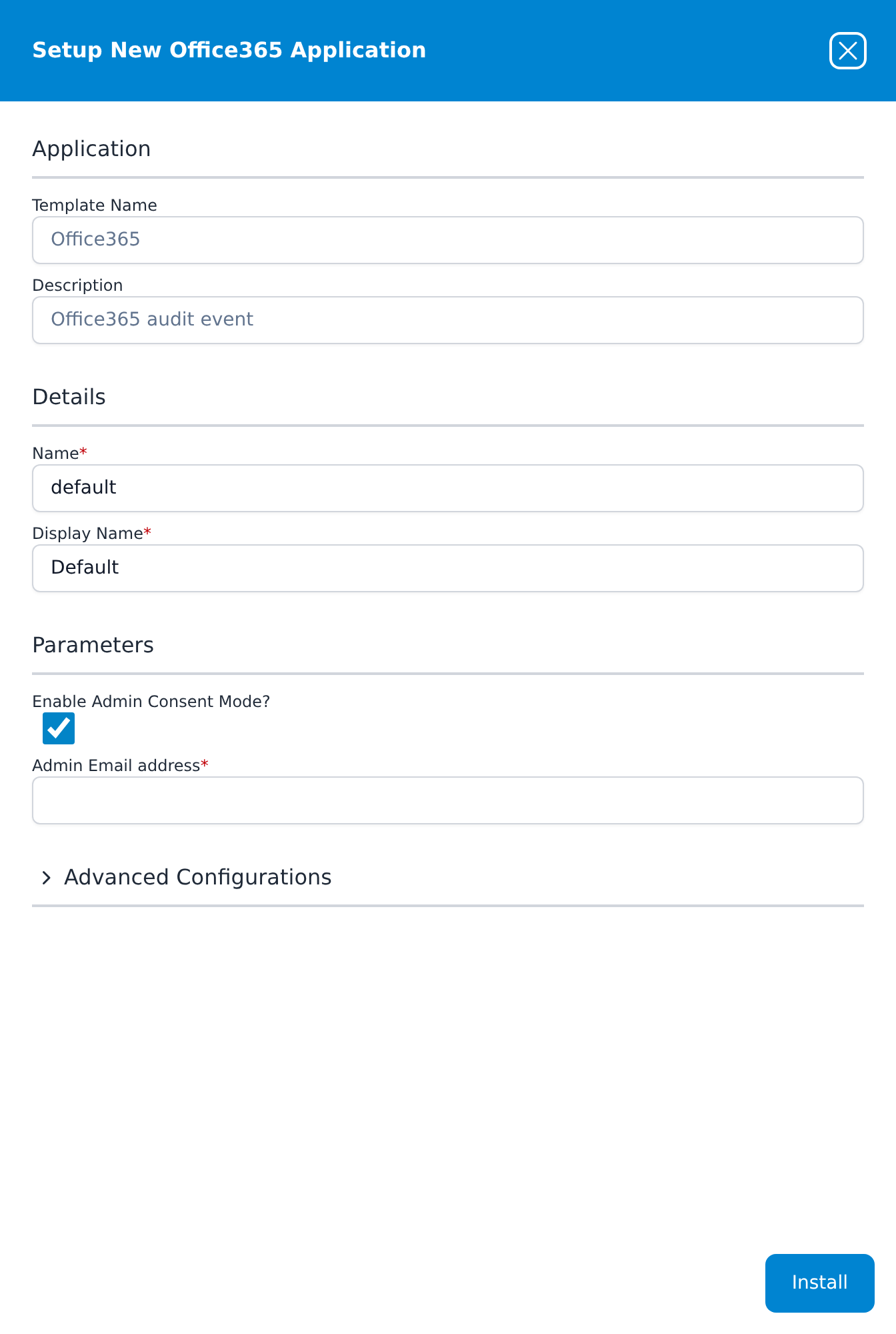
Office365
Office365 audit event
- Enable Admin Consent Mode? (optional) — checkbox, ticked
- Admin Email address — shown only while the checkbox is ticked
Advanced Configurations: datalake — managed · datalake index name — Office365
Unticking Enable Admin Consent Mode replaces Admin Email address with three fields: Azure Tenant ID, Azure ClientID and Azure ClientSecret — the same credential shape Office365-Audit takes. The panel below is shown in the ticked state.
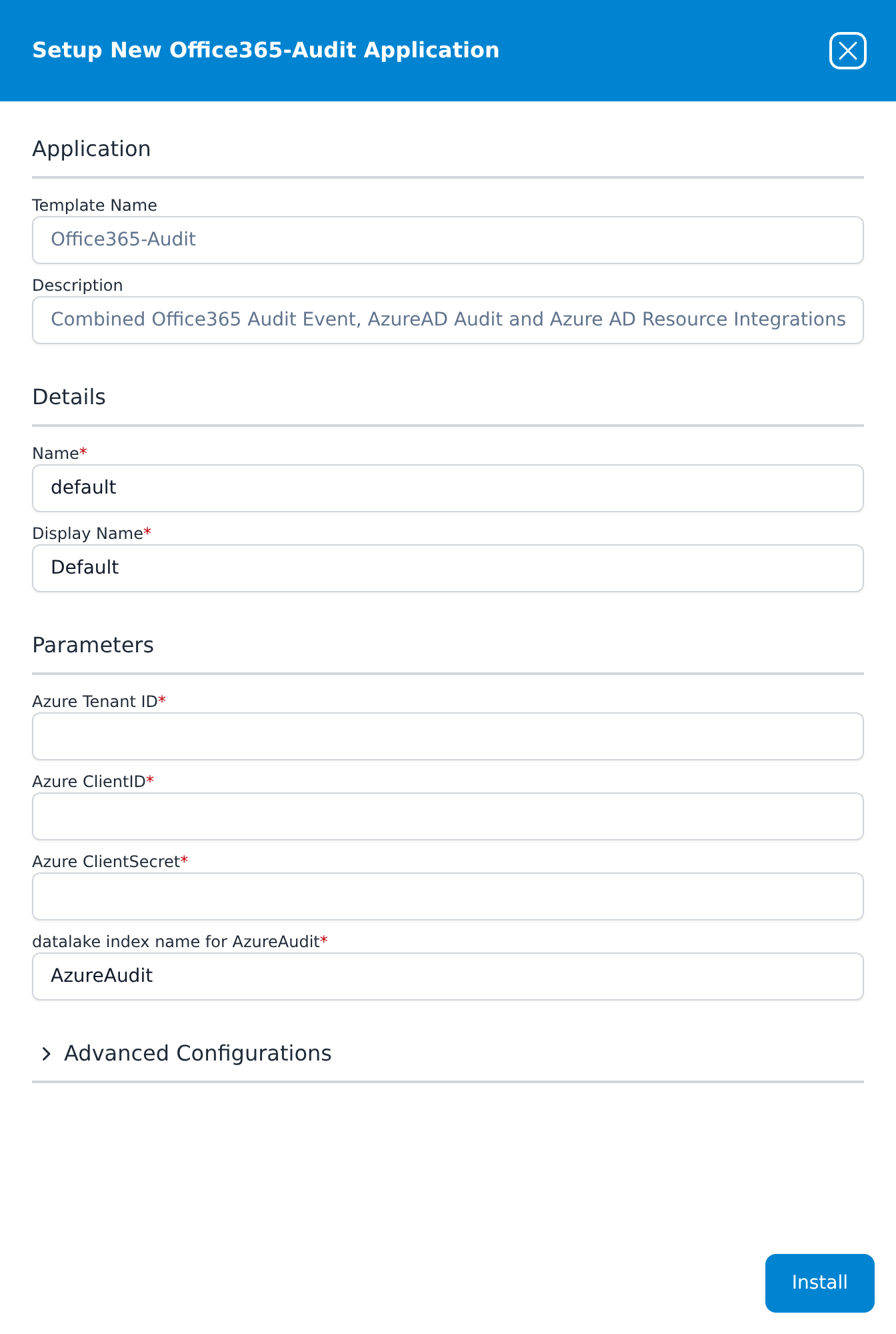
Office365-Audit
Combined Office365 Audit Event, AzureAD Audit and Azure AD Resource Integrations
- Azure Tenant ID
- Azure ClientID
- Azure ClientSecret
- datalake index name for AzureAudit — AzureAudit
Advanced Configurations: datalake — managed · datalake index name — Office365
This template covers what Office365, Azure Directory Audit and Office365 Resource Watch cover separately, writing to two indexes, and authenticates with an explicit client secret rather than admin consent. The second index name is the one field of the pair that stays in the main Parameters list; the primary index sits in Advanced Configurations with the lake.
Office365 Resource Watch
Office365 resource watch
- Enable Admin Consent Mode? (optional) — checkbox, ticked
- admin email address — shown only while the checkbox is ticked
Unticking Enable Admin Consent Mode replaces admin email address with three fields: Azure Tenant ID, Azure ClientID and Azure ClientSecret. The panel below is shown in the ticked state.
This template has no Advanced Configurations section — its output is a record set on SIEM → Resources rather than a data-lake index.
On-Premise IT
Every template in this category takes syslog from an appliance on your network. The device is pointed at a syslog port on the platform or on a collector; the template supplies the parser, which is why none of them has a parameter in the main Parameters list. Five of the twelve let you name the destination index under Advanced Configurations; the other seven write to an index the template fixes.
Check Point Firewall Syslog
Check Point Firewall Events via Syslog
Advanced Configurations: datalake — managed · datalake index name — Checkpoint
Cisco ASA Syslog
Cisco ASA Firewall Events via Syslog
Advanced Configurations: datalake — managed · datalake index name — CiscoASA
Cisco Meraki Syslog
Cisco Meraki Router / Firewall Events via Syslog
Advanced Configurations: datalake — managed · datalake index name — Meraki
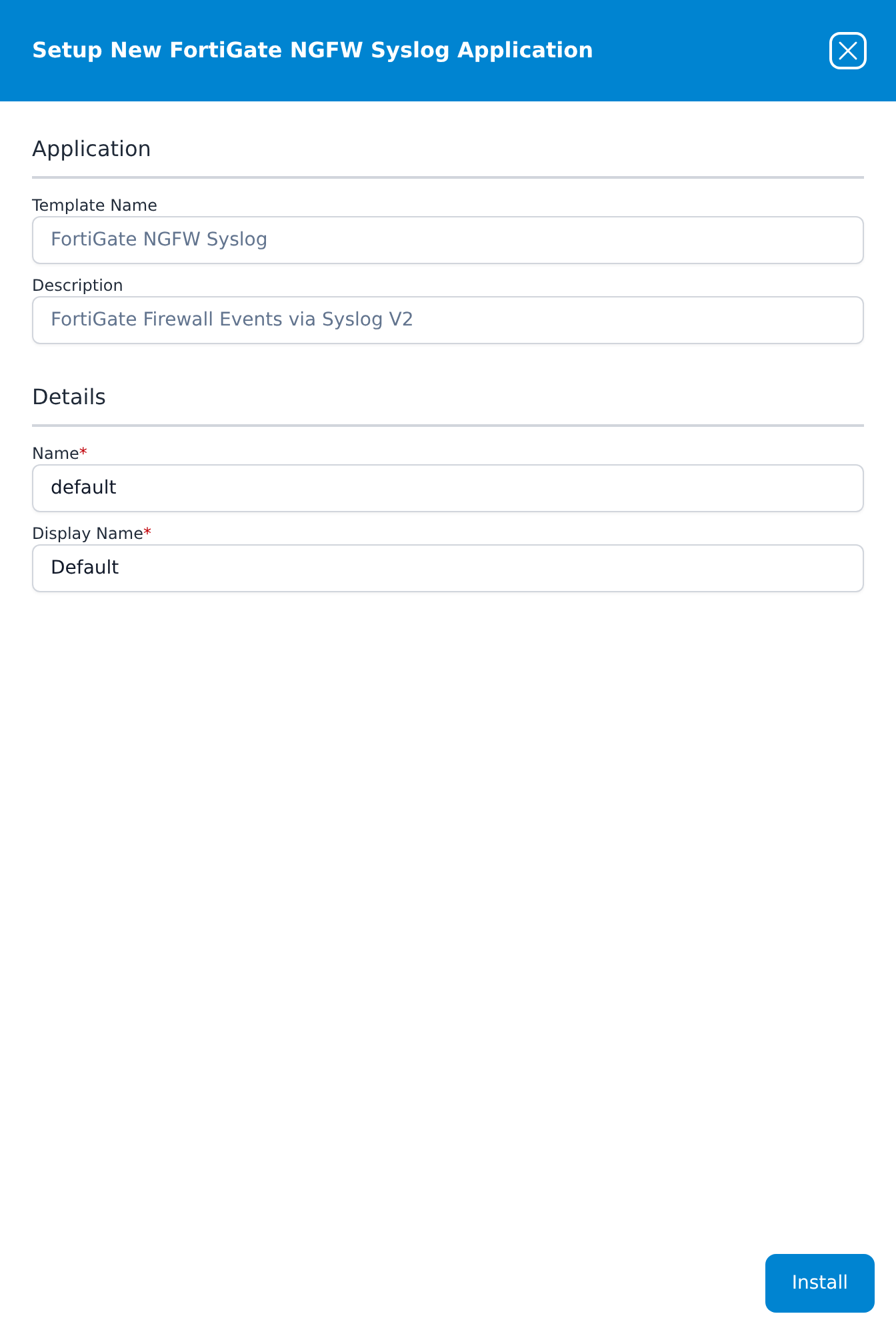
FortiGate NGFW Syslog
FortiGate Firewall Events via Syslog V2
No parameters: the panel has no Parameters section at all.
The display name lost its V2 suffix; the description and the template ID did not. FortiGateFWLogV2 is still what the Application Templates table lists, so a configuration file naming the V2 template and a catalog tile that no longer says V2 are the same thing.
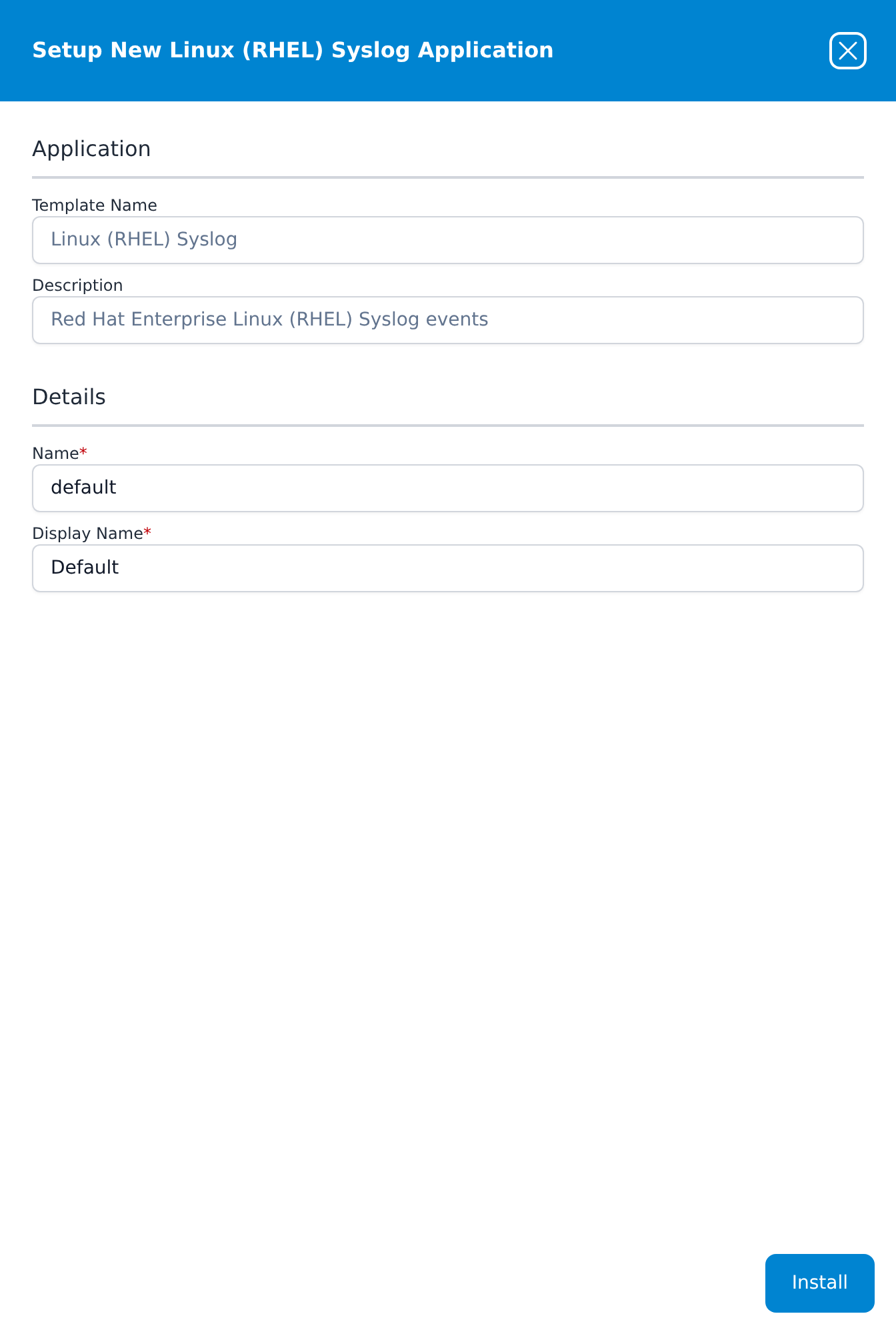
Linux (RHEL) Syslog
Red Hat Enterprise Linux (RHEL) Syslog events
No parameters.
PaloAlto Firewall Syslog
PaloAlto Firewall Events via Syslog
Advanced Configurations: datalake — managed · datalake index name — PaloAltoFW
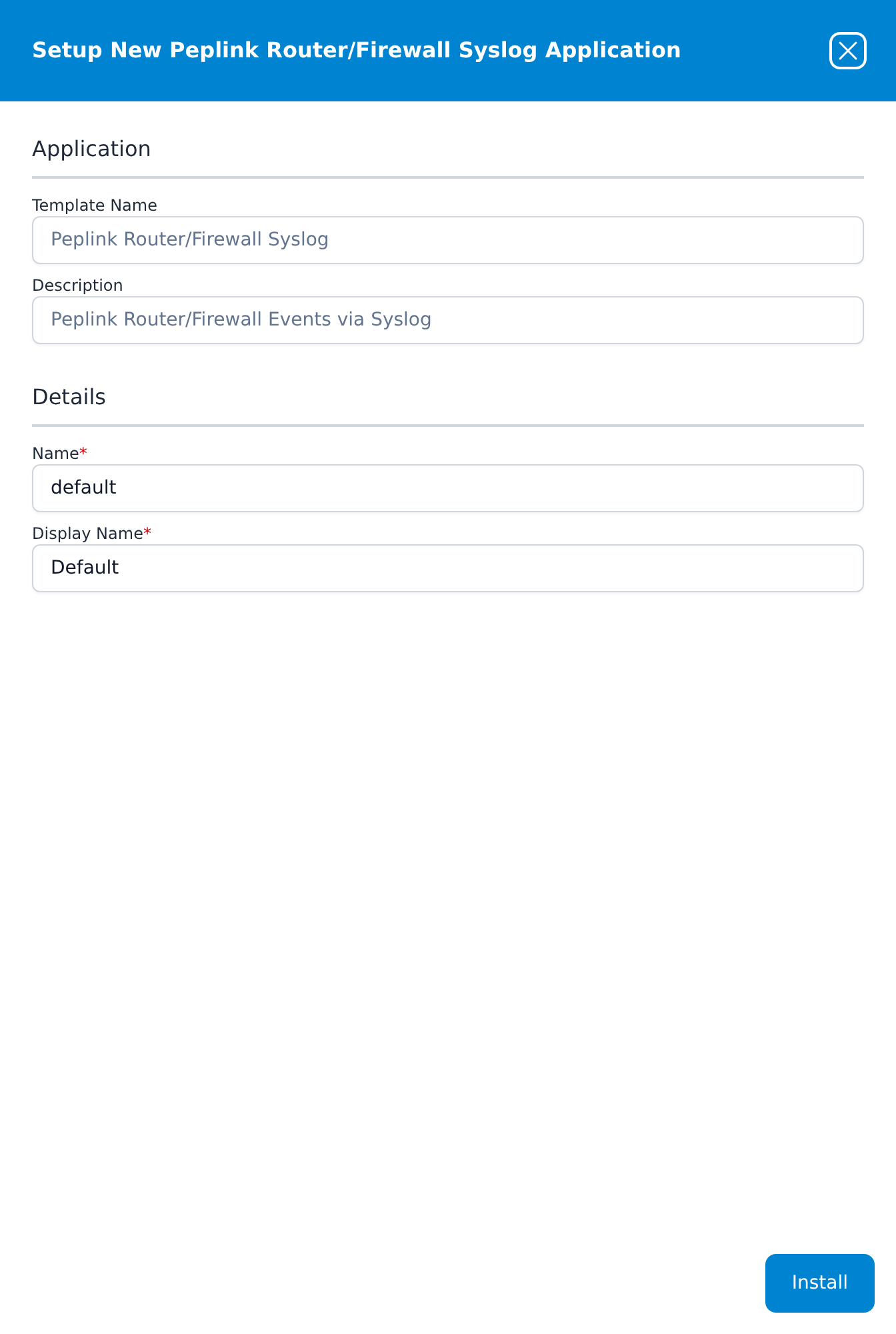
Peplink Router/Firewall Syslog
Peplink Router/Firewall Events via Syslog
No parameters.
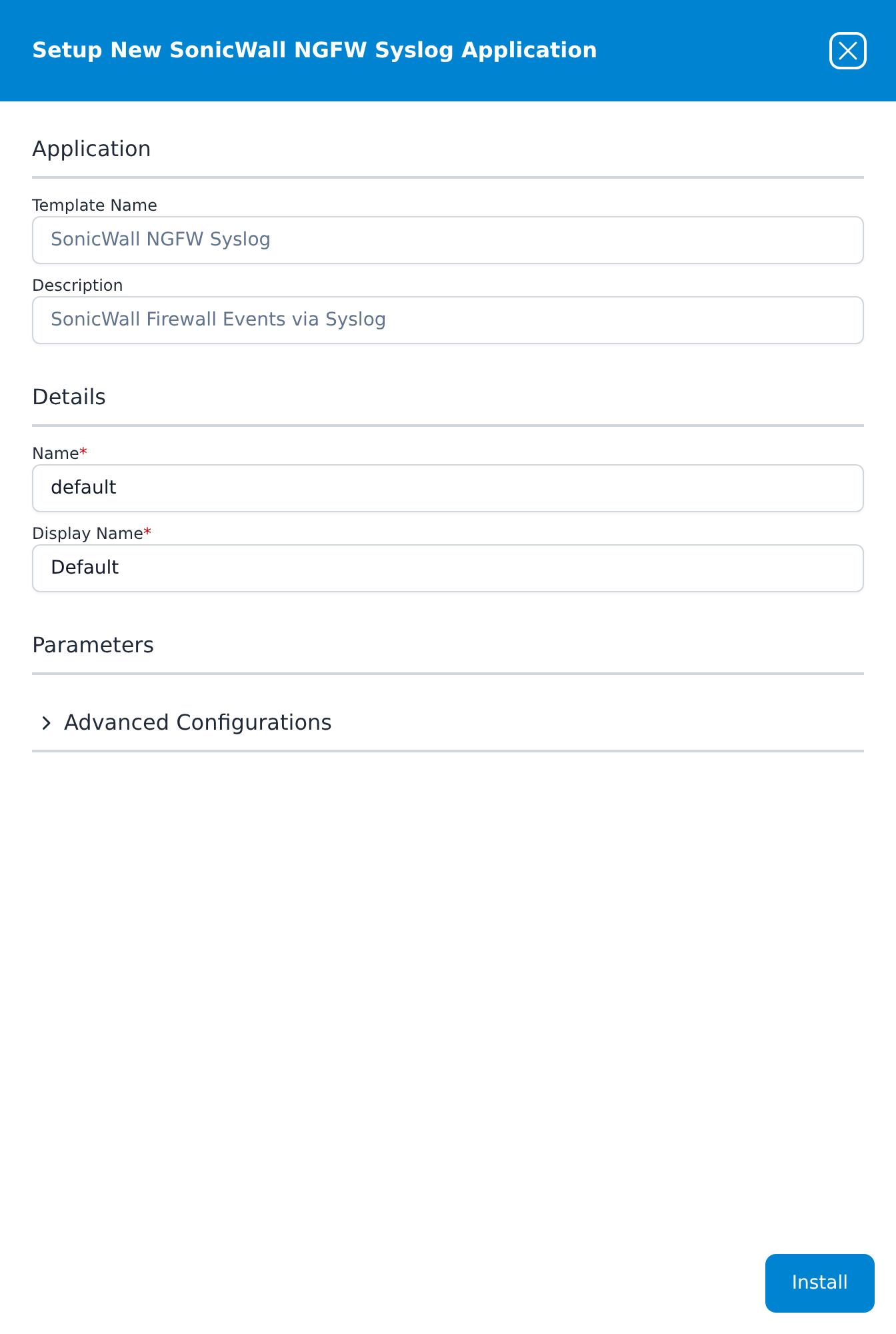
SonicWall NGFW Syslog
SonicWall Firewall Events via Syslog
Advanced Configurations: datalake — managed · datalake index name — SonicWall
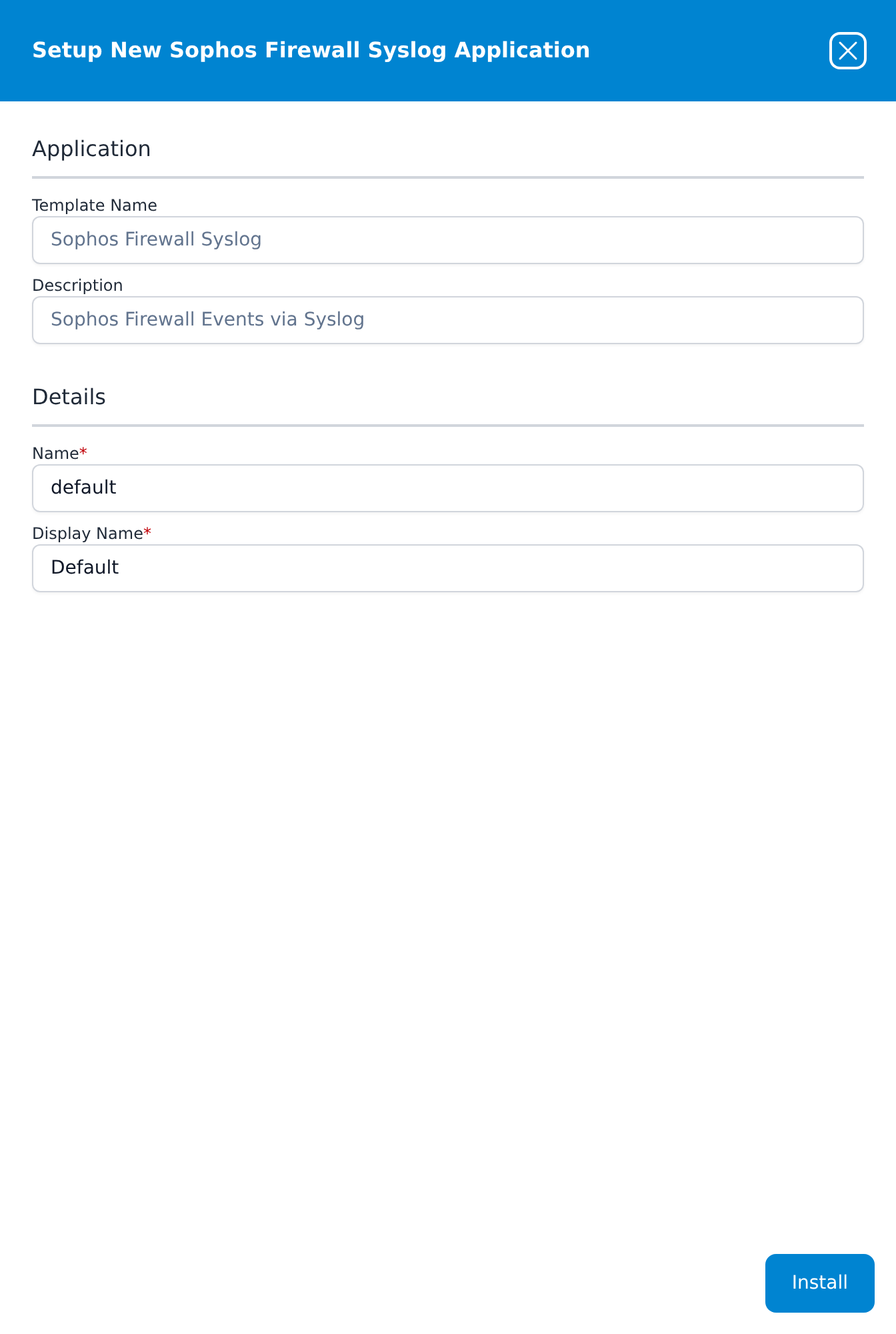
Sophos Firewall Syslog
Sophos Firewall Events via Syslog
No parameters.
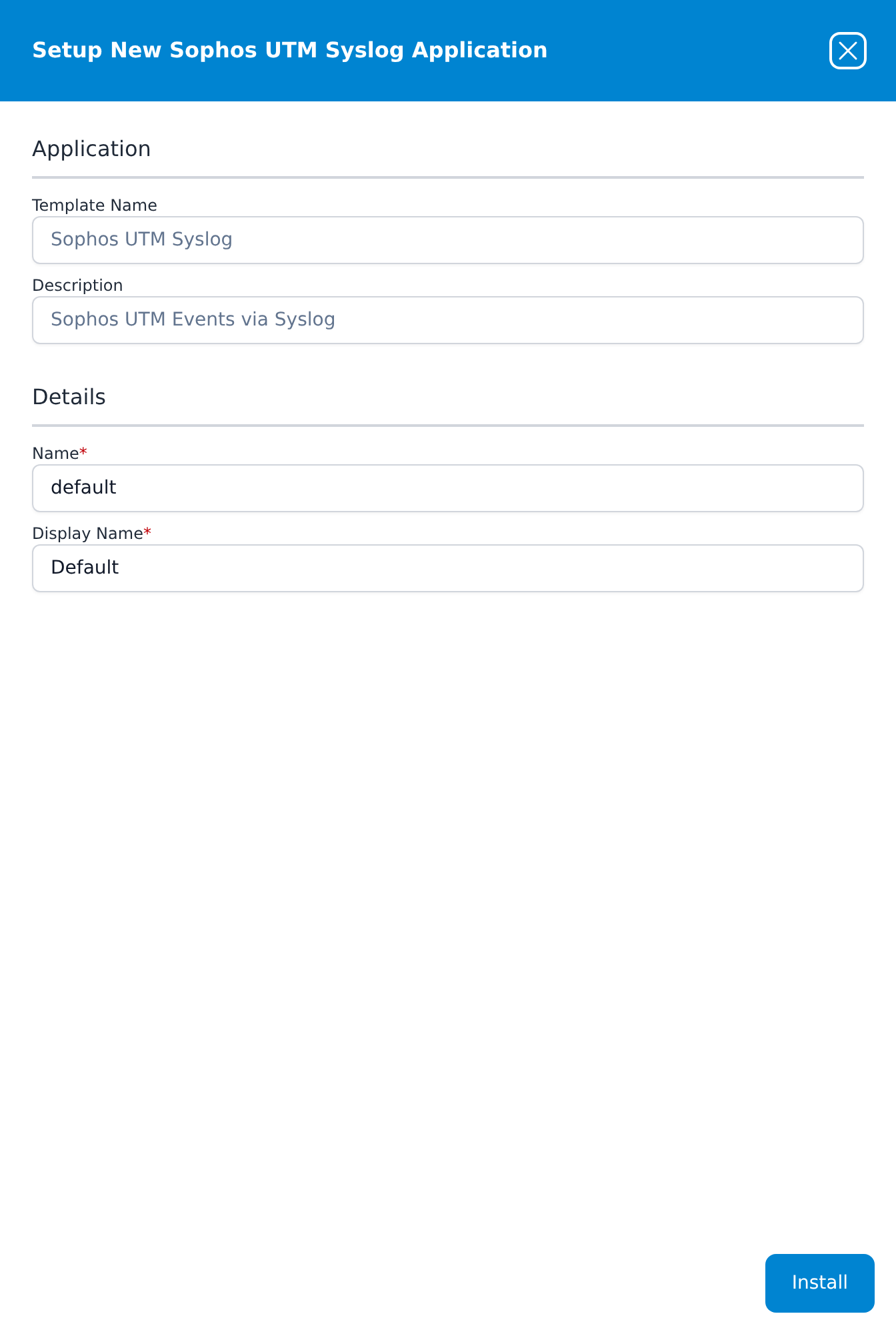
Sophos UTM Syslog
Sophos UTM Events via Syslog
No parameters.
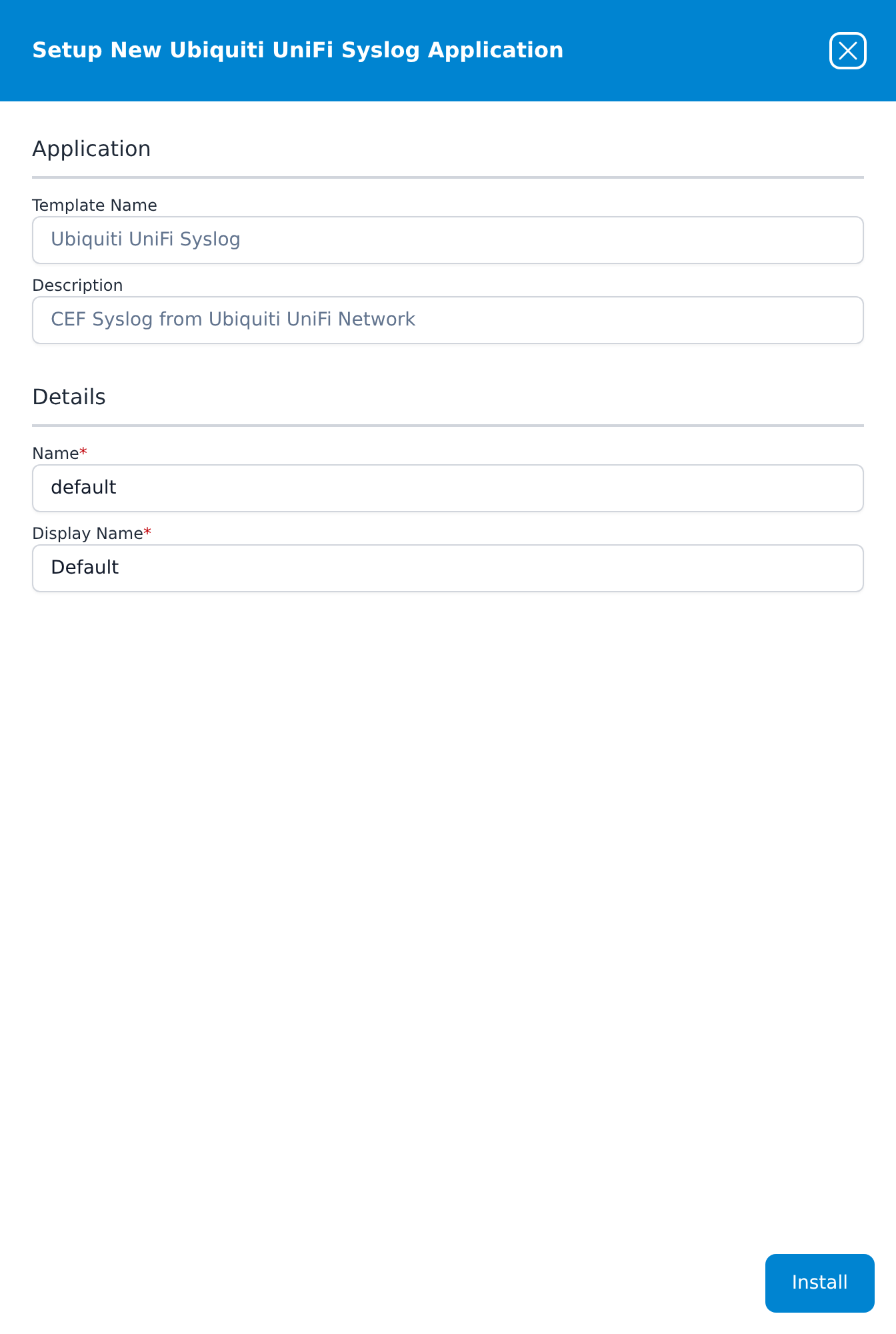
Ubiquiti UniFi Syslog
CEF Syslog from Ubiquiti UniFi Network
No parameters.
The only template in this category whose description names the wire format. The parser it supplies expects CEF, so the UniFi Network controller's remote-logging settings have to be emitting CEF rather than its plain syslog format; records sent in the plain format arrive at the listener and are not claimed.
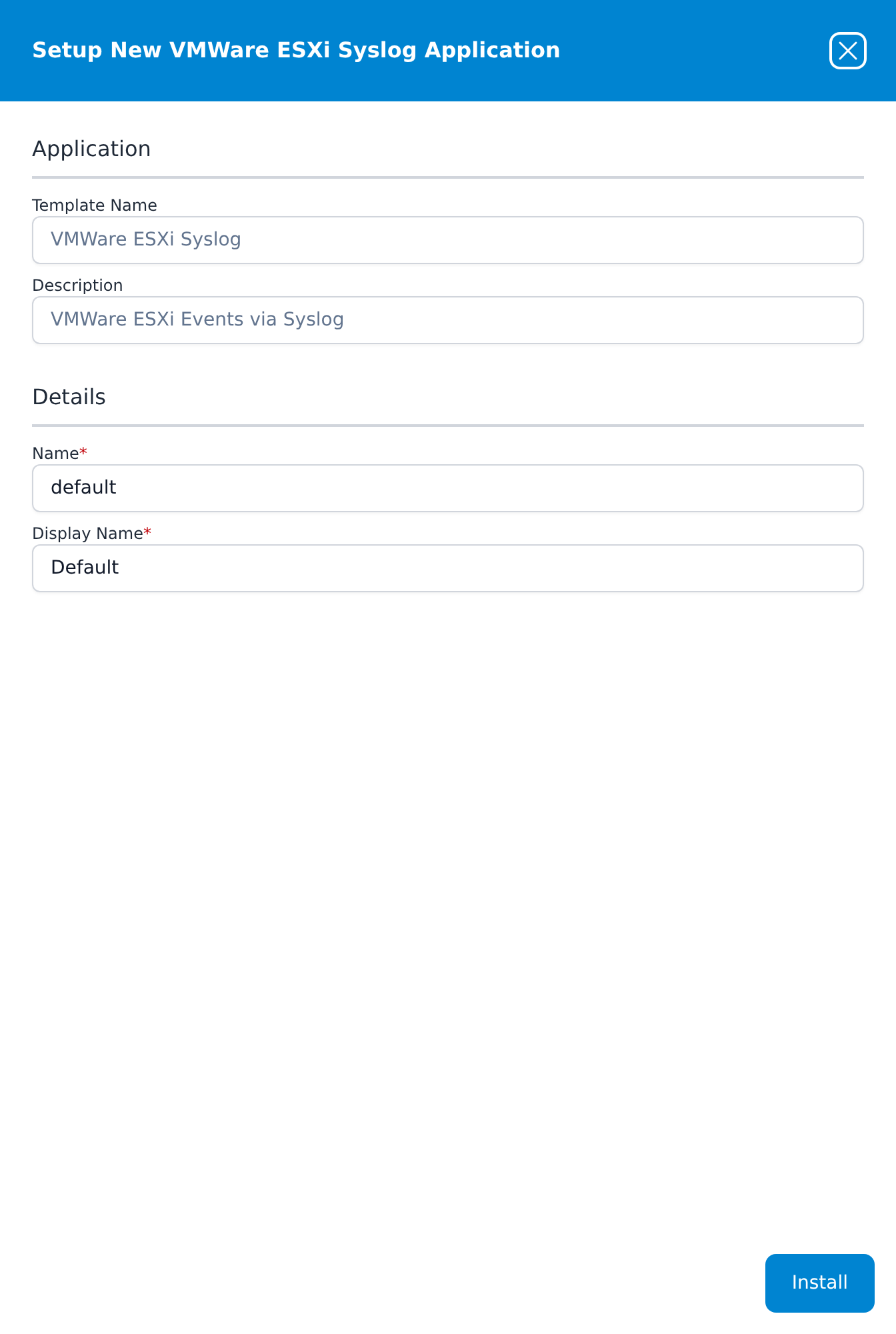
VMWare ESXi Syslog
VMWare ESXi Events via Syslog
No parameters.
The one hypervisor source in the catalog. ESXi hosts are pointed at a syslog port the same way an appliance is, through the host's own Syslog.global.logHost setting.
System Components
These templates install the platform's own moving parts rather than a third-party source. Most of their descriptions are prefixed Internal:.
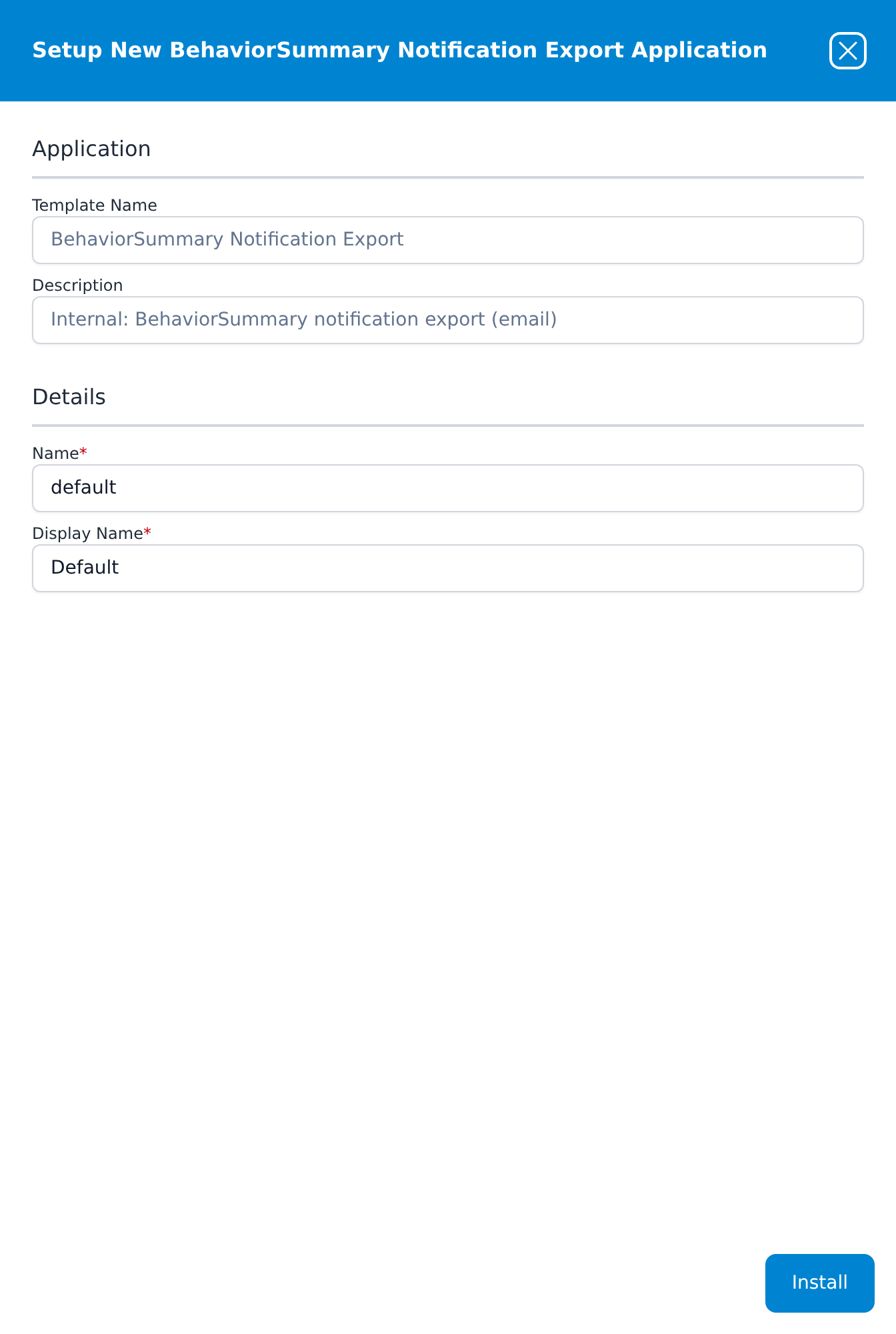
BehaviorSummary Notification Export
Internal: BehaviorSummary notification export (email)
No parameters. Installing it builds the router and pipes that mail behaviour summaries out; see the details panel for what it creates.
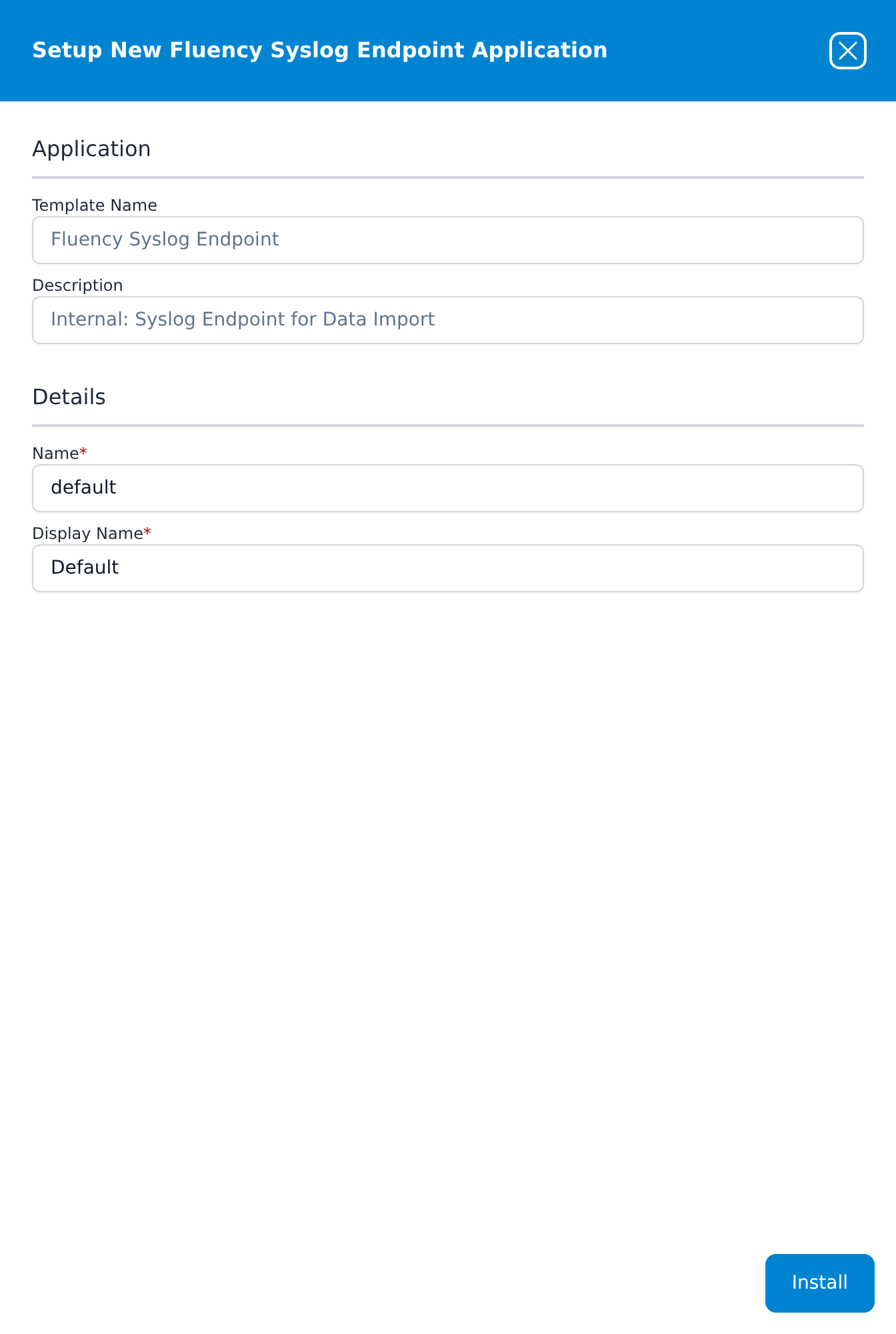
Fluency Syslog Endpoint
Internal: Syslog Endpoint for Data Import
No parameters. This is the cloud syslog listener that the On-Premise IT templates feed.
→ Syslog
Fluency AI Assistant
Internal: Fluency AI Assistant API integration
- AI Assistant Service URL
- AI Assistant API Token
- AWS Region — drop-down, US N.Virginia
- SQS notification queue url
- Pre-defined AWs Role (optional) — drop-down
- IAM Access Key (optional)
- IAM Access Secret (optional)
The longest of the System Components forms, and the one form in the catalog whose last parameter sits below the fold: IAM Access Secret is cut off at the bottom edge of the panel when it opens, and the body has to be scrolled to reach it. Its AWS Region drop-down offers eight regions where the AWS templates offer eleven — US N.California, Europe Paris and Europe Stockholm are not on this list.
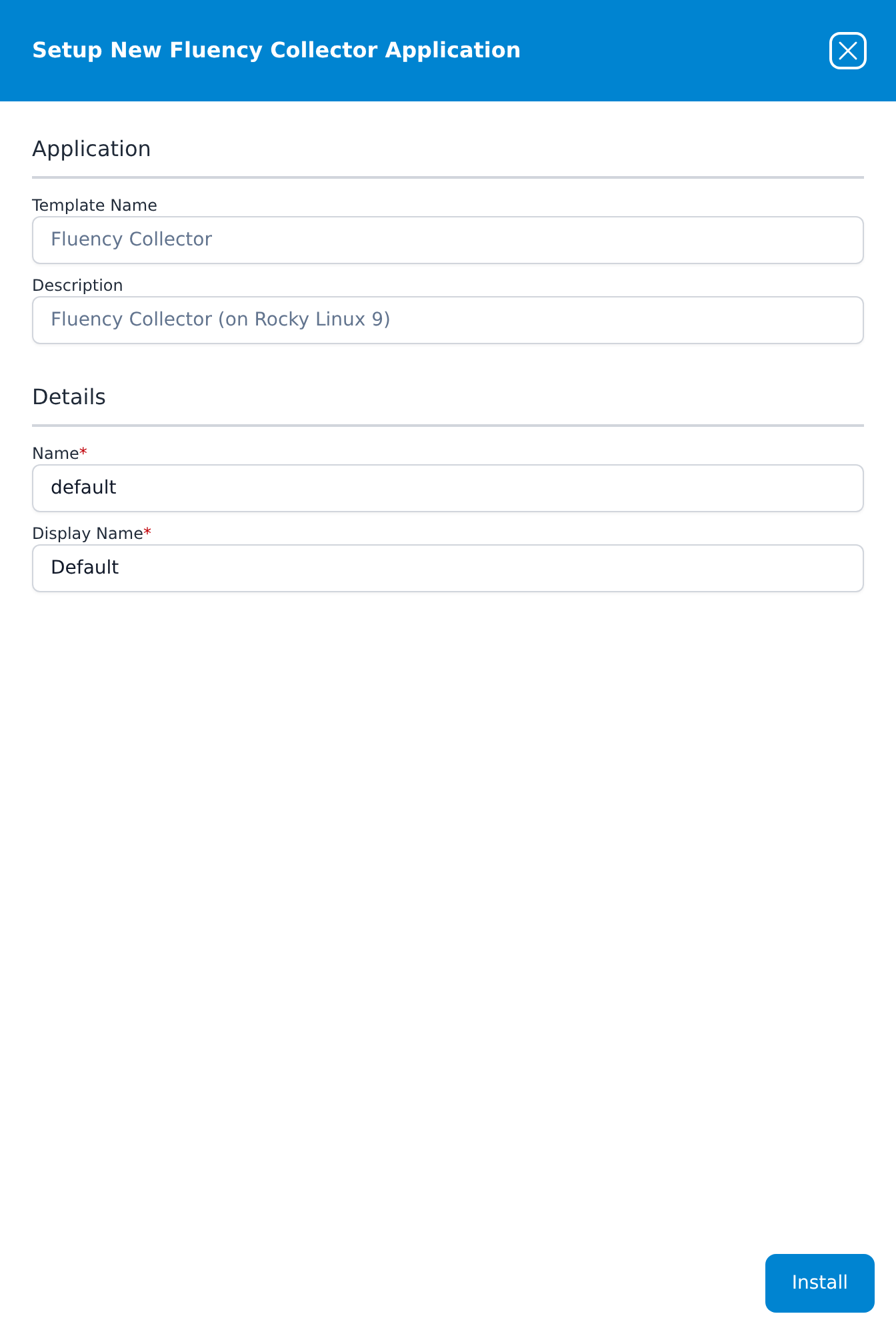
Fluency Collector
Fluency Collector (on Rocky Linux 9)
No parameters. The installed application produces a Security token under Outputs, which the collector uses to register — see With outputs.
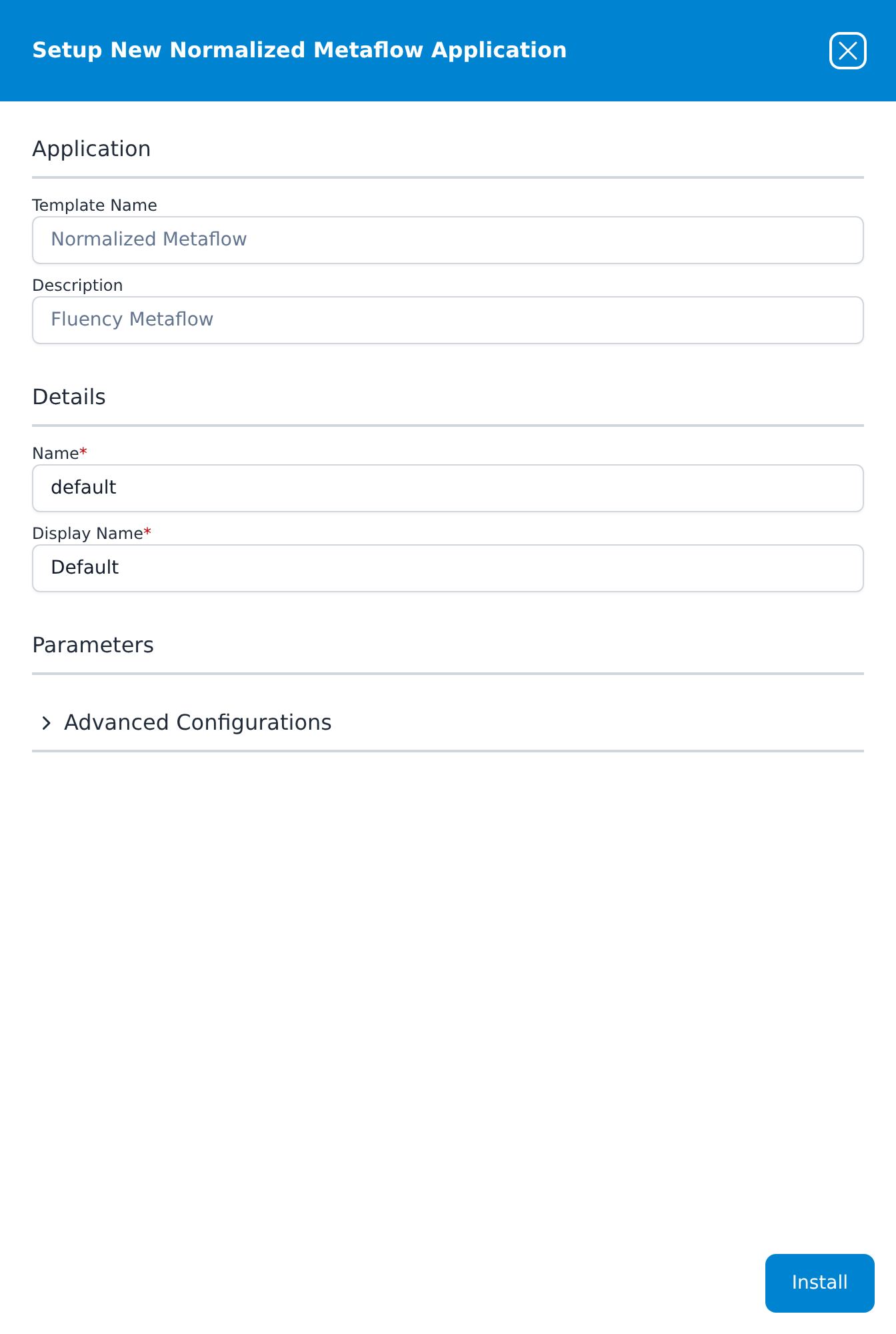
Normalized Metaflow
Fluency Metaflow
The Parameters section is present but empty.
Advanced Configurations: datalake — managed · datalake index name — metaflow
Template ID FluencyMetaflow. The only System Components template whose destination is a data-lake index you choose, and the only index-name default in the catalog written in lower case.
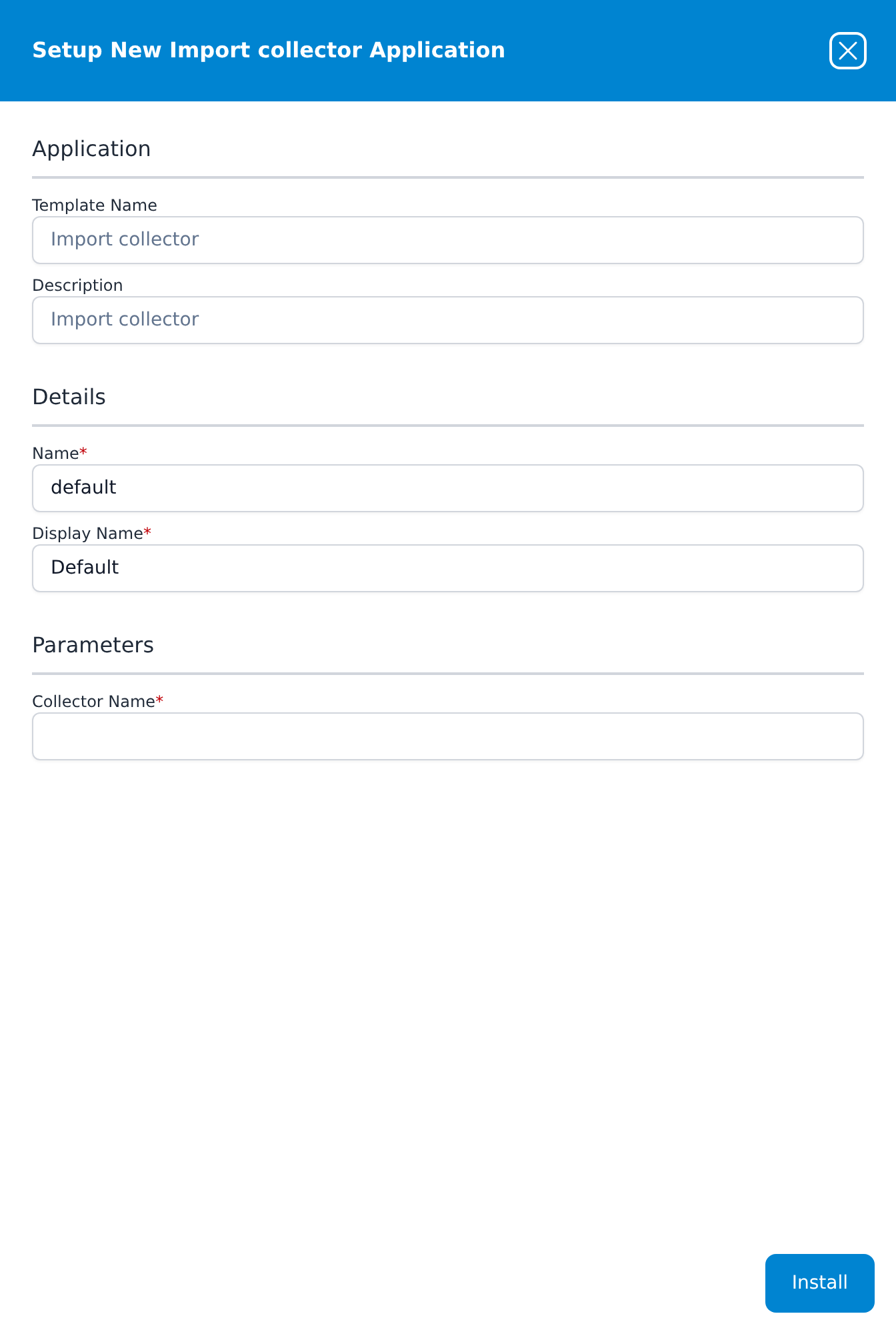
Import collector
Import collector
- Collector Name
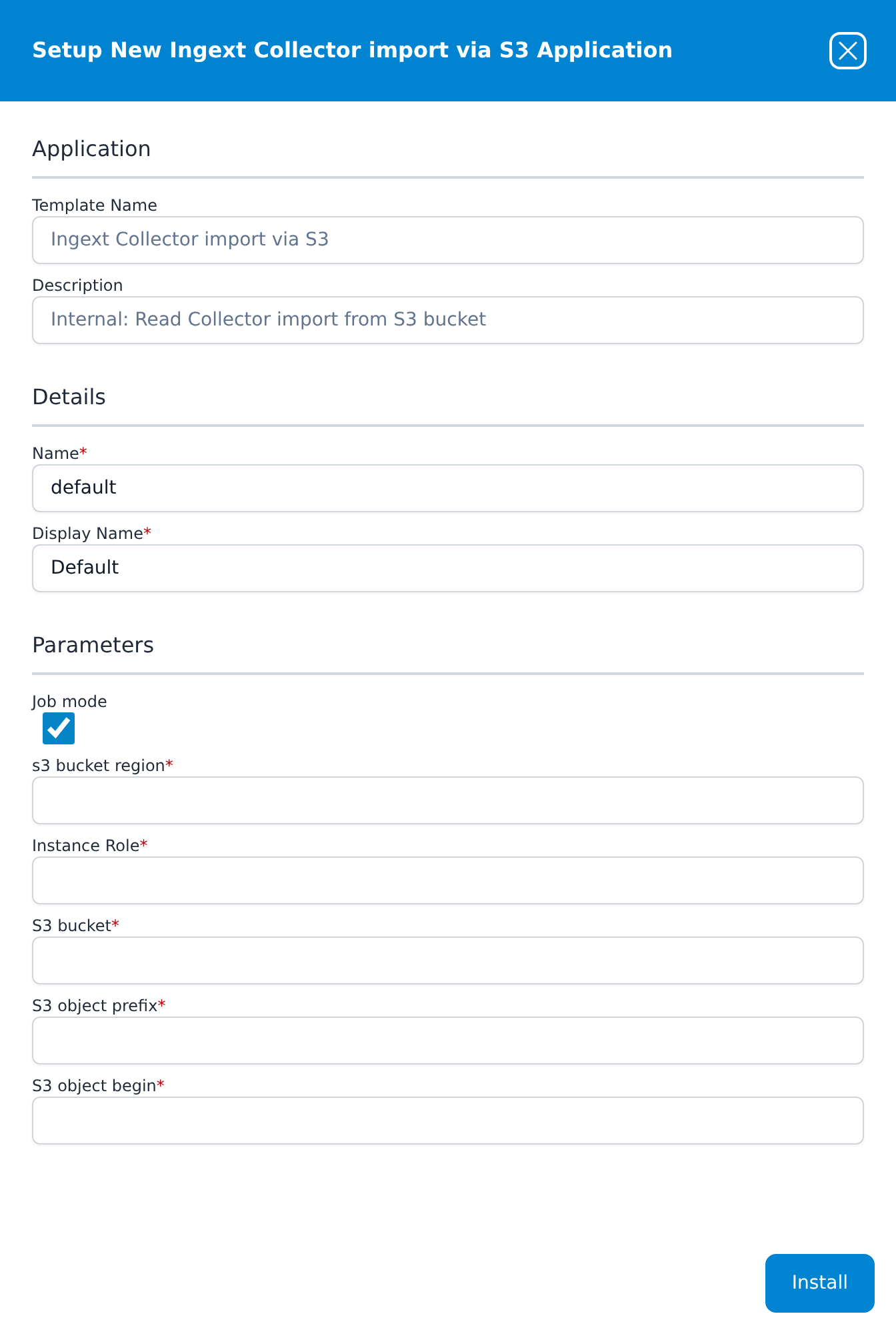
Ingext Collector import via S3
Internal: Read Collector import from S3 bucket
- Job mode (optional) — checkbox, ticked
- s3 bucket region
- Instance Role
- S3 bucket
- S3 object prefix
- S3 object begin
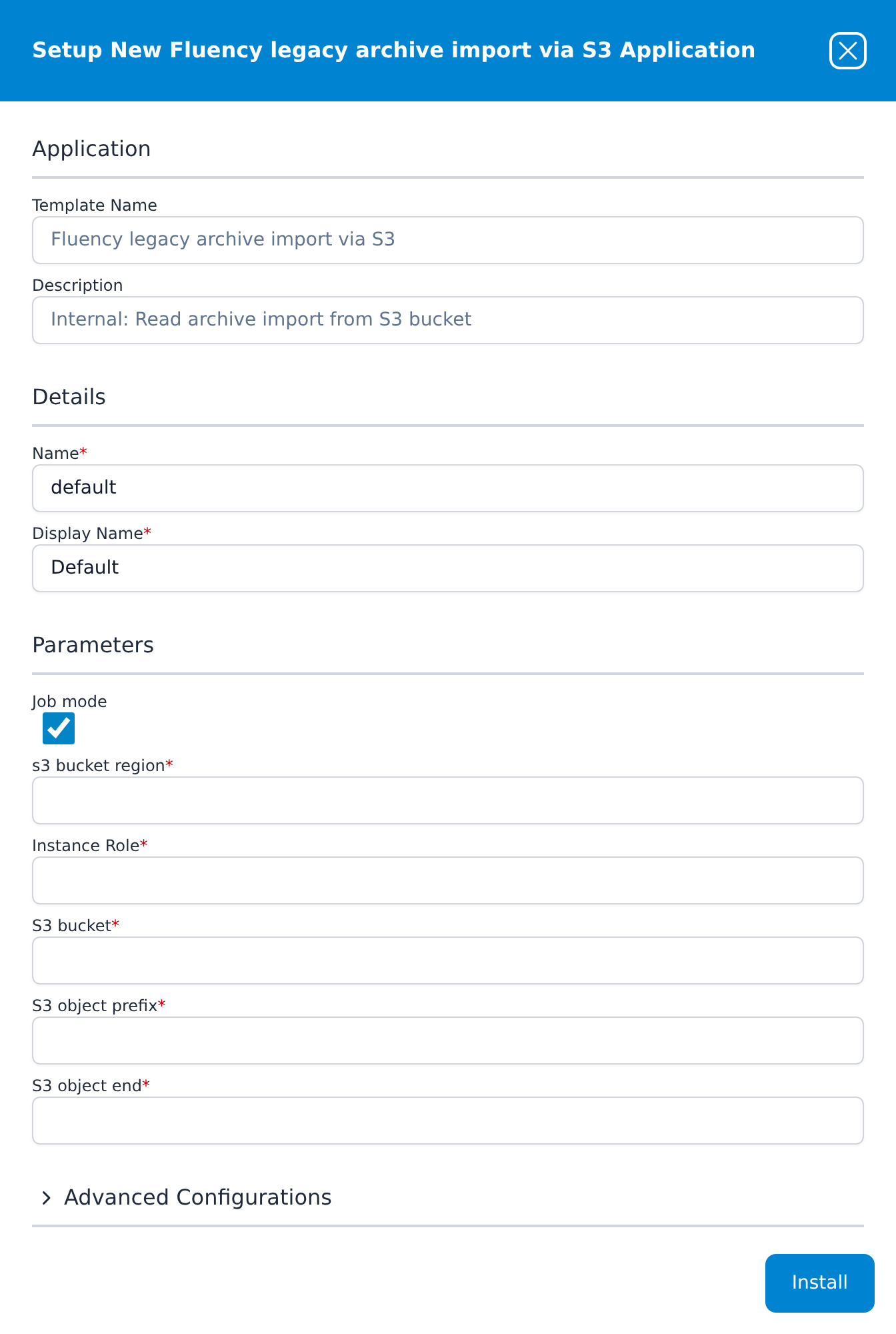
Fluency legacy archive import via S3
Internal: Read archive import from S3 bucket
- Job mode (optional) — checkbox, ticked
- s3 bucket region
- Instance Role
- S3 bucket
- S3 object prefix
- S3 object end
Advanced Configurations: datalake — managed · datalake index name — legacy · datalake index name — legacyFlow
The third of the S3 import templates, and the only one of them that names a destination. Where the other two take an S3 object begin, this one takes an S3 object end: it reads the bucket up to the named object rather than from it. It is also the only template in the catalog with two index-name fields under Advanced Configurations, both labelled datalake index name: the first, legacy, takes the archive's events, and the second, legacyFlow, its flow records.
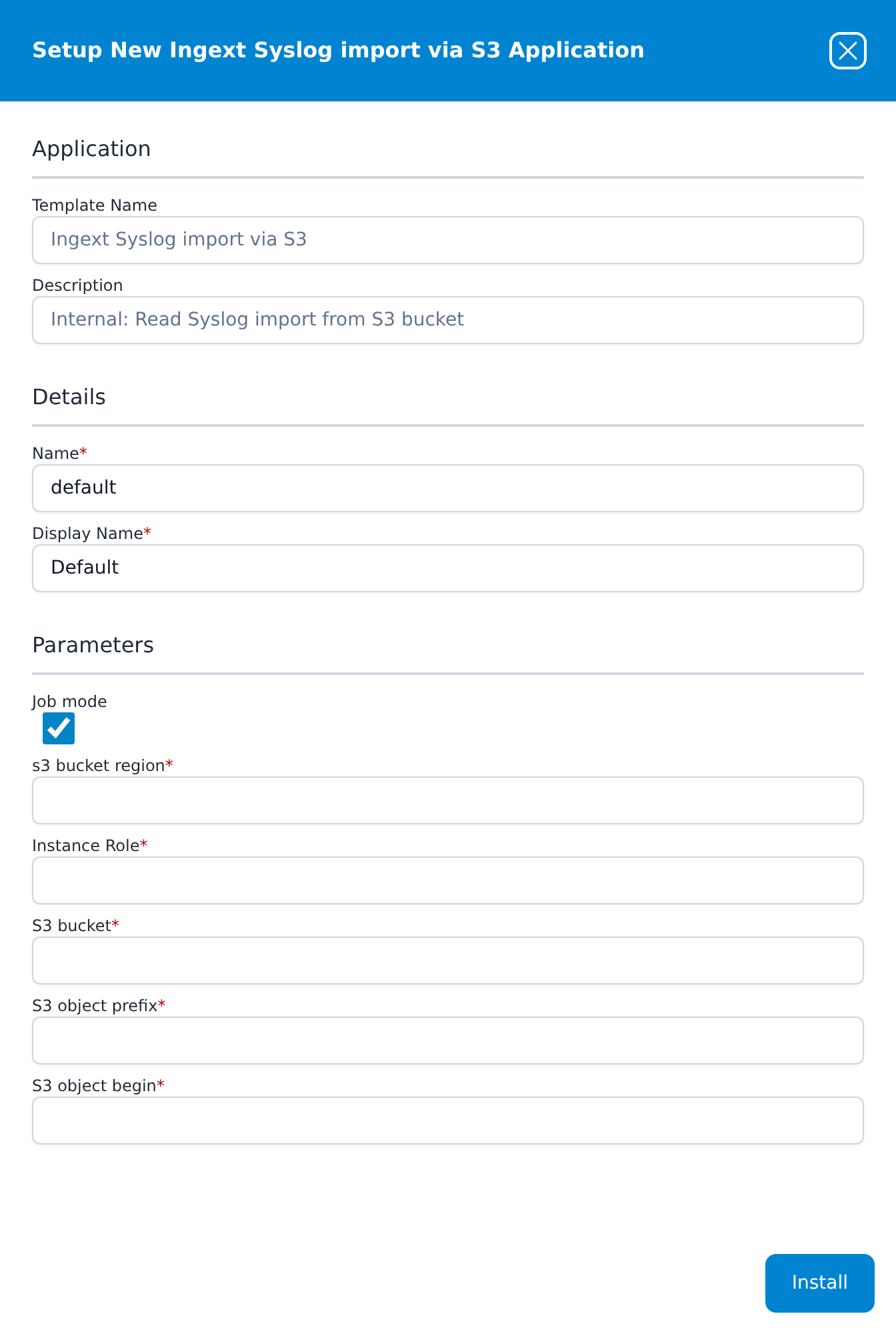
Ingext Syslog import via S3
Internal: Read Syslog import from S3 bucket
The same six parameters as Ingext Collector import via S3, reading syslog rather than collector data from the bucket:
- Job mode (optional) — checkbox, ticked
- s3 bucket region
- Instance Role
- S3 bucket
- S3 object prefix
- S3 object begin