AWS CloudTrail
AWS CloudTrail records the API activity in an AWS account and delivers it as log files to an S3 bucket. Fluency collects those files as they arrive:
- The bucket sends an "object created" notification to an SQS queue.
- Fluency reads the queue.
- Fluency downloads each new file the queue points to.
There are two ways to give Fluency access, as described in Connecting to AWS:
- Assumed role — recommended. A role in your account that Fluency assumes. One CloudFormation template adds the queue, the bucket notification and the read permissions for an existing trail's bucket.
- IAM user and access key — alternative. A single CloudFormation template creates everything in one stack: the trail, its bucket, the queue, and an IAM user with an access key. This is also the only method for AWS GovCloud accounts.
Before you start
- The bucket must not notify another consumer. Use a bucket that doesn't already send "object created" notifications somewhere else, such as to another SIEM.
- Leave the trail's log file SSE-KMS encryption off. The read permissions Fluency is given don't include decrypting with a KMS key.
Step 1 — Create a trail
Skip this step in either of these cases:
- A trail already delivers to an S3 bucket in the account.
- You are using the access-key template, which creates its own trail.
These steps create the same kind of trail that template does: logging in every region, including events from global services such as IAM. For full detail, see the AWS guide to creating a trail.
-
In the AWS console, open CloudTrail → Trails → Create trail.
-
Give the trail a name, such as
fluency-aws-cloudtrail-import. A trail created in the console logs every region. -
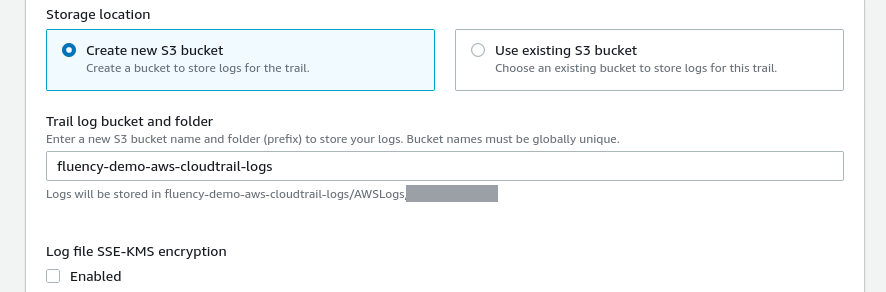
Under Storage location:
- Choose Create new S3 bucket.
- Give the bucket a name that is unique across all of AWS. CloudTrail adds the bucket policy it needs.
- Note the bucket name. You need it in step 2.
-
Under Log file SSE-KMS encryption, clear Enabled.
-
Press Next. Under Choose log events, tick all four event types:
- Management events, with both Read and Write API activity.
- Data events — choose the resources to record.
- Insights events.
- Network activity events — choose the event sources to record.
AWS charges for data, Insights and network activity events, and for management events beyond the first copy in the account. See AWS CloudTrail pricing.
-
Press Next, review the trail, and press Create trail.
The access-key template also sets its bucket to delete log files after 7 days. You can add a lifecycle rule to this bucket with the same effect (S3 → the bucket → Management → Create lifecycle rule), or keep the files for as long as your own retention policy requires.
Step 2 — Connect the trail's bucket
- Assumed role (recommended)
- Access key (alternative)
- Manual
Assumed role
-
Make sure the account has a registered role. If it doesn't, follow Connecting to AWS, steps 1 and 2. A role already registered for this account can be reused.
-
Run
IngextS3SqsNotification.yamlagainst the trail's bucket, as described in Connecting to AWS, step 3. Create it in the bucket's account and region, with these values:Parameter Value for CloudTrail S3BucketThe trail's bucket. S3BucketPrefixAWSLogs/<account-id>/CloudTrail/. This is where CloudTrail writes management, data and network activity events. Insights events are written underAWSLogs/<account-id>/CloudTrail-Insight/instead.SQSQueueNameA name for the queue, such as ingext-cloudtrail.PodRoleARNLeave empty. IAMRoleThe Role Name of your role. ExternalIDThe role's External ID, or empty. -
Copy the
QueueURLoutput for step 3.
IAM user and access key
One template creates the whole AWS side in a single stack, so skip step 1:
- AWS (commercial):
https://fluency-cloudformation.s3.us-east-2.amazonaws.com/Fluency_AWS_Import_CloudTrail.yaml - AWS GovCloud:
https://fluency-cloudformation.s3.us-east-2.amazonaws.com/FluencyGovCloudTrail.yaml
The stack creates:
- A new S3 bucket for the trail, with the bucket policy CloudTrail needs. In the commercial template, the bucket deletes log files after 7 days.
- A trail that logs management events (read and write) in every region, including global services.
- An SQS queue, and an "object created" notification from the whole bucket to it.
- An IAM user with a policy allowing
sqs:ReceiveMessage,sqs:DeleteMessageandsqs:GetQueueUrlon the queue, ands3:ListBucketands3:GetObjecton the bucket. The GovCloud template also attaches the AWS-managedCloudWatchReadOnlyAccessandCloudWatchLogsReadOnlyAccesspolicies. - An access key for that user.
| Parameter | Value |
|---|---|
TrailName | Defaults to fluency-aws-cloudtrail-import (GovCloud: fluency-import). |
S3Bucket | Change this. Bucket names must be unique across all of AWS, and the default name is already taken, so a stack left at the default fails and rolls back. Follow the bucket naming rules. |
IAMUser | Defaults to fluency-aws-cloudtrail-import (GovCloud: fluency-cloudtrail). |
SQSQueueName | Defaults to the same as IAMUser. |
Create the stack as described in Create the stack in the AWS console, using this template's URL and parameters. Tick the IAM acknowledgement on the Configure stack options page, because the stack creates an IAM user.
When the stack reaches CREATE_COMPLETE, its Outputs tab holds three values for step 3: AccessKey, SecretKey and QueueURL.
The secret key stays readable in those outputs to anyone allowed to view the stack, so restrict who can view it. See Connecting to AWS for looking after the key.
The template's trail records management events only. To record the other event types recommended in step 1, edit the trail afterwards in the CloudTrail console.
Manual setup
The same wiring as the assumed-role template, built by hand for an existing trail. It has three parts: the SQS queue, the bucket's event notification, and the read permissions.
Create the SQS queue
Create a queue for the bucket to notify. Fluency polls it for the location of each new log file.
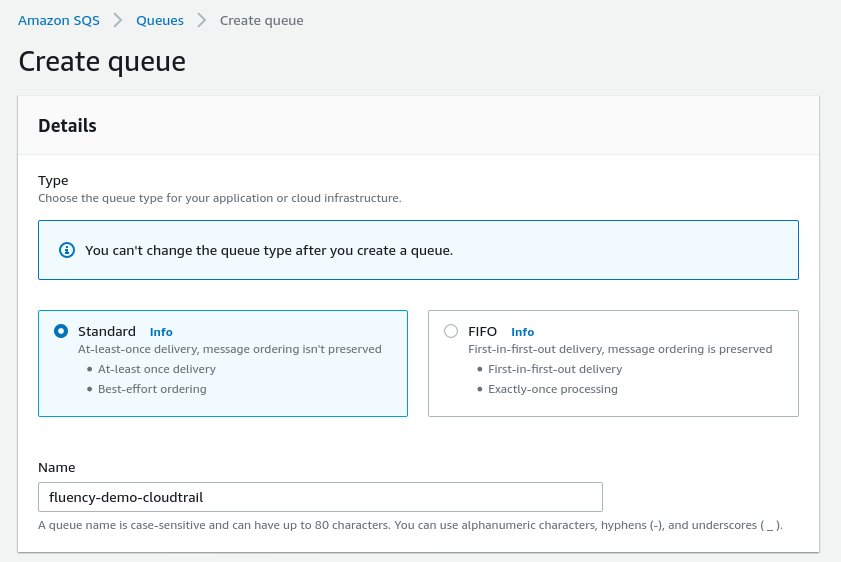
- In the SQS console, create a queue.
- Give it a name, and choose the Standard type.
- Under Access policy, choose Advanced and replace the policy with the one below. Substitute your queue name and the trail's bucket name.
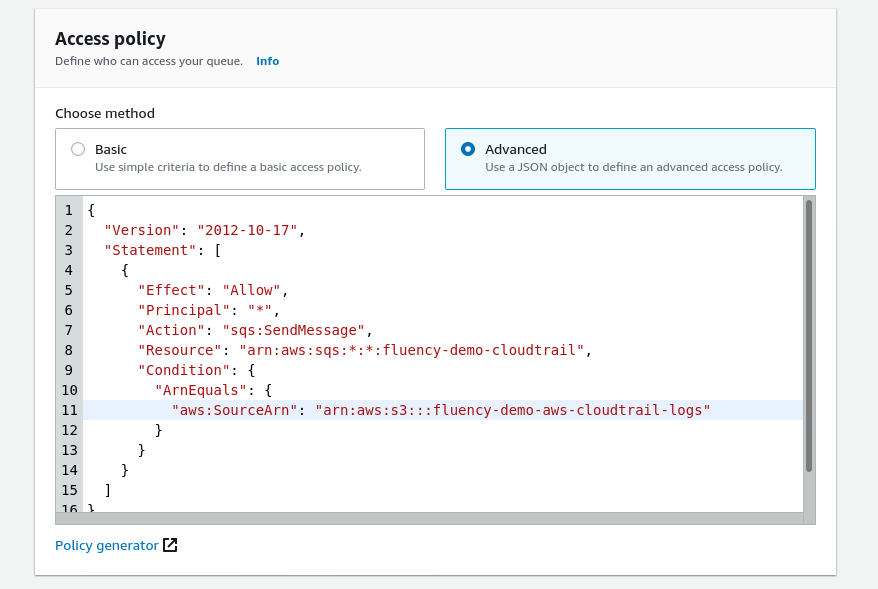
{
  "Version": "2012-10-17",
  "Statement": [
    {
      "Effect": "Allow",
      "Principal": "*",
      "Action": "sqs:SendMessage",
      "Resource": "arn:aws:sqs:*:*:<queue-name>",
      "Condition": {
        "ArnEquals": {
          "aws:SourceArn": "arn:aws:s3:::<bucket-name>"
        }
      }
    }
  ]
}
- Press Create queue, and note the queue's URL from its Details section. You need it in step 3.
Add the bucket's event notification
-
In the S3 console, open the trail's bucket and choose the Properties tab.

-
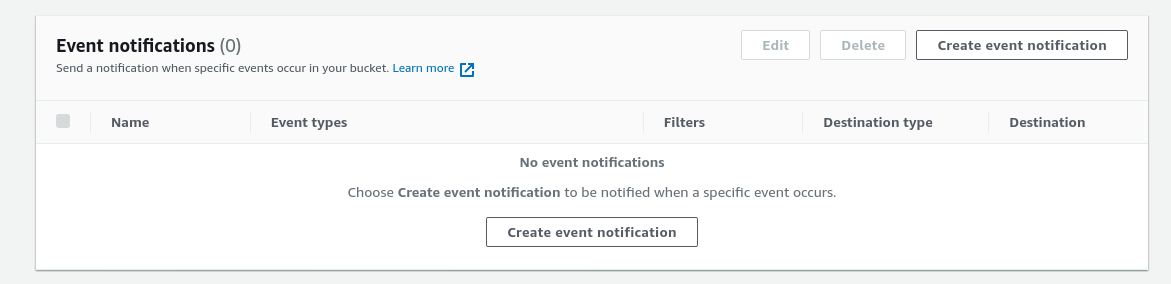
Scroll down to Event notifications, and press Create event notification.
-
Give the notification a name.
-
Optionally, set the Prefix to
AWSLogs/<account-id>/CloudTrail/. -
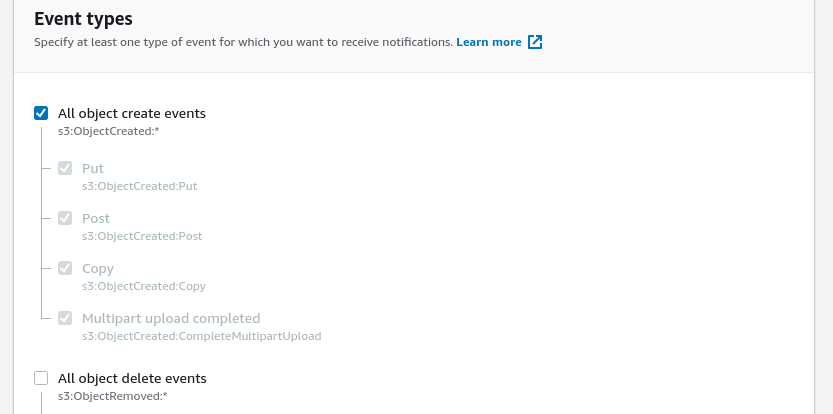
Under Event types, tick All object create events and nothing else.
-
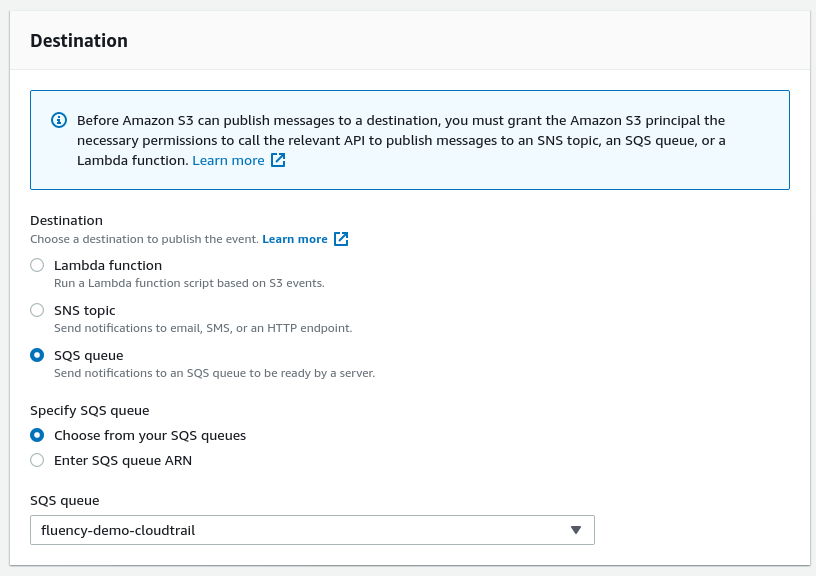
Under Destination, choose SQS queue, and select the queue you just created.
-
Press Save changes.
Grant read access
Fluency needs to read the queue and download the log files. Use this policy, substituting your region, account, queue and bucket:
{
  "Version": "2012-10-17",
  "Statement": [
    {
      "Effect": "Allow",
      "Action": ["sqs:ReceiveMessage", "sqs:DeleteMessage", "sqs:GetQueueUrl"],
      "Resource": "arn:aws:sqs:<region>:<account-id>:<queue-name>"
    },
    {
      "Effect": "Allow",
      "Action": "s3:GetObject",
      "Resource": "arn:aws:s3:::<bucket-name>/*"
    }
  ]
}
Attach it to one of these:
- The role (recommended). In IAM, open Roles, then the role from Connecting to AWS. Choose Add permissions → Create inline policy, and paste the policy on the JSON tab. If the account has no role yet, create one first with Setup Role.
- An IAM user (alternative). Create a user with no console access, attach the policy, and create an access key for it.
Step 3 — Install the Application
Everything the AWS side produced goes into one form: the region, the SQS queue URL, and either a role or an access key pair.
Go to Platform → Applications → Install Application From Template and choose AWS CloudTrail from the AWS Services category.
| Parameter | Notes |
|---|---|
| AWS Region | Drop-down, opens on US N.Virginia. The region of the SQS queue, which is the trail bucket's region. |
| SQS notification queue url | The full queue URL (the QueueURL output), not the ARN. |
| Pre-defined AWs Role | The recommended credential: the display name of a role registered under Settings → AWS Roles. |
| Pre-defined AWs User | Leave empty: an advanced option this guide does not use. |
| IAM access key | Alternative: the AccessKey output of the access-key template, or an IAM user's access key ID. Use instead of a role, not as well as. |
| IAM access secret | Alternative: the SecretKey output, or the user's secret access key. |
| datalake | In the collapsed Advanced Configurations row above Install; expand the row to see it. Pre-filled managed. |
| datalake index name | In Advanced Configurations. Pre-filled CloudTrail. Two applications writing to the same index name in the same lake will collide, and the second one aborts. |
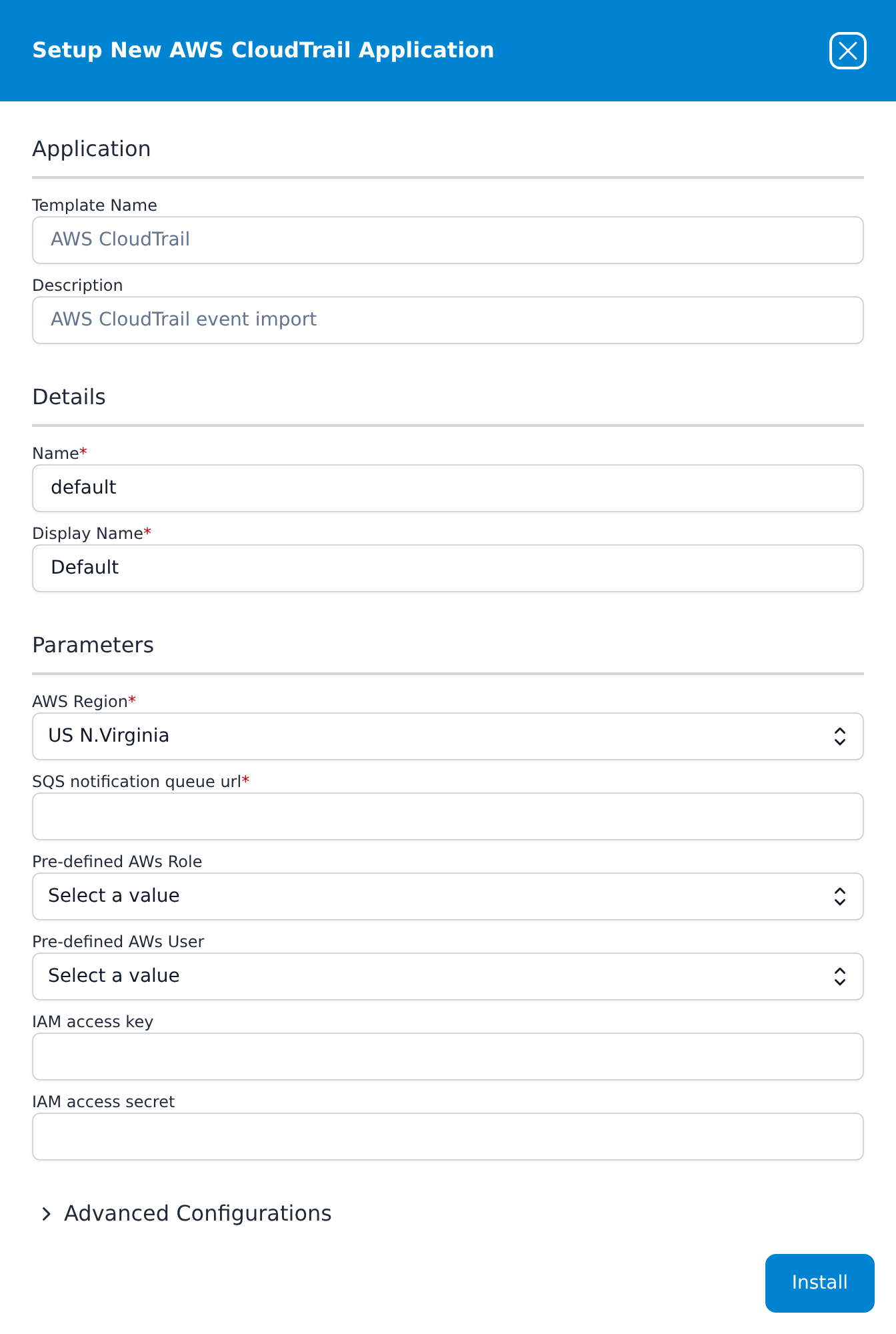
Press Install. The application appears under Installed Applications, and builds its data source, its router with the CloudTrail adjustment processors, and its sink as a unit.
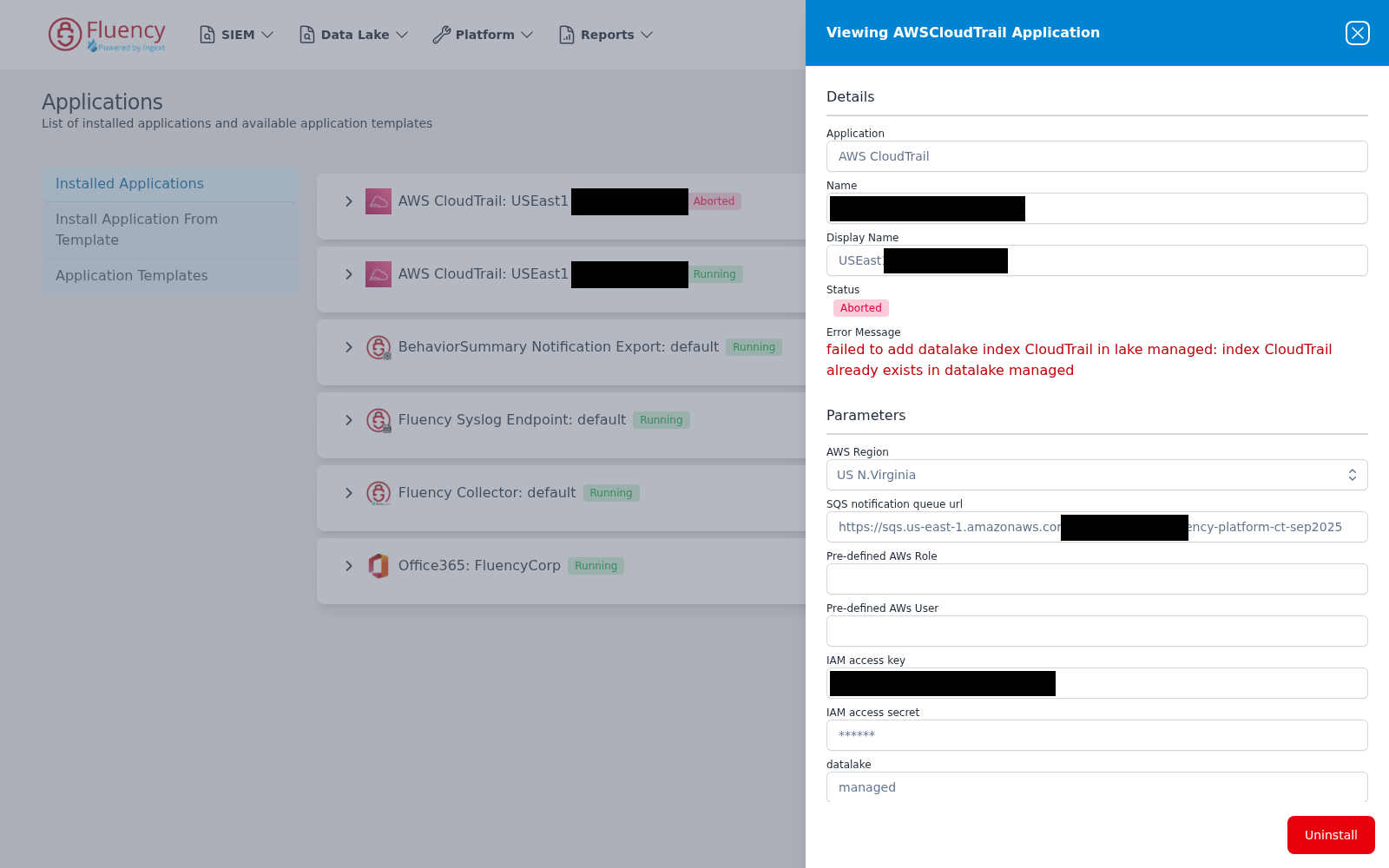
If the index name was already taken, the card comes up with a red Aborted badge instead of the green Running one. The blue eye button at the right of the card opens a details panel whose Details section carries the Error Message in red. Uninstall the application from the bottom of that panel, then install it again with a different index name.
Check that data is arriving
- The role. If you used one, its Status dot on Settings → Advanced → AWS Roles is green.
- The queue. In the SQS console, the queue's Monitoring tab shows messages being sent and received. CloudTrail delivers log files about every 5 minutes, so allow a few minutes after the trail's first activity.
- The application. Its card on Platform → Applications shows a green Running badge.
- The events. Searching the
CloudTrailindex, or the index name you chose, returns recent events.
Troubleshooting
| Symptom | Likely cause |
|---|---|
| The role's Status dot stays red | The trust policy or External ID doesn't match. See Connecting to AWS, step 2. |
| The S3 template's stack fails because the role does not exist | IAMRole doesn't match the role's name. Set it to the Role Name used in Setup Role. |
| The S3 template's stack fails because the role already exists | PodRoleARN was filled in, so the template tried to create the role. Run it again with PodRoleARN empty. |
| A stack fails, asking for IAM capabilities | The IAM acknowledgement on Configure stack options wasn't ticked. |
| The access-key stack fails and rolls back while creating the bucket | S3Bucket was left at its default, or names a bucket that already exists. Choose a unique name. |
| The queue stays empty | The notification's prefix doesn't match where CloudTrail writes; compare it with the object keys in the bucket. Or the bucket already sends its object-created notifications elsewhere. |
| Messages arrive, but no events | The read permission's prefix doesn't cover the log files, or the trail encrypts its log files with SSE-KMS. |
| The application shows Aborted | The index name is already in use. See Step 3. |
Related
- Connecting to AWS — the role, and the access-key alternative.
- AWS S3 (with SQS) — the bucket-to-queue delivery this page relies on.
- Install Application From Template — AWS CloudTrail — the form, field by field.