Resources
The Resources page lists the resources available in the account: the users, devices, findings, and other entities that integrations collect from the services they connect to, grouped by the vendor they come from. Resource collection is a feature of the applications that offer it, such as the catalog entries described as w/ Resources, Resource Dump, or Resource Watch in the Application Catalog.
Menu path: Resources · URL path: /v2/resources
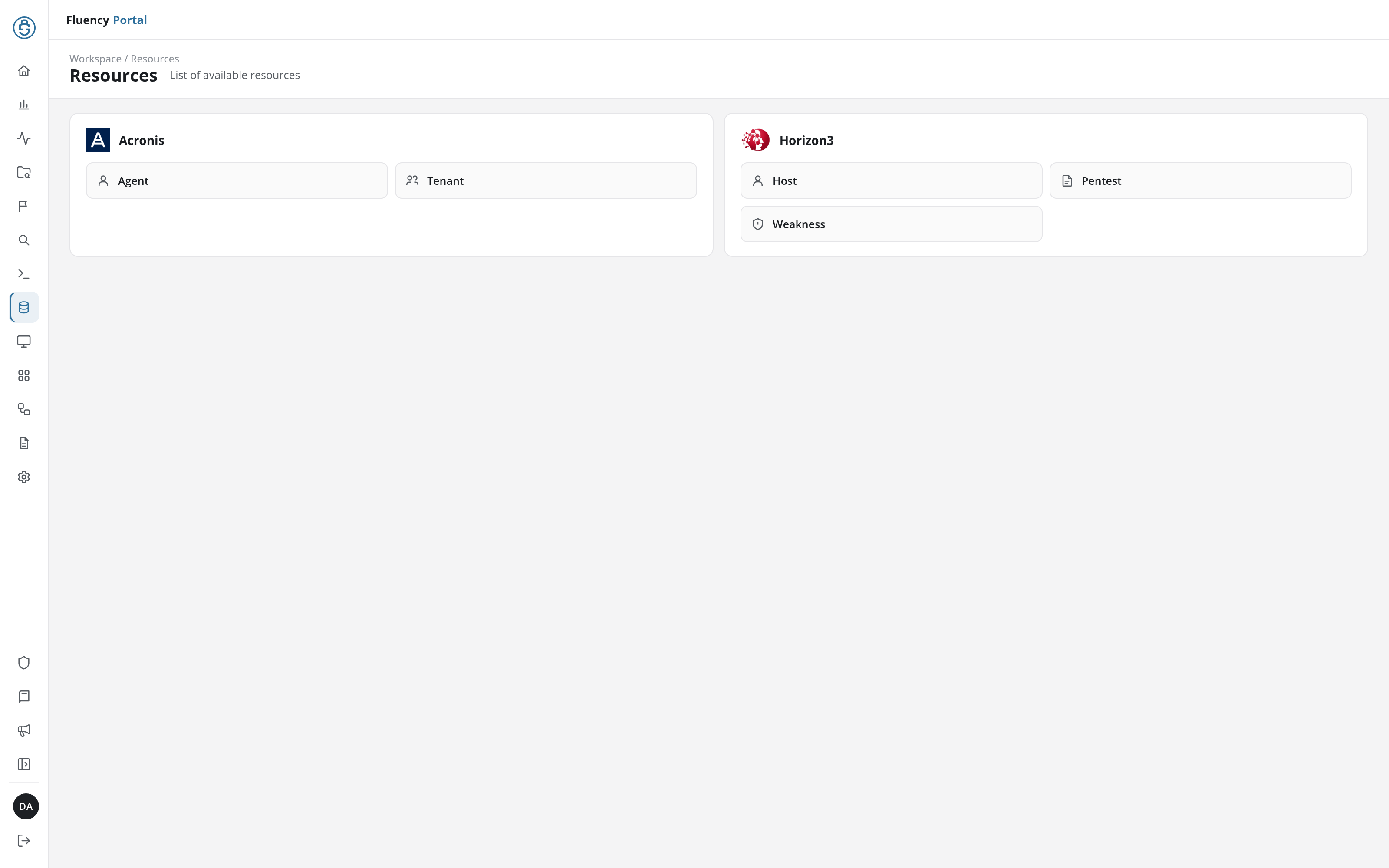
Page Layout
The page header shows the breadcrumb Workspace / Resources, the title Resources, and the subtitle List of available resources. Below it is one card per vendor, headed with the vendor's logo and name, holding a tile for each type of resource collected from it, with an icon:
| Vendor | Resource types |
|---|---|
| Acronis | Agent, Tenant |
| Horizon3 | Host, Pentest, Weakness |
Click a tile to open that resource table.
The page only reads resources: they are collected by the applications that offer them, and nothing here creates, changes, or deletes one.
Resource Table
A resource table opens at /v2/resources/<vendor>/<type>, for example /v2/resources/acronis/Agent, and lists the records of that type:
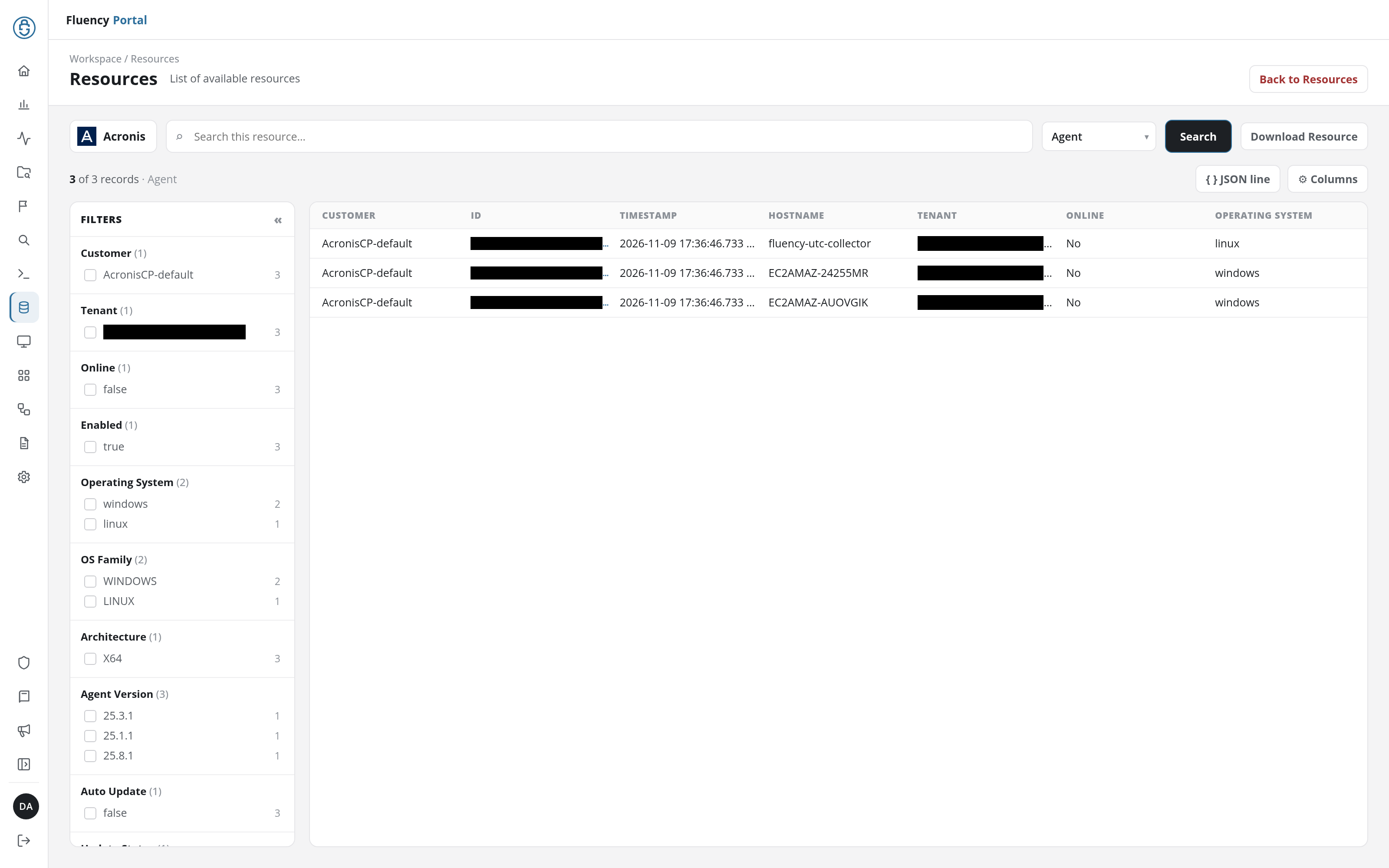
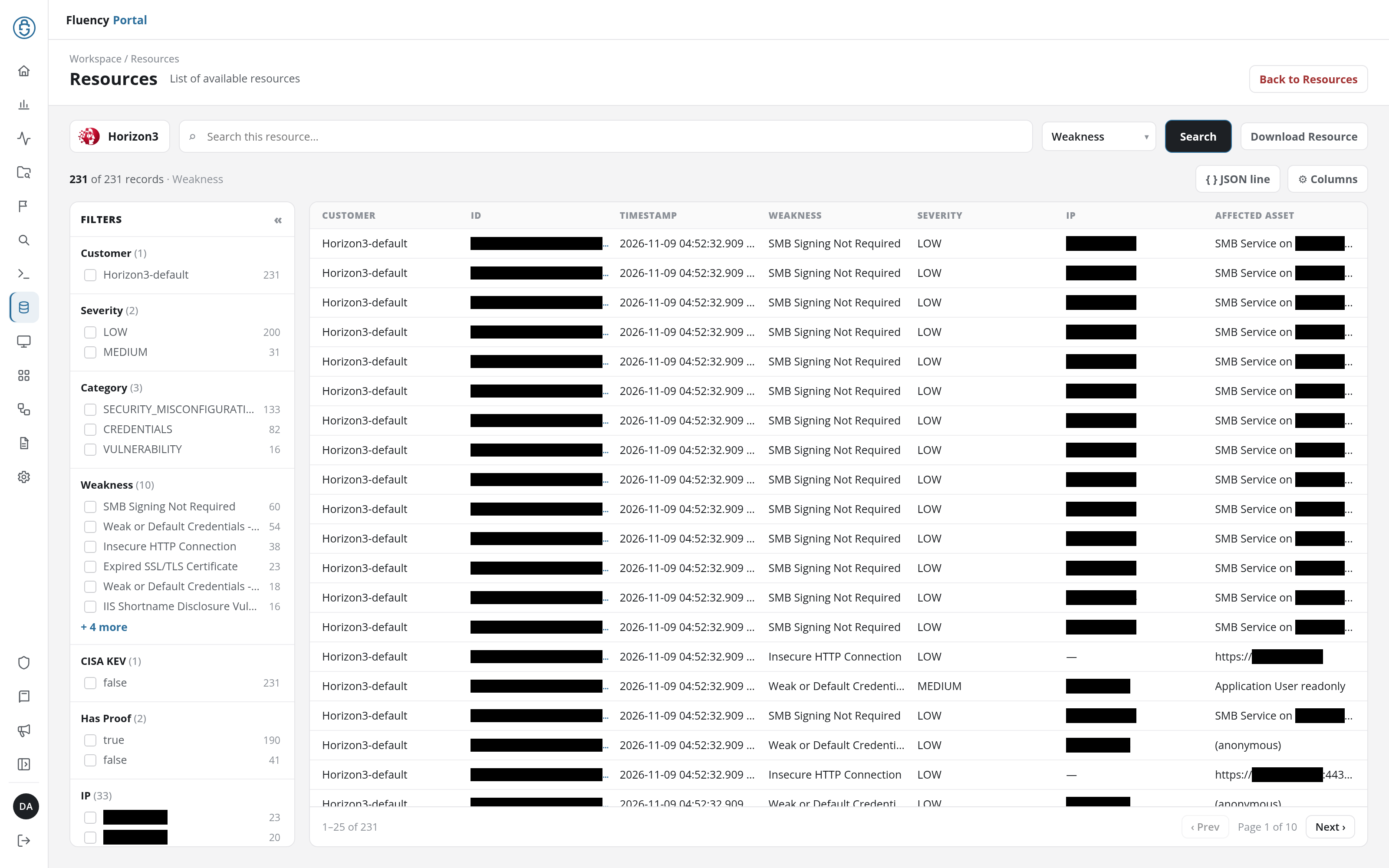
- Header: Back to Resources, at the top right, returns to the list of vendors.
- Search bar: the vendor's chip (its logo and name, such as Acronis), the Search this resource… field, the Resource type drop-down listing the vendor's resource types (Agent and Tenant for Acronis) with the open one selected, Search, and Download Resource. Choosing another type in the drop-down opens its table.
- Toolbar: the record count with the type's name (3 of 3 records · Agent); JSON line, off by default, which follows each row with the record's complete JSON on one line; and Columns, a checklist of the type's fields that shows or hides each one as a column. The columns shown at first are Customer, ID, and Timestamp, followed by the type's own (see Resource Types).
- Filters panel (left): see Filters.
- Record table (right): one row per record. Values too long for their column are cut off with an ellipsis; the detail panel shows them in full.
- Pager: below a table of more than 25 records, the range shown (1–25 of 231), ‹ Prev, the page (Page 1 of 10), and Next ›.
Links to a resource table under the older Other category, such as /v2/resources/other/acronisAgent, still open the table.
Searching a Table
Type in Search this resource… and click Search to narrow the table to the matching records. The record count follows the search.
Filters
The FILTERS panel holds one group per field the type is filtered by, each headed with the field's name and, in parentheses, the number of distinct values it has in the records shown, such as Operating System (2). Every group lists its values, each with a checkbox and the number of records that have it. The first group is always Customer: the application that collected the records, such as AcronisCP-default. A group with more than six values shows the six most common and a + n more link for the rest.
Tick a value to narrow the table to the records that have it. The value appears as a chip above the panel, such as Operating System: windows, with × to remove it and Clear all to remove every chip; the record count and the other groups' counts follow the selection.
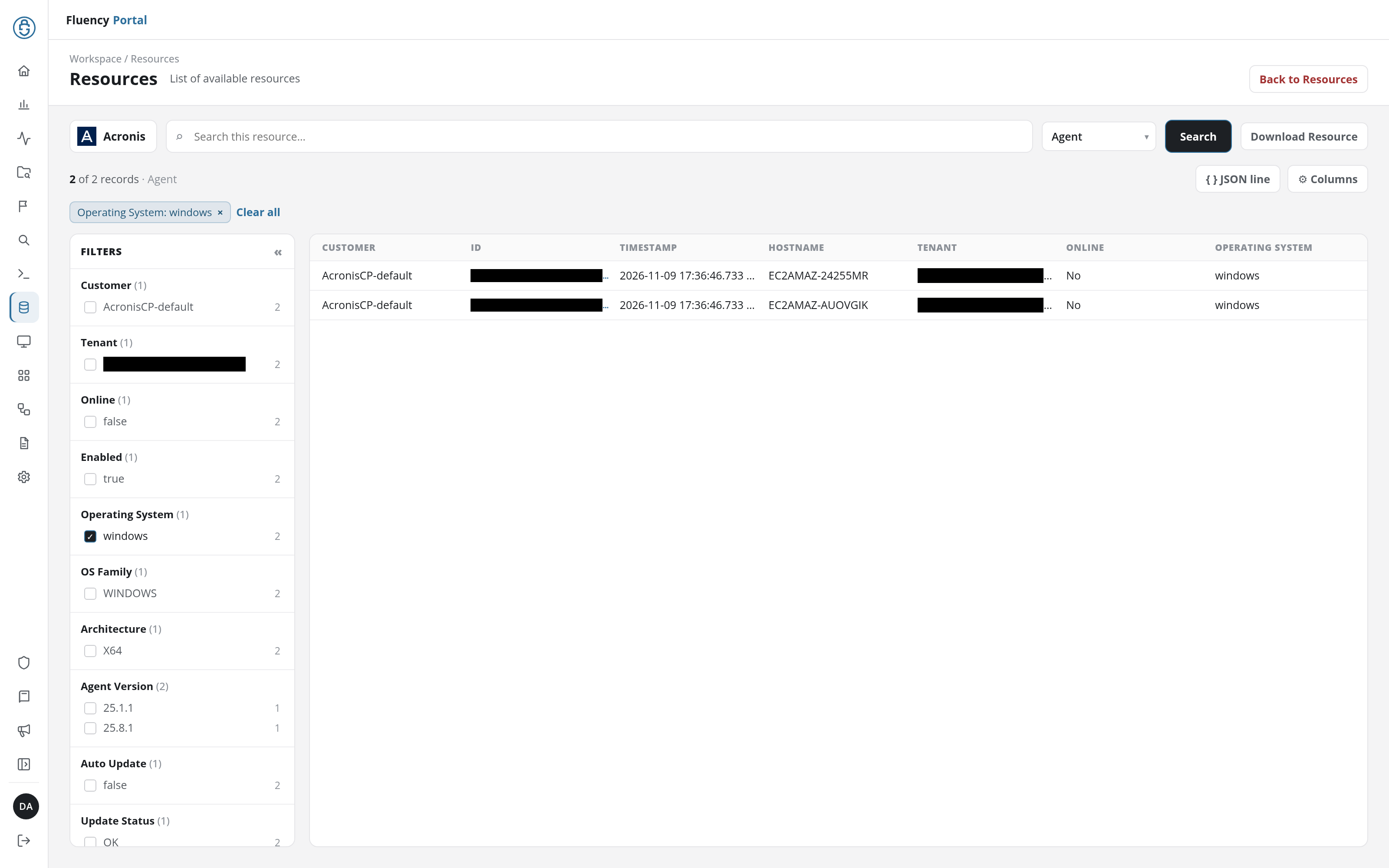
« (Collapse filters), at the top right of the panel, folds it to a narrow strip, which » opens again.
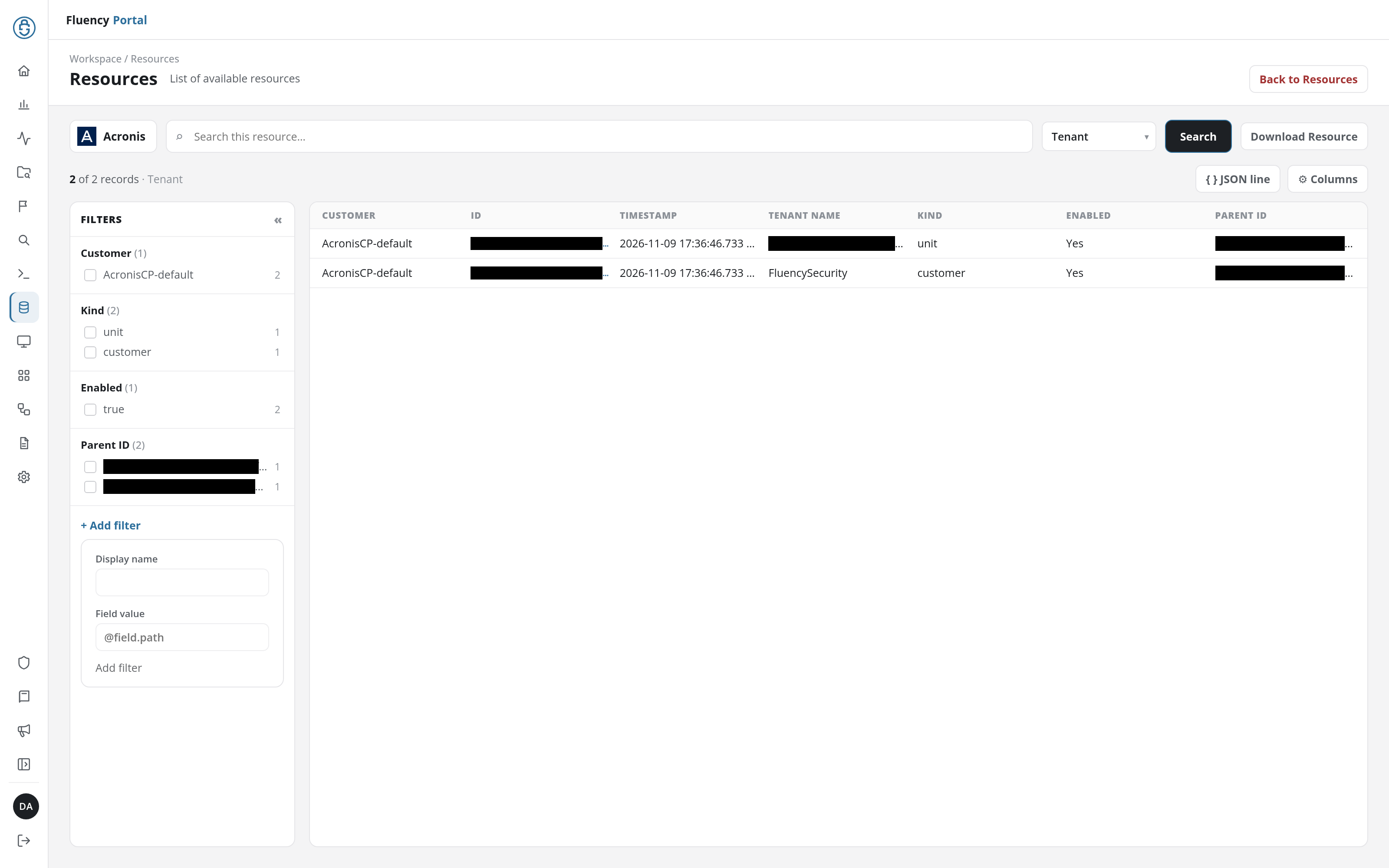
+ Add filter, at the bottom of the panel, opens a form for a group of your own: Display name, the group's heading, and Field value, the path of the field to group by (placeholder @field.path), with an Add filter button.
Download Resource
Download Resource downloads the current results as a text file named after the table and the time of the download, holding one JSON record per line.
Resource Detail
Click a row to open the Resource detail panel, titled with the record's ID, with the vendor and type beneath it (Acronis · Agent), a Copy JSON button (the copy icon), and ×, which closes it.
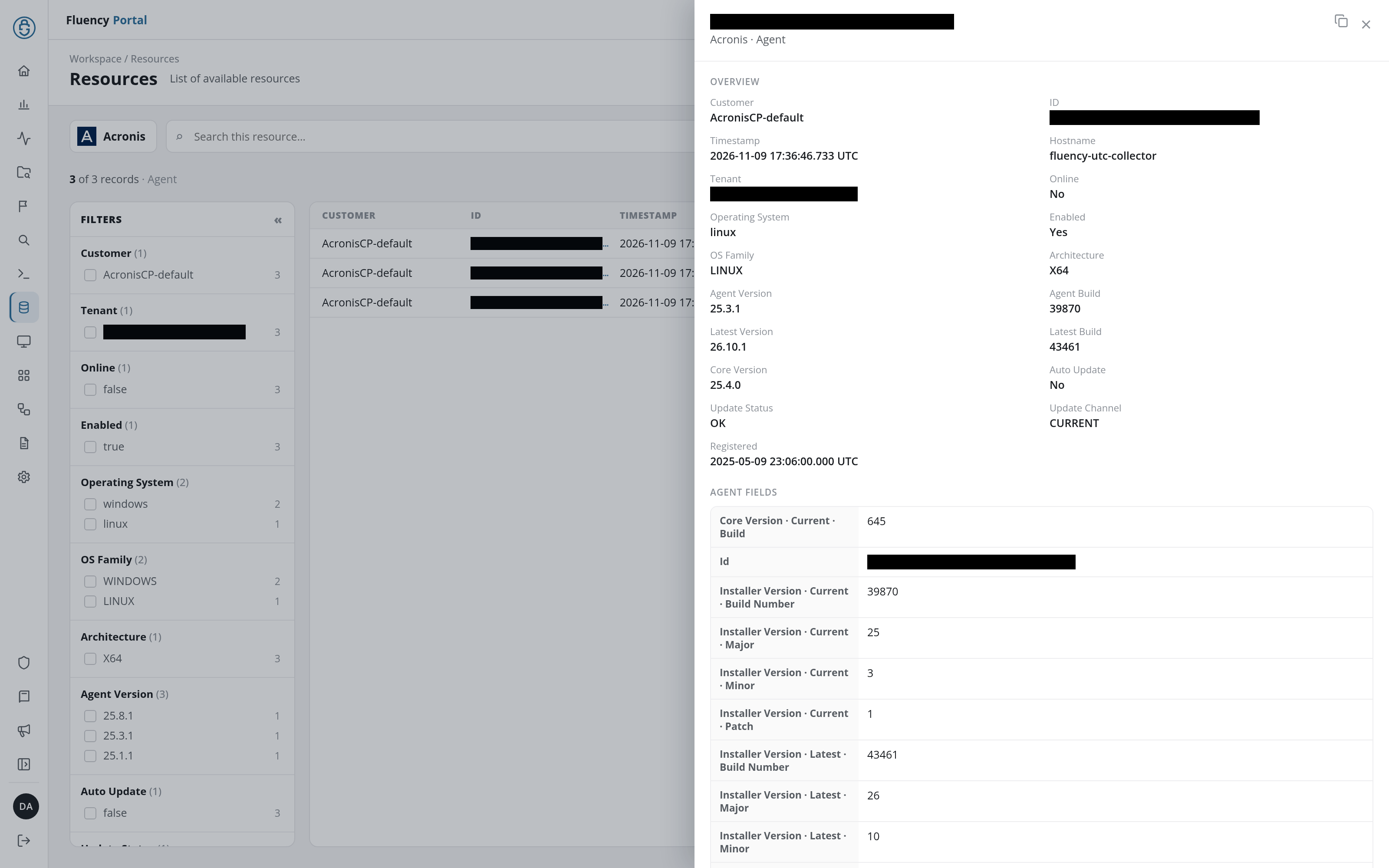
- OVERVIEW: the record's Customer, ID, and Timestamp, followed by the type's main fields (for an Acronis agent: Hostname, Tenant, Online, Operating System, Enabled, OS Family, Architecture, Agent Version, Agent Build, Latest Version, Latest Build, Core Version, Auto Update, Update Status, Update Channel, and Registered), with
YesandNofor true and false and times in UTC. - Fields: a section named after the type (AGENT FIELDS), listing the record's other fields, each with its name spelled out (
Core Version · Current · Buildfor a nested field) and its value. - RAW JSON: the record's complete JSON, folded at first; Show displays it.
Resource Types
What each resource type shows as columns at first, beyond Customer, ID, and Timestamp, and the groups in its filters panel:
| Vendor | Type | Columns | Filter groups |
|---|---|---|---|
| Acronis | Agent: one record per registered agent | Hostname, Tenant, Online, Operating System | Customer, Tenant, Online, Enabled, Operating System, OS Family, Architecture, Agent Version, Auto Update, Update Status, Update Channel |
| Acronis | Tenant: one record per tenant in the client's hierarchy | Tenant Name, Kind, Enabled, Parent ID | Customer, Kind, Enabled, Parent ID |
| Horizon3 | Host: one record per host a pentest found | IP, Hostname, Operating System, Weaknesses | Customer, Operating System, Device, Hardware, Weaknesses, Confirmed Weaknesses, Subnet, Subnet Source, In Scope, Pentest, Pentest Completed |
| Horizon3 | Pentest: one record per pentest | Name, Type, State, Completed | Customer, Type, State, Client, Launched By, Name |
| Horizon3 | Weakness: one record per weakness a pentest found | Weakness, Severity, IP, Affected Asset | Customer, Severity, Category, Weakness, CISA KEV, Has Proof, IP, Operating System, MITRE Tactic, MITRE Technique, Pentest, Pentest Completed |
Empty State
Until an installed application has collected resources, the page shows only the message No resources to show yet. and has no controls.