AWS Roles
The AWS Roles area lists the AWS IAM roles the platform assumes to reach a customer's AWS account, and is where those roles are set up and added. The roles registered here are what the Pre-defined AWs Role drop-down offers on the AWS application templates. For the end-to-end procedure, see Connecting to AWS.
Menu path: Settings → Advanced → AWS Roles · URL path: /settings/awsRoles
Page Layout
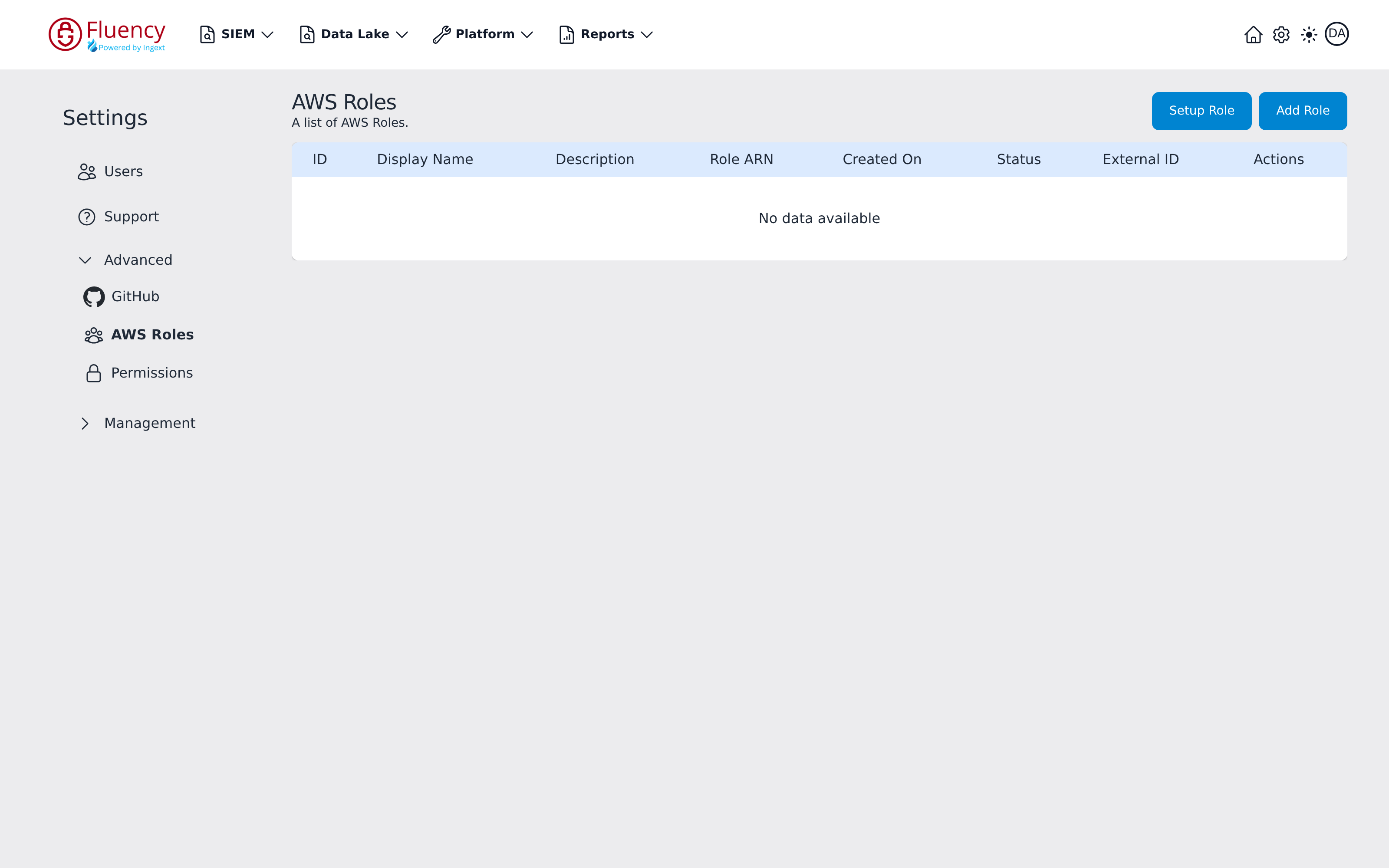
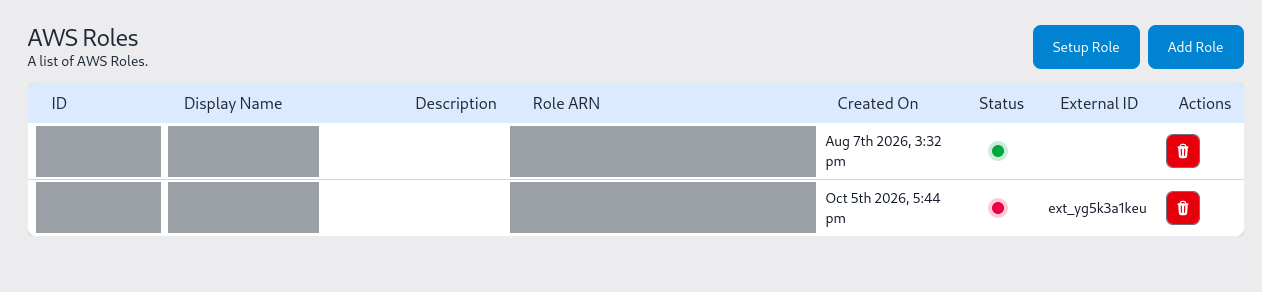
The header shows the title AWS Roles with the subtitle A list of AWS Roles. and two buttons on the right — Setup Role and Add Role. Below it, a table lists the configured roles.
When no roles are configured, the table body reads No data available, as in the example above.
Table Columns
- ID — the role's identifier, in the form
role_followed by ten characters. - Display Name — the name the role was given. This is the name the Pre-defined AWs Role drop-down shows.
- Description — an optional description.
- Role ARN — the Amazon Resource Name of the IAM role being assumed.
- Created On — when the role was added.
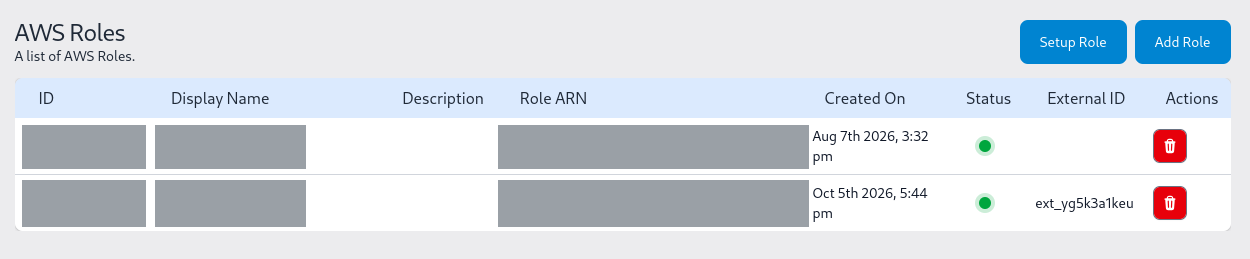
- Status — a live test of the role, shown as a coloured dot. Each time the page loads, the platform tries to assume every registered role. The dot is green when that succeeds and red when it fails. A role saved moments after its CloudFormation stack finished can show red until IAM makes it assumable, and turns green on a later load.
- External ID — the external ID that the role's trust policy requires.
- Actions — a red delete button. There is no edit action. Deleting a role does not check whether any installed application uses it. Applications that do stop collecting, silently or with errors.
Header Actions
- Setup Role — walks through preparing the role on the AWS side.
- Add Role — registers a role that already exists.
Setup Role
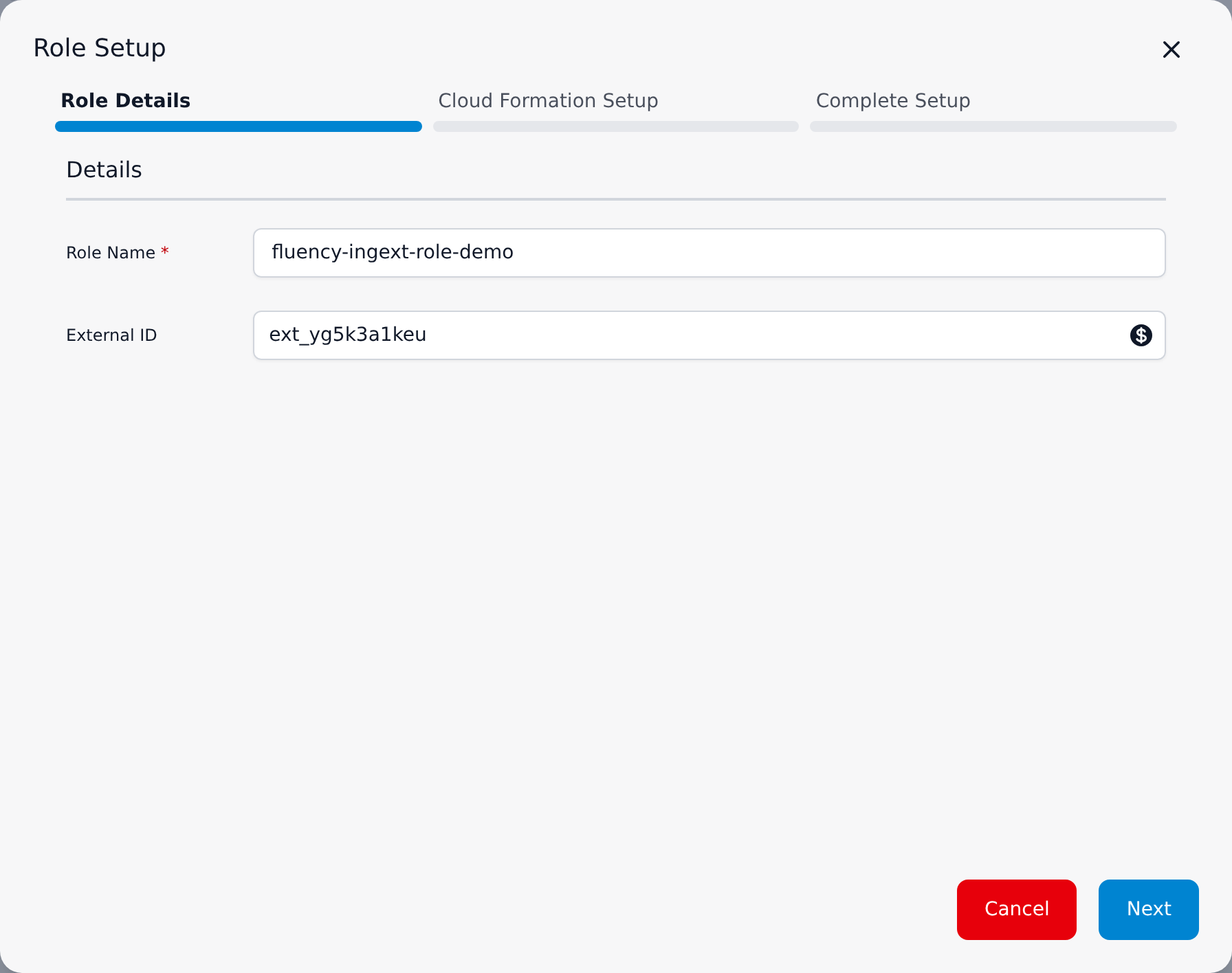
Setup Role opens the Role Setup dialog. A progress bar across the top tracks its three steps: Role Details, Cloud Formation Setup and Complete Setup.
Role Details
Under a Details heading:
- Role Name (required) — the name of the IAM role to create in the AWS account.
- External ID (optional) — the button at its right edge generates a random External ID, such as
ext_yg5k3a1keu.
The footer has Cancel and Next.
Cloud Formation Setup
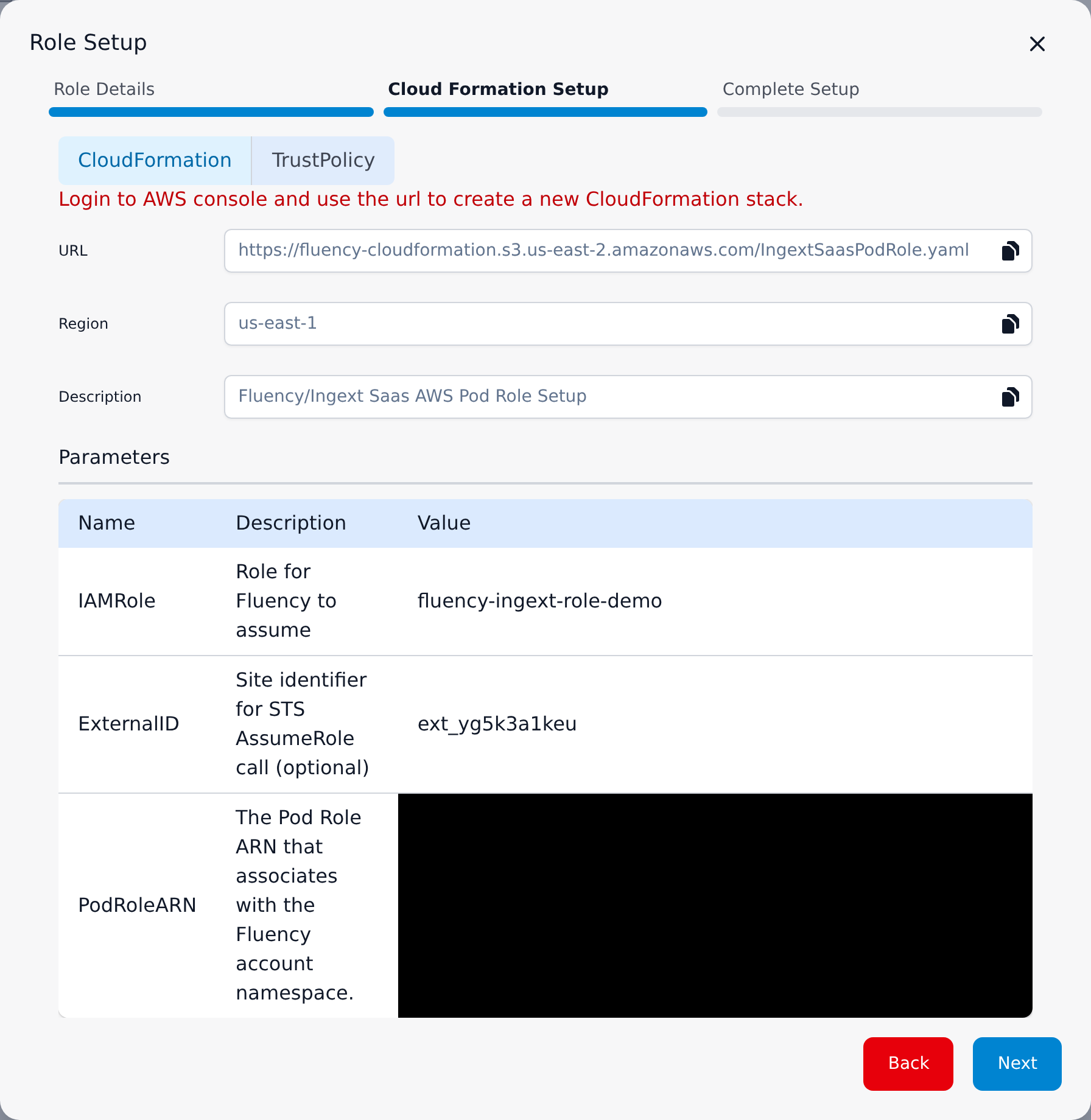
This step has two tabs, CloudFormation and TrustPolicy. Both carry the red instruction Login to AWS console and use the url to create a new CloudFormation stack.
The CloudFormation tab shows three read-only fields, each with a copy button:
- URL —
https://fluency-cloudformation.s3.us-east-2.amazonaws.com/IngextSaasPodRole.yaml. - Region — the Fluency tenant's home region. The stack does not need to be created there, because the IAM role it creates is global to the account.
- Description — Fluency/Ingext Saas AWS Pod Role Setup.
Below them, a Parameters table has Name, Description and Value columns. Its rows are the template's parameters, with their values filled in from the previous step and from the account:
| Name | Description | Value |
|---|---|---|
| IAMRole | Role for Fluency to assume | the Role Name entered on Role Details |
| ExternalID | Site identifier for STS AssumeRole call (optional) | the External ID entered on Role Details |
| PodRoleARN | The Pod Role ARN that associates with the Fluency account namespace. | the account's pod role ARN |
The TrustPolicy tab shows the trust policy as JSON, with the pod role as its AWS principal. Its statements depend on whether an External ID was entered on Role Details:
- With an External ID — two statements.
AssumeWithExternalIdallowssts:AssumeRoleonly whensts:ExternalIdequals that External ID (aStringEqualscondition), andTagSessionForChainedAssumeallowssts:TagSession. - Without an External ID — a single statement that allows both
sts:AssumeRoleandsts:TagSession.
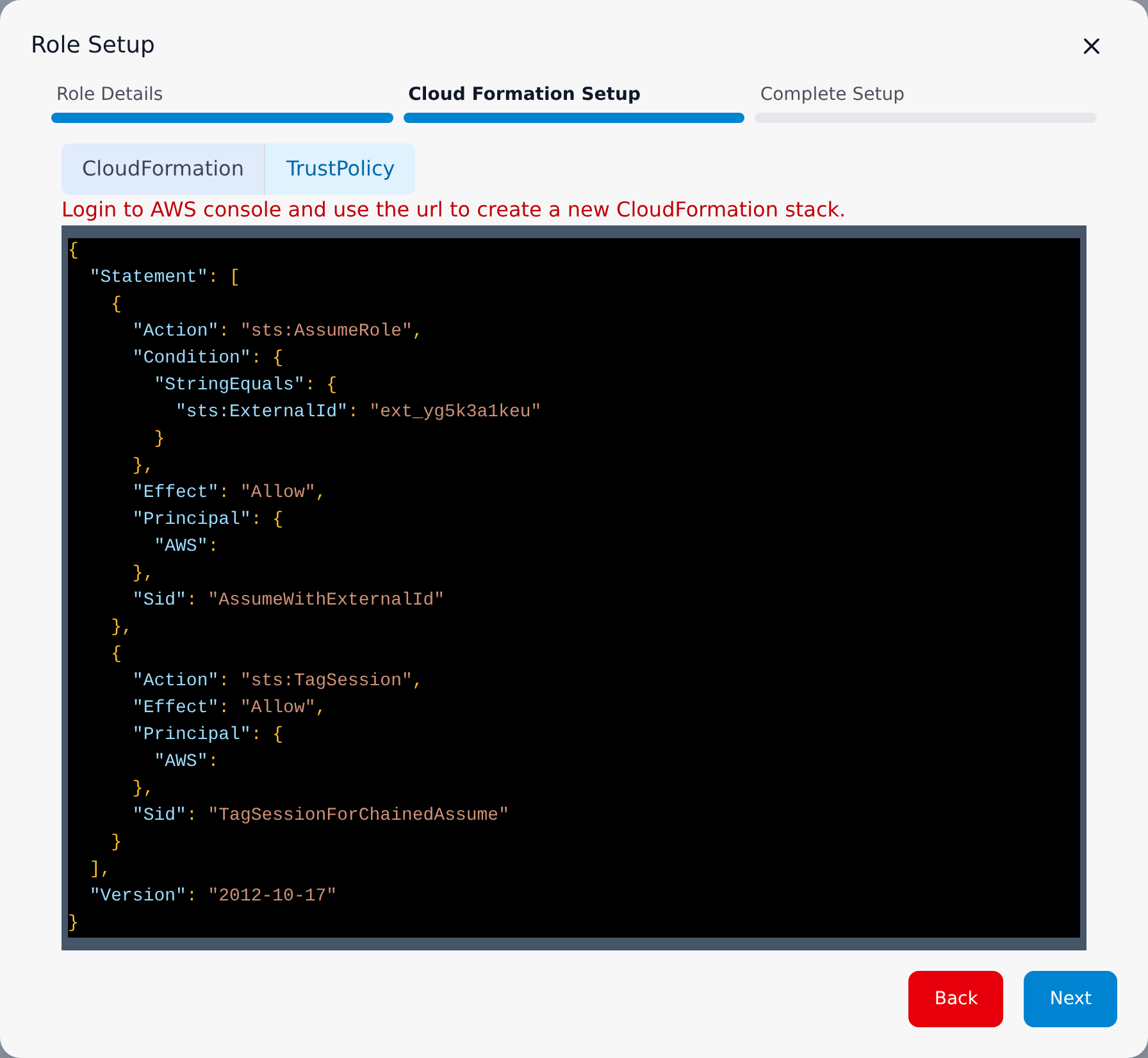
The footer has Back and Next.
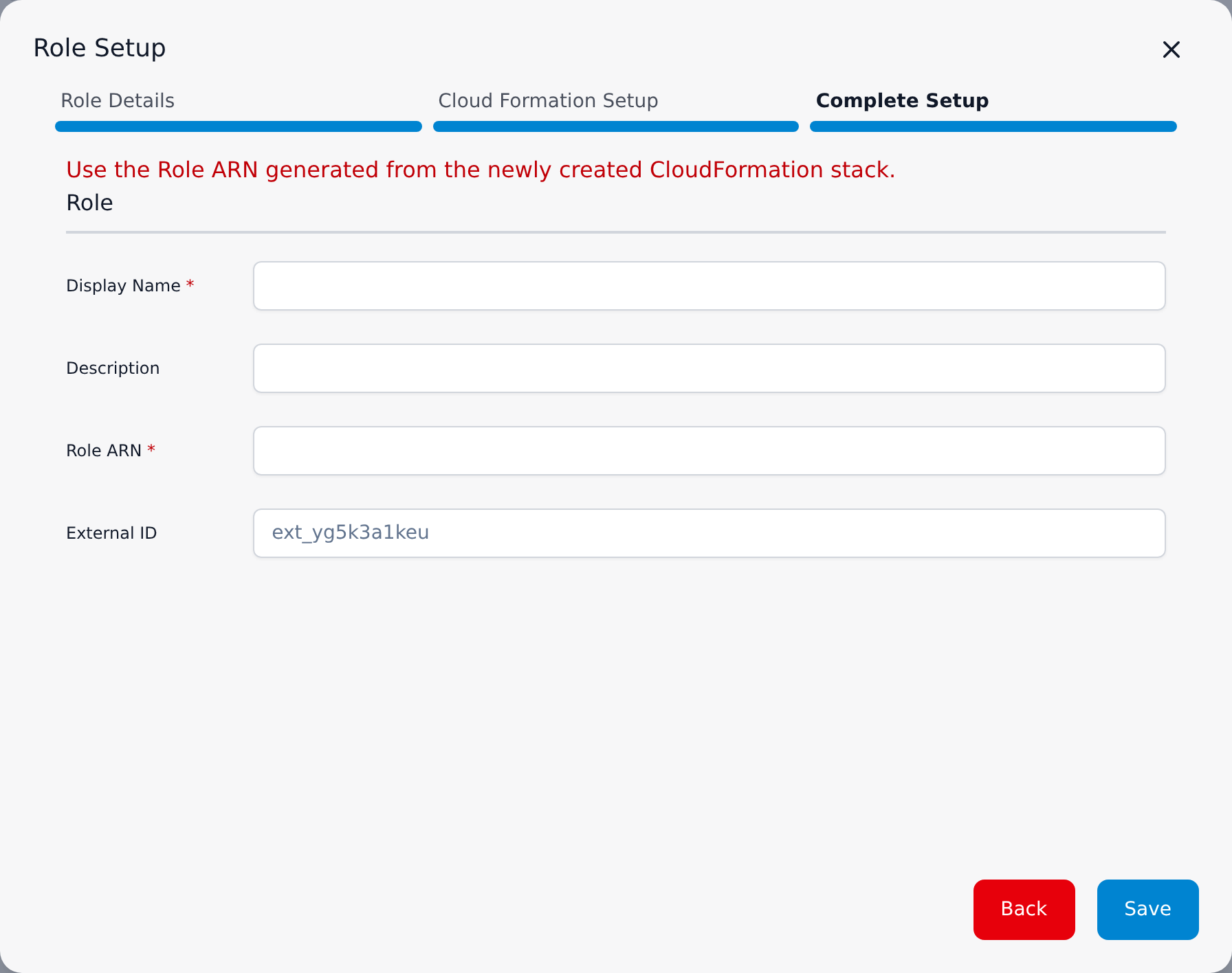
Complete Setup
Under the red instruction Use the Role ARN generated from the newly created CloudFormation stack. and a Role heading:
- Display Name (required)
- Description
- Role ARN (required)
- External ID — carried over from Role Details, and greyed out.
The footer has Back and Save. This step has no test button. Once saved, the role is tested by the table's Status column.
Add Role
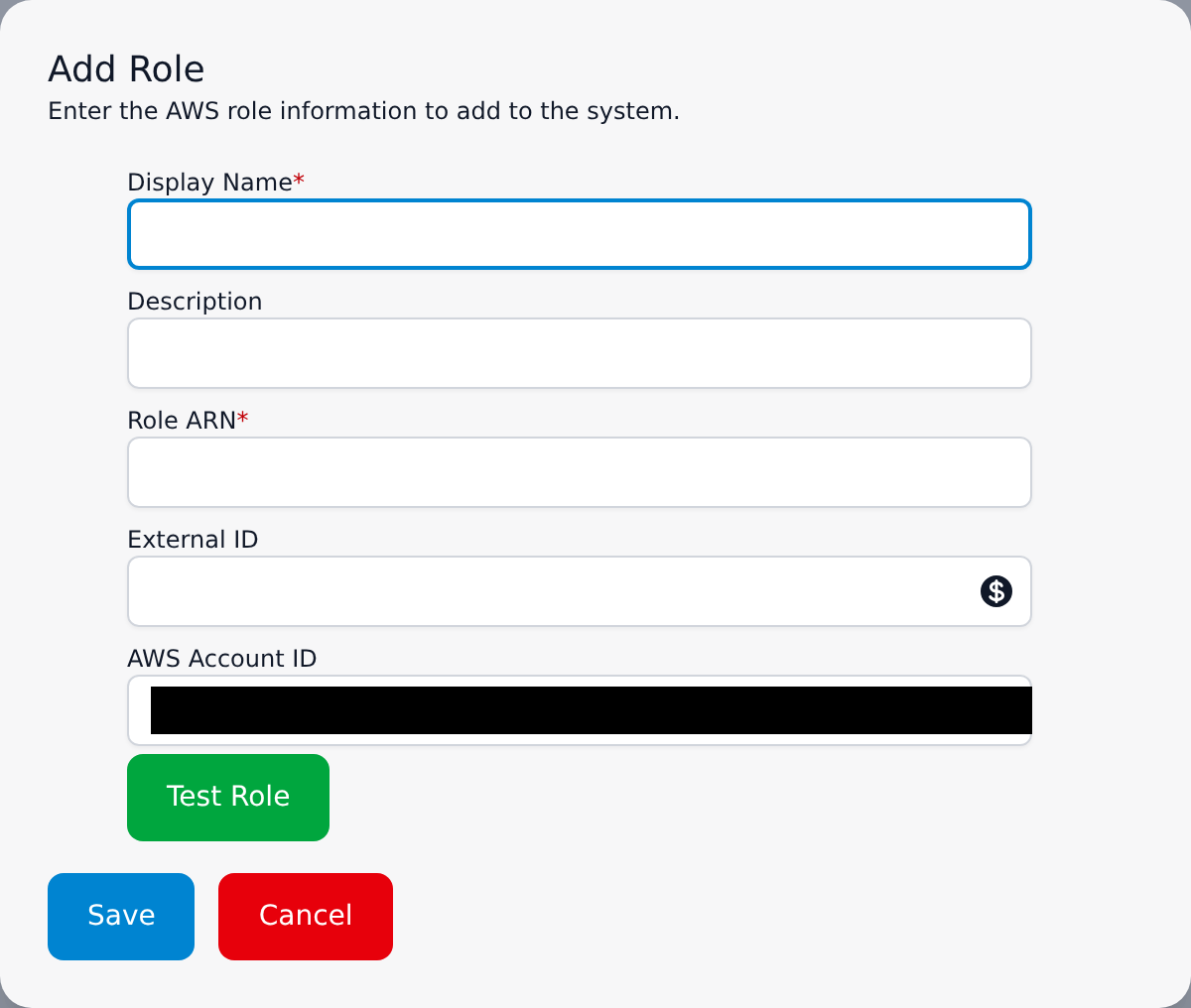
Add Role opens a smaller dialog, Add Role, subtitled Enter the AWS role information to add to the system.
- Display Name (required)
- Description
- Role ARN (required)
- External ID — with the same generate button as on Role Details.
- AWS Account ID — read-only. It is the Fluency platform's own AWS account, the account in the pod role ARN, not the customer's.
Below the fields, a green Test Role button tests the role described by the form before it is saved. Save and Cancel close the dialog.