Fluency Collector
The Fluency Collector is a virtual machine that acts as a collection point on your own network. It receives events from local sources — syslog, and NetFlow — and continuously compresses and uploads them to your Fluency instance over HTTPS. It also runs the queries that only work from inside the network, such as LDAP directory synchronisation.
Use one for sources that cannot send securely across the internet, that have no route to it, or that are numerous enough to be worth aggregating at one point. Why Use a Collector covers when a collector earns its place, and when the cloud endpoints are enough on their own.
Network Requirements
| Direction | From → to | Port | Purpose |
|---|---|---|---|
| Inbound | Your devices → collector | udp and tcp 514, tls 6514, tls (RFC6587) 7514, or as configured | Syslog — see Managing Collectors → Syslog ports |
| Inbound | Your devices → collector | udp 2055 | NetFlow |
| Inbound | Administrators → collector | tcp 22 | SSH, for the console — see Collector Login |
| Outbound | Collector → your Fluency instance | tcp 443 | Uploading events over HTTPS. The instance is the same host name you sign in to the web interface at. |
| Outbound | Collector → your directory servers | tcp 389, or as configured | LDAP synchronisation, where an LDAP Connector uses this collector |
| Outbound | Collector → DNS and NTP servers | udp 53, udp 123 | Name resolution, and keeping the clock synchronised |
The collector does not need to accept connections from the internet: it reaches the platform by connecting out, so it can sit behind NAT on an ordinary internal network.
Installation
The Fluency Collector is installed on top of Enterprise Linux operating systems (RHEL variants). Prior to Enterprise Linux 8 (EL8), CentOS was the operating system of choice. Currently, for EL9, Fluency supports Rocky Linux 9 and also AlmaLinux 9.
For more detailed information regarding Rocky Linux, refer to the official vendor documentation:
Install Rocky Linux OS
This section assumes that the Rocky Linux OS installation takes place on a virtual machine with a new, empty disk, and that the system has been booted from the Minimal install ISO.
NOTE: If your virtual machine already has Rocky Linux pre-installed, such as the case when launching an instance from an AWS, GCP, or MS Azure image, this section may be skipped; follow the instructions in the next Running the Fluency installation package section
The Rocky Linux 9 Minimal install ISO can be found at the following direct link(s):
https://download.rockylinux.org/pub/rocky/9/isos/x86_64/Rocky-9-latest-x86_64-minimal.iso
https://mirror.cs.vt.edu/pub/rocky/9/isos/x86_64/Rocky-9-latest-x86_64-minimal.iso
(Other official Mirrors/Repositories may be used to download the same ISO.)
The recommended size for the Fluency Collector is 2 vCPU, 8GB RAM and 80GB to 1TB of disk space.
For detailed instructions on Rocky Linux installation, please refer to the official documentation:
Booting from ISO image
Start/boot the machine from the installation disk/image. Select the Install Rocky Linux 9 option from the launch menu.

Configuration
On the following screen(s), select the installation language.
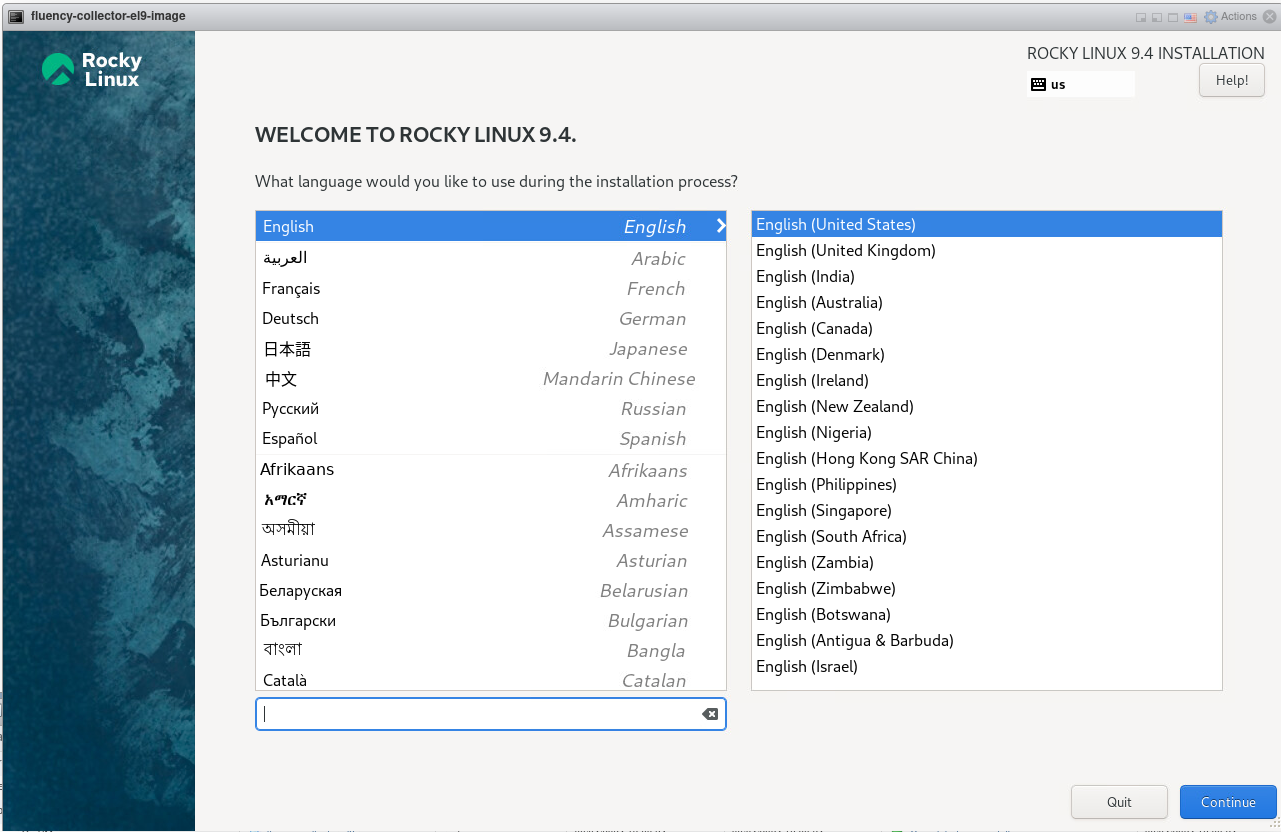
Select Continue to proceed to the Installation Summary page.
Localization
Under the LOCALIZATION section, select Time & Date to modify the timezone of the Fluency Collector.
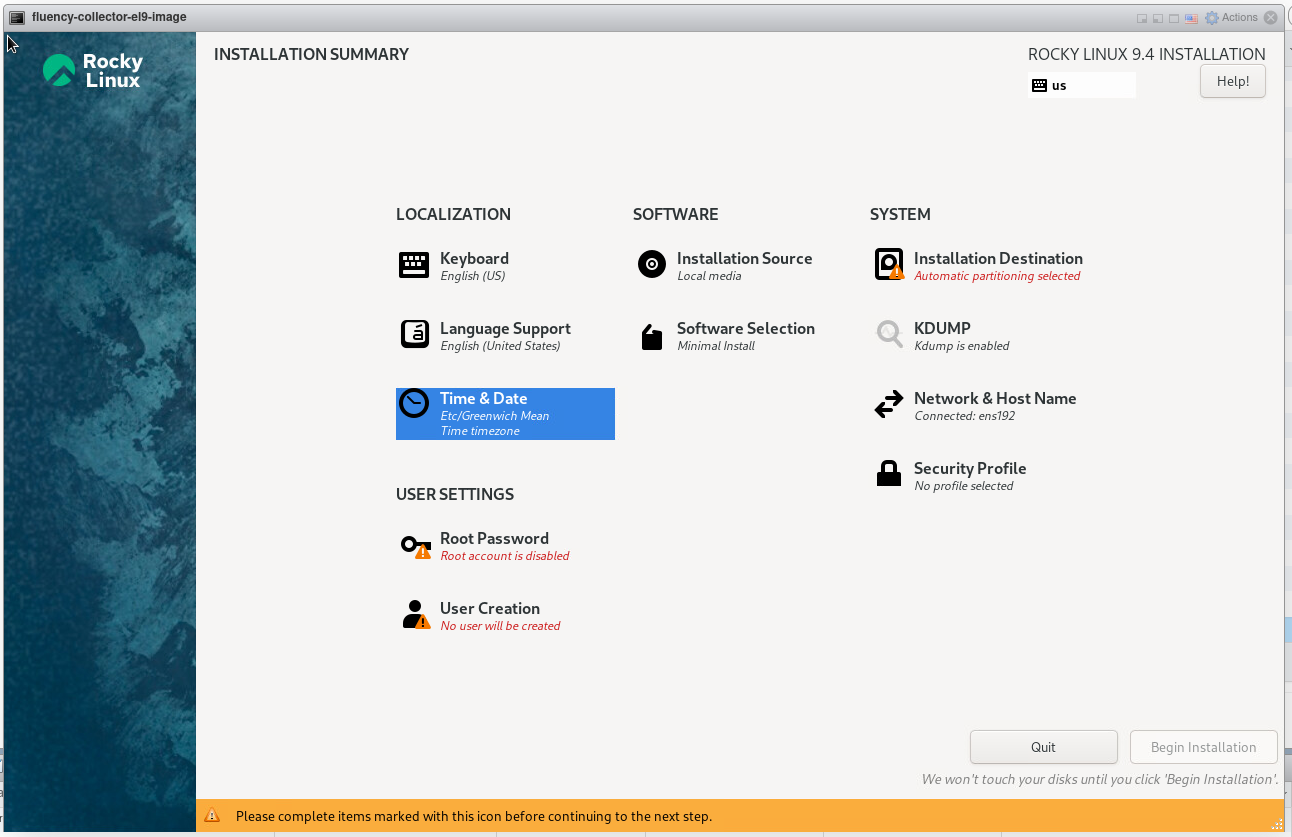
Choose Etc as the Region. Select Greenwich Mean Time as the City.
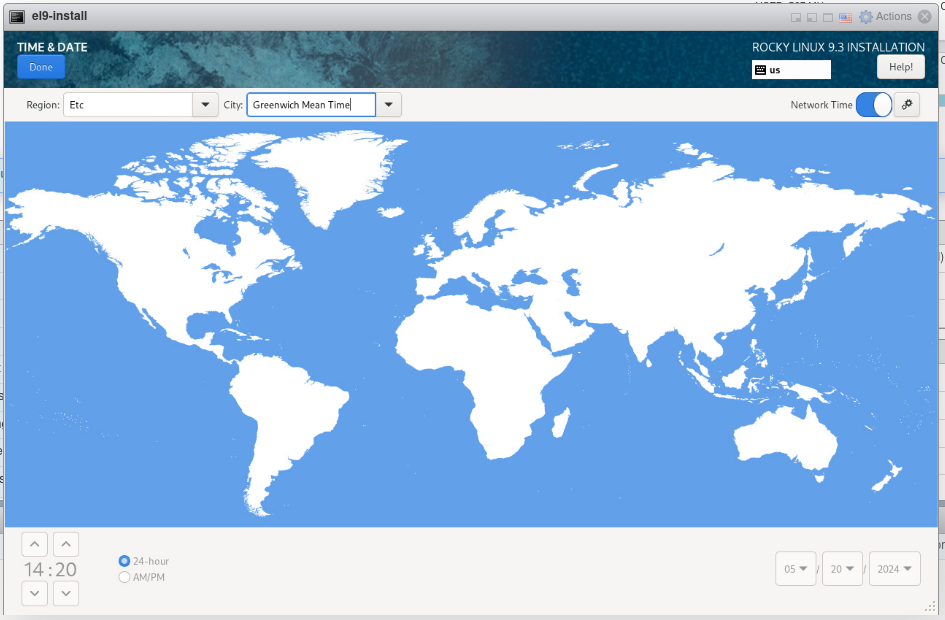
NOTE: It is strongly suggested to set the Fluency Collector timezone as shown above. Fluency Cloud instances use the UTC timezone, and having both systems on the same timezone settings will simplify data ingress. If that is not possible, the platform corrects whole-hour offsets automatically — see Syslog → Time.
Disk Partitioning
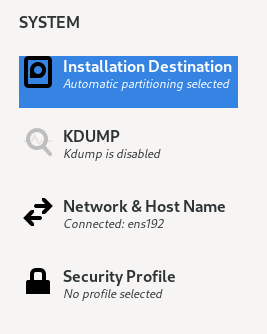
Return to the Installation Summary page, and navigate to the SYSTEM section.
Select Installation Destination to configure disk partitioning.
- Manual
- Automatic
Manual Disk Partitioning
NOTE: (Skip this section if using Automatic partitioning.)
Choose the Custom option, for Storage Configuration to proceed.
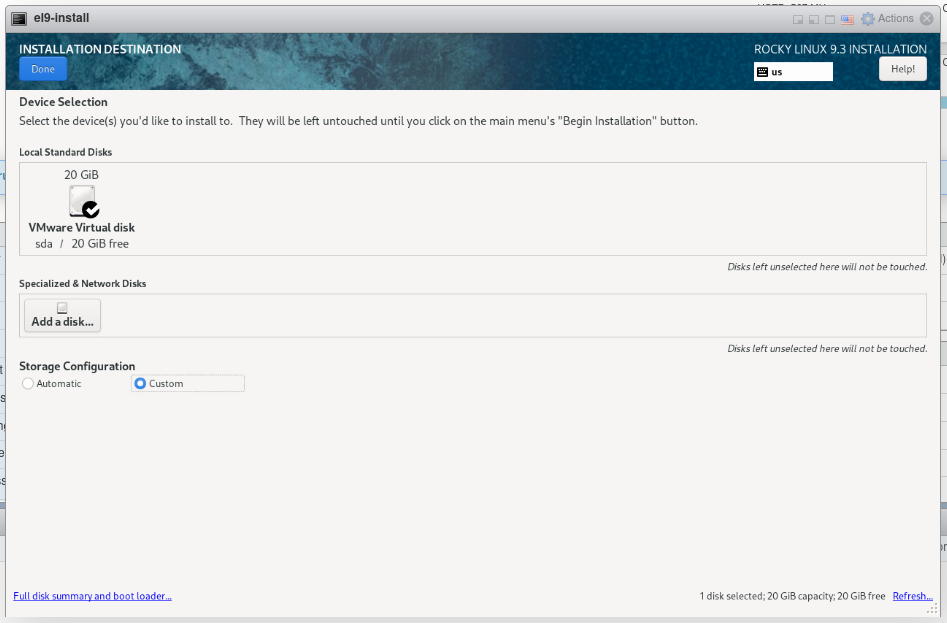
Select Standard Partition and create a mount point (via the "+" button) for the root directory “/”.

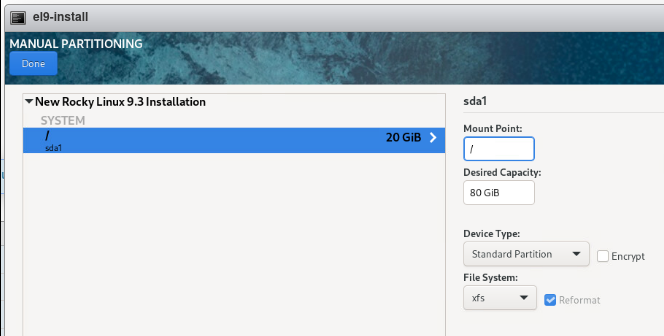
For the Desired Capacity, choose the entire available space.
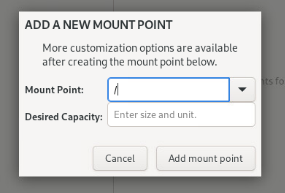
NOTE: (Advanced Option) For larger Collector deployments, it is also advisable to create a smaller root "/", partition, and allocate the remaining free space to a separate, and larger, "/data" partition. Please reserve a minimum of 10GB for the root partition in this scenario.
Click Done when finished configuring. The File System can use the default xfs setting.
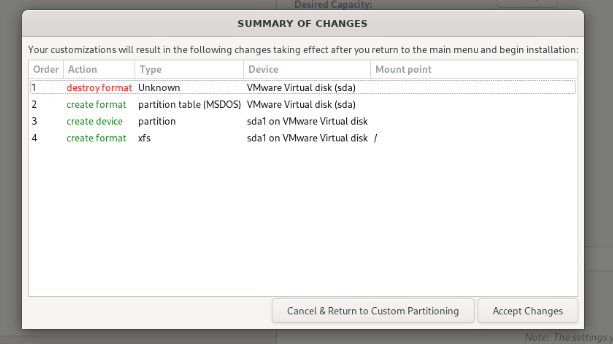
Accept/confirm the changes and acknowledge the warnings to continue.
Automatic Disk Partitioning
NOTE: (Alternative Option, skip this section if using Manual partitioning.)
On the following page, choose the Automatic option, for Storage Configuration to proceed.
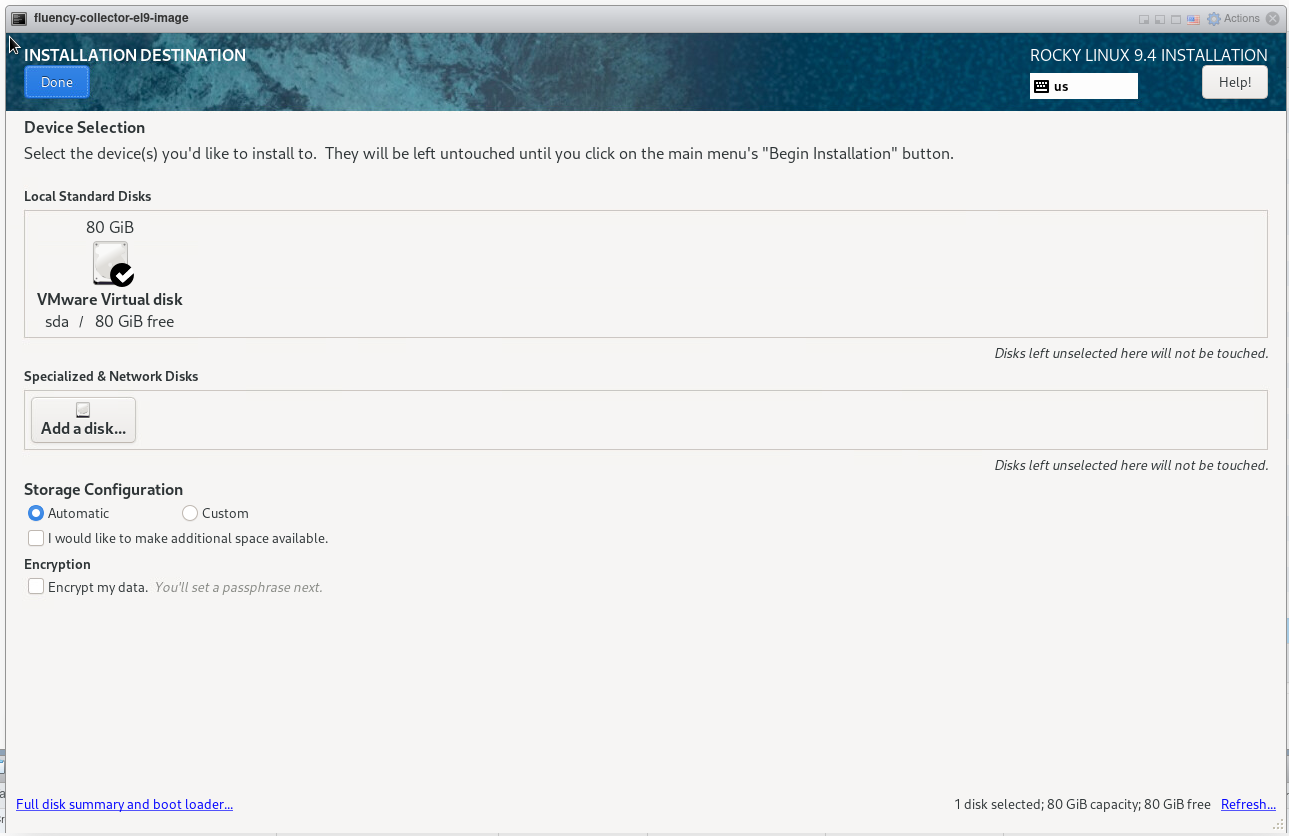
Click Done when finished configuring.
NOTE: Automatic partitioning may allocate a portion of the free disk space to create a /home partition. This will reduce the available space for data storage, as Fluency does not make use of this directory.
Network Settings
Return to the Installation Summary page, and navigate to the SYSTEM section.
Select Network & Host Name to configure the network settings.
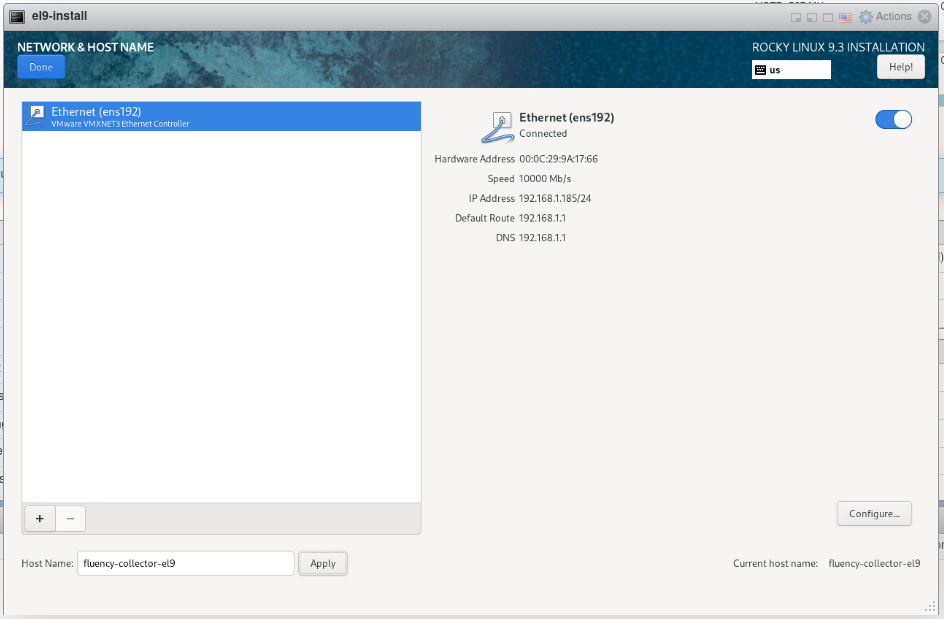
For the Host Name, choose a valid name for the machine, avoiding spaces.
Toggle the On/Off switch for the Network interface to enable the port on boot.
Advanced options can be found under Configure. Please refer to the OS vendor's documentation for additional instructions.
Click Done when finished.
Additional System Settings
Return to the Installation Summary page, and navigate to the SYSTEM section.
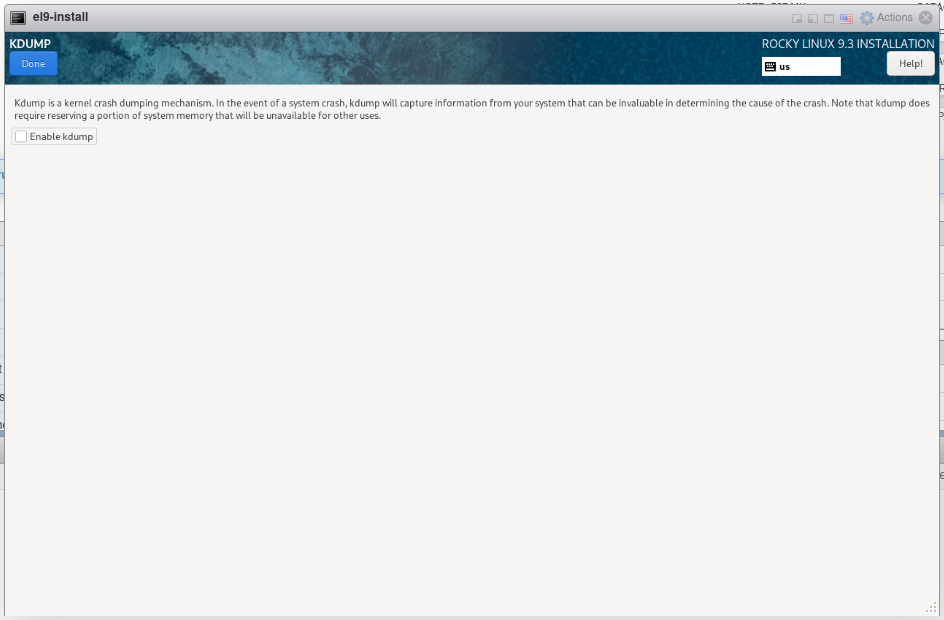
Select KDUMP to configure the KDUMP settings.
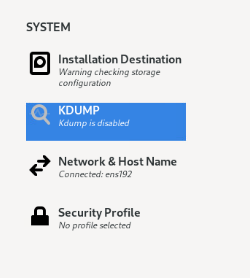
It is suggested to disable this feature.
Default User Settings
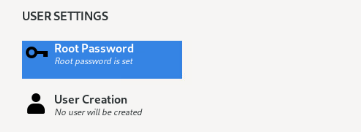
Return to the Installation Summary page, and navigate to the USER SETTINGS section.
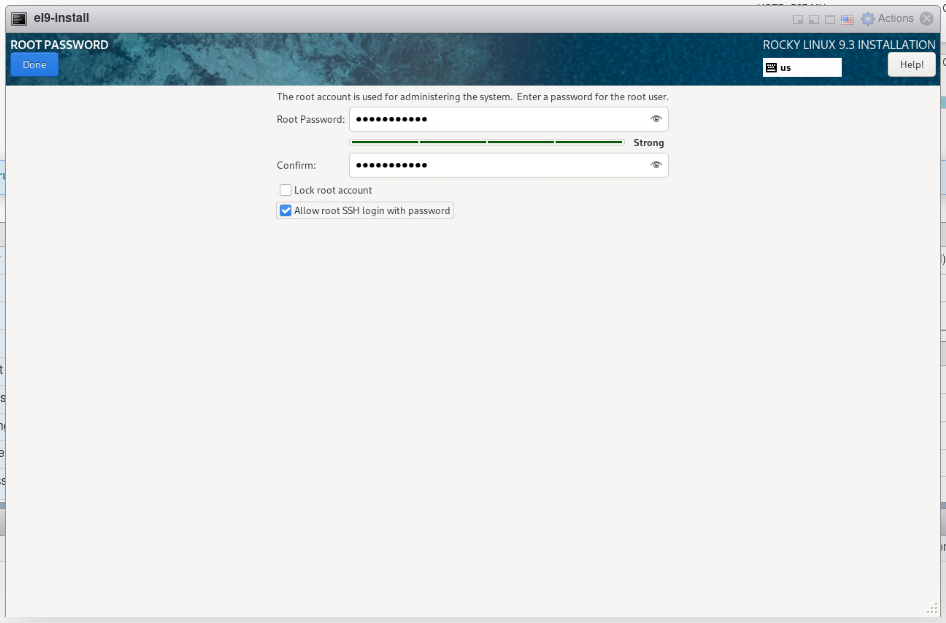
Select Root Password to configure the default root user password.
Select a password for the root user. It is suggested to also Allow root SSH login with password to facilitate initial access and installation.
Begin Installation
Return to the Installation Summary page, and select Begin Installation to start.
Wait for the progress bar to indicate that the installation is complete.
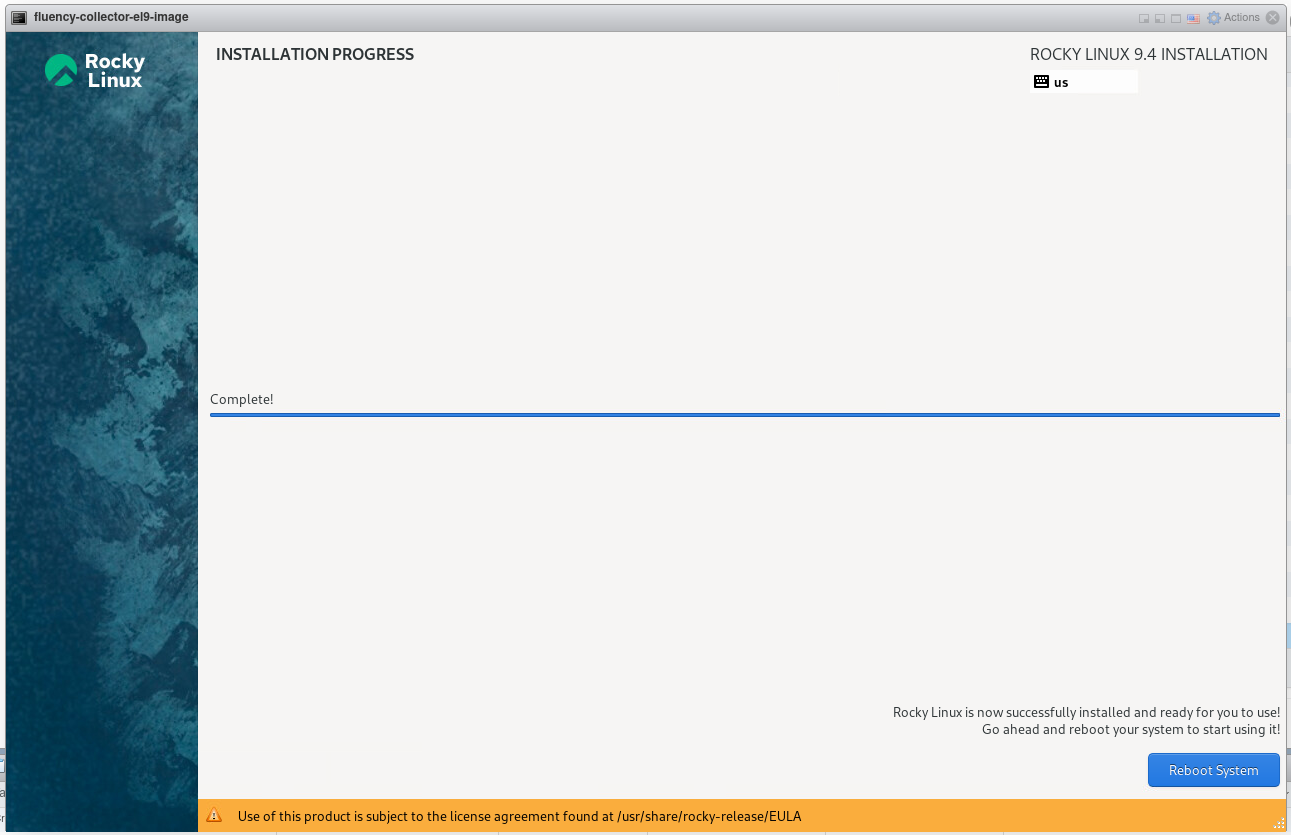
Select Reboot System to complete the installation. You will be prompted to log into the system terminal when the machine completes the reboot.
Running the Fluency installation package
Login to the system with the root user credentials created in the above step. If the Rocky Linux installation is from a major cloud service provider, use the vendor provided credentials to log in.
(If not using a root account, add the prefix “sudo” for each of the commands shown below.)

Download Install package
Download the Fluency installation package (and make it executable) via the following commands:
yum -y install wget
wget https://fluency-public.s3.us-east-1.amazonaws.com/installation/Fluency-installer-v924.package
chmod 755 Fluency-installer-v924.package
Execute Install package
Run the installation package with the following command:
./Fluency-installer-v924.package
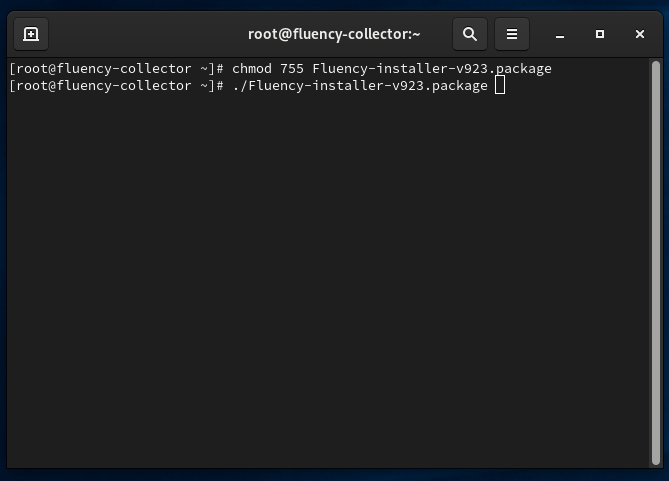
The installer runs in a single pass: it does not restart the system, and it does not need to be run a second time. It asks two questions, and changes nothing on the system until both are answered. The installer can also register the collector with your Fluency instance as it installs, and run without the questions from a script or a provisioning tool — see Installer options.
First, it asks Do you wish to run this installer? Answer yes.
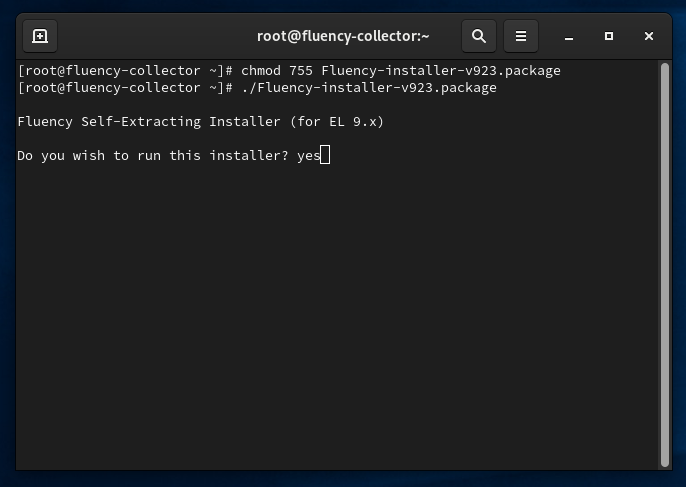
The installer then verifies the package and checks the kernel version. If it reports the package as corrupt or incomplete, download it again. It installs only on an Enterprise Linux 9 kernel, and stops with an error on any other.
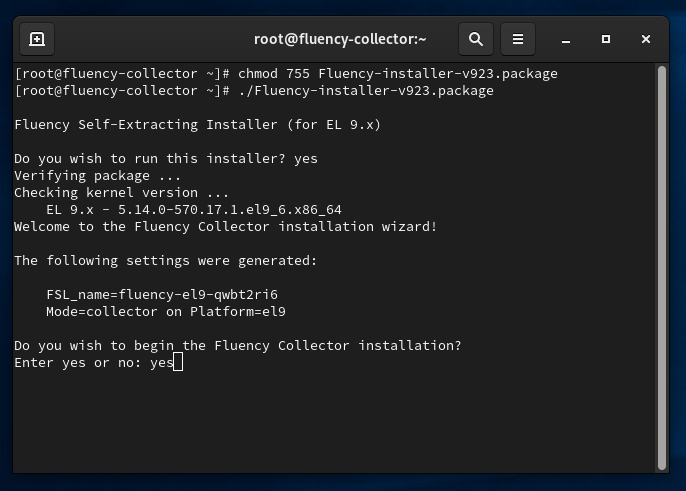
The installation wizard then generates the collector's name (FSL_name), a random name of the form fluency-el9-xxxxxxxx, and asks Do you wish to begin the Fluency Collector installation? Answer yes to install. Answering no offers to run the wizard again or to abort the installation. On a system where the collector is already installed, the wizard reports the existing installation and keeps its name instead. When the installer was given --server and --token, the settings also show the server and the last four characters of the token.
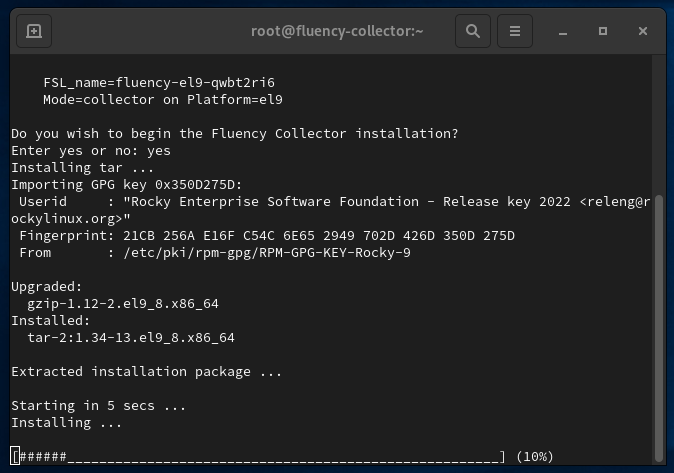
The installer extracts the package — installing tar first if the system lacks it — and starts the installation, showing its progress as a bar.
The console displays DONE when the installation completes, followed by the location of the install log, /var/log/fluency-install.log. The collector services are running at this point.
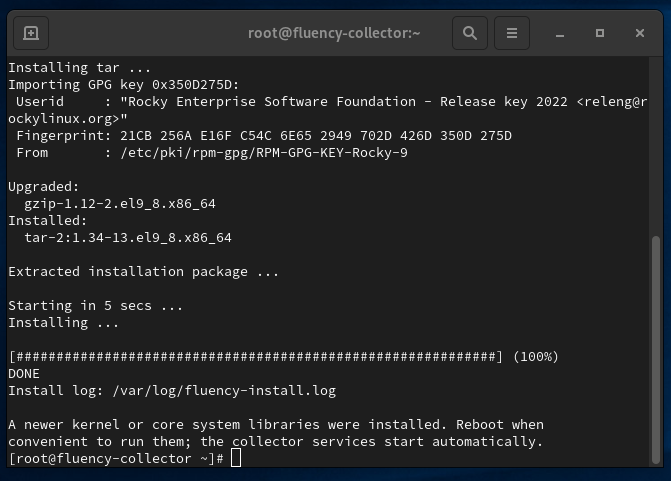
If the installation updated the kernel or core system libraries, the installer also prints a notice to reboot when convenient. It never reboots the system itself: the reboot can wait for a maintenance window, and the collector services start automatically when the system comes back up.
If a step fails, the installer prints Installation FAILED in: and the names of the failed steps instead, and the install log records the cause. Correct it and run the package again. A re-run keeps the collector name, server registration and syslog TLS certificates that an earlier run created, so devices already sending to the collector keep working.
Installer options
The package takes these options on its command line, in an interactive run as well as a headless one:
| Option | Effect |
|---|---|
--server URL | Registers the collector with your Fluency instance during the installation, as mgmt add_server does afterwards. Needs --token. |
--token TOKEN | The collector token to register with. Needs --server. |
--headless, -y | Installs without asking any questions, with the generated settings — as if both questions were answered yes. |
--help, -h | Lists the options, and exits without installing. |
--server and --token also accept the --server=URL and --token=TOKEN forms. If an option is not one of these, or --server and --token cannot be used as given — one without the other, an empty value, an http:// URL, or a value with characters a URL or token cannot contain, such as quotes, $ or spaces — the installer stops with exit status 2, before it changes anything.
Registering during the installation
With --server and --token, the installer registers the collector itself, and there is no mgmt add_server step afterwards. The values are the ones Connecting the Collector to a Fluency Cloud Instance describes — the host you sign in to the web interface at, and the collector token from the portal — so install the Fluency Collector application first, to have a token to give it:
./Fluency-installer-v924.package --server https://<companyname>.app.ingext.io --token <your-token>
The installer adds https:// when the URL leaves it out and drops a trailing /, so <companyname>.app.ingext.io works as well. The settings it shows before asking to begin list the server with only the last four characters of the token, and the install log does not record the token.
When the installation finishes, the collector connects to your instance by itself: continue at Connection Complete.
The options apply only to a new installation. Running the package again on a system where the collector is already installed keeps the existing registration; if the options name a different server or token, the installer says it is ignoring them. To change an installed collector's registration, use mgmt add_server.
Unattended installation
For an automated deployment — a cloud-init script, an image build or a configuration-management run — start the package in headless mode, with the registration options so that the collector needs nothing more once it is installed:
./Fluency-installer-v924.package --headless --server https://<companyname>.app.ingext.io --token <your-token>
A headless run performs the same installation, and prints the same progress and the same DONE or Installation FAILED in: result, as an interactive one; when its output goes to a file rather than a terminal, the progress bar becomes one line per step. Its exit status reports the outcome for the tool that started it: 0 when the installation succeeded, 1 when it did not — a failed step, a corrupt package, a system that is not running an Enterprise Linux 9 kernel, or another installer already running on the system — and 2 for options it cannot use.
It still has to run as root, or under sudo. The download and the install together are:
yum -y install wget
wget https://fluency-public.s3.us-east-1.amazonaws.com/installation/Fluency-installer-v924.package
chmod 755 Fluency-installer-v924.package
./Fluency-installer-v924.package --headless --server https://<companyname>.app.ingext.io --token <your-token>
The token authenticates the collector to your instance, so keep a script that holds it wherever you keep other credentials. Without --server and --token, a headless run installs a collector that is not yet registered: register it afterwards with mgmt add_server, as described in Connecting the Collector to a Fluency Cloud Instance.
Fluency Portal Configurations
The normal path is installing a Fluency Collector application from Platform → Applications, described first. Adding a collector from the Collectors page bypasses the application and leaves the collector unconnected to the pipeline.
Install the Fluency Collector application
The supported path. Go to Platform → Applications → Install Application From Template and choose Fluency Collector from the System Components category. The template takes no parameters — press Install.
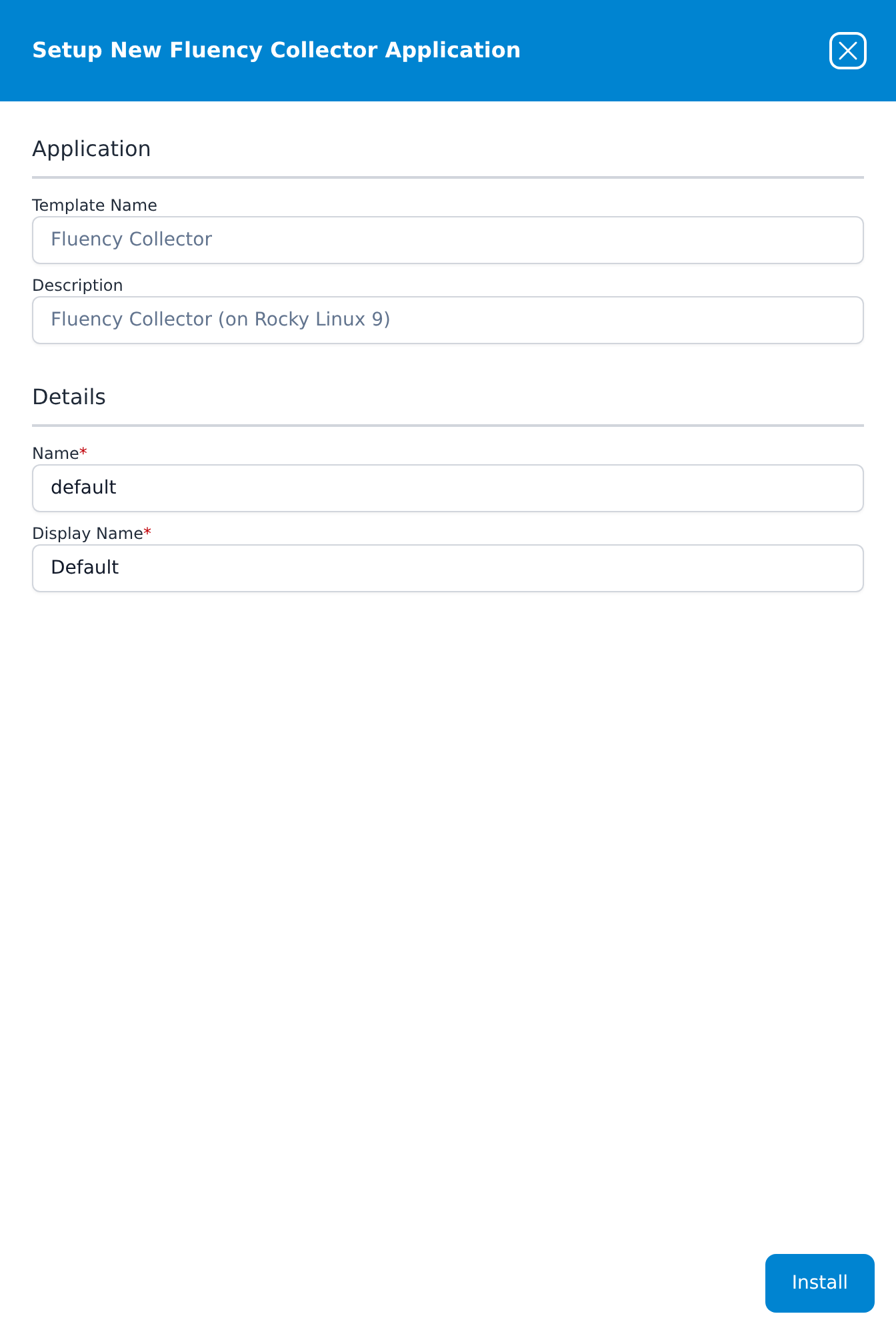
Once installed, open the application's details panel with the blue eye button on its card. Under Outputs is a Security token with a copy button at the right of the field; that token is what the collector authenticates with below.
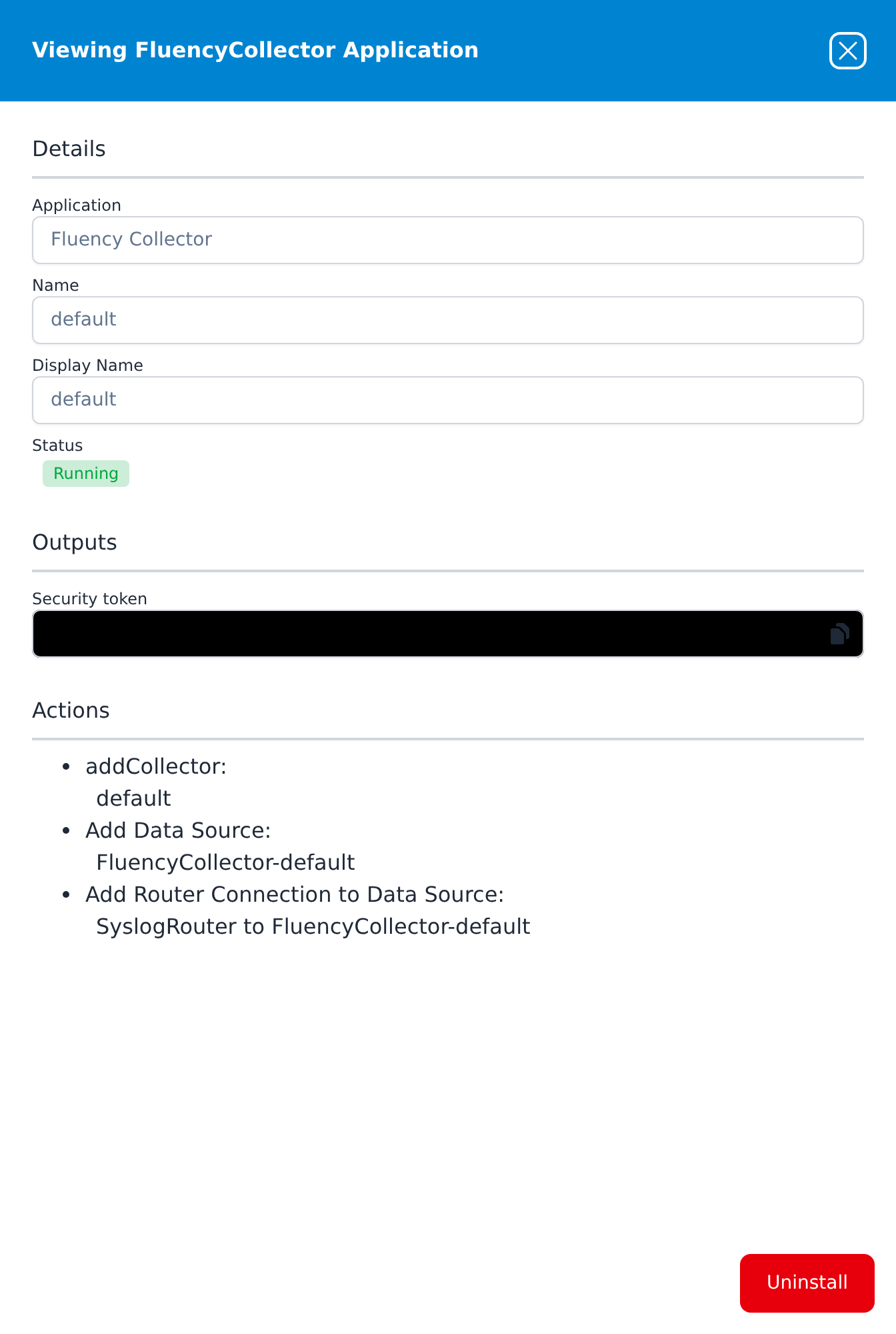
The Actions list below the token records what the install built — it added the collector, added a FluencyCollector-default data source, and connected the SyslogRouter to it. Nothing there needs to be wired by hand.
Connecting the Collector to a Fluency Cloud Instance
If you ran the installer with --server and --token, the collector is already registered: skip to Connection Complete.
Obtain a collector token from your Fluency portal — either from the Token column of the Collectors page (Platform → Administration → Collectors), or from the Fluency Collector application's Security token output, which has a copy button at the right of the field. The portal confirms with a Token Copied to Clipboard! message.
This token must then be added to the collector with the mgmt add_server command. The collector registers against the same host you use to reach the web interface — there is no separate collector hostname — so take the URL from your browser's address bar, keeping only the scheme and host:
mgmt add_server https://<your-instance-hostname> <your-token>
For a current standard deployment that is:
mgmt add_server https://<companyname>.app.ingext.io <your-token>
Older and custom deployments are reached at a different hostname — cloud.fluencysecurity.com, cloud.fluencyplatform.com, app.fluencyplatform.com or a regional <region>.fluencyplatform.com — and the rule is the same in every case: use the host you sign in at. See Fluency Web Interface for the URL formats.
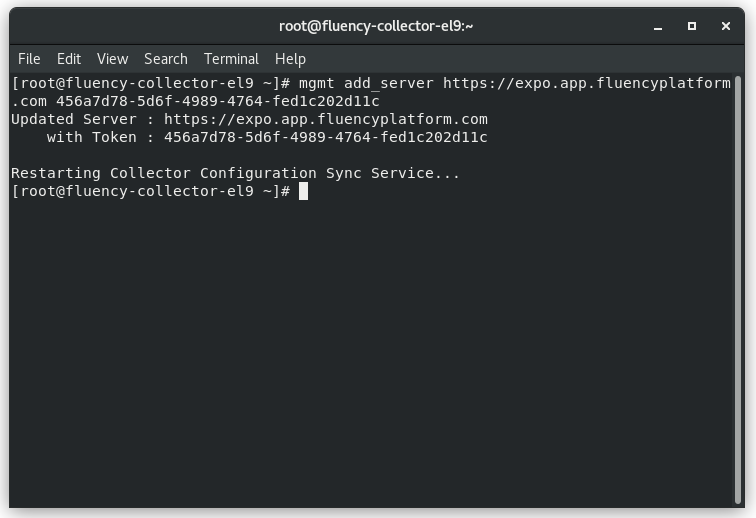
NOTE: If the Fluency collector has previously been configured for another Fluency Cloud instance, running the above command will overwrite those settings.
Connection Complete
This completes the process to install and configure a Fluency collector.
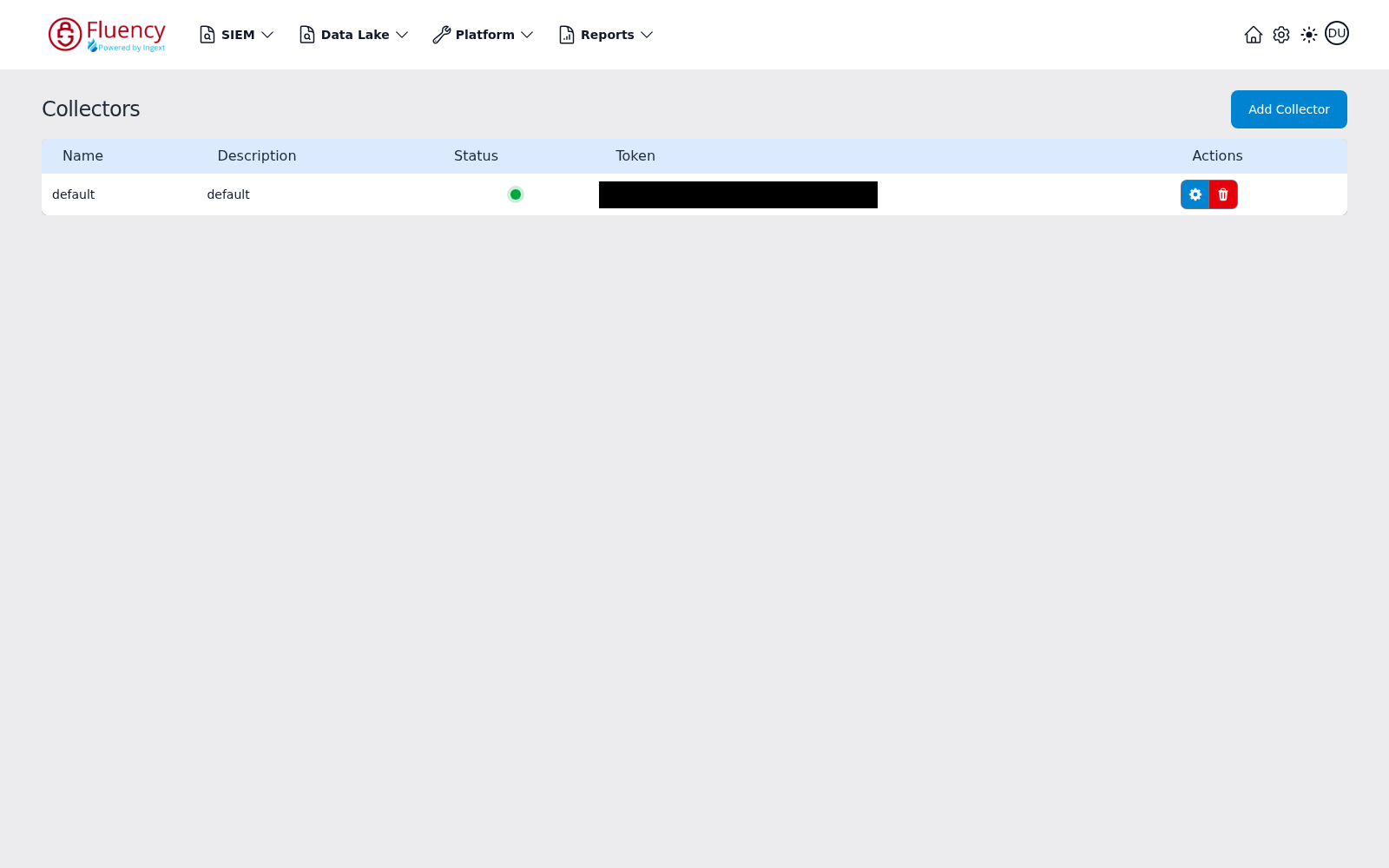
Refresh the Collectors page on the Fluency portal. The Status dot for the new collector should turn from grey to green, and its Actions column should now offer a blue gear alongside the red trash.
Additional Settings
The gear button opens Collector Configuration, where the appliance's syslog listeners, network settings and health are managed — see Managing Collectors → Collector configuration, or the Collectors screen reference for the full detail.
Adding a collector from the Collectors page
A collector added from the Collectors page bypasses the Fluency Collector application, so it is not connected to the data pipeline automatically.
Navigate to the Collectors page (Platform → Administration → Collectors) on the Fluency portal. The page lists the registered collectors with Name, Description, Status, Token, and Actions columns, and carries the Add Collector button in its header.
Click Add Collector to open a dialog with two fields, Name and Description, above a warning in red text: a collector provisioned here is added without an application, is not automatically connected to the main data pipeline, and requires further configuration. The confirm button is labelled Save and bypass application.
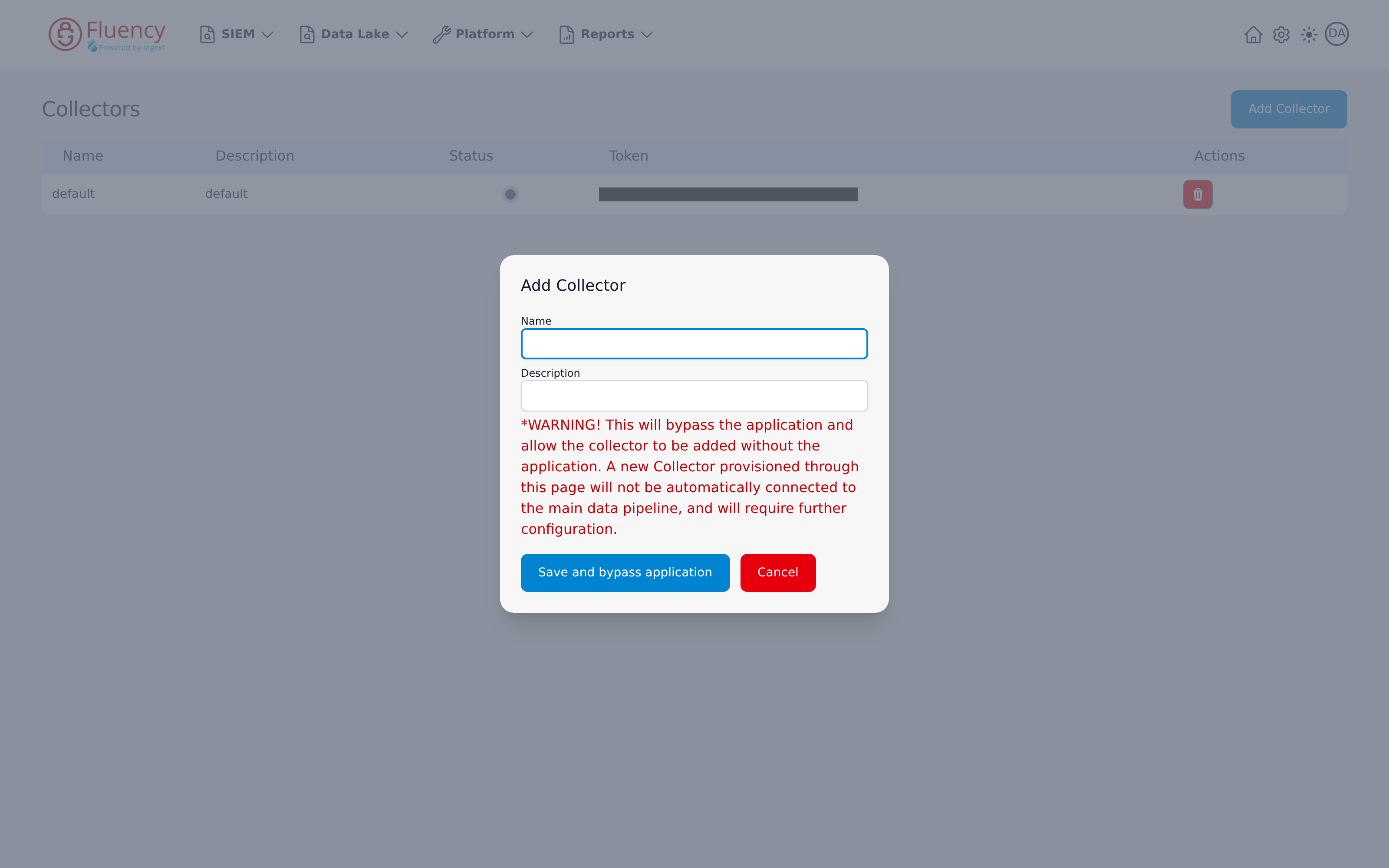
The collector's token then appears in the Token column; register it on the appliance as in Connecting the Collector to a Fluency Cloud Instance.
In this section
- Why Use a Collector — when a local appliance is the right aggregation point, and when it is not.
- Collector Login — reaching the appliance's own console and management commands.
- Managing Collectors — adding, configuring and monitoring collectors from the portal.