Amazon CloudWatch
AWS CloudWatch LogGroup event export
There are three ways to export logs from a log group to an S3 bucket/SIEM/Data Lake or any other destinations. AWS Documentation
- Subscription filter with Kinesis Data Streams
- Subscription filter with Amazon Data Firehose
- Subscription filter with AWS Lambda
Fluency Platform supports all three methods.
Subscription filter with Amazon Data Firehose
Step 1: Setup IAM Roles for CloudWatch and Firehose service
- Create an S3 bucket to hold the log group data (shared by all log groups)
- Create a new IAM role and allow Firehose to write to the S3 bucket you created
- Create a new IAM role and allow CloudWatch to write to the Firehose stream
- CloudFormation Template
CloudFormation Parameters:
CloudWatchRole:fluencyCloudwatchToFireHoseFirehoseRole:fluencyFireHoseToS3S3Bucket:{yourcompany}-fluency-cloudwatch-firehose
Step 2: Add LogGroup one by one
- Create a new Firehose stream
- Create a new subscription filter for the log group and set the destination to the Firehose stream
- CloudFormation Template
CloudFormation Parameters:
CloudWatchRole:fluencyCloudwatchToFireHoseFilterName:passthroughFilterPattern:""FirehoseRole:fluencyFireHoseToS3LogGroup:S3Bucket:{yourcompany}-fluency-cloudwatch-firehoseName://S3 object Prefix
Step 3: Configure an "S3 bucket" integration in Fluency
- Set the bucket and region
- Set the mode to read
- Choose the AWS role registered under Settings → AWS Roles as the Role. See Connecting to AWS. An IAM user's access key is the alternative.
Step 4: Add an "S3" type data source in Fluency
- Set the Receiver to
CloudwatchEventSplit - Set input to
JSON
function main({obj, size, source, props}) {
    if (obj.messageType != "DATA_MESSAGE") {
      return null
    }
    let list = []
    let logEvents = obj.logEvents
    if (!logEvents) {
       printf("logEvents field not found")
       return null
    }
    for i, event = range logEvents {
      let envelop = {
         logGroup: obj.logGroup,
         logStream: obj.logStream,
         subscriptionFilters: obj.subscriptionFilters,
         "@message": event.message,
         "@type": "event",
         "@timestamp": event.timestamp,
         "@source": obj.logStream
      }
      list = append(list, envelop)
    }
    return list
}
Pros
- Easy to setup
- Cheaper than Kinesis Data Streams
Cons
- One Firehose for one destination
- Limited destination options
Subscription filter with Kinesis Data Streams
Step 1: Setup IAM Roles for CloudWatch and Kinesis service
- Create a new Kinesis stream
- Create a new IAM role and allow CloudWatch to write to the Kinesis stream
- Create a new subscription filter for the log group and set the destination to the Kinesis stream
- CloudFormation Template
CloudFormation Parameters:
CloudWatchRole:fluencyCloudwatchToKinesisFilterName:passToKinesisStreamNameLogGroup
Step 2: Configure an "AWS Kinesis" integration in Fluency
- Set the Kinesis stream name and region
- Set the mode to read
- Choose the AWS role registered under Settings → AWS Roles as the Role. See Connecting to AWS. An IAM user's access key is the alternative.
Step 3: Add a "Kinesis" type data source in Fluency
- Set the Receiver to
CloudwatchEventSplit - Set input to
JSON
Pros
- Easy to setup
- Flexible destination options
- 24 hours data retention
Cons
- More expensive (each stream costs $0.10 per hour plus data ingress cost)
Subscription filter with Lambda
-
Create an S3 bucket for the Lambda function to write to
-
Create an IAM role for the Lambda function (execution role)
- Allow Lambda to write to the S3 bucket
- Allow Lambda to write to CloudWatch Logs (if logging is needed)
-
Create a Lambda function:
import datetime
import os
import uuid
import base64
import boto3
import time

def lambda_handler(event, context):

    LOGGROUP = os.environ['LOGGROUP']
    DESTINATION_BUCKET = os.environ['BUCKET']
    PREFIX = os.environ['PREFIX']
    currentTime = datetime.datetime.now()
    LOGGROUP = LOGGROUP.replace('/','_')
    OBJECT_PREFIX = os.path.join(PREFIX, LOGGROUP, currentTime.strftime('%Y%m%d').format(os.path.sep))
    encoded_zipped_data = event['awslogs']['data']
    zipped_data = base64.b64decode(encoded_zipped_data)

    basename = currentTime.strftime('%H-%M-%S')
    object_path = '{}/{}-{}.json.gz'.format(OBJECT_PREFIX, currentTime.strftime('%H-%M-%S'),uuid.uuid1())
    s3 = boto3.client('s3')
    s3.put_object(Body=zipped_data, Bucket=DESTINATION_BUCKET, Key=object_path)
-
Attach a resource permission policy to this Lambda to allow the CloudWatch LogGroup to invoke it
-
Create a new subscription filter for the log group and set the destination to the Lambda function
CloudFormation Parameters:
S3BucketS3ObjectPrefixLambdaRoleLambdaFunctionNameLogGroupFilterPatternFilterName
Step 2: Configure an "S3 bucket" integration in Fluency
- Set the bucket and region
- Set the mode to read
- Choose the AWS role registered under Settings → AWS Roles as the Role. See Connecting to AWS. An IAM user's access key is the alternative.
Step 3: Add an "S3" type data source in Fluency
- Set the Receiver to
CloudwatchEventSplit - Set input to
JSON
Pros
- Flexible destination options
- Cheapest solution (only pay Lambda invocation cost)
Cons
- More complex setup
Install the Application
Go to Platform → Applications → Install Application From Template and choose CloudWatch LogGroup from the AWS Services category.
| Parameter | Notes |
|---|---|
| AWS Region | Drop-down, opens on US N.Virginia. |
| SQS notification queue url | The full queue URL, not the ARN. |
| Pre-defined AWs Role | Optional on the form, but the recommended credential: the display name of a role registered under Settings → AWS Roles. See Connecting to AWS. |
| IAM access key | Optional. Alternative: an IAM user's access key, entered directly. Use instead of a role, not as well as. |
| IAM access secret | Optional. |
| datalake | Pre-filled managed. |
| datalake index name | Pre-filled default — change it. Two applications writing to the same index name in the same lake will collide, and the second one aborts. |
Unlike AWS CloudTrail, this template has no Pre-defined AWs User field.
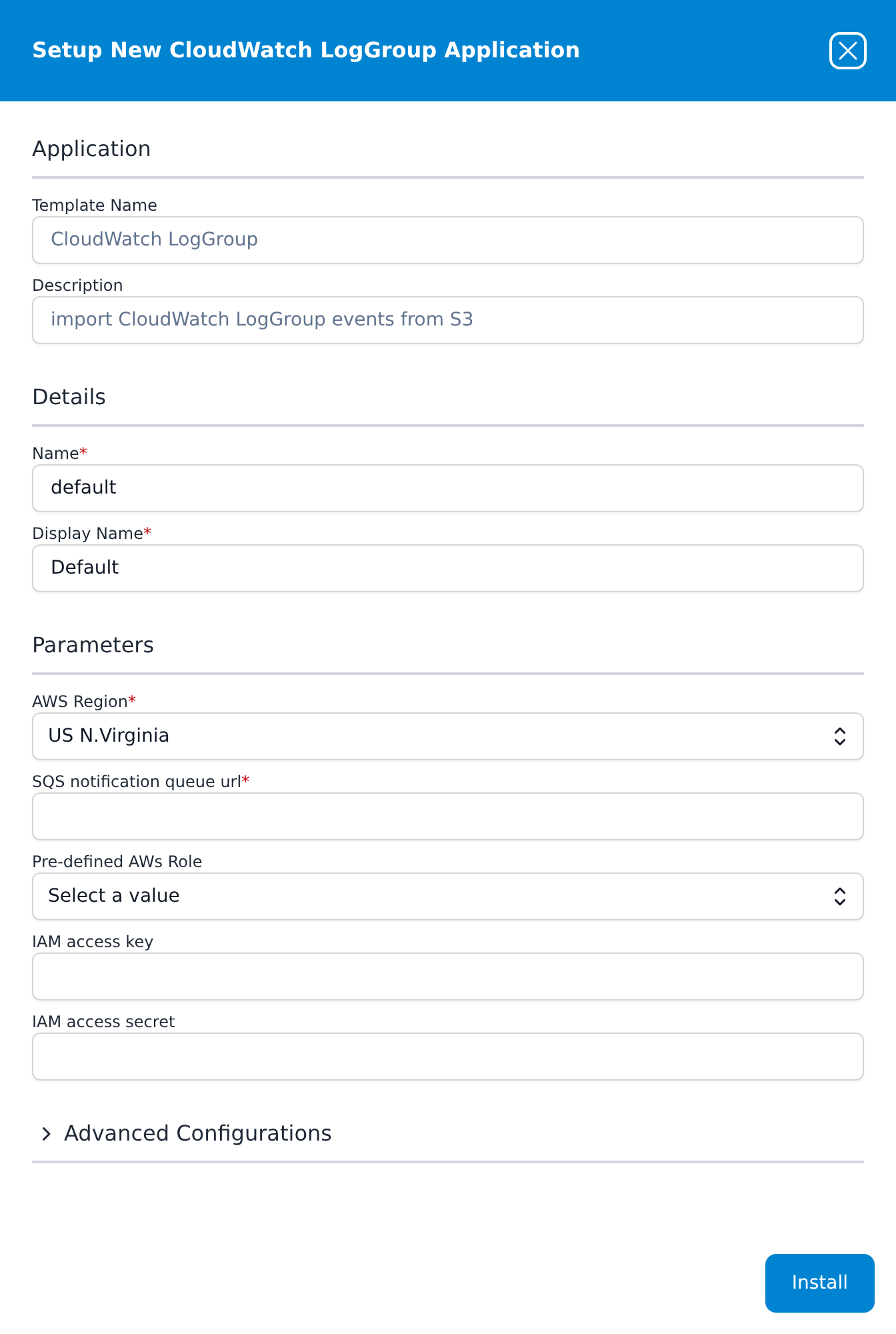
Press Install. The application then appears in the Installed Applications view, where its badge reads Running once the pipeline is up.
Read-only API access (pull method)
The three methods above are push subscriptions. CloudWatch Logs can also be read directly through the AWS API using an IAM user granted read-only access.
For this method the only AWS-side requirement is to attach these two AWS-managed policies to the IAM user assigned to the platform:
CloudWatchReadOnlyAccess
CloudWatchLogsReadOnlyAccess
Attach them from IAM → Users → (the user) → Permissions → Add permissions → Attach existing policies directly, then select which log groups to collect on the platform side.
Selecting log groups on the platform side, as this pull method does, belongs to the legacy interface; treat it as background only. In the current interface, CloudWatch Logs are collected with the CloudWatch LogGroup application described in Install the Application, and account access is set up as described in Connecting to AWS.