HTTP Event Collector (HEC)
Fluency runs a receiver that speaks Splunk's HTTP Event Collector protocol. Any product that can send its logs to Splunk over HEC can send them to Fluency instead, without an agent and without a custom forwarder: installing a HEC template generates a URL and a token, you paste the two into the product's Splunk or HEC output settings, and the product starts posting events over HTTPS.
HEC is a push transport. The source opens the connection, to your Fluency instance's own host name on port 443, so nothing on your side needs to accept inbound traffic — but the source does need outbound HTTPS to the instance.
Templates That Use It
| Template | Sends | Parser | Guide |
|---|---|---|---|
| HEC Input Passthrough | Anything that can post to a HEC endpoint | None — records are stored as received | Below |
| Bitdefender SecurityTelemetry HEC | Endpoint telemetry from GravityZone agents | Bitdefender | Bitdefender GravityZone |
| Bitdefender EventPush | GravityZone console events | Bitdefender | Bitdefender GravityZone |
| Coro via HEC | Coro security events | Coro | Coro Cybersecurity |
| Zsaler NSS | Zscaler NSS web and DNS feeds | Zscaler | Zscaler NSS |
A vendor template is preferable to the passthrough wherever one exists, because it ships a parser. Products without a template of their own — Avanan among them — use the passthrough.
How It Works
The setup runs in the opposite order to an API integration. There is nothing to collect from the vendor's console first: the platform generates the credential, and the vendor consumes it.
- Install the template in Fluency. The install creates a HEC data source and generates two values for it.
- Read the two values from the installed application's details panel — open it with the blue eye button on the application's card. Under Outputs are the HEC URL and the HEC Security Token (the Bitdefender templates label them HEC Server URL and HEC Token), each with a copy button at the right of the field.
- Enter them in the sending product wherever it asks for a Splunk HEC URL and token.
- The product posts events. Each request carries the token; the receiver checks it, and hands the events to the application's router and parser, which write them to the application's destination.
Together they grant write access to your data lake: anyone holding them can post records that your detections will read. Paste them straight into the sending product. Do not leave them in a ticket, a chat thread or a shared document on the way.
Each install has its own token, and a token routes only to the application that issued it — so one HEC template installed three times gives you three independent feeds.
What the Sender Sends
Products with a native Splunk HEC output already do all of this. The details matter only when you are testing by hand or writing a sender of your own.
| Element | Value |
|---|---|
| Method and URL | POST to the HEC URL from Outputs, exactly as shown. The URL is your instance's own host name with the Splunk HEC path. The receiver also accepts the Splunk path variants /services/collector/event and /services/collector/raw and treats all three identically, so a product that insists on appending /event still works — but do not otherwise edit the URL. |
| Authentication | An Authorization header carrying the token after the word Splunk: Authorization: Splunk <token>. There is no query-string alternative. |
| Body | Splunk's JSON event envelope: the record under an "event" key, with optional time, host, source and sourcetype keys beside it. |
| Compression | Optional. Content-Encoding: gzip is accepted; any other encoding is rejected with 400 gzip read error. |
| Destination | Fixed by the application. A Splunk index named in the request does not choose where the records land — the application's datalake index does. |
Indexer acknowledgement is off. None of the templates enables it, so leave the product's indexer acknowledgment option unticked. A sender that insists on acknowledgement polls an endpoint that answers 401 HEC Ack not enabled!, and some products then treat every delivery as failed.
The response is a bare OK. A successful post returns 200 with the body OK, not the JSON body a Splunk server returns. Products judge delivery by the status code; a home-grown sender should too.
Errors
Every rejection of the request itself is a 401 with a short text body. The body tells you which part is wrong:
| Response | Meaning |
|---|---|
401 Authorization header missing! | No Authorization header was sent. |
401 Invalid authorization header! | The header is not two words — the Splunk prefix is missing, or the token was pasted with extra spaces. |
401 Invalid token! | The token is not one the receiver knows: mistyped, from another instance, or from an application that has since been uninstalled. |
401 HEC Ack not enabled! | The sender is polling for indexer acknowledgements. Turn acknowledgement off on the sender. |
400 gzip read error | The body is compressed with something other than gzip, or is not valid gzip. |
Testing the Endpoint
You can prove the URL and token work before touching the sending product. From any machine with outbound HTTPS:
curl -H "Authorization: Splunk <HEC Security Token>" \
     -d '{"event": "hec smoke test", "sourcetype": "manual-test"}' \
     "<HEC URL>"
A 200 OK means the receiver accepted the event; it should be searchable in the application's index within a couple of minutes. A 401 names the problem as in the table above. A connection that times out or is refused is a network problem between that machine and the instance, which the sending product will have too.
Confirming It Works
A Running badge on a HEC application means the receiver is listening. It does not mean anything is sending, and zero rows is the expected state until the product is configured and its configuration has taken effect — which on some products takes minutes to reach every sender. So confirm from the sending side first:
- The product's own delivery status. GravityZone's Communication status reads Established; most products have a test button or a delivery log.
- A test event the product can generate, then a search for it in the index.
- Then the platform side — the application's pipeline diagram, Platform → Usage for ingress, and the index's Last Imported time on Data Lake → Management. See Confirm Data Is Arriving.
Rotating the Token
The URL and token are generated once, per install, and cannot be regenerated in place. Rotating them means a new install, which issues a new URL as well as a new token. To avoid a gap, run the old and new applications side by side while the product is repointed:
- Install the template again under a different Name.
- Enter the new URL and token in the sending product, and confirm it is delivering to the new application.
- Uninstall the original.
This works as written for templates with no index parameter — Bitdefender SecurityTelemetry HEC, Bitdefender EventPush and Coro via HEC. HEC Input Passthrough and Zsaler NSS write to a named index, and two applications cannot write the same index name in the same lake, so the replacement either takes a new index name or replaces the original outright, with a gap while the product is repointed. Whether that gap loses data depends on whether the product buffers and retries — something to check in its documentation before you start.
Removing a Feed
Turn the feed off in the sending product first, then uninstall the application. The other way round leaves the product posting to an endpoint that answers 401 Invalid token!; some products give up after enough failures and switch the feed off for good, and Bitdefender's push service is one of them.
The HEC Input Passthrough Template
For a product that can post to a Splunk-compatible HEC endpoint but has no template of its own, the catalog carries a generic receiver. Go to Platform → Applications → Install Application From Template and choose HEC Input Passthrough from the Endpoint Management category. Both parameters are required:
| Parameter | Notes |
|---|---|
| datalake | Pre-filled managed. |
| datalake index name | Pre-filled default — change it. Two applications writing to the same index name in the same lake will collide, and the second one aborts. Name it after the product, so its records are easy to find and a second passthrough install does not collide with this one. |
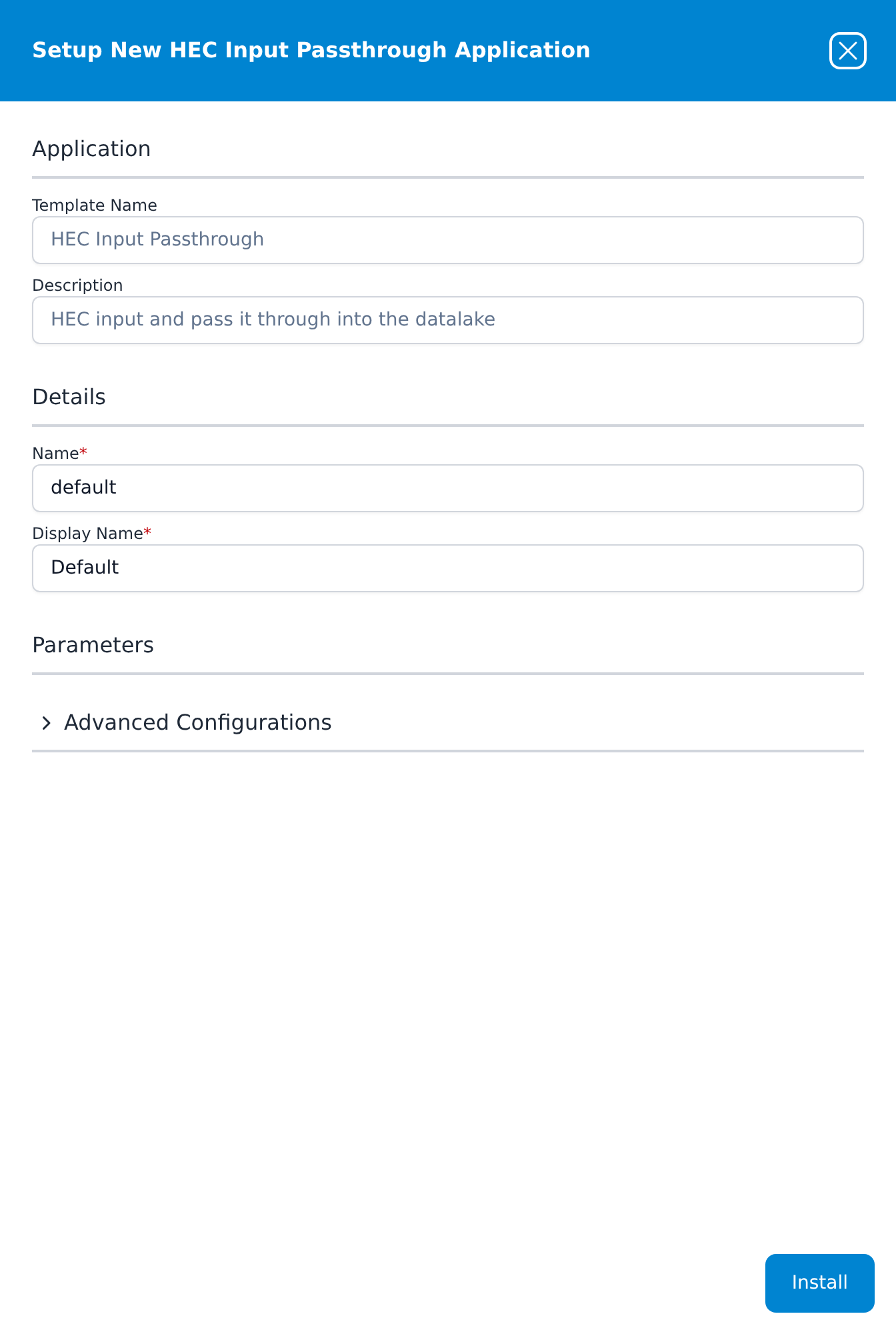
Press Install. The application then appears in the Installed Applications view, where its badge reads Running once the pipeline is up.
Events land in the named index unparsed, which is the trade: no processor to write, but no field extraction either. Ask the sending product for JSON output where it offers a choice, so the stored records are at least structured. The passthrough parser cookbook is the starting point if you need to add parsing later.
Building a HEC Source by Hand
A HEC data source can also be added outside any template, on Platform → Configuration with Add Source + and the HTTPs Event Collector source type. This is the advanced path: you then add the router, the processor and the sink yourself, which a template otherwise does for you — see Data Pipeline. The source's own settings are:
- Name — the data source's name in the pipeline.
- Format — how the receiver reads the body: JSON, Text (a raw character stream) or Syslog. The templates all use JSON; the other two are the reason to build a source by hand.
- Enable Indexer — turns on indexer acknowledgement, for the rare sender that cannot work without it.
Save the source, then connect it to a router.
HEC as a Destination
HEC also works the other way: a data sink can send records from Fluency to another system that accepts the HEC protocol, such as an existing Splunk deployment.
Related
- Webhooks — the other push transport, for vendors that post their own JSON rather than speaking HEC.
- Install Application From Template — every HEC template's form.
- Installed Applications → With outputs — where the URL and token are shown.
- No Data Arriving — the layer-by-layer diagnosis.