Azure Event Hubs
An Azure event hub is a managed stream: producers write messages into it, the hub holds each message for a fixed retention period, and readers pull at their own pace. The Azure Event Hubs template makes Fluency one of those readers. It connects to a single event hub with a connection string that can do nothing but listen, and writes what it reads into the data lake.
This page covers the event hub and the connection — creating a hub in Azure, or preparing one you already have, and pointing Fluency at it. What goes into the hub is configured on whatever writes to it, and is outside this page. For Microsoft Entra ID's audit and sign-in logs, which have a template of their own, see Entra ID Audit via Event Hubs.
Nothing is granted to Fluency inside your subscription: there is no application to register and no Azure role to assign. The only credential that leaves Azure is the connection string, and it reaches one event hub and can only read from it.
The setup has two halves:
- In Azure — create an Event Hubs namespace and an event hub (or use existing ones), a consumer group for Fluency, and a Listen-only policy on the hub. This produces one value, the hub's Connection string–primary key, and optionally a storage connection string for checkpoints.
- In Fluency — install the Azure Event Hubs application template and paste those values into its form.
What arrives
Whatever the hub's producers write, Fluency reads. Each record lands as one event in the AzureEventHubs index, under @azure, timestamped from its time field — the field Azure services write — or with its arrival time where it has none. Reading takes nothing out of the hub: other readers in other consumer groups see the same messages.
Retention: how long Fluency has to read
The hub holds each message for its retention period whether or not anyone reads it, and an unread message is gone once that period passes. The retention is therefore the length of Fluency-side outage the integration survives — a stopped application, a regenerated key, a deleted policy. The tier sets the ceiling:
| Event Hubs tier | Maximum retention | Consumer groups per hub |
|---|---|---|
| Basic | 1 day | $Default only |
| Standard | 7 days | Up to 20 |
The Premium and Dedicated tiers retain for up to 90 days. Use Standard at least, and set the hub's retention to the most the tier allows. Event Streams covers retention, consumer groups and checkpoints in more depth.
Before you begin
Contributor on an Azure subscription, to create the namespace and hub — or Contributor on the existing namespace, to add a consumer group and a policy to a hub that is already there. These are Azure RBAC roles, not Entra ID directory roles.
The namespace is billed for as long as it exists, per throughput unit per hour plus ingress, whether or not anything reads it. One Standard throughput unit is the starting point.
Network access from Fluency to the namespace. Fluency connects outbound to <namespace>.servicebus.windows.net. A namespace whose Networking page restricts public access has to admit it.
Access to the Fluency portal with permission to install applications.
Part 1 — Azure
Performed in the Azure portal. If you would rather script it, skip to Automated alternative — Azure CLI.
Skip to step 3. Before you do, check two things: the namespace's Pricing tier, on its Overview, since Basic allows no consumer group but $Default; and the hub's Message Retention, on the hub's Overview, since that is how long an outage Fluency can recover from.
1. Create the namespace
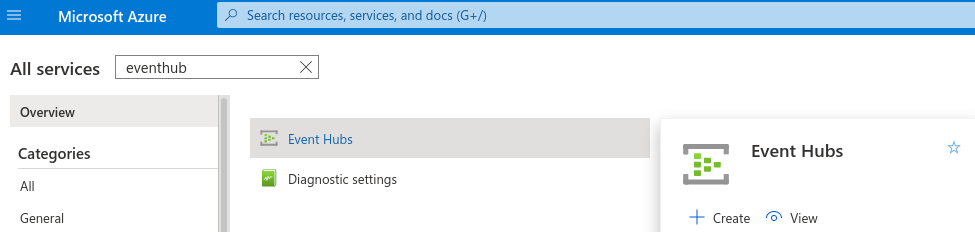
Search for Event Hubs and choose Create.
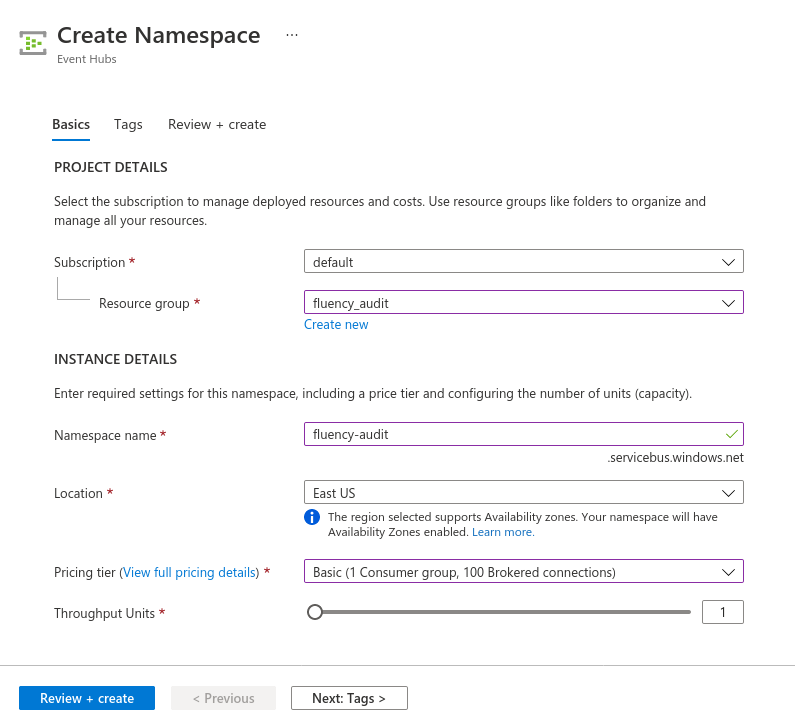
- Subscription and Resource group — Create new makes a resource group for the hub, so removing it later is one deletion.
- Namespace name — globally unique; it becomes
<name>.servicebus.windows.net. - Location — the region where the hub's producers run. Some producers insist on it: Azure Monitor diagnostic settings stream a regional resource only to a hub in the same region.
- Pricing tier — Standard. The capture below shows Basic, whose one-day retention and single consumer group are too little for this.
- Throughput Units — 1.
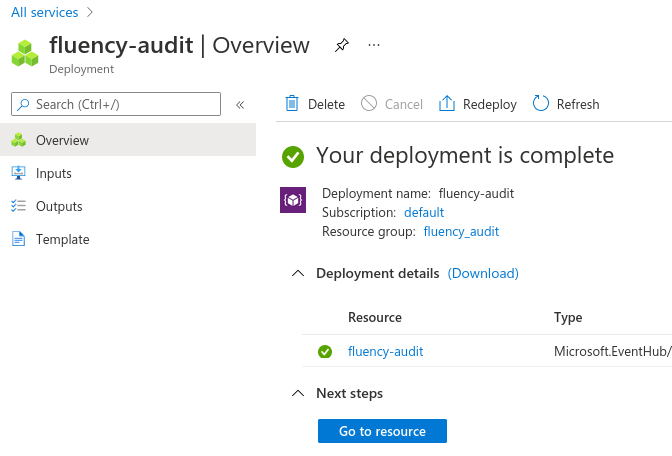
Choose Review + create, then Create, and wait for the deployment to complete. Go to resource opens the new namespace.
2. Create the event hub
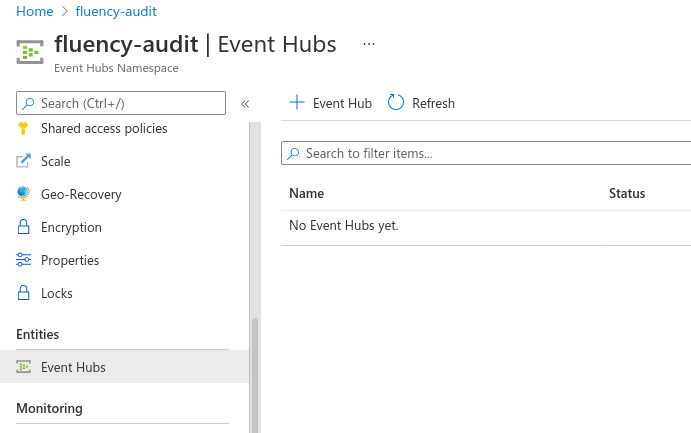
In the namespace, go to Entities → Event Hubs and choose + Event Hub.
- Name — anything recognisable. It becomes the
EntityPathat the end of the connection string. - Partition Count — 2 is enough for most uses. It cannot be changed after creation on Basic or Standard.
- Retention — the maximum the tier allows: seven days on Standard. (The capture is from a Basic namespace, where it is fixed at one day.)
- Capture — Off.
Choose Create.

3. Create a consumer group for Fluency
A consumer group is a named view of the hub that keeps its own reading position, independently of every other group. Each reader of a hub needs its own: two readers sharing one group compete for the same partitions, so each can miss messages or be disconnected by the other. A new hub is read through its built-in $Default group, which is fine while Fluency is the only reader — but anything else that reads the hub later, another SIEM or an Azure Function, would then be sharing it.
Open the hub from the namespace's Event Hubs list.

Go to Entities → Consumer groups, choose + Consumer group, name it — fluency, say — and choose Create. On a Basic namespace the button is greyed out, because Basic allows only $Default.
Record the name; it goes into the template's consumer group name parameter.
4. Create a Listen-only policy on the event hub
Still on the hub, go to Settings → Shared access policies and choose + Add.
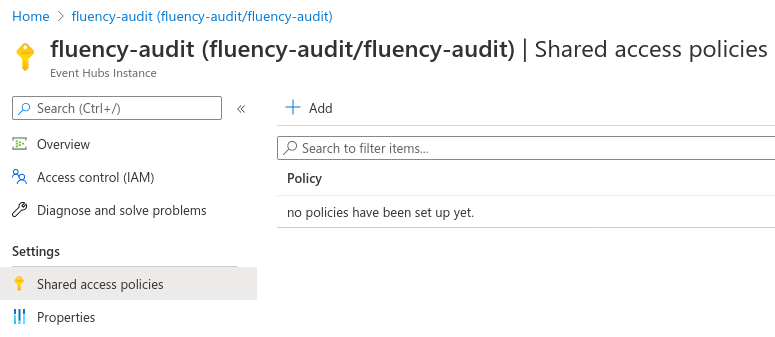
Name the policy — fluency-listen, say — tick Listen and nothing else, and choose Create.

The namespace has a Shared access policies page too, and the two look almost identical. The sub-heading under the page title tells them apart: Event Hubs Instance is the hub, which is where this policy belongs; Event Hubs Namespace is the wrong page. A namespace policy's connection string lacks ;EntityPath=<hub name>, reaches every hub in the namespace, and — if it is the built-in RootManageSharedAccessKey — carries Manage rights over all of them.

5. Copy the connection string
Select the policy. Of the four values in the panel, copy Connection string–primary key. It has this shape, and must end with the hub's name:
Endpoint=sb://<namespace>.servicebus.windows.net/;SharedAccessKeyName=fluency-listen;SharedAccessKey=<key>;EntityPath=<hub name>
The string carries the policy's key, so treat it as a credential. Unlike most secrets, though, it is not shown once: it can be read again from Shared access policies at any time, and replaced by regenerating the key.
6. Optional: set up checkpoint storage
Fluency can keep its reading position — a checkpoint per partition — in an Azure Storage container. With it, a restarted application resumes exactly where it stopped. Without it, a restart re-reads what the hub still holds, and the index gets duplicates. For a small hub that is a few repeated records; for a busy one, set it up.
- Create a Storage account — general-purpose v2, Standard performance, in the namespace's region. Give it to Fluency alone: the connection string below carries the account key, which grants full access to the whole account.
- In the account, go to Data storage → Containers, choose + Container, and name it —
fluency-checkpoints, say. - Go to Security + networking → Access keys and copy the Connection string under key1.
You should now be holding:
| Value | Where it came from | Template parameter |
|---|---|---|
| Connection string–primary key | The Listen policy on the event hub, step 5 | Event Hub endpoint |
| Consumer group name | Step 3 | consumer group name |
| Storage connection string (optional) | The storage account's Access keys, step 6 | connection string to access the storage account container |
| Container name (optional) | Step 6 | blob storage container for eventhub checkpoints |
Automated alternative — Azure CLI
The same steps as Azure CLI commands. Run them signed in to the right subscription (az account show names it), and replace the names and location with your own. For a hub that already exists, set the variables to its names and start at the consumer group.
RG=fluency-eventhub-rg
NS=<globally-unique-namespace-name>
HUB=<event-hub-name>
LOCATION=eastus

# Steps 1–2: namespace and hub
az group create --name "$RG" --location "$LOCATION"

az eventhubs namespace create --resource-group "$RG" --name "$NS" \
  --location "$LOCATION" --sku Standard --capacity 1

az eventhubs eventhub create --resource-group "$RG" --namespace-name "$NS" \
  --name "$HUB" --partition-count 2 --cleanup-policy Delete --retention-time-in-hours 168

# Step 3: consumer group
az eventhubs eventhub consumer-group create --resource-group "$RG" \
  --namespace-name "$NS" --eventhub-name "$HUB" --name fluency

# Steps 4–5: Listen-only policy, and its Connection string–primary key
az eventhubs eventhub authorization-rule create --resource-group "$RG" \
  --namespace-name "$NS" --eventhub-name "$HUB" --name fluency-listen --rights Listen

az eventhubs eventhub authorization-rule keys list --resource-group "$RG" \
  --namespace-name "$NS" --eventhub-name "$HUB" --name fluency-listen \
  --query primaryConnectionString -o tsv

# Step 6 (optional): checkpoint storage
SA=<globally-unique-storage-account-name>
az storage account create --resource-group "$RG" --name "$SA" \
  --location "$LOCATION" --sku Standard_LRS --kind StorageV2

STORAGE_CS=$(az storage account show-connection-string --resource-group "$RG" \
  --name "$SA" --query connectionString -o tsv)
az storage container create --name fluency-checkpoints --connection-string "$STORAGE_CS"
echo "$STORAGE_CS"
Older Azure CLI releases do not accept --cleanup-policy and --retention-time-in-hours; on those, use --message-retention 7 instead. A subscription that has never used Event Hubs may need az provider register --namespace Microsoft.EventHub --wait first.
Part 2 — Fluency
Install the Application
Go to Platform → Applications → Install Application From Template and choose Azure Event Hubs from the Cloud Infrastructure (IaaS) category.
| Parameter | Notes |
|---|---|
| Event Hub endpoint | The Connection string–primary key from step 5. Masked once the application is installed. |
| Description | Optional. An editable parameter, distinct from the read-only Description shown in the form's Application section. |
| connection string to access the storage account container | Optional, with the next one. The storage connection string from step 6. Masked once installed. |
| blob storage container for eventhub checkpoints | Optional. The container from step 6. |
| consumer group name | The consumer group from step 3. Left empty, the reader uses $Default. A name that does not exist on the hub collects nothing. |
| datalake | Pre-filled managed. |
| datalake index name | Pre-filled AzureEventHubs. Two applications writing to the same index name in the same lake will collide, and the second one aborts. |
The last two sit in the collapsed Advanced Configurations row below the parameters — expand it to reach them.
One application reads one hub. For a second hub, install the template again with its own Name and its own datalake index name.
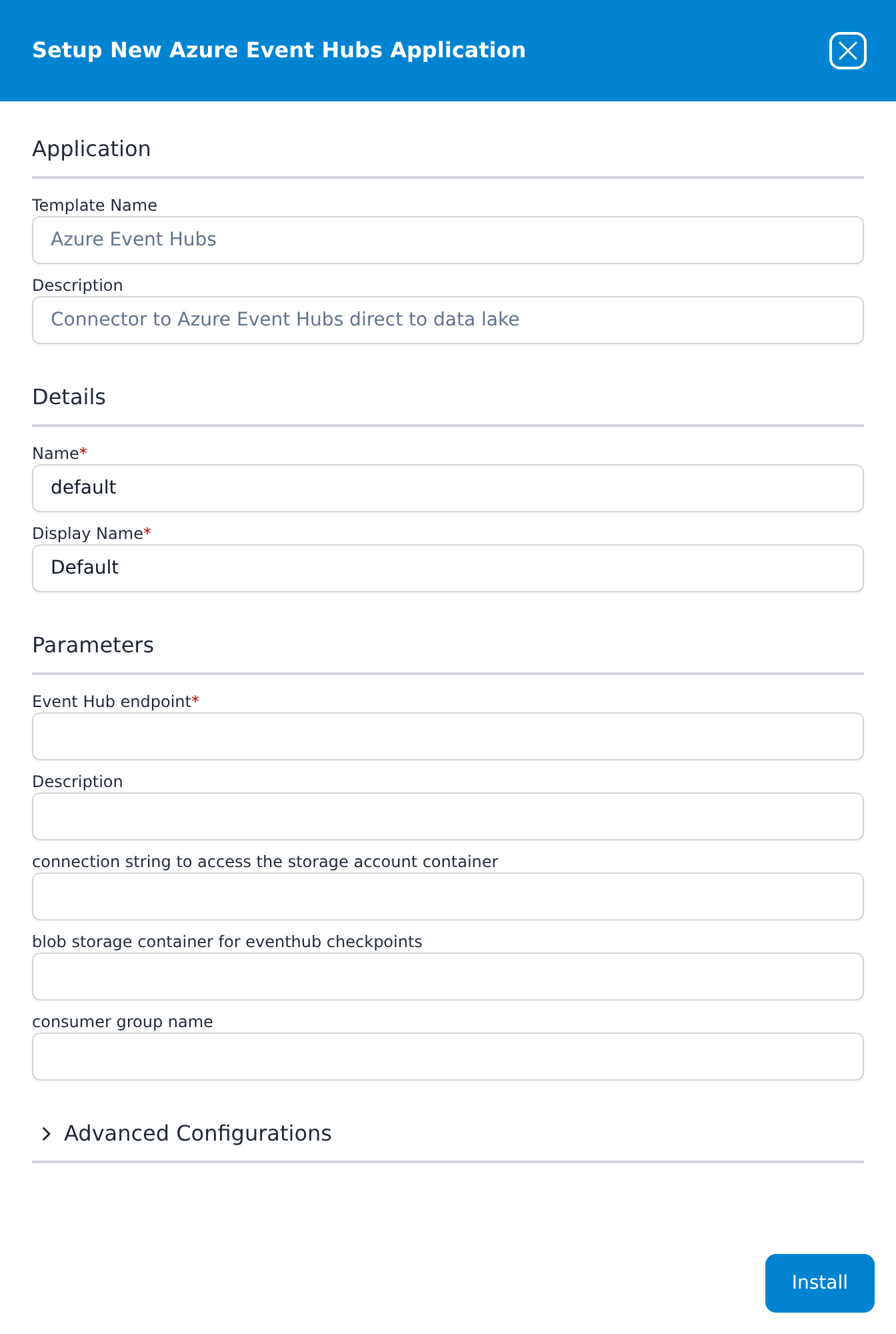
Press Install. The application then appears in the Installed Applications view, where its badge reads Running once the pipeline is up.
Confirm it is running
The application appears under Installed Applications as Azure Event Hubs: Default. Running in green means the pipeline is up; Aborted in red means it stopped on an error, and its details panel — the blue eye button — carries the message. The panel's Actions list records every object the install created.
Running reports the pipeline, not the connection. Confirm on both sides:
-
In Azure, open the hub's Overview page and watch the Messages chart. Incoming Messages counts what producers write; Outgoing Messages counts what readers take.

Incoming Outgoing Meaning Zero Zero Nothing is writing to this hub, so there is nothing to read yet. That is the producer's configuration, not Fluency's. Rising Zero Messages are arriving and nothing is reading them. Check the connection string and the application. Rising Rising Something is reading — Fluency, if it is the hub's only reader. Outgoing counts every consumer group, so on a hub with other readers it rises whether or not Fluency is one of them. The index is the check that settles it.
-
In Fluency, search the index named on the install form for recent events. See Confirm data is arriving.
The install also creates an integration, AzureEventHubs-<name> — AzureEventHubs-default for a default install — which appears under Cloud Infrastructure (IaaS) in Platform → Integrations → Existing Integrations. It is part of the application's pipeline: remove it by uninstalling the application, not by deleting it there.
Adding the connection without the template
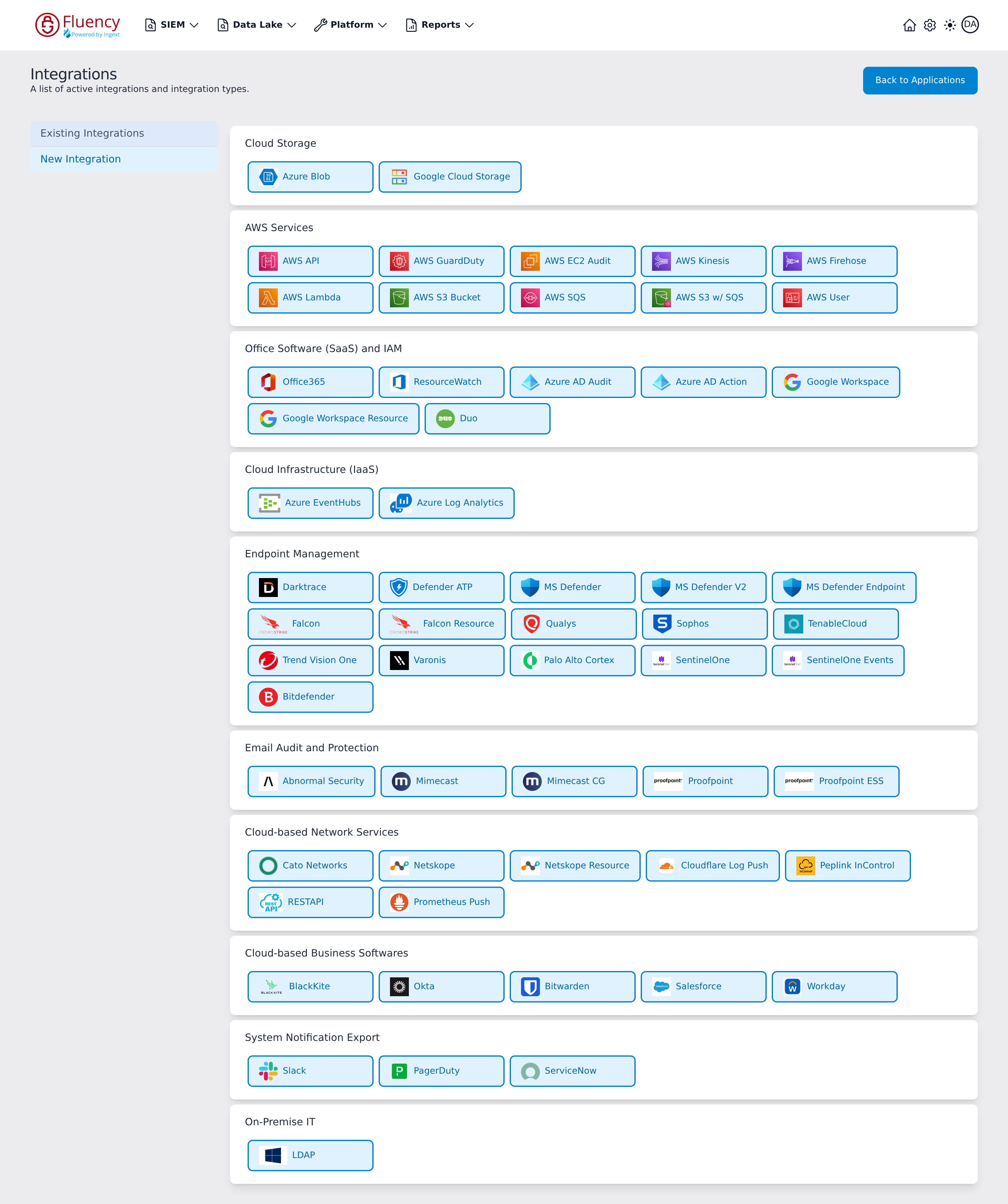
The same connection can be created on its own, on Platform → Integrations under New Integration, from the Azure EventHubs tile in the Cloud Infrastructure (IaaS) card.
Its Add Azure EventHubs dialog takes the template's five settings under different labels:
| Add Azure EventHubs | Template parameter |
|---|---|
| Endpoint | Event Hub endpoint |
| Description (under Configurations) | Description |
| Consumer Group | consumer group name |
| Container Name | blob storage container for eventhub checkpoints |
| Storage Endpoint | connection string to access the storage account container |
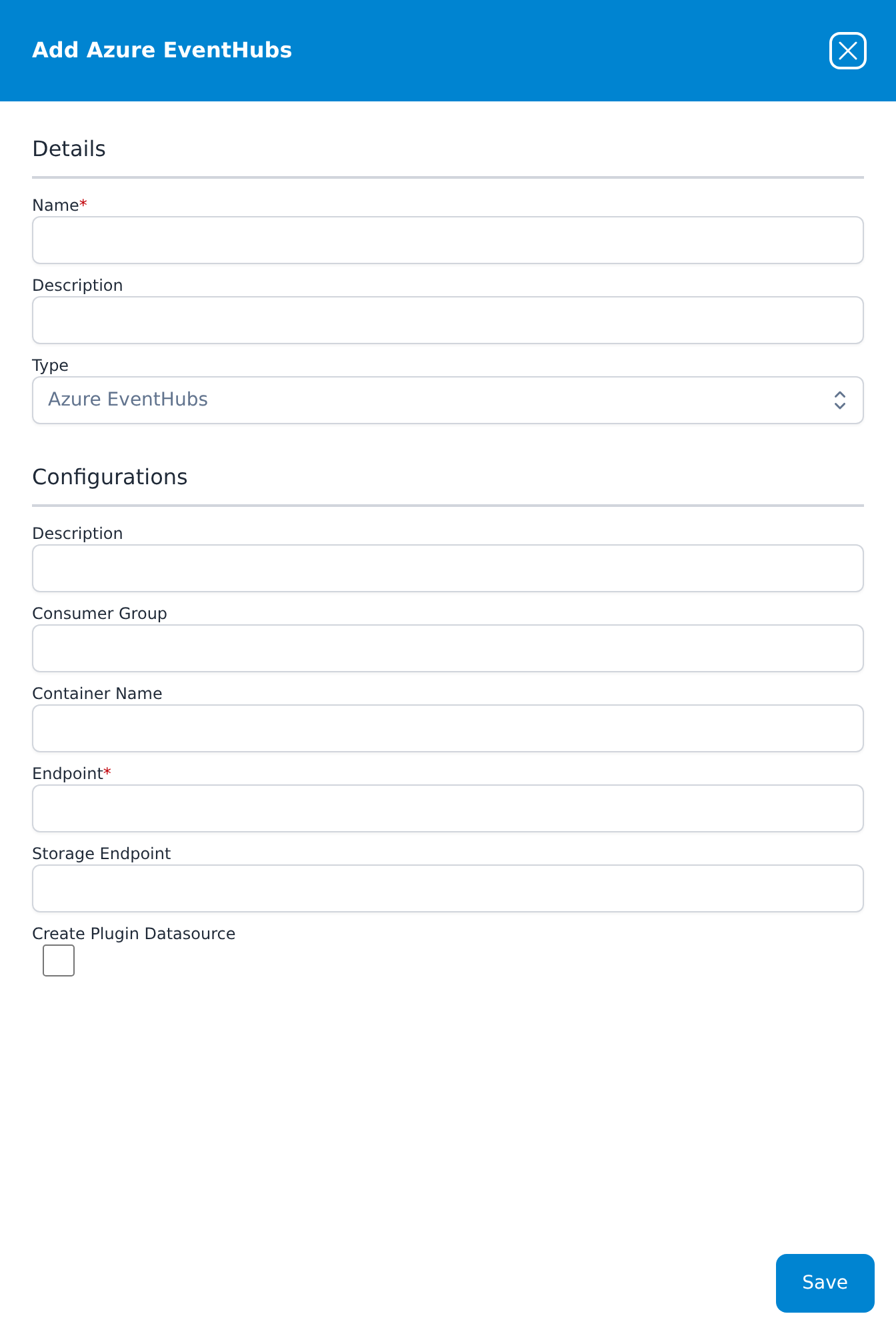
This builds the connection to one hub — and, with Create Plugin Datasource ticked, its data source — but no parser and no index. It is for a pipeline built by hand on Platform → Processors. For anything else, install the template, which builds the whole pipeline. New Integration describes the dialog itself.
Maintenance
Rotating the key
Every shared access policy has two keys, which makes an overlap possible: reinstall the application with the policy's Connection string–secondary key, and once data is flowing again, regenerate the primary key in Azure. Template parameters are read-only after install, so a new value means uninstall and reinstall. Keep the gap shorter than the hub's retention and nothing is lost; with checkpoint storage configured, the reinstalled application resumes from the stored position. Rotating the Key has the full procedure.
The storage account key rotates the same way: reinstall with the connection string for key2, then regenerate key1.
Removing the integration
- Uninstall the application in Fluency, with the red Uninstall button at the foot of its details panel.
- Delete the
fluency-listenpolicy and thefluencyconsumer group from the hub, and the checkpoint storage account if you made one. - If the hub existed only for Fluency, stop whatever writes to it, then delete the namespace — or the whole resource group — to stop the hourly charge.
Troubleshooting
| Symptom | Likely cause | Fix |
|---|---|---|
| Incoming rises, Outgoing stays at zero | Fluency is not reading | Check that the connection string ends in ;EntityPath= and this hub's name, that the consumer group named on the form exists on the hub, and that the application is Running. |
The connection string has no EntityPath | The policy was created on the namespace | Create a Listen-only policy on the event hub — step 4 — and reinstall with its string. |
| The application is Running and collects nothing | The consumer group name does not exist on this hub, or the hub has no incoming messages | Compare the name with Entities → Consumer groups on the hub, and reinstall with the right one. Check Incoming Messages on the hub's Overview. |
| Fluency or another reader of the hub misses messages, or keeps being disconnected | Two readers are sharing one consumer group — usually $Default | Give Fluency its own consumer group — step 3 — and reinstall with its name. On a Basic namespace, which has only $Default, move to Standard. |
| Duplicate records after the application restarts | No checkpoint storage, so the reader re-reads what the hub still holds | Set up checkpoint storage — step 6 — and reinstall with it. |
| A second Azure Event Hubs application aborts on install | Its datalake index name is already in use by the first | Reinstall with a different index name. |
| Incoming Messages stays at zero | Nothing is writing to the hub | Check the producer's configuration: that it names this namespace and this hub. Azure Monitor diagnostic settings, for one, create hubs of their own named insights-… when no hub name is given. |
| Throttled requests on the hub's Overview, and collection falls behind | The namespace has too few throughput units for the volume | Add throughput units, or enable Auto-inflate on a Standard namespace. |
| The application cannot connect, and the namespace's Networking restricts public access | Fluency cannot reach the namespace | Allow Fluency's connection through the namespace's network rules. |
| A gap after a Fluency-side outage | The outage outlasted the hub's retention | Unrecoverable through the hub. Standard retains up to seven days; Basic one. |
Under the hood
Engineering reference — what the install builds and the parser
What the install builds
An integration and a plugin data source named AzureEventHubs-<name>, a router holding one pipe that runs the Azure-EventHubs-Adjustments parser, a data sink into the chosen lake and index, and the index itself. The connection string and the storage connection string are stored as secrets on the integration. The Actions list in the application's details panel is the authoritative record of what your install created.
The parser
The AzureEventHubs_Adjustments processor is written for the record format Azure services write into event hubs — JSON with time, category, operationName, resourceId and properties — and handles each record under @azure:
- Timestamp —
@timestampcomes from the record'stime. ForRiskyUsersrecords, and records with notime, it is the arrival time instead. - Dropped categories —
AzureFirewallApplicationRule,AzureFirewallNetworkRuleandAzureFirewallDnsProxy, Azure Firewall's legacy Azure Diagnostics categories, are discarded. Azure Firewall's resource-specificAZFW…categories are kept. - Geolocation — the caller address of Key Vault
AuditEventand StorageStorageRead/StorageWriterecords (callerIpAddress, with any port stripped and the original kept incallerIpAddressOriginal), and of SQLSQLSecurityAuditEvents(properties.client_ip), is copied to@normalized.source_ip, with its geolocation in@normalized.src_geo. - Labels — every record gets
@eventType: AzureEventHubs,@event_type: azure,@sender: azure,@source: eventhubs, and the installed integration's name in@integration.
How records are spread across partitions is up to the producer, and their order across partitions is not guaranteed — sort on time, not on arrival.
References
Microsoft
- Azure Event Hubs overview
- Create an event hub using the Azure portal
- Event Hubs features and terminology — partitions, consumer groups, retention and checkpointing
- Get an Event Hubs connection string
- Event Hubs quotas and limits — retention and consumer groups by tier
- Manage storage account access keys — the checkpoint storage connection string and its rotation
Fluency
- Event Streams — retention, consumer groups, checkpoints and key rotation for any event hub
- Entra ID Audit via Event Hubs — Microsoft Entra ID logs, through their own template
- Install Application From Template — every template and its parameters
- New Integration — the integration types and their dialogs
- Confirm data is arriving
- Azure Event Hubs interactive demo — a Storylane walkthrough
- Microsoft integrations — the rest of this category