Home
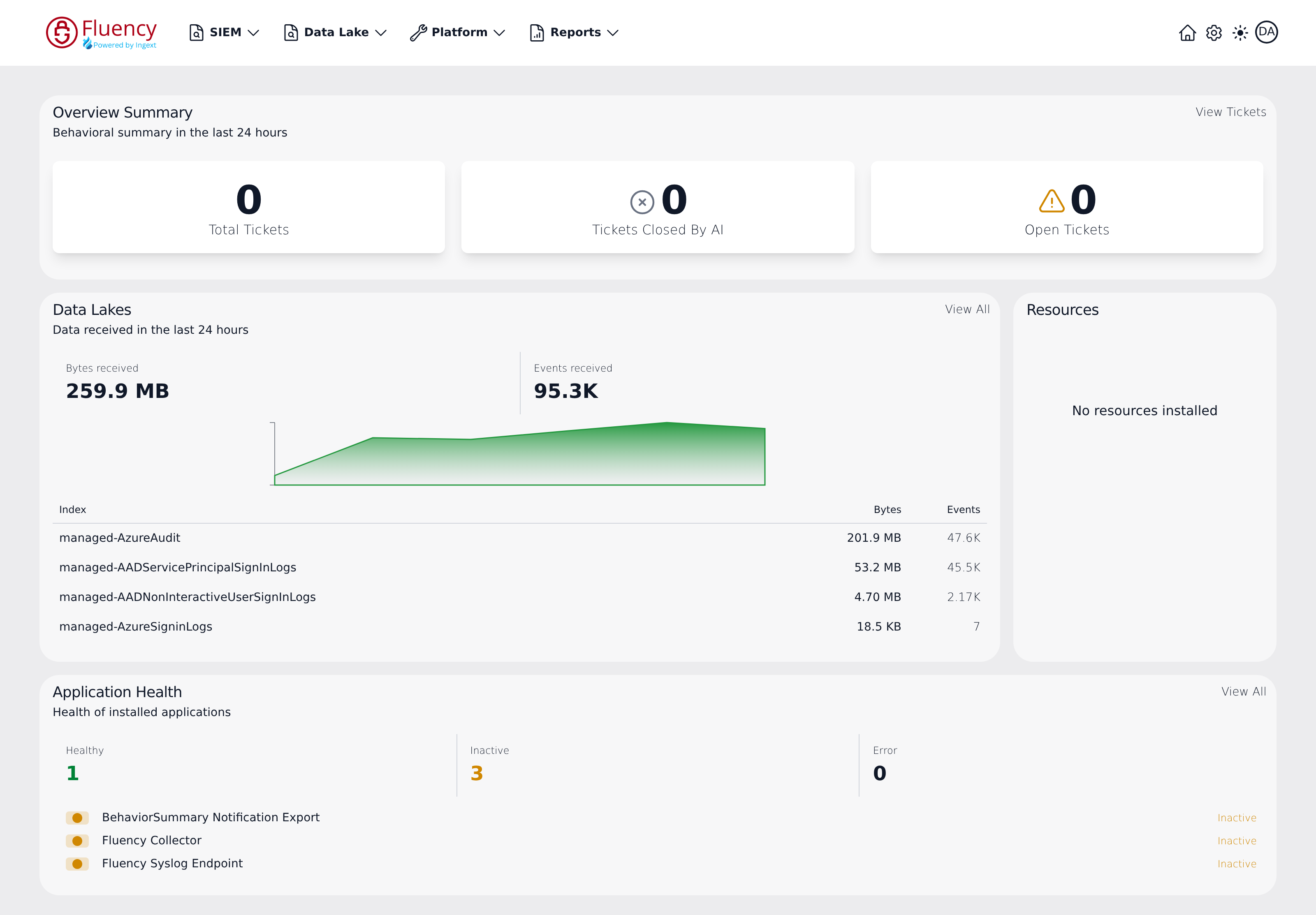
The Home page is the landing dashboard shown after sign-in. It gives an at-a-glance summary of ticket activity, the data received by the account's data lakes, installed resources, and the health of installed applications.
Menu path: Home (house icon in the navigation bar, also the landing page after sign-in) · URL path: /home
Page Layout
The dashboard is arranged as three stacked panel rows:
- Overview Summary — a full-width panel of ticket counters at the top.
- Data Lakes (left) and Resources (right) — a two-panel row in the middle.
- Application Health — a full-width panel at the bottom with application status counts and a list of applications.
Each panel has a title and, except for Resources, a short description and a link in its upper-right corner that opens the corresponding full page.
Overview Summary
Shows the behavioral summary for the last 24 hours as three counter tiles:
- Total Tickets — the number of tickets generated in the period.
- Tickets Closed By AI — tickets resolved automatically, marked with a circled-x icon.
- Open Tickets — tickets still awaiting review, marked with a warning-triangle icon.
Click View Tickets in the panel's upper-right corner, or the counter tiles, to open the full ticket list on the Overview Summary page.
Data Lakes
Summarizes the data the account's data lakes received in the last 24 hours:
- Bytes received and Events received — the totals for the period, side by side at the top of the panel.
- A chart of the data received over the period, beneath the totals.
- A table of the busiest indexes by data received, with each index's Bytes and Events. Each index is named after its data lake and index —
managed-AzureAuditis theAzureAuditindex of themanagedlake.
Click View All in the panel's upper-right corner to open the Data Lake → Management page.
Resources
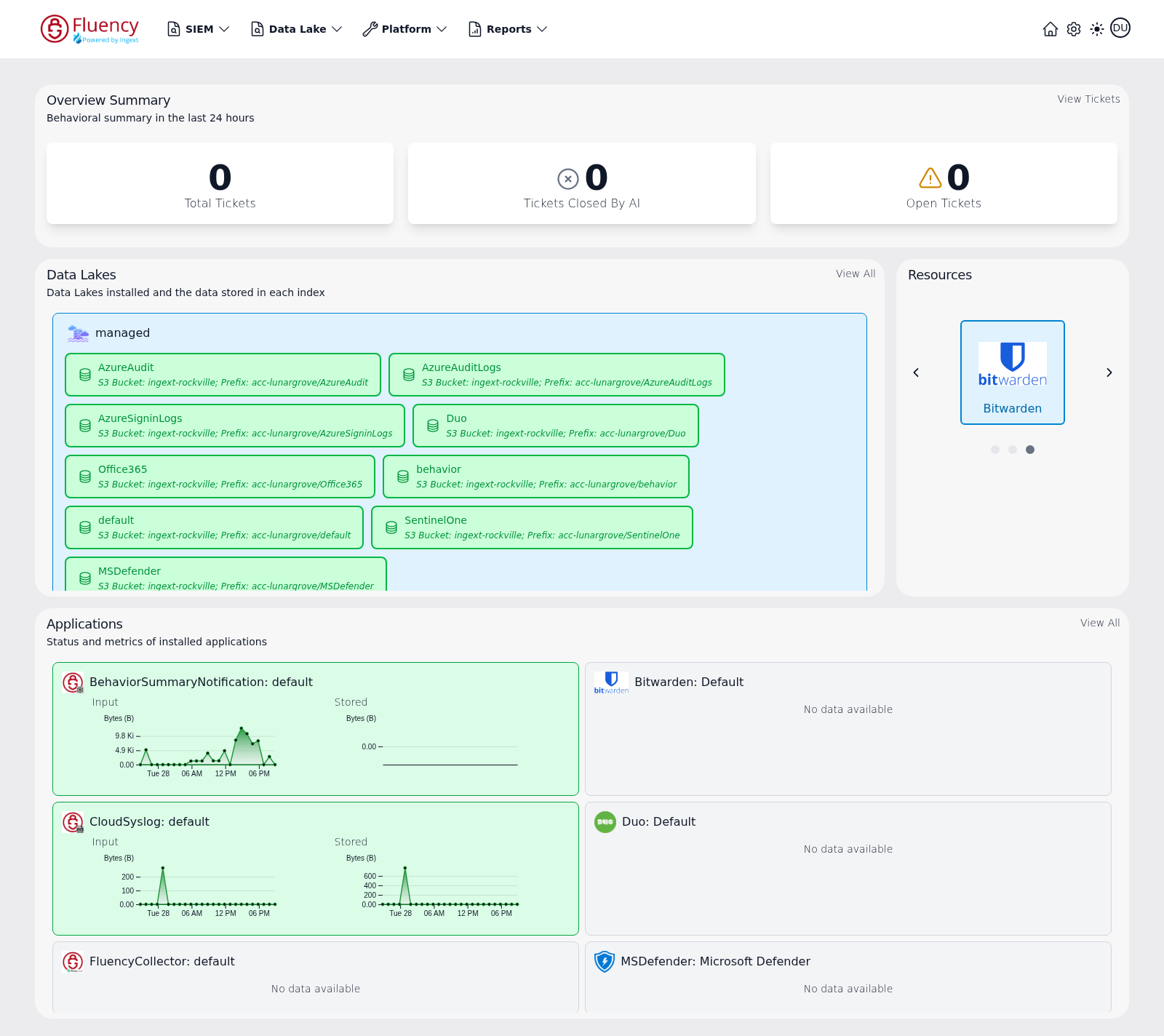
When resources have been collected, the panel shows the integrations that contributed them, one at a time, as a carousel. The current integration fills the panel as a large tile with its icon and name.
- The ‹ and › arrows on either side of the tile step through the available integrations.
- The row of dots beneath the tile shows how many there are and which one is displayed.
- Clicking the tile opens that integration's resource list — the Office 365 tile opens
/SIEM/resources/O365/Applications, for example. See Resources for the list view.
Stepping the carousel on changes only the tile:
When no resources have been collected, the panel shows No resources installed and has no controls, as in the dashboard at the top of this page.
Application Health
Shows the health of the installed applications. Three counters across the top of the panel count the applications in each state:
- Healthy — shown in green.
- Inactive — shown in amber.
- Error — applications reporting an error.
Below the counters, applications are listed by name, each with a status dot on the left and its state on the right — in the example above, three applications marked Inactive: the behavior summary notification export, the Fluency collector, and the Fluency syslog endpoint.
Click an application, or View All in the panel's upper-right corner, to open the Applications page.