Site Policies
The Site Policies page decides which managed accounts each of the provider's users and API tokens may reach. A site policy names a set of accounts (or every account) and the users and tokens it applies to. A user or token picks up a policy here, or when it is added on Users or API Tokens.
Menu path: Manager console → Administration → RBAC → Site Policies · URL path: /v2/manager/rbac/site-policies
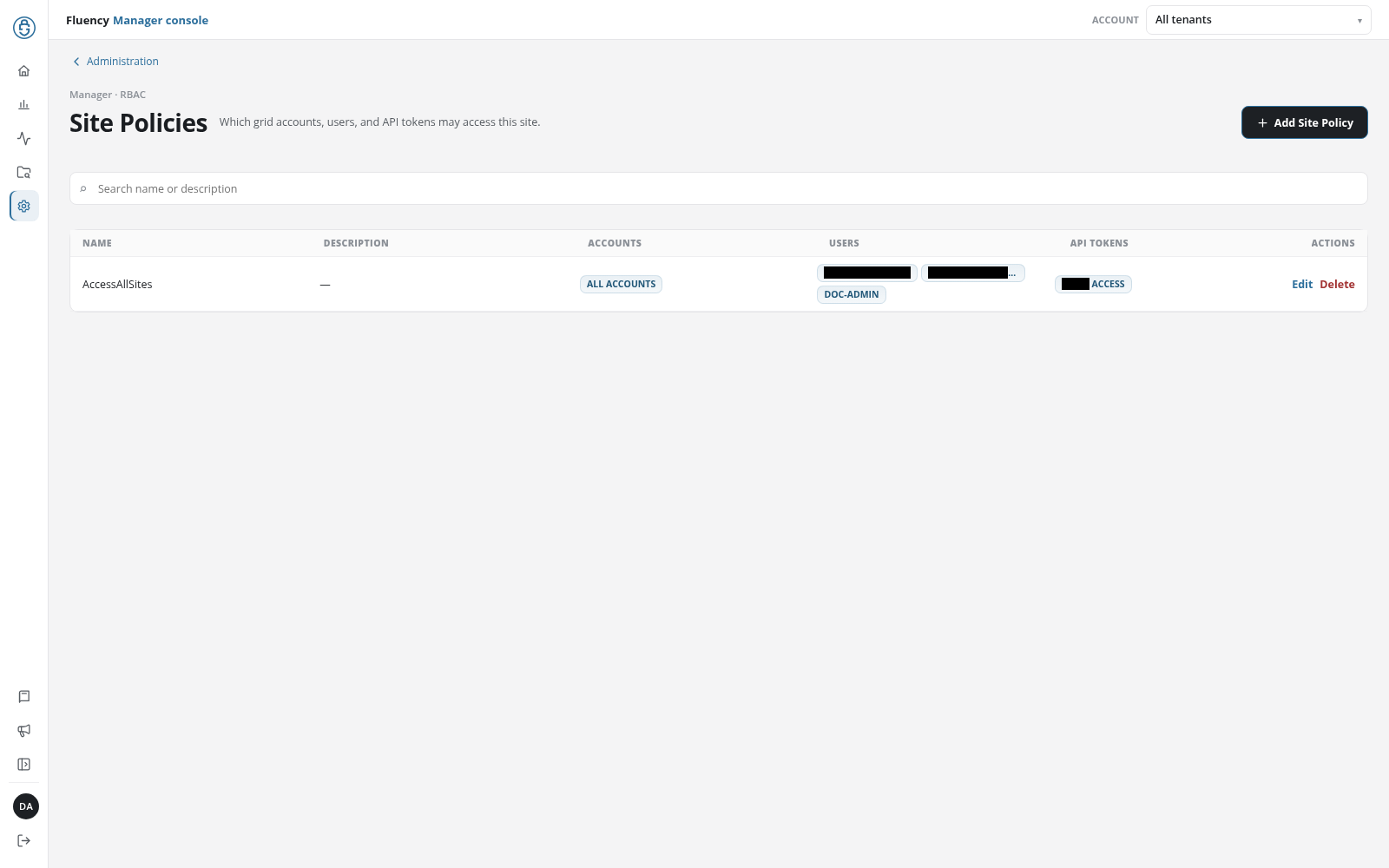
Page Layout
Above the header, the Administration link returns to Administration. The header shows the breadcrumb Manager · RBAC, the title Site Policies with the subtitle Which grid accounts, users, and API tokens may access this site., and the Add Site Policy button on the right. Below it are a search field (Search name or description), which narrows the table to policies whose name or description matches, and the policy table.
Policy Table
One row per site policy, with the columns:
- Name: the policy's name.
- Description: its description, or a dash.
- Accounts: a badge for each account the policy covers, or ALL ACCOUNTS for a policy that covers every managed account.
- Users: a badge for each user the policy applies to.
- API Tokens: a badge for each API token the policy applies to.
- Actions: Edit, which opens the Update Site Policy dialog, and Delete, which deletes the policy after a confirmation.
With no policies, the table reads No site policies yet.; with none matching the search, No matches.
Add Site Policy
Add Site Policy opens the Add Site Policy dialog:
- Name (required): the policy's name.
- Description: optional free text.
- Accounts: the accounts the policy covers, picked from the Add… drop-down: All Accounts, then each managed account by name.
- Users: the provider site's users the policy applies to, by username.
- API Tokens: the provider site's API tokens the policy applies to.
Each item picked appears as a chip with an ×; removing a chip asks first (Delete followed by the value, and This will remove it. Continue?). Click Add to create the policy, or Cancel or × to close the dialog. With Name empty, the dialog stays open with Name is required. in red; a saved policy reports Site Policy added successfully.
Update Site Policy
A row's Edit opens the Update Site Policy dialog, the same form with Name read-only. Click Update to save; the band reports Site Policy updated successfully.
Delete a Site Policy
A row's Delete opens the Delete Site Policy dialog: Delete <name>? This cannot be undone., with Cancel and Delete. A deleted policy leaves the table, and the band reads Site Policy deleted successfully.