API Tokens
The Manager console's API Tokens page lists the long-lived credentials that integrations and scripts use to call the provider site, with the roles and policies each carries and the site policies that let it reach managed accounts. It is the API Tokens page of the Admin console, with site policies added. A managed account's own tokens are managed in that account's Tenant admin console instead.
Menu path: Manager console → Administration → Management → API Tokens · URL path: /v2/manager/api-tokens
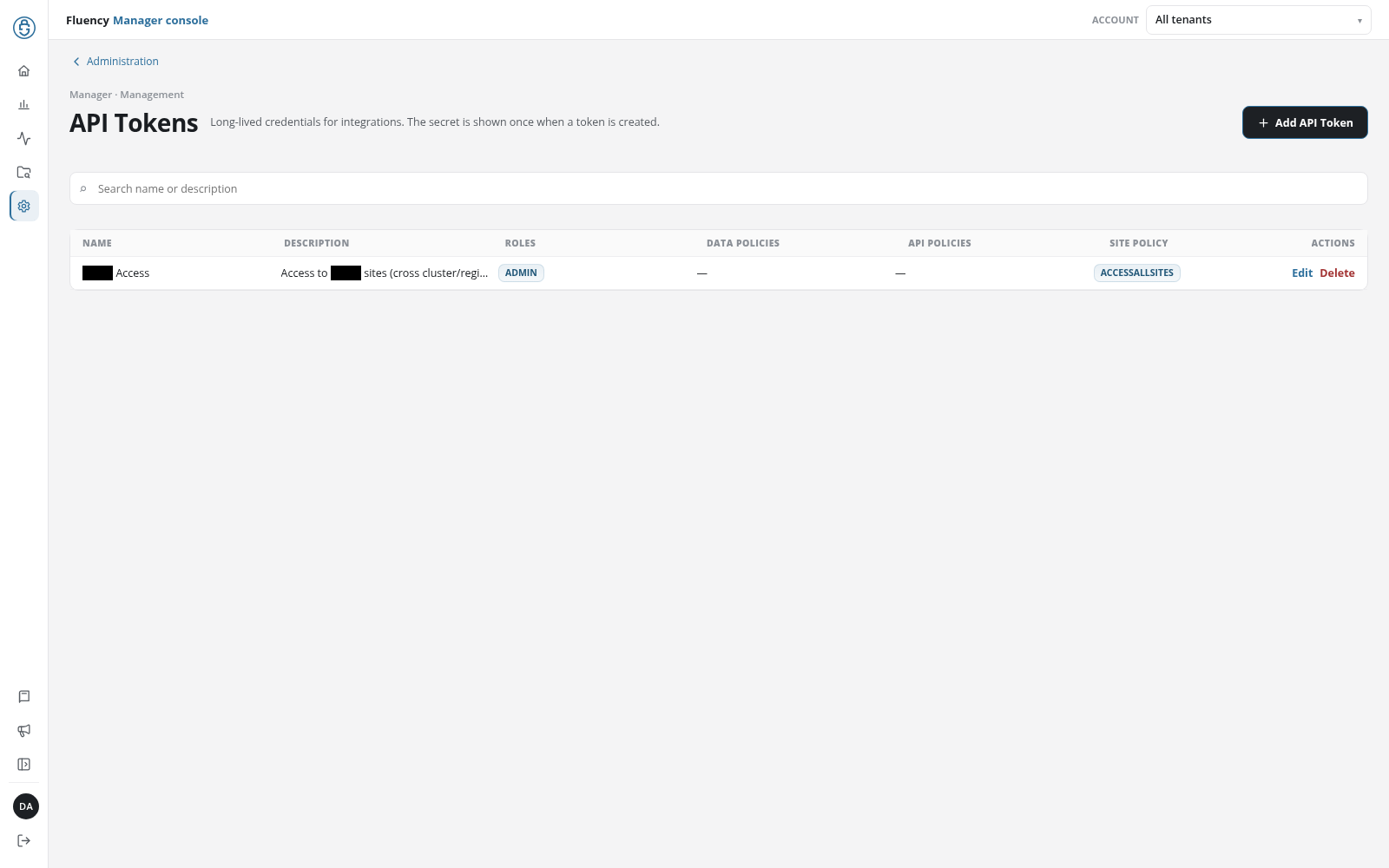
Page Layout
Above the header, the Administration link returns to Administration. The breadcrumb reads Manager · Management; the title, subtitle, Add API Token button, search field, and token table are those of the Admin console's API Tokens page.
What Differs From the Admin Console Page
- Site Policy column: after API Policies, a badge for each site policy that lists the token, for example ACCESSALLSITES.
- Site Access in Add API Token: see Site Access.
Everything else, the Token Generated dialog, Update API Token, and Delete a Token among it, works as on the Admin console page.
Site Access
The Add API Token dialog ends with a Site Access section, beneath API Policies:
- Site Policy: a drop-down (Select a site policy) of None and the site policies defined on Site Policies.
- Allowed Sites: read-only; the accounts the chosen policy covers, All Accounts for a policy that covers every account, or a dash.
When the token is created, it is added to the chosen policy's API Tokens too, and the Token generated dialog shows its secret as usual. If adding it to the policy fails, the dialog reports Added <name>, but failed to attach the site policy. followed by the reason, in red above the secret; the token exists, without the policy.
The section is in Add API Token only: Update API Token has none. To move an existing token into or out of a policy, edit the policy on Site Policies.