Connecting to AWS
Every AWS source reads from your account with an identity you grant it. There are two ways to grant one:
- Assumed role — recommended. You create an IAM role in your AWS account that trusts your Fluency tenant's own AWS identity, its pod role. Whenever the platform needs to read, it asks AWS STS for temporary credentials on that role, so no long-lived secret leaves your account, and you revoke access by deleting the role. You create the role once per AWS account, and every AWS source on that account shares it. Each source adds only the read permissions it needs.
- Access key pair — supported alternative. This is an IAM user's access key ID and secret access key, entered on the install form. Every AWS template accepts one, but it is a long-lived credential that you have to store, rotate, and eventually delete. Use it where a cross-account role is not an option. It is the only method for AWS GovCloud accounts.
The EC2 Instance Role method is no longer supported. Use an assumed role instead.
How the assumed role works
The platform runs each tenant under its own AWS identity, the pod role. The role you create in your account has a trust policy that names that pod role and allows it two actions:
sts:AssumeRole, to assume the role.sts:TagSession, because the platform reaches your role through a chained assume-role that carries session tags.
You can also set an External ID, an agreed string that the platform must present on every assume-role call. The trust policy then refuses any call that doesn't carry it. If you use one, it has to be identical everywhere the role is described: the CloudFormation stack, any per-source template, and the role's registration in Fluency.
The role starts out trust-only: the platform can assume it, but it can't read anything yet. Each AWS source then attaches its own read policy to it, as shown in step 3.
Step 1 — Create the role with Setup Role
Open Settings (the gear in the navigation bar) → Advanced → AWS Roles, and press Setup Role. The Role Setup dialog walks through three steps.
Role Details
- Role Name (required) — the name of the IAM role to create in your AWS account, such as
fluency-ingext-role. Note it down: per-source templates attach their permissions to the role by this name. - External ID (optional, recommended) — press the button at the right of the field to generate a random one, such as
ext_yg5k3a1keu. See above for what it does. The wizard carries it through every later step for you.
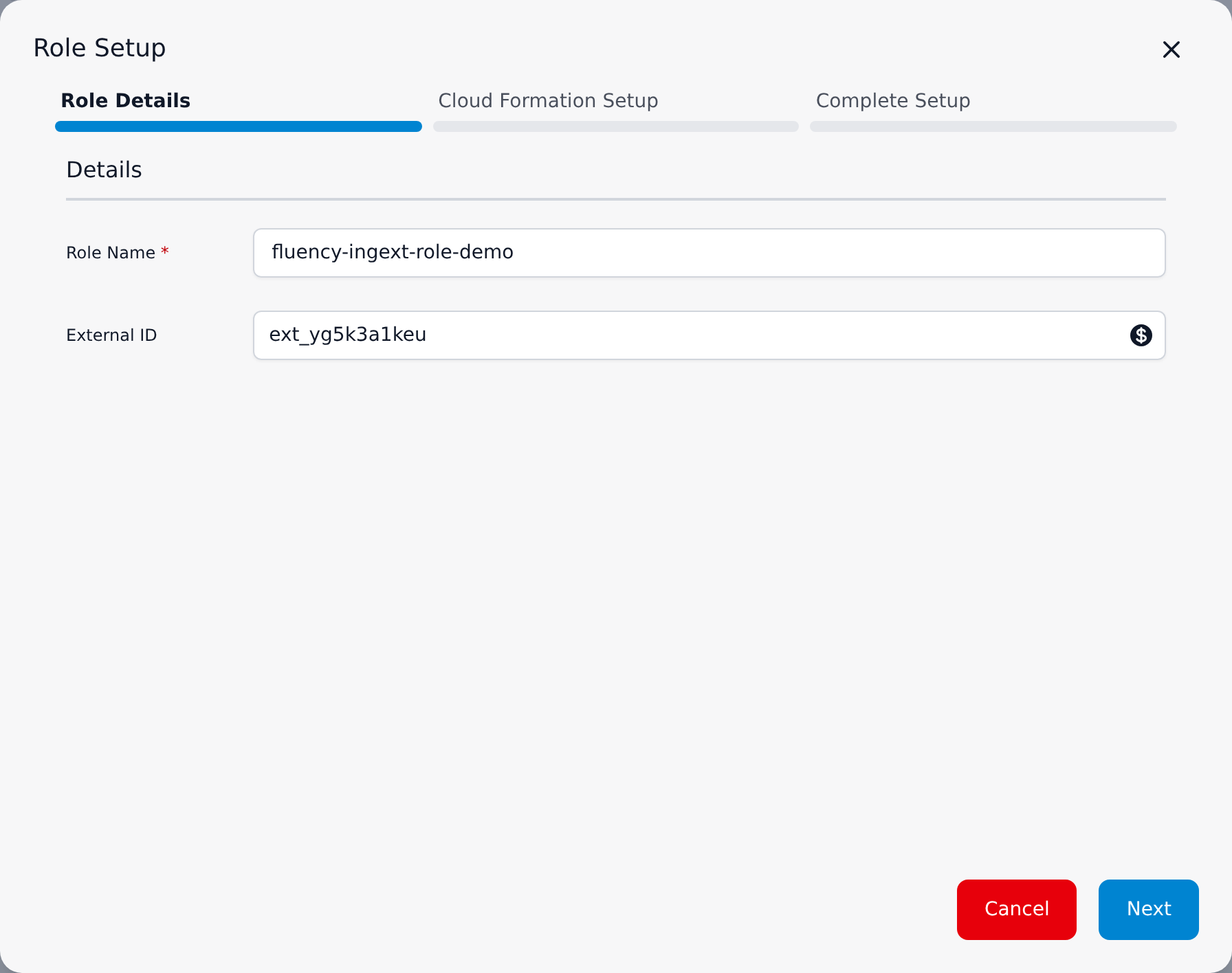
Press Next.
Cloud Formation Setup
This step gives you everything needed to create the role in AWS, on two tabs.
CloudFormation shows the stack to create. Each field has a copy button:
- URL — the template,
https://fluency-cloudformation.s3.us-east-2.amazonaws.com/IngextSaasPodRole.yaml. - Region — your Fluency tenant's home region, for reference. The stack does not have to be created there: the IAM role it creates is global to the account, so create the stack in whichever region you like. The role serves sources in every region.
- Description — a description for the stack.
- Parameters — the three values the template asks for, already filled in:
- IAMRole — your role name.
- ExternalID — your External ID, or empty.
- PodRoleARN — your tenant's pod role.
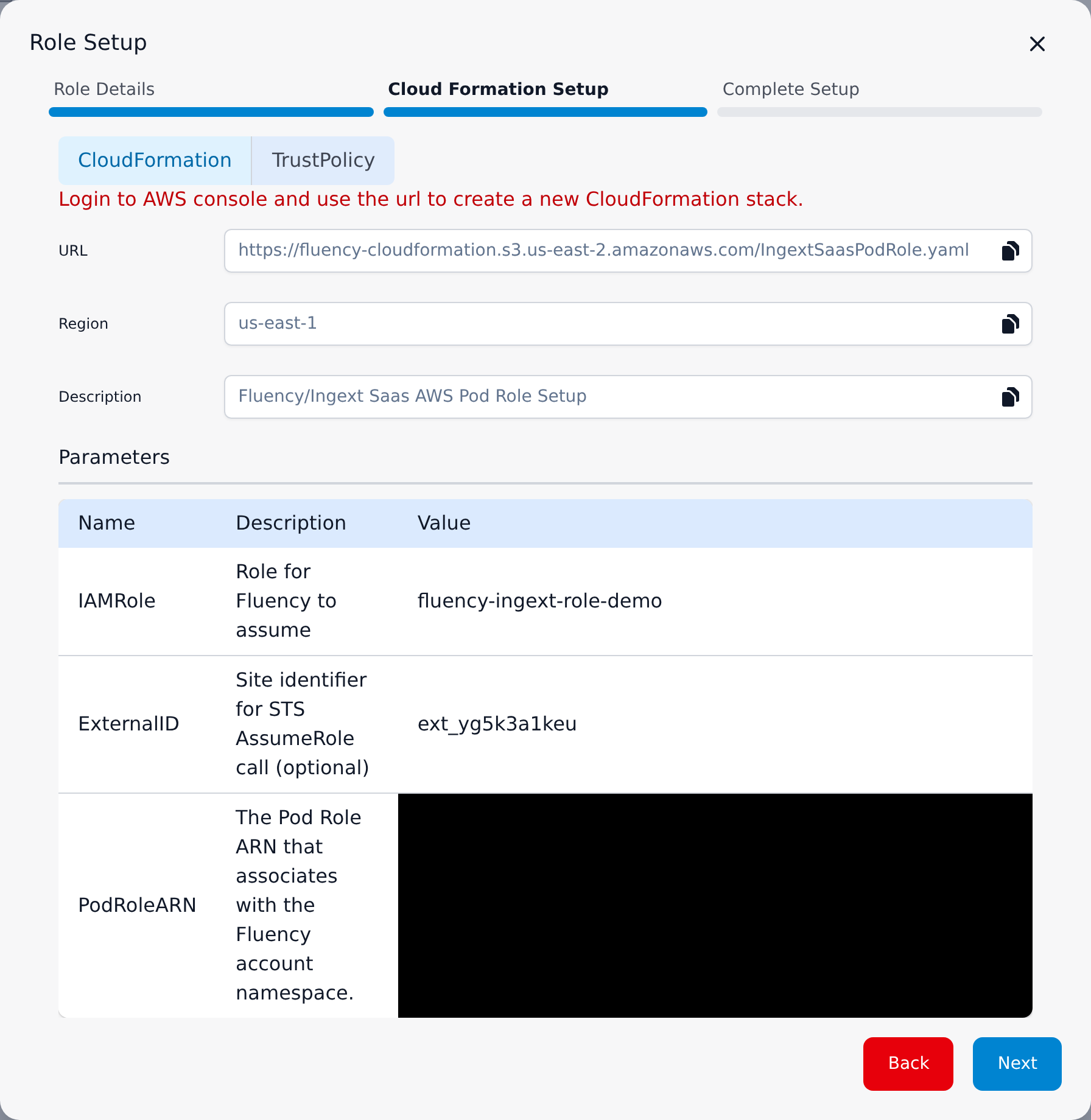
TrustPolicy shows the trust policy the stack puts on the role, with your tenant's pod role as its principal. It is there for anyone who would rather create the role by hand in IAM (Roles → Create role → Custom trust policy) than run the template. With an External ID, the policy has two statements: AssumeWithExternalId allows sts:AssumeRole only when the call presents that External ID (a StringEquals condition on sts:ExternalId), and TagSessionForChainedAssume allows sts:TagSession. Without one, it is a single statement that allows both actions. Paste the policy whole, condition included, and give a hand-made role the same name you entered in Role Details.
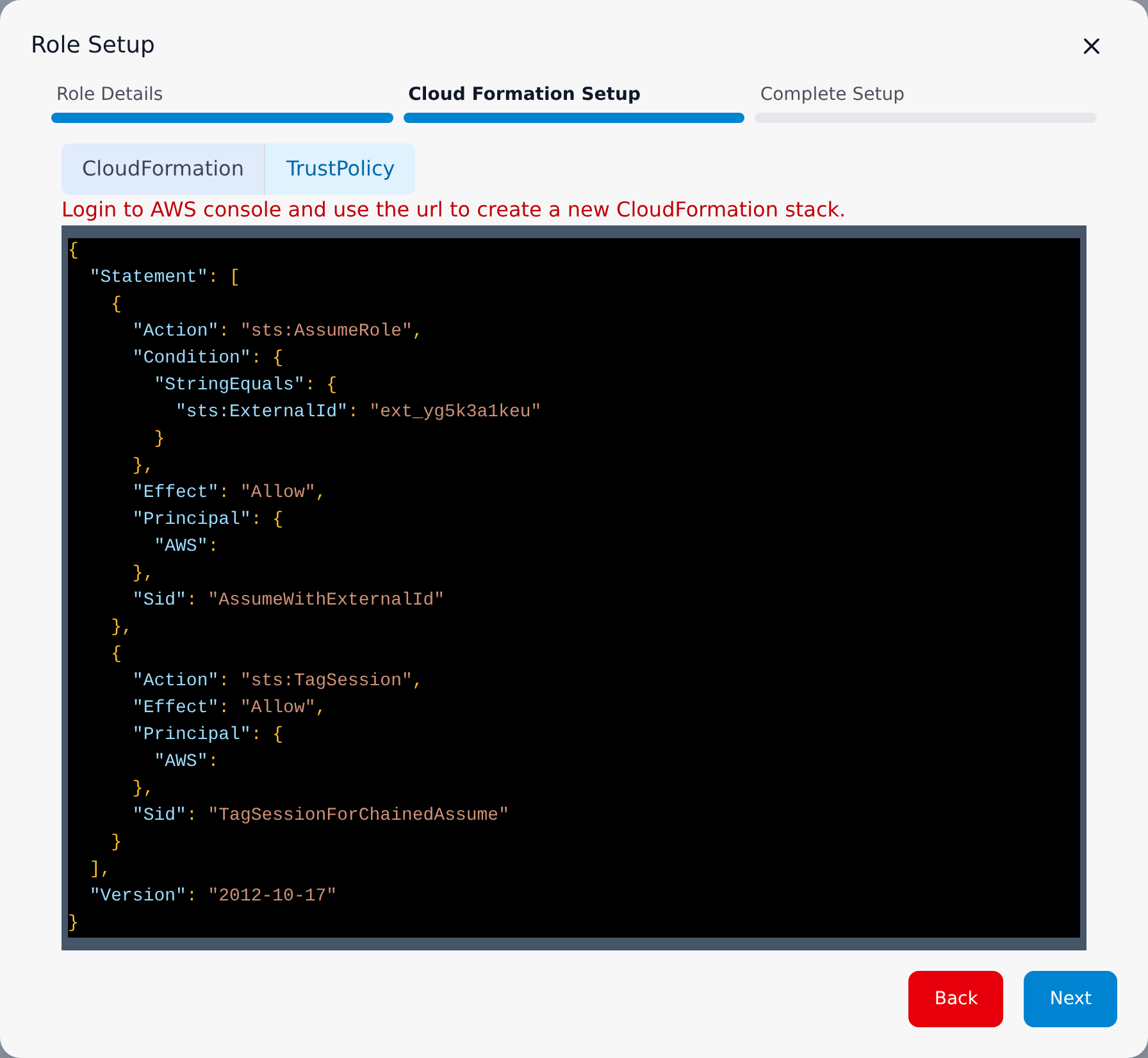
Leave the dialog open on this step, and create the stack in a second browser tab.
Create the stack in the AWS console
Sign in to the AWS console for the account you are connecting, and open CloudFormation → Stacks → Create stack → With new resources (standard). The console walks through four steps of its own.
-
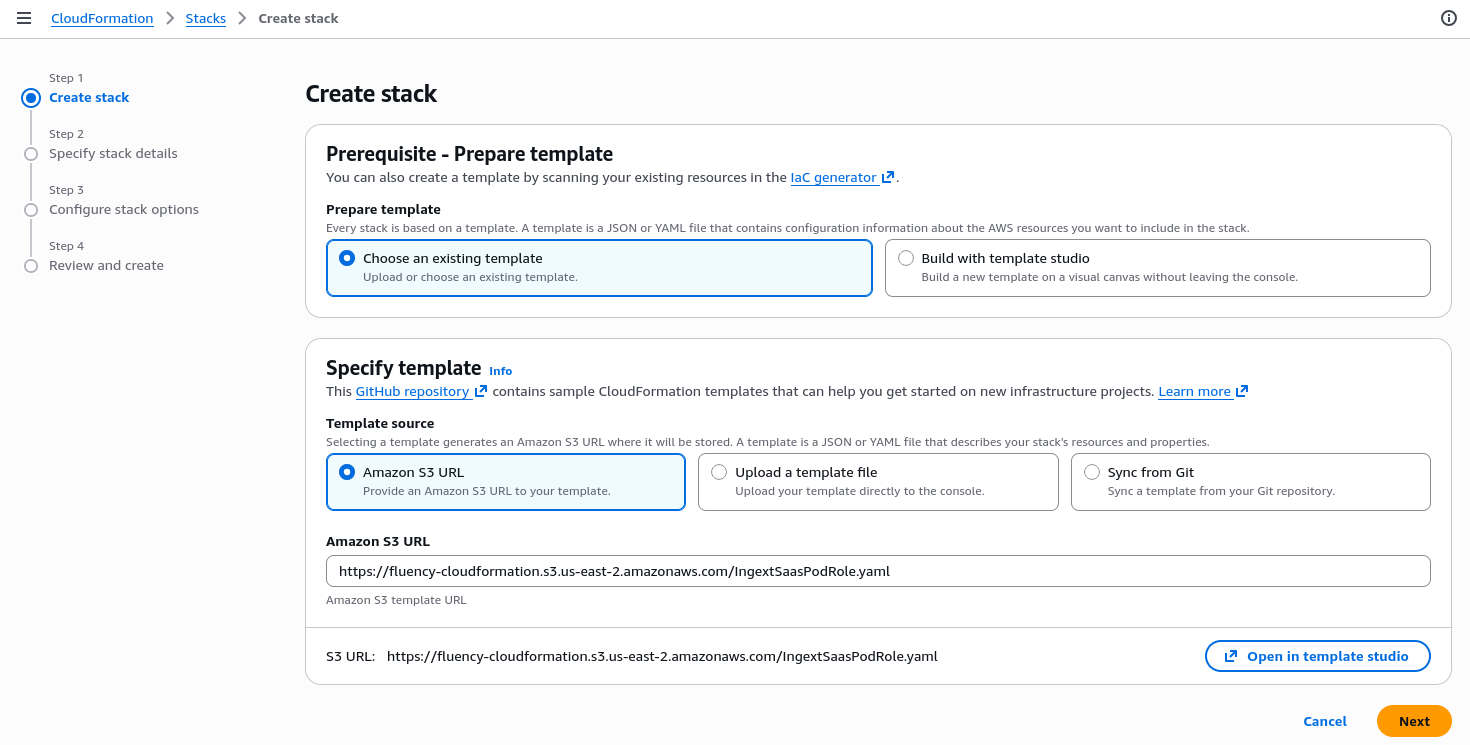
Create stack.
- Under Prepare template, keep Choose an existing template.
- Under Template source, choose Amazon S3 URL.
- Paste the wizard's URL into Amazon S3 URL, then press Next.
-
Specify stack details.
- Give the stack a Stack name, such as
fluency-ingext-role. - Copy ExternalID, IAMRole and PodRoleARN from the wizard's parameter table into the matching fields. The console lists them in a different order from the wizard.
- Press Next.
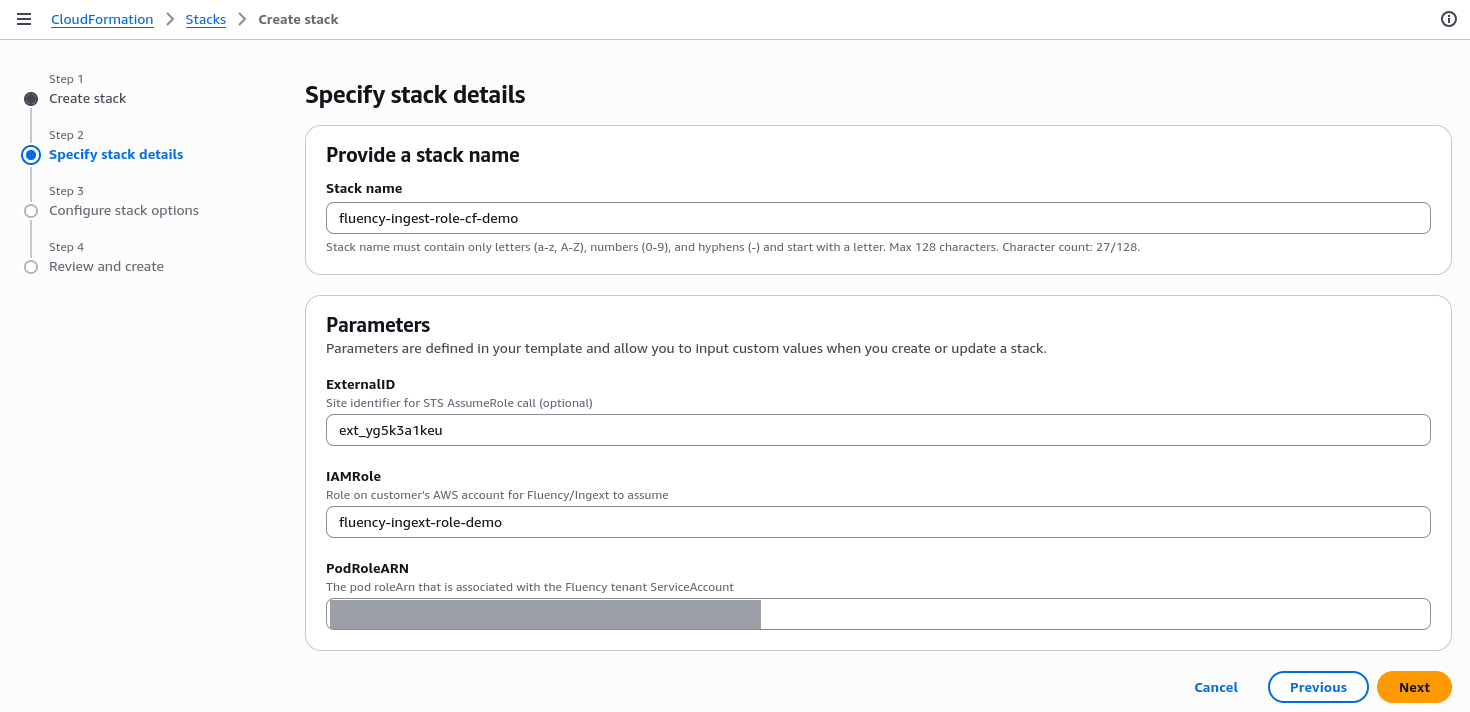
- Give the stack a Stack name, such as
-
Configure stack options. Leave the tags, permissions and deployment options at their defaults. At the bottom, under Capabilities, tick I acknowledge that AWS CloudFormation might create IAM resources with custom names, then press Next. Without the tick, the stack cannot create the role.

-
Review and create. Check the three parameters, then press Submit.
The stack opens on its Events tab at CREATE_IN_PROGRESS. Within a minute or so, Stack info shows Status CREATE_COMPLETE. Then open the Outputs tab and copy the RoleARN value.
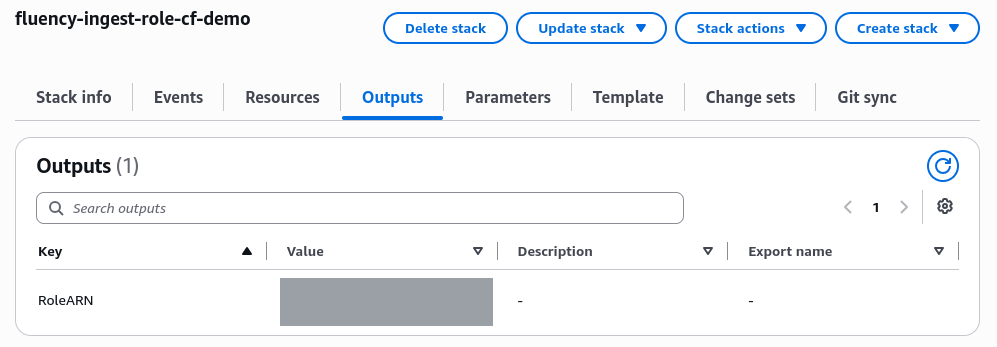
The same stack from the AWS CLI:
aws cloudformation create-stack \
  --stack-name fluency-ingext-role \
  --template-url https://fluency-cloudformation.s3.us-east-2.amazonaws.com/IngextSaasPodRole.yaml \
  --capabilities CAPABILITY_NAMED_IAM \
  --parameters ParameterKey=IAMRole,ParameterValue=<role name> \
               ParameterKey=PodRoleARN,ParameterValue=<PodRoleARN from the wizard> \
               ParameterKey=ExternalID,ParameterValue=<external id>

aws cloudformation describe-stacks --stack-name fluency-ingext-role \
  --query "Stacks[0].Outputs"
Leave out the ExternalID parameter if you are not using one.
Back in the wizard, press Next.
Complete Setup
Register the role you just created:
- Display Name (required) — the name the role is listed under, and the name you will pick in the Pre-defined AWs Role drop-down. Make it identify the account, such as
fluency-ingext-role-acc-<account id>, so roles for several accounts stay distinguishable. - Description (optional).
- Role ARN (required) — the RoleARN output of the stack.
- External ID — carried over from Role Details, and greyed out.
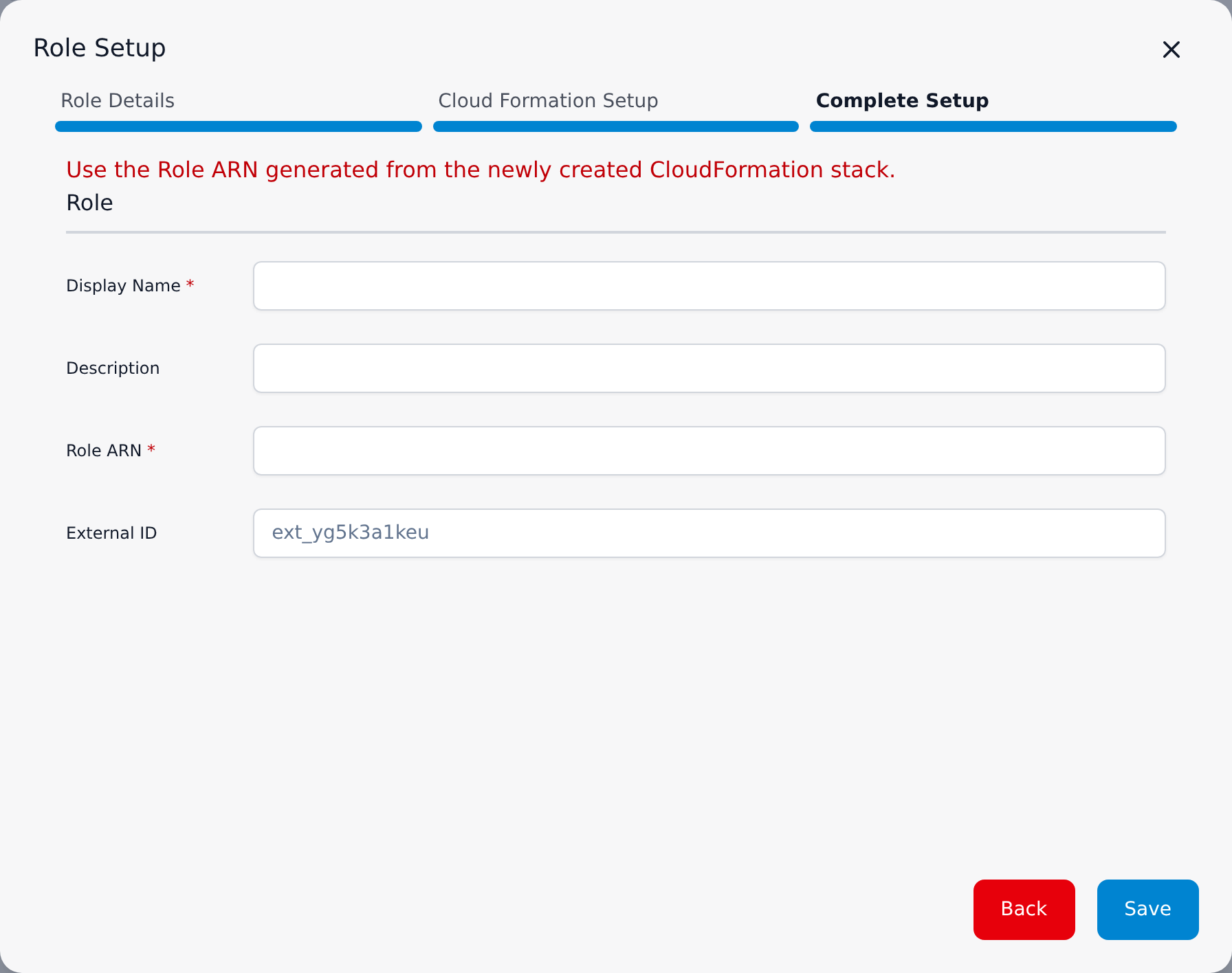
Press Save. The role joins the table on the AWS Roles page.
Step 2 — Check the role
There is nothing extra to run: the table's Status dot is the test. Each time the AWS Roles page loads, the platform tries to assume every registered role:
- Green means it succeeded.
- Red means it failed.
A role saved moments after its stack finished can show red at first, because IAM takes a little while to make a new role assumable. Reload the page a minute later.
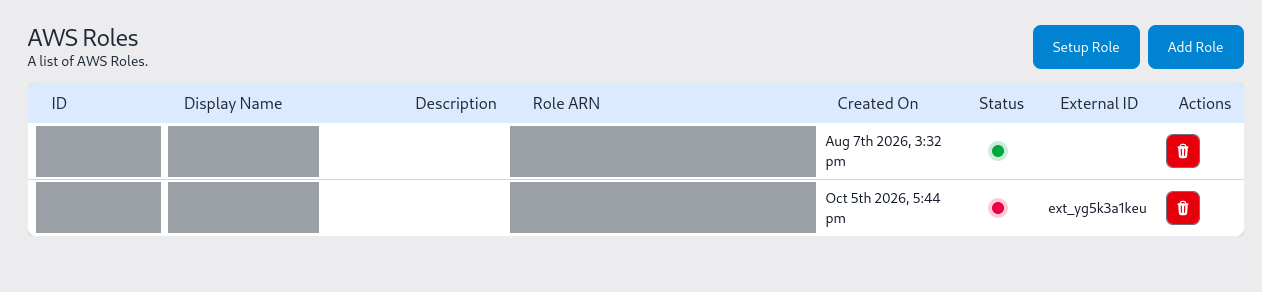
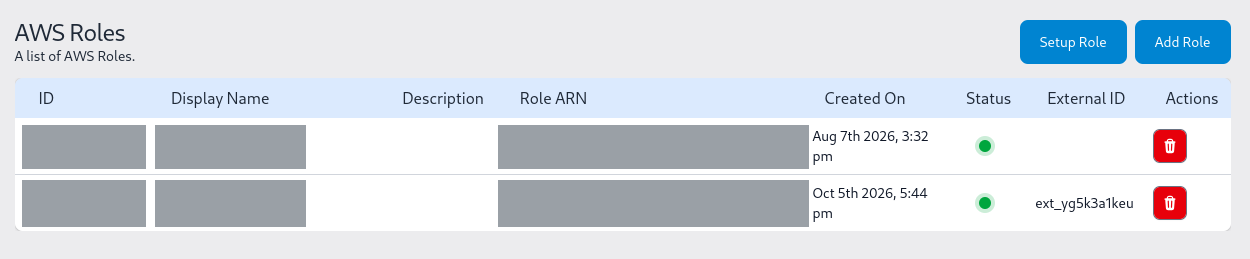
If the dot stays red, the cause is almost always one of two things:
- The role's trust policy names a different pod role than the one the wizard showed.
- The External ID registered here doesn't match the one in the stack exactly.
Registering a role that already exists
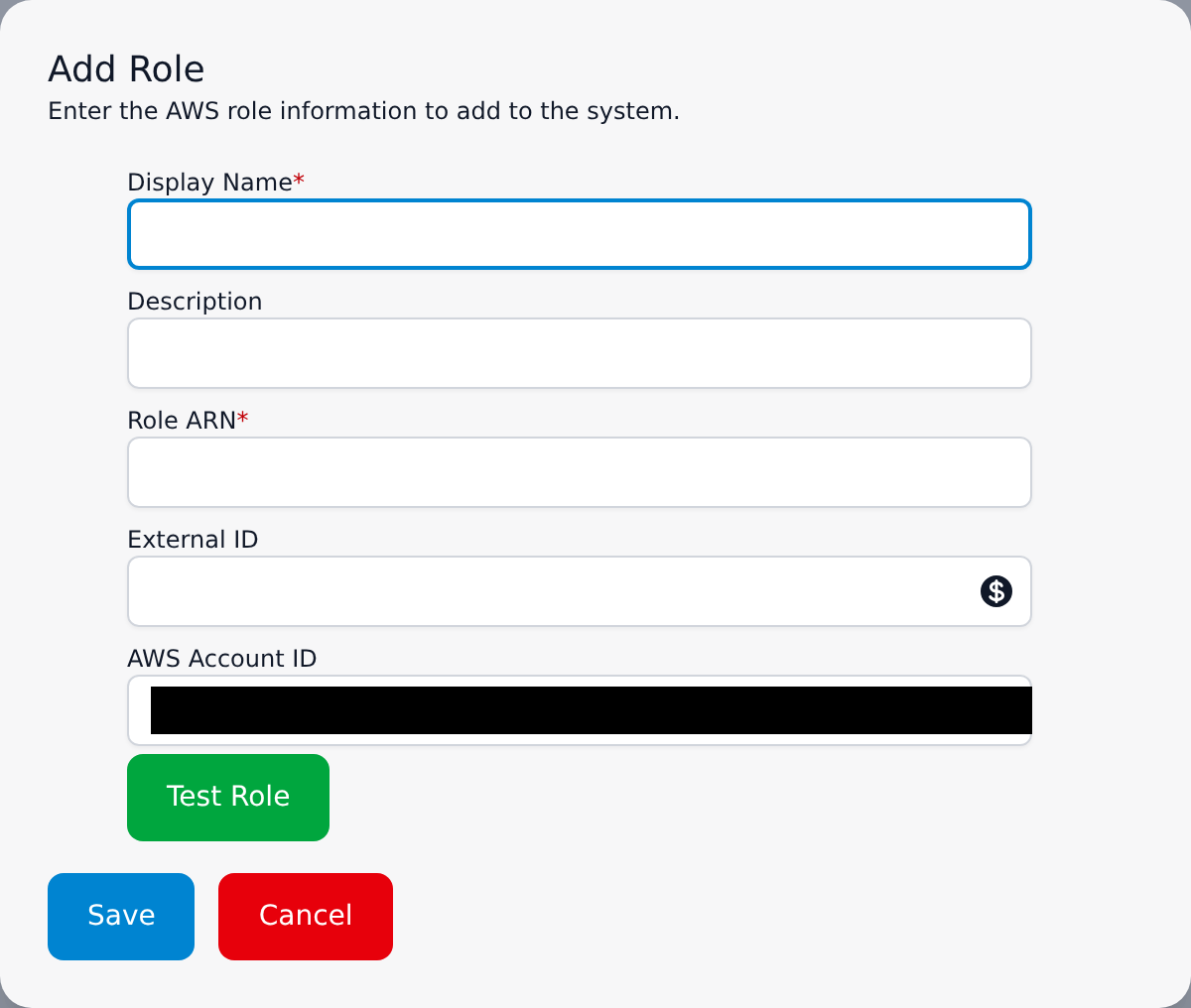
Add Role, next to Setup Role, registers a role that was created some other way:
- by hand
- by a per-source template's create-role mode
- by an earlier setup
It takes the same Display Name, Description, Role ARN and External ID as Complete Setup. Its External ID field has the same generate button. It also shows AWS Account ID, which is read-only and is the Fluency platform's own AWS account, not yours.
Its green Test Role button checks the role before you save it.
Step 3 — Give the role access to a source
The role from step 1 can be assumed but can't read anything yet. Each source grants its own permissions on the same role. For the sources delivered through S3, one template does it.
Sources delivered through S3
AWS CloudTrail, CloudWatch LogGroup and AWS EKS Logs all read log files from an S3 bucket. An SQS queue tells the platform when each new file arrives. The template https://fluency-cloudformation.s3.us-east-2.amazonaws.com/IngextS3SqsNotification.yaml sets this up against an existing bucket. It does three things:
- Creates the SQS queue.
- Adds an "object created" notification from the bucket to the queue. It adds to whatever notifications the bucket already has rather than replacing them.
- Attaches a read policy to your role:
sqs:ReceiveMessage,sqs:DeleteMessageandsqs:GetQueueUrlon the queue, ands3:GetObjecton the bucket and prefix.
Run it in the bucket's account and region, because an S3 bucket can only notify a queue in its own region.
| Parameter | Value |
|---|---|
S3Bucket | The existing bucket the source writes to. |
S3BucketPrefix | The folder within the bucket, such as AWSLogs/123456789012/CloudTrail/. Optional. It narrows both the notification and the read grant. |
SQSQueueName | Defaults to ingext-s3-notification. Use a distinct name for each source in the same account and region. |
PodRoleARN | Leave empty. Empty means "attach the read policy to the existing role named in IAMRole", which is the role from step 1. |
IAMRole | The Role Name from step 1. The template's default, ingextAssumeRole, is right only if that is the name you used. |
ExternalID | The same value as step 1, or empty. |
From the stack's Outputs, copy QueueURL. It goes into the SQS notification queue url field of the template you install. QueueARN and RoleARN are for reference.
Letting a source template create the role
IngextS3SqsNotification.yaml can also create the role itself. If PodRoleARN is set to the pod role ARN instead of left empty, it creates the role named in IAMRole, trusts the pod role, and attaches the read policy, all in one stack. That suits a one-off, single-bucket setup.
If you go this way:
- Skip step 1's stack. Copy the PodRoleARN value from the Setup Role wizard and close it without saving.
- Register the stack's RoleARN with Add Role.
- Don't also run the step 1 template with the same role name. Both stacks would try to create the same role, and the second one fails because the role already exists.
Step 4 — Use the role
On an AWS template's install form, choose the role's Display Name in Pre-defined AWs Role. Leave IAM access key and IAM access secret empty, and Pre-defined AWs User too where the form has one: a form takes one credential, not several. The same role can be chosen on any number of applications that read from that AWS account.
The AWS Roles page lists every registered role. Its row actions and status are described in the AWS Roles reference.
Changing or removing a role
A registered role can't be edited: the only action on an AWS Roles row is delete. Changing a role's ARN or External ID means deleting it and registering it again.
Nothing checks whether an application still uses a role before the role is deleted. An application whose role is gone stops collecting, either silently or with errors. The same happens if the role is deleted on the AWS side, for example by deleting its CloudFormation stack. That case at least shows up as a red Status dot on the AWS Roles page.
Before deleting a role, find every application installed with it. An application's details panel on Platform → Applications lists the Pre-defined AWs Role it uses under Parameters. Those parameters are read-only, so moving an application to a different role means uninstalling it and installing it again.
The alternative: an access key pair
Where a cross-account role is not possible, the AWS templates also accept an IAM user's access key pair. This is the only method for AWS GovCloud accounts.
For AWS CloudTrail, one CloudFormation template creates the user and key together with the trail, the bucket and the queue. See the access-key tab of AWS CloudTrail. For other sources, or to build it by hand:
- In IAM, create a user for the platform with no console access.
- Attach only the permissions the source needs. These are the same read permissions the role would have carried: for the S3-delivered sources, the queue and object permissions listed under step 3.
- Create one access key for the user, and copy the secret on the spot. AWS shows it only once.
On the install form, enter the pair in IAM access key and IAM access secret, and leave Pre-defined AWs Role empty.
A key pair is a standing credential, so it needs looking after:
- Rotate it. AWS allows two keys per user, so you can create the second key before deleting the first. An installed application's parameters are read-only, though, so moving it to the new key means uninstalling it and installing it again.
- Retire it. Delete the key and the user when the source is retired.
Related
- AWS Roles — the Settings page these roles are registered on.
- Install Application From Template — AWS Services — the forms the role is used on.
- AWS CloudTrail — usually the first AWS source connected.
- AWS GuardDuty — GuardDuty findings, polled from the GuardDuty API rather than delivered through S3.
- AWS S3 (with SQS) — the S3-to-queue delivery the S3 template sets up, and the other ways to read a bucket.