Microsoft 365 Inventory (Users, Devices, Apps)
Microsoft 365 Inventory (Users, Devices, Apps) is an application template in the Office Software (SaaS) and IAM category of the Application Catalog. Its card describes it as Periodic snapshot of tenant users, groups, devices, app registrations and Conditional Access policies into Resources. Not an event feed. Already included in the Microsoft 365 Bundle.. Installing it from the form below adds an application to Applications. Its template ID, Office365ResourceWatch, is the one listed on Application Templates.
Menu path: Applications → Install Application → Microsoft 365 Inventory (Users, Devices, Apps) · URL path: /v2/applications/install?template=Office365ResourceWatch
Task guide: Microsoft 365 Inventory
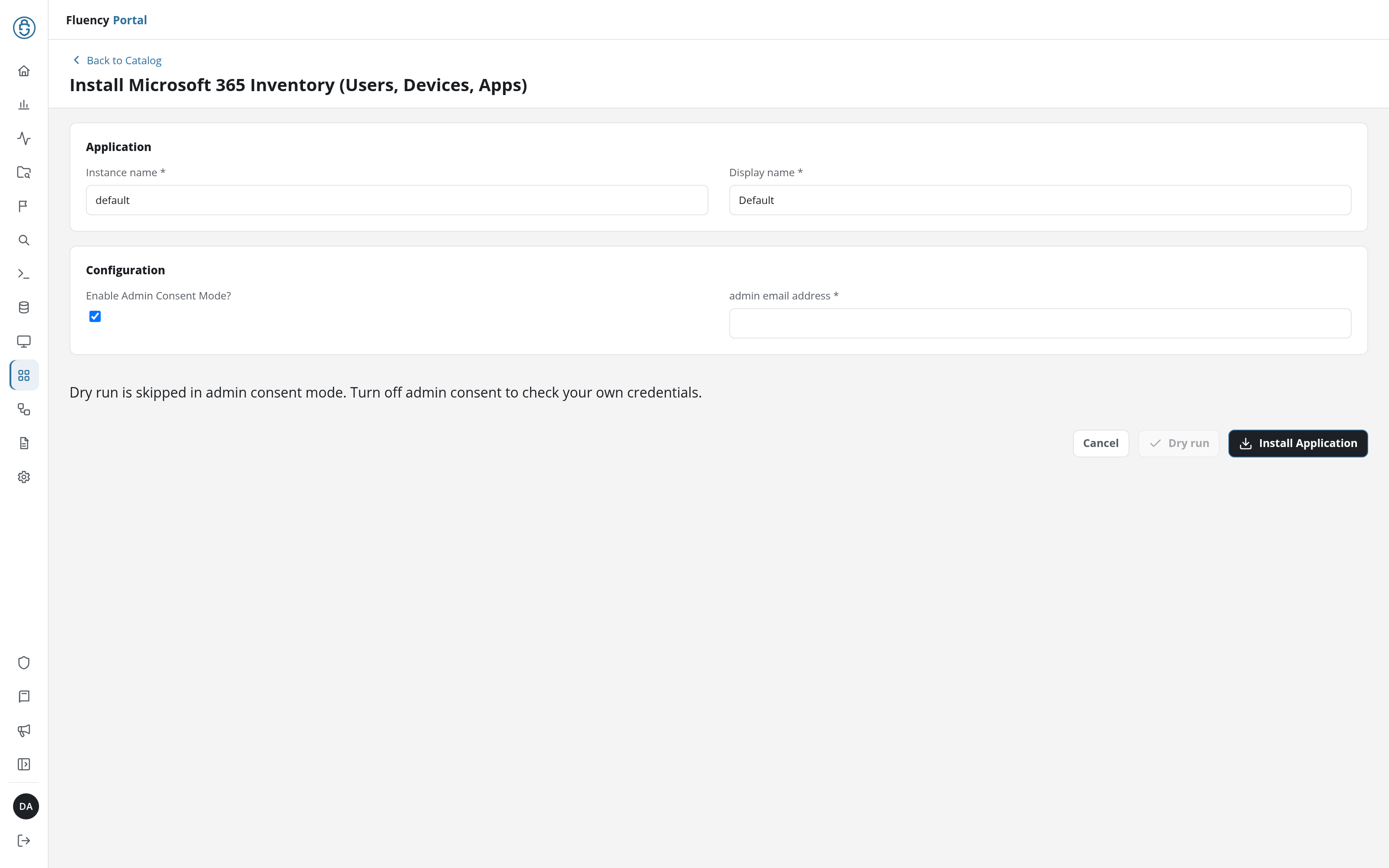
Application
The two fields every install form starts with: Instance name names this installation in its URL, and Display name is shown for it on Applications and its details page.
| Field | Type | Required | Default |
|---|---|---|---|
| Instance name | Text | Yes | default |
| Display name | Text | Yes | Default |
Configuration
The fields depend on the Enable Admin Consent Mode? checkbox, which is ticked when the form opens.
Ticked, the form asks for admin email address:
| Field | Type | Required | Default |
|---|---|---|---|
| Enable Admin Consent Mode? | Checkbox | No | Ticked |
| admin email address | Text | Yes | - |
Unticked, the form asks for Azure Tenant ID, Azure ClientID and Azure ClientSecret instead:
| Field | Type | Required | Default |
|---|---|---|---|
| Azure Tenant ID | Text | Yes | - |
| Azure ClientID | Text | Yes | - |
| Azure ClientSecret | Password | Yes | - |
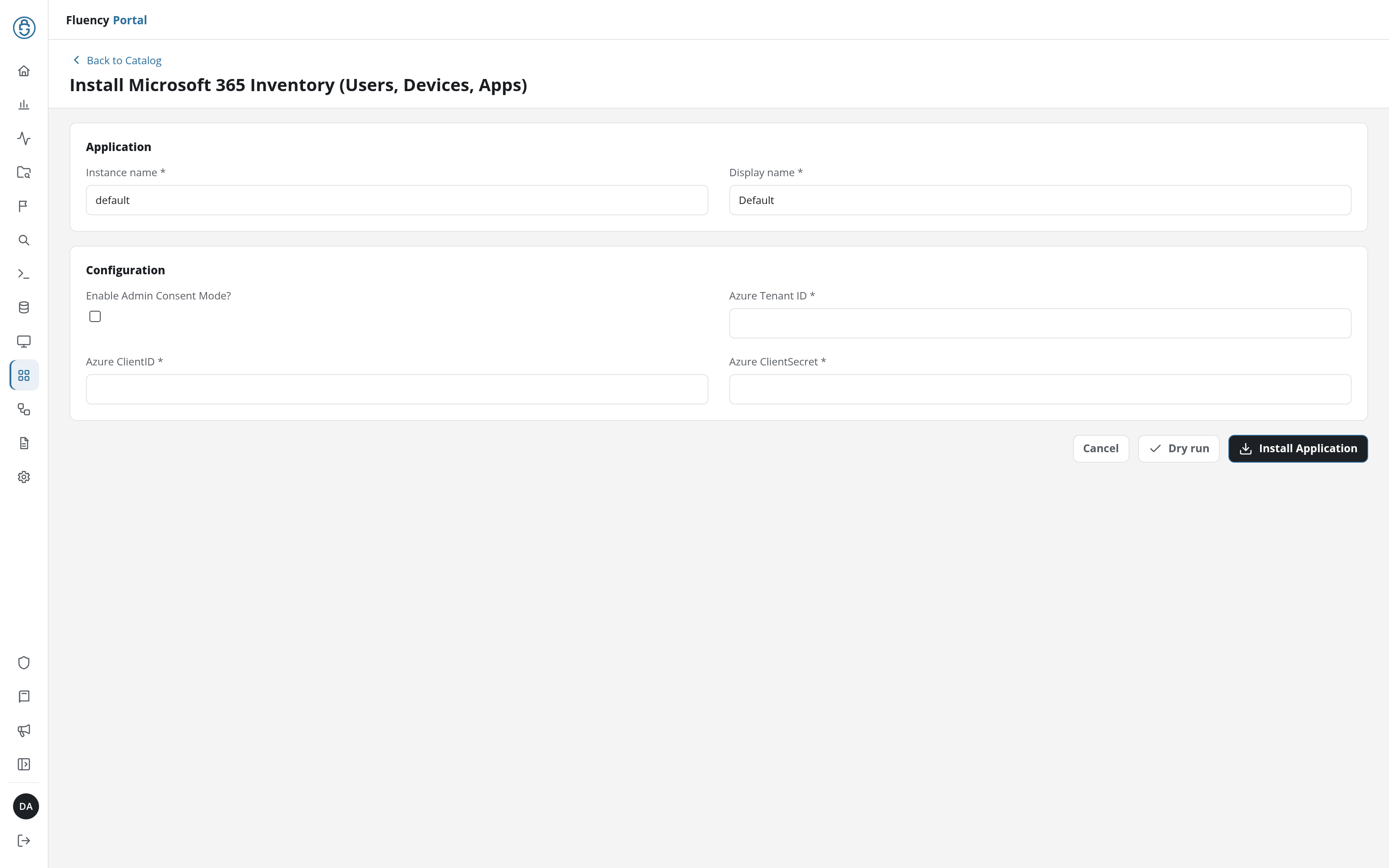
Install
Install Application installs Microsoft 365 Inventory (Users, Devices, Apps) with the values in the form; Dry run checks them first, without installing (see Dry run); Cancel returns to the catalog without installing. Every template's form shares the shape described under Install Form.