Behavior Summary
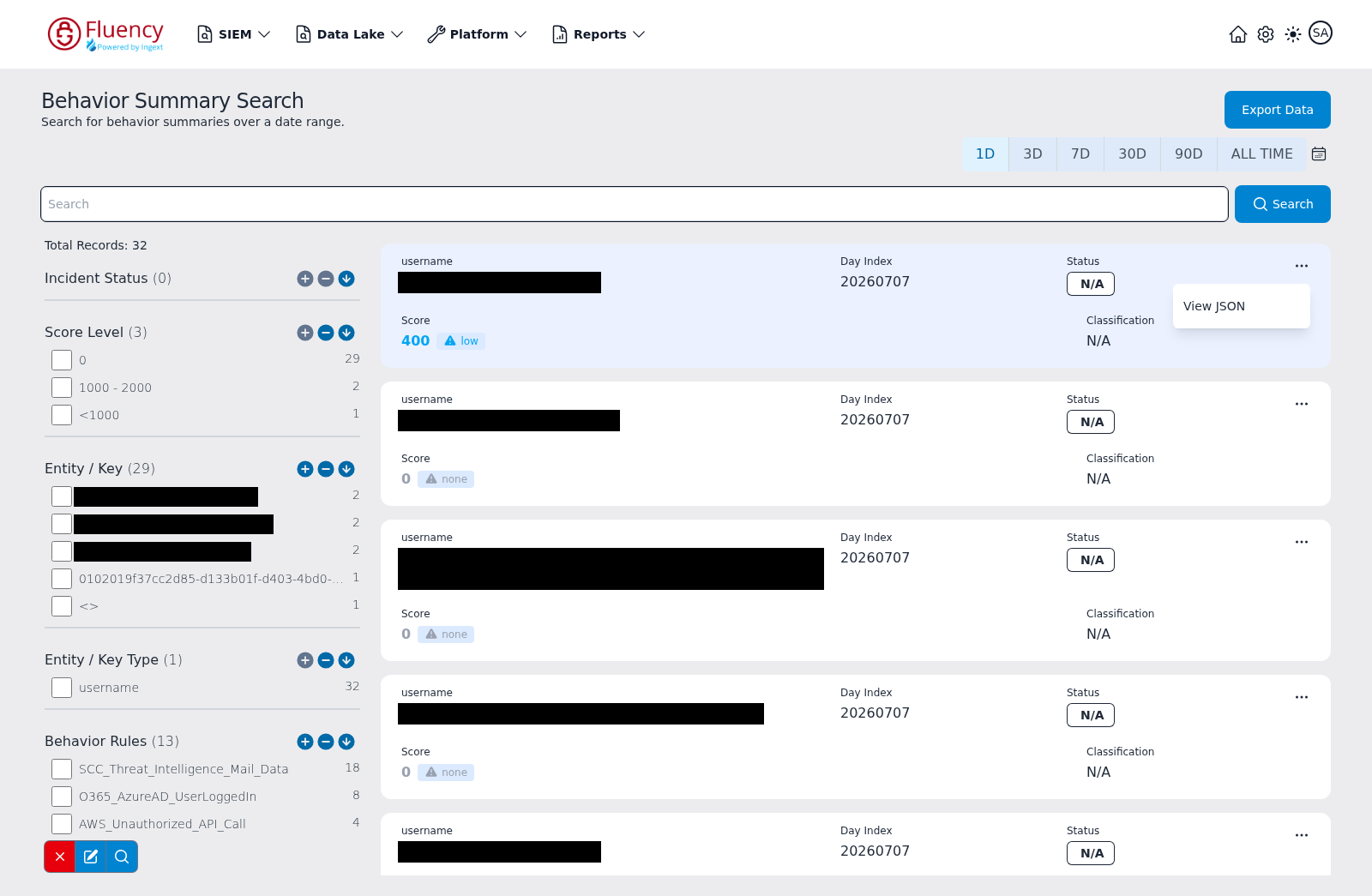
The Behavior Summary page searches the behavior summaries built for each entity over a date range. The on-page heading reads Behavior Summary Search, with the subtitle Search for behavior summaries over a date range.
Menu path: SIEM → Behavior Summary · URL path: /SIEM/behaviorSummarySearch
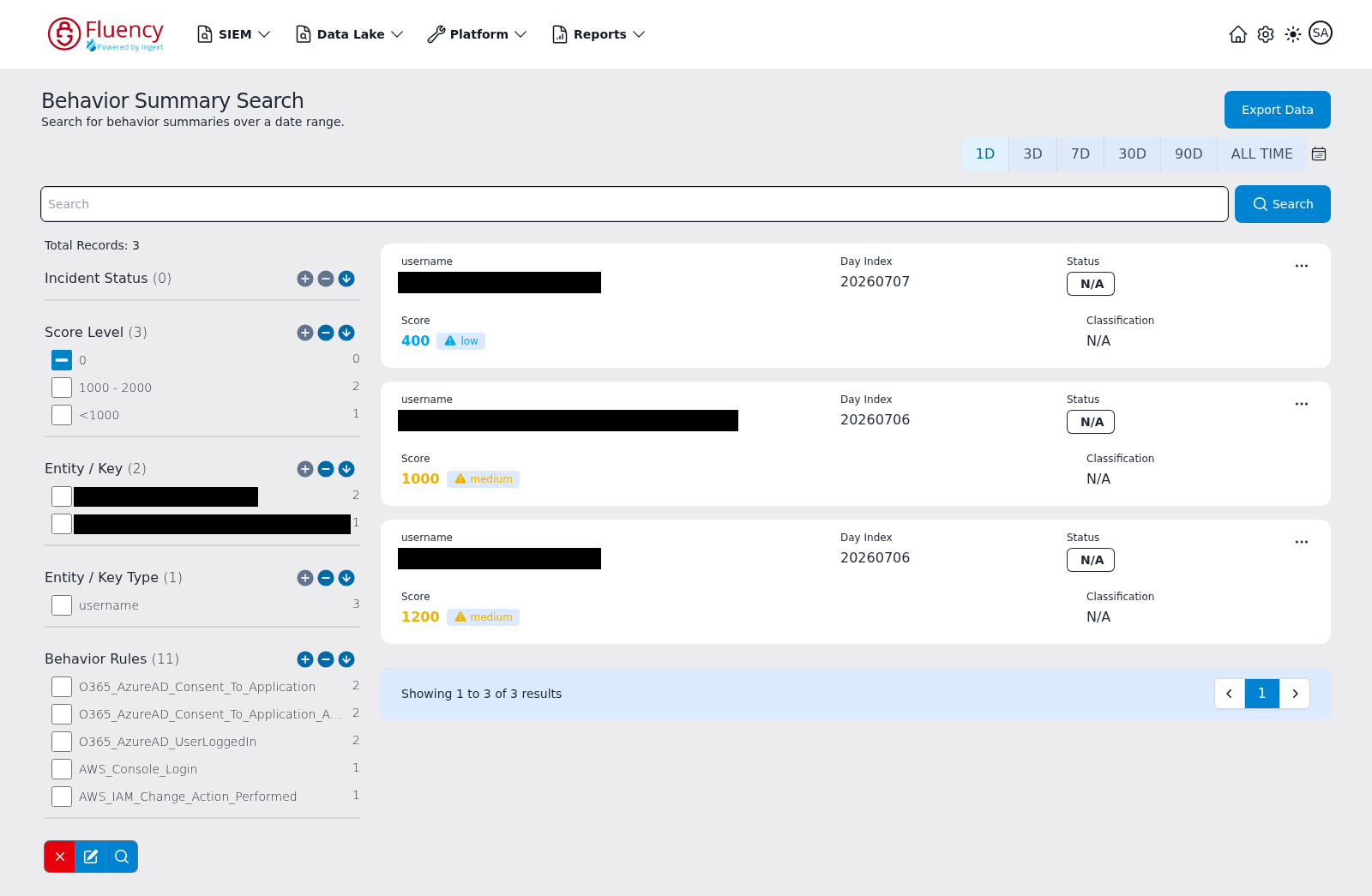
Page Layout
From top to bottom:
- A header row with the page title on the left and the Export Data button on the right, with the time-range selector beneath it.
- A full-width Search field with a Search button.
- A left sidebar showing Total Records and a stack of search facets, with a small facet toolbar at the bottom.
- The main results area on the right: one card per behavior summary, followed by a paging bar (for example Showing 1 to 3 of 3 results).
Header Actions
- Export Data — exports the current result set.
- 1D, 3D, 7D, 30D, 90D, ALL TIME — preset time ranges; 1D is selected by default.
- The calendar icon to the right of ALL TIME is the Custom date range control, used to search a specific date range instead of a preset.
Search Bar
Type a query into the Search field and click Search to run it. Searches are combined with the selected time range and any facet selections.
Facet Sidebar
The sidebar begins with a Total Records count for the current search, then lists the search facets. Each facet shows its title, the number of distinct values in parentheses, and a checkbox per value with the matching record count on the right; long value lists are truncated to the first few entries. The default facets are:
- Incident Status
- Score Level — score buckets such as 0 and 1000 - 2000.
- Entity / Key — the entities the summaries belong to (user names, AWS ARNs, and similar).
- Entity / Key Type — the kind of key, such as username.
- Behavior Rules — the behavior rules that contributed to each summary.
- Behaviors — the behavior categories observed.
- Risks — the risk tags attached to the summaries.
- Analyst — the users who have commented on a summary.
Check a value to filter on it. A checkbox in the minus state marks the value as excluded — in the default view the 0 score bucket is excluded, so zero-score summaries stay hidden. Each facet heading also carries three small round icon buttons (a plus, a minus, and a downward arrow).
Facet Toolbar
A three-button toolbar sits at the bottom of the sidebar: a red X, a pencil icon, and a magnifier icon.
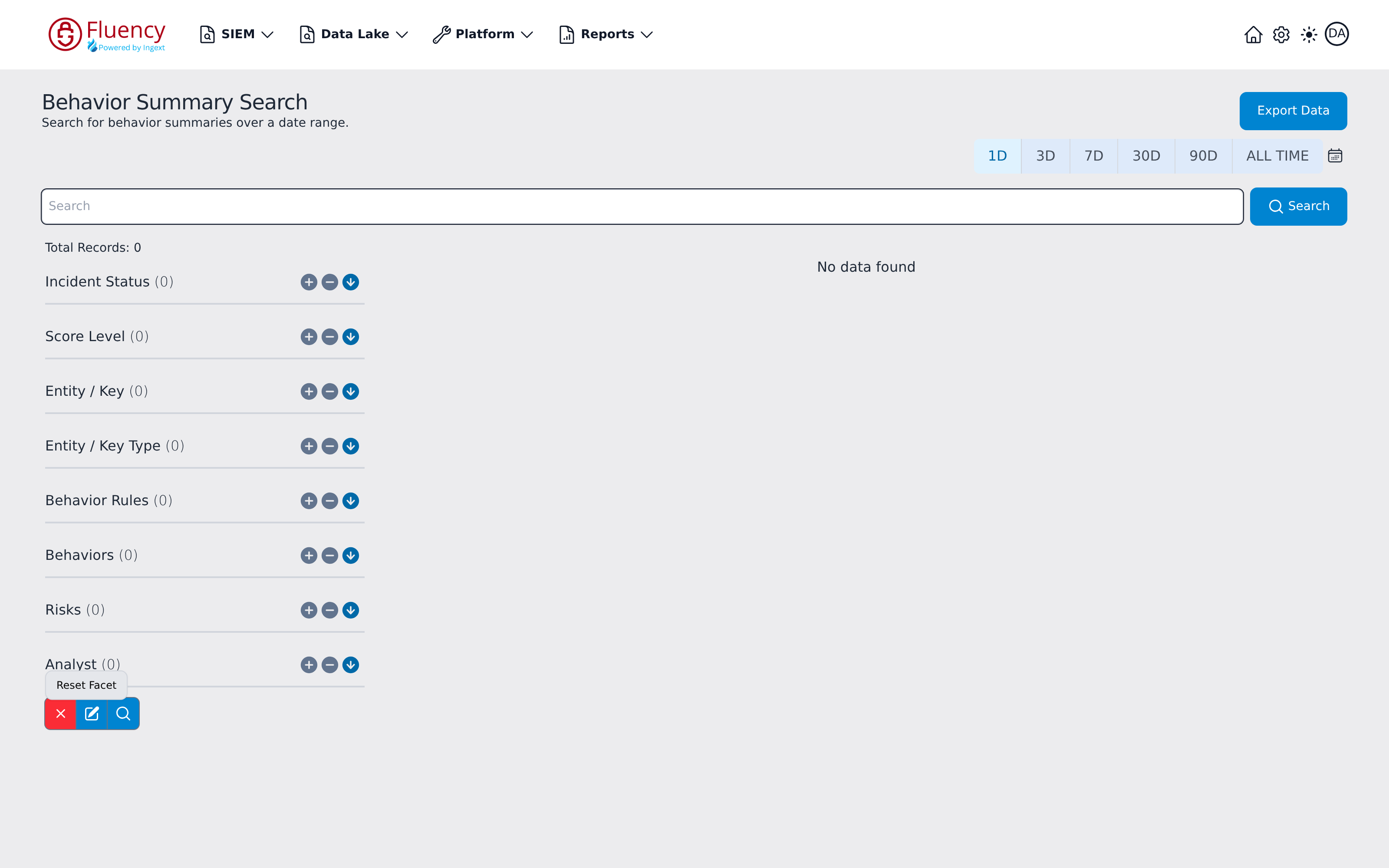
The red X button is Reset Facet. Clicking it clears the current facet selections, including the default exclusion of the 0 score bucket; the Score Level facet then lists only the buckets present in the results — none in the example below, where the range holds no summaries:
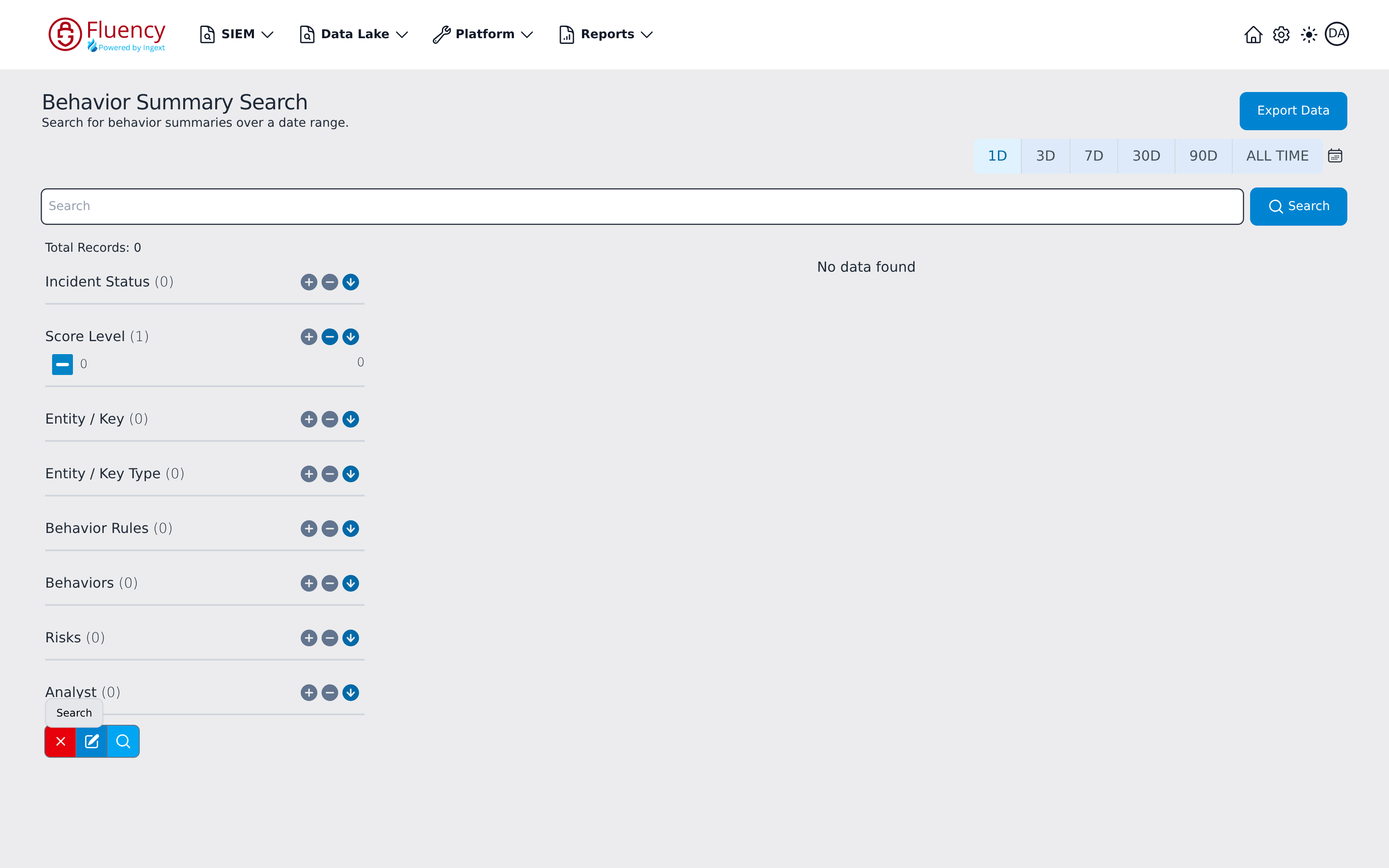
The magnifier button is Search. It re-runs the search with the current facet selections:
Search Facets Dialog
The pencil button opens the Search Facets dialog ("List of all event search facets."), where you edit which facets the sidebar shows:
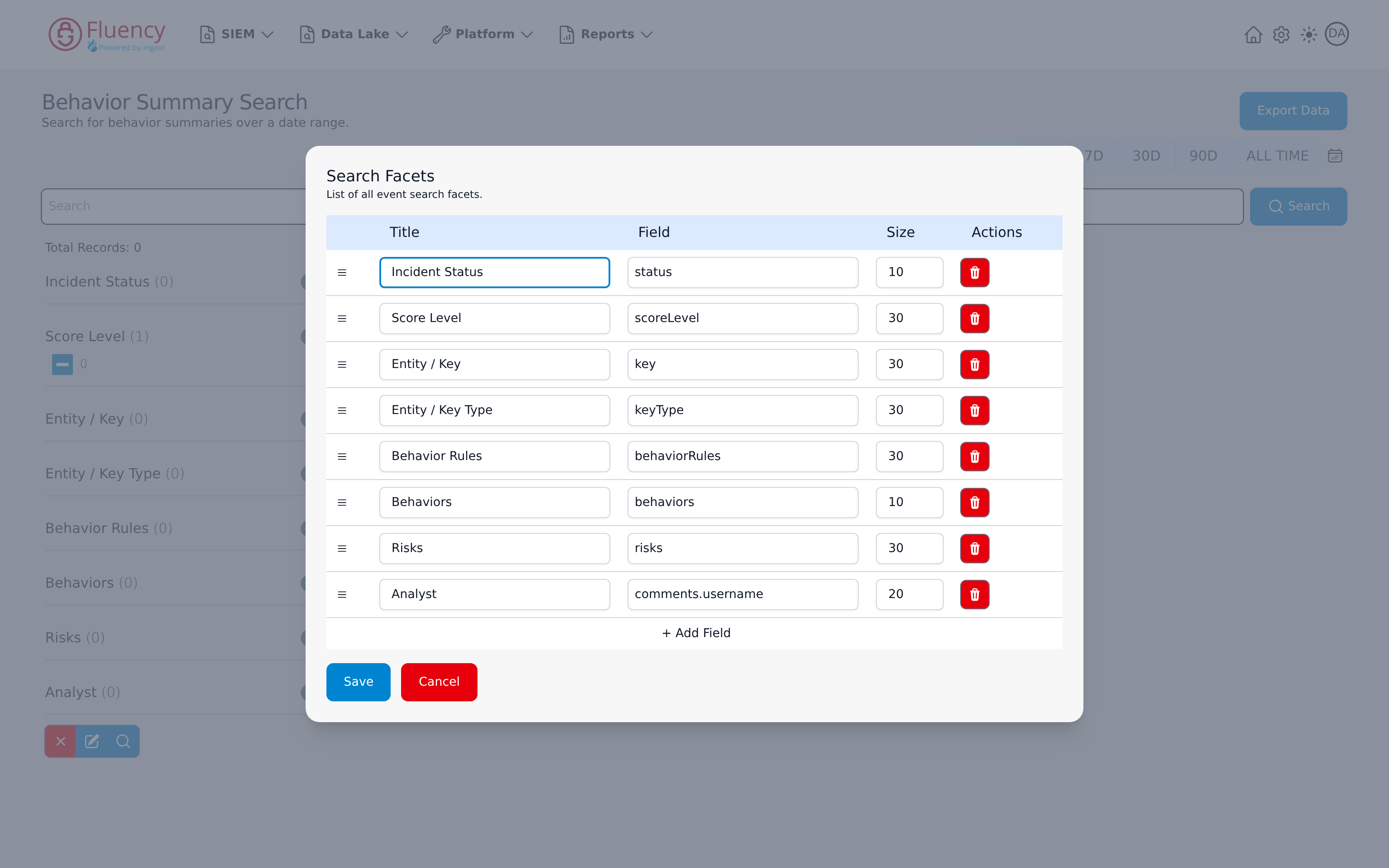
The dialog is a table with Title, Field, and Size columns plus an Actions column. The default rows are:
| Title | Field | Size |
|---|---|---|
| Incident Status | status | 10 |
| Score Level | scoreLevel | 30 |
| Entity / Key | key | 30 |
| Entity / Key Type | keyType | 30 |
| Behavior Rules | behaviorRules | 30 |
| Behaviors | behaviors | 10 |
| Risks | risks | 30 |
| Analyst | comments.username | 20 |
Each row has a drag handle on the left for reordering and a red trash button under Actions to remove the facet. All three cells are editable text fields. Click + Add Field to append a new facet row, then Save to apply the changes or Cancel to discard them.
Results
When nothing matches the search, the results area reads No data found. Otherwise each behavior summary appears as a card showing:
- username — the entity the summary covers (an email address or an AWS ARN in the example).
- Day Index — the day the summary belongs to, in
YYYYMMDDform. - Status — the ticket status badge (N/A when no status is set).
- Score — the numeric behavior score with a severity chip (for example medium).
- Classification — the assigned classification (N/A when unset).
Row Menu
Each card has an ellipsis (...) button in its upper-right corner. Clicking it opens a menu with one option, View JSON:
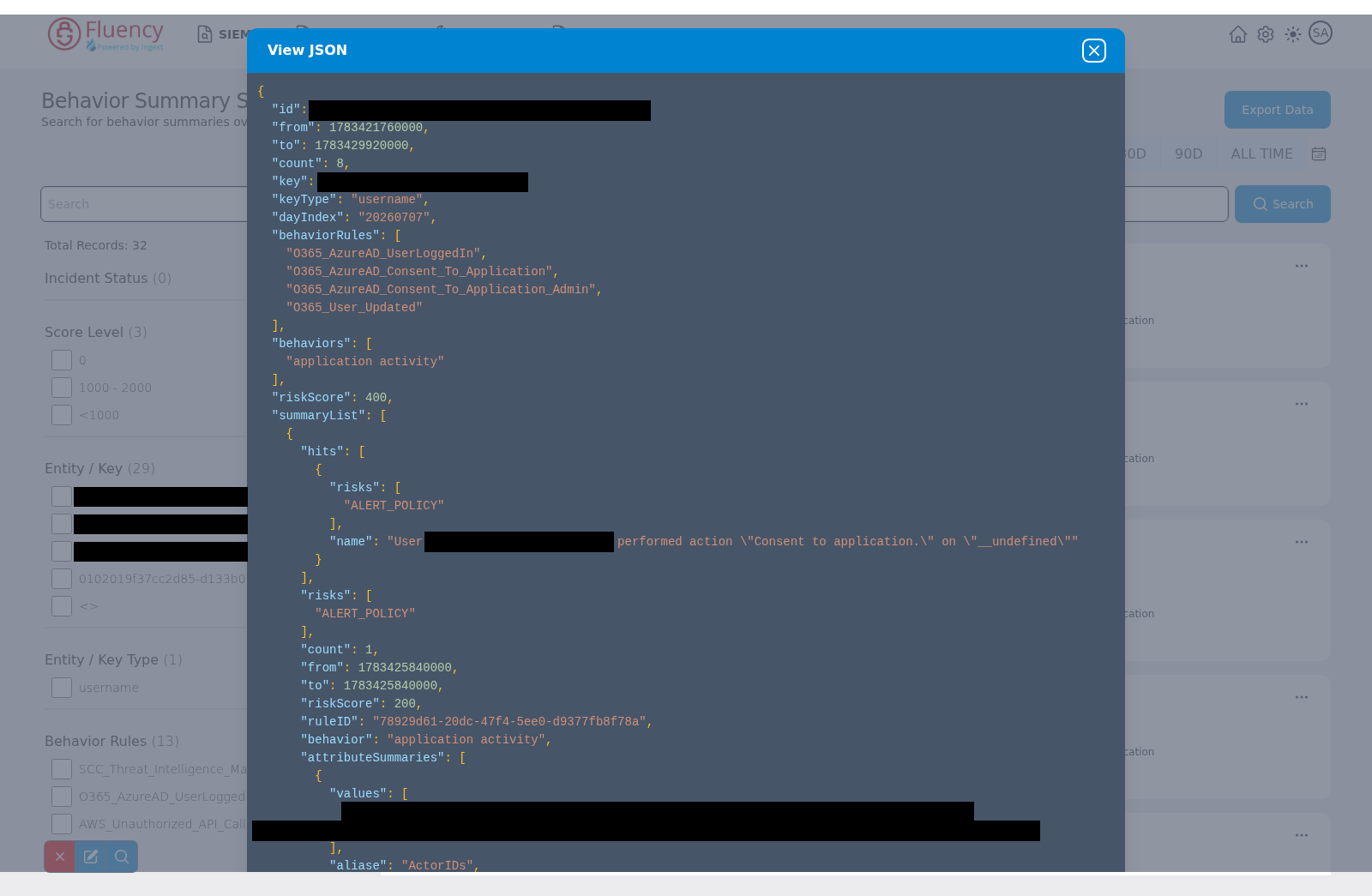
Choosing View JSON opens a dialog of the same name over the page, with a close (X) button at the right end of its title bar. The body shows the full behavior summary record as color-coded JSON: identity and range fields such as id, from, to, count, key, keyType, and dayIndex; the behaviorRules and behaviors arrays; the overall riskScore; and a summaryList array that breaks the summary down per rule, each entry with its own hits, risks, count, riskScore, ruleID, behavior, and attributeSummaries. Click the X button to close the dialog and return to the results.
Pagination
The bar below the results reports the visible range (Showing 1 to 3 of 3 results in the example) and provides left and right arrows plus numbered page buttons for longer result sets.