KQL Search History
The KQL Search History page lists the KQL searches that have been run against the data lake and keeps their results, so a completed run can be reopened without executing the query again.
Menu path: Data Lake → KQL Search History · URL path: /dataLake/search/history/kql
This is the account-wide record of KQL runs. It is distinct from the Query History tab inside the KQL Query Builder, which lists runs for re-execution rather than opening their stored output.
Page Layout
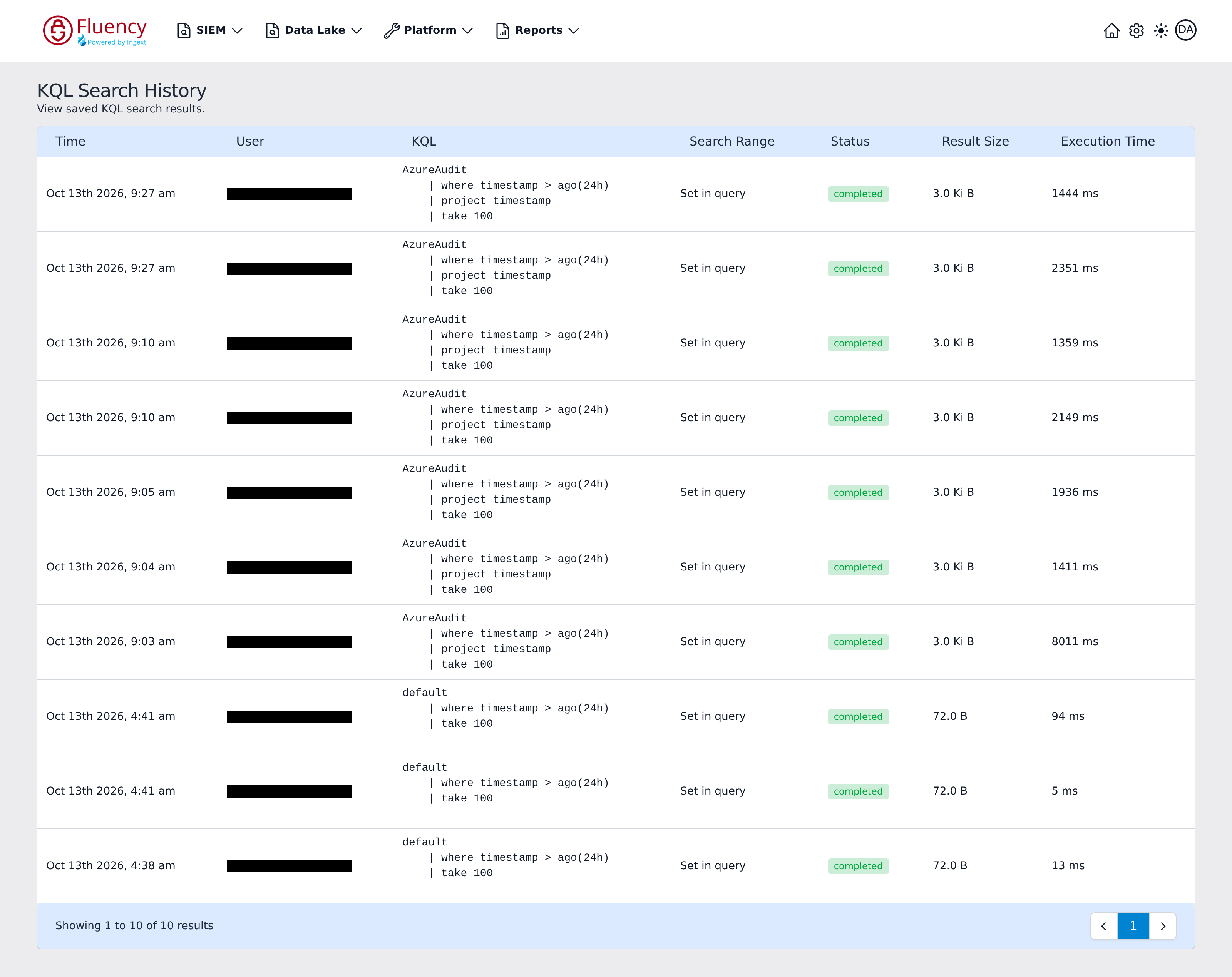
The header shows the title KQL Search History with the subtitle View saved KQL search results. Below it, a single table lists one row per saved search, with a footer bar reporting the visible range and the paging controls.
Table Columns
- Time — when the search ran.
- User — the account that ran it.
- KQL — the query text, rendered in a monospaced block across as many lines as the query occupies.
- Search Range — where the run's time window came from. A run whose window is set by a time filter in the query itself, such as
ago(24h), shows Set in query. - Status — a status chip; completed for a finished run.
- Result Size — the size of the stored result set, such as 3.0 Ki B for the AzureAudit runs in the example.
- Execution Time — how long the run took, in milliseconds.
Runs are listed newest first. The footer bar reports the visible range with a numbered page button between previous and next paging arrows.
Opening a Saved Result
Click anywhere on a row to open that run's stored results. The page navigates to KQL Search Results at /dataLake/search/history/kql/<id>, where <id> identifies the saved run.
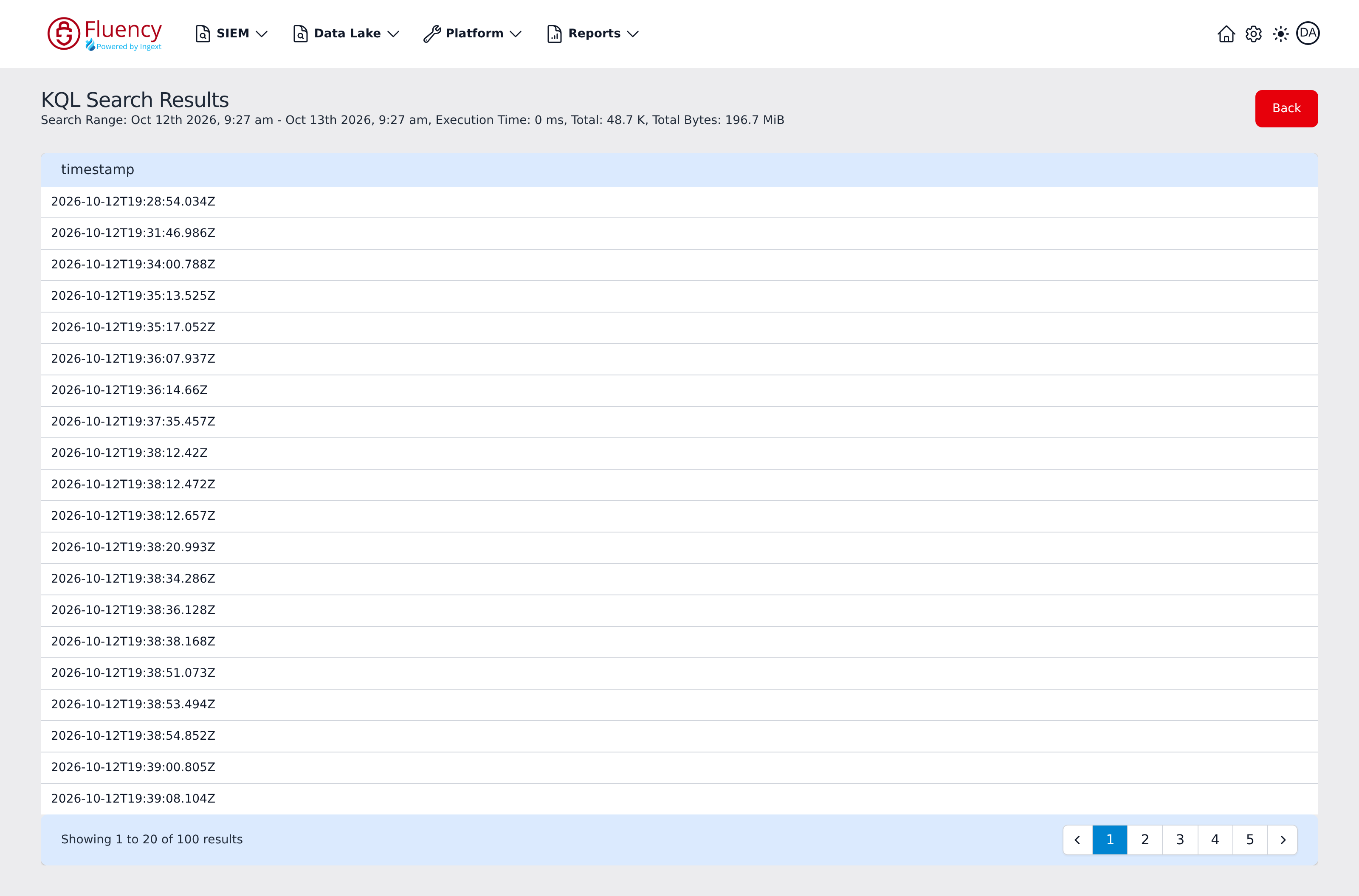
The results page shows:
- The title KQL Search Results, with a summary line beneath it giving the Search Range the run covered, its Execution Time, the Total number of records, and the Total Bytes searched.
- A table of the returned records, one column per field the query returned — a single timestamp column for the AzureAudit query in the example, which projects only that field — 20 records per page, with a footer bar reporting the visible range and numbered page buttons between previous and next arrows.
- A red Back button in the upper-right corner, which returns to the KQL Search History list.
When the run returned no records, the page shows the stored response itself in place of the table — a small JSON object with took, total, range_from, and range_to.